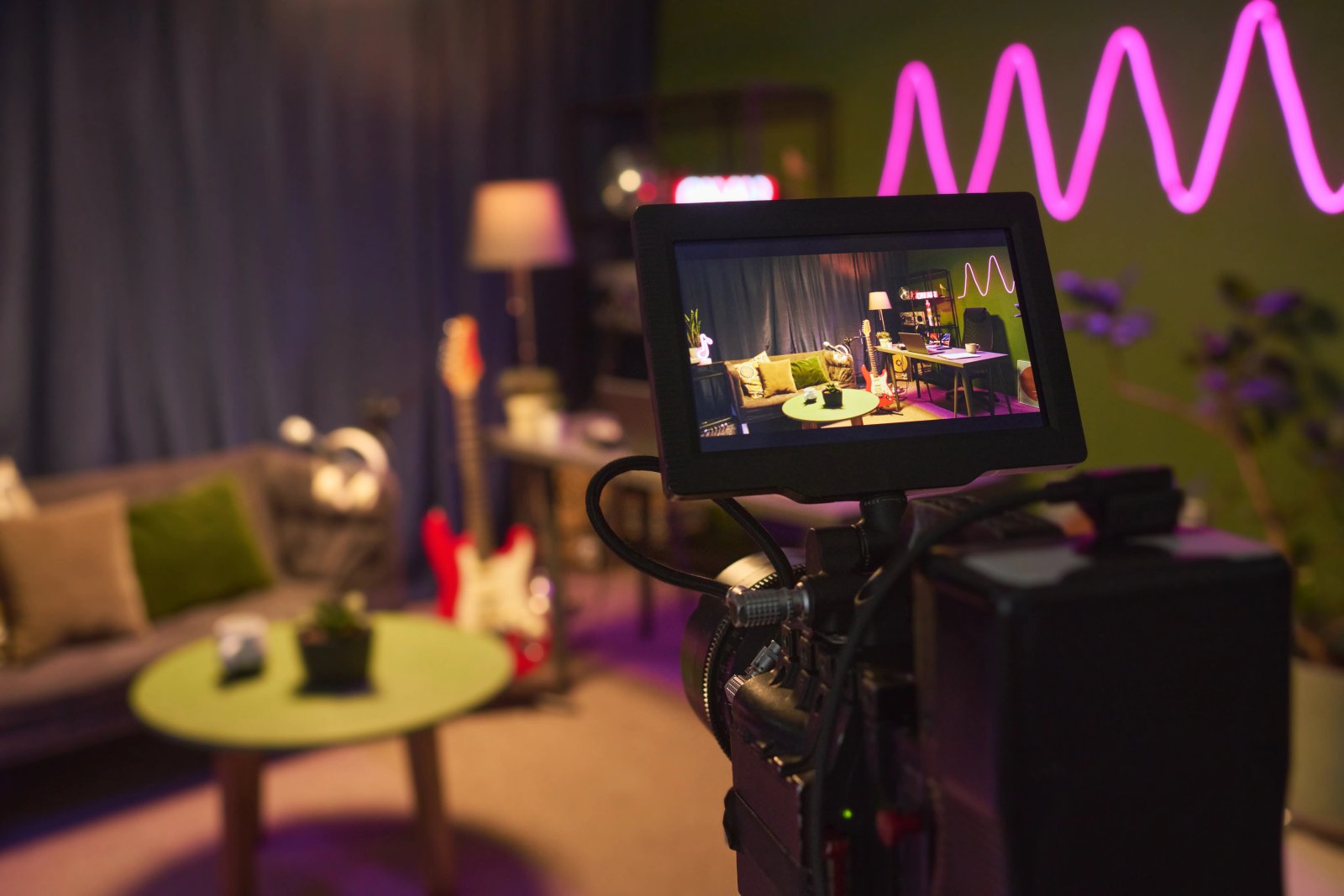
How AI is transforming filmmaking today
AI isn't making full movies yet; it's reshaping VFX, editing, and dubbing. Here's where it helps filmmakers today, and where it doesn't.
Envato: Get every type of asset for any type of project, and access to AI tools. Start now
This guide covers Envato VideoGen, an AI video generator that turns prompts and images into cinematic video. Learn features, use cases, and how to create videos faster with AI.
Video creation used to require cameras, crews, and long production timelines. Today, an AI video generator can turn a simple text prompt into a cinematic video clip in seconds.
These tools are rapidly changing how creatives, marketers, and filmmakers produce visual content. Instead of filming every shot, you can generate scenes, animate images, and prototype ideas instantly using artificial intelligence.
Envato’s AI Video Generator is designed for creative professionals who want fast, high-quality video generation directly in their browser. It allows users to create videos from prompts, animate images, generate audio, and edit clips without complex production workflows.
In this guide, we’ll cover what an AI Video Generator is, how it works, its core features, supported models, use cases, workflow tips, limitations, and frequently asked questions.
An AI video generator is a tool that creates video clips automatically from text prompts, images, or other inputs using artificial intelligence. Instead of filming scenes manually, creatives can generate short cinematic videos using AI models trained on visual data.
AI Video Generator is an AI video generator, one of the many Gen AI tools that you can access with an Envato subscription. It turns text prompts and reference images into short cinematic video clips, leveraging multiple advanced AI video models behind the scenes. Instead of switching between tools or managing separate models, you generate directly in your browser and export ready-to-use clips for your editing workflow.
Not all AI video generators are built the same. AI Video Generator stands out by simplifying the technical side of AI video creation while delivering high-quality, production-ready results for creative professionals.
AI Video Generator is built for creatives who think visually. Filmmakers and animators can prototype scenes or generate stylized shots. Designers and art directors can quickly explore visual concepts. Creatives can produce short-form clips, social content, and supporting b-roll visuals without a full production team. AI Video Generator has been built and designed for real creative workflows.
To understand what makes this AI video generator powerful and simple to use, it helps to look at how it manages AI video generation behind the scenes.
One of AI Video Generator’s biggest advantages is automatic model orchestration. Instead of asking you to manually choose an AI model, AI Video Generator analyzes your prompt and selects the most suitable model for the task.
If your prompt includes dialogue or sound, the system determines whether an audio-enabled model should be used. If the focus is purely visual, it prioritizes models optimized for motion, lighting, and scene consistency, depending on your subject matter. In some cases, the generation length is limited to about 5 seconds per clip, depending on the selected model. These shorter outputs are designed for high-quality results and can be extended or edited later, as needed.
AI Video Generator supports multiple input methods, giving you flexibility in how you create.
This layered input system makes it easy to generate videos for both quick experiments and more controlled creative workflows.
AI Video Generator typically generates video at 1080p resolution, though the exact output can vary slightly depending on the AI model used. Both landscape and portrait aspect ratios are supported, making it suitable for everything from cinematic content to vertical social media formats. You can even use AI Video Generator to reframe your AI videos to any aspect ratio.
Under the hood, newer AI models continue to deliver more cinematic motion, smoother physics, and improved visual consistency, compared to earlier generations of AI video tools.
Envato’s AI video generator combines flexible, easy-to-use input options, giving creatives multiple ways to generate professional AI-generated videos that fit their projects.
Text-to-video is the foundation of AI Video Generator. You describe your scene using clear and descriptive prompts that include subject, action, camera movement, style, and mood.
Strong prompts are specific but not overloaded. For example:
“A cinematic slow push-in on a woman standing in a field in golden hour light, soft wind moving her hair, shallow depth of field.”
The more clearly you define motion, lighting, and environment, the more realistic and usable the result will be. Also, once you type in your text description, you can generate a preview image for the first frame. This can help you save time and ensure the final AI-generated video is closer to your vision. Check out our complete guide to creative AI video prompts.
Image-to-video allows you to animate a reference image. This is ideal when you want to maintain visual consistency or when you want to start from a specific design.
Use it for product videos, character movement tests, concept art animations, or turning still illustrations into short motion clips. It is especially helpful when brand visuals need to stay consistent across multiple generations.
AI Video Generator can also generate AI audio along with your AI video by enabling sound in the option menu.
This may include voiceover, ambient sound, or motion-synced sound cues such as footsteps or environmental noise. Enabling audio can make short clips feel more immersive and production-ready without any additional tools.
AI Video Generator supports a wide range of visual styles depending on your prompt structure. You can create cinematic scenes with controlled lighting and camera motion, documentary-style footage with natural pacing, animated sequences in 2D or 3D, vertical social media content for platforms like TikTok and Reels, or conceptual visualizations for pitches and storyboards.
The style depends on your prompting, but the system is built to support both realistic and stylized outputs.
AI Video Generator is designed to improve continuously as new AI video models become available. Instead of requiring users to switch platforms or relearn tools, upgrades happen under the hood.
When newer models such as Runway Gen 4.5, Luma Ray3, or Kling 2.6 are integrated, users automatically benefit from improved motion consistency, more realistic lighting, smoother physics, and more accurate prompt interpretation. This means your results evolve over time without changing your workflow. As AI video generation advances, AI Video Generator keeps pace so creatives can focus on prompting and storytelling rather than tracking model updates.
Envato’s AI Video Generator includes video presets and effects in the Shortcuts module, making advanced effects and camera motion easy to apply without rewriting your entire prompt.
You can quickly select visual effects such as slow motion, time-lapse, or holographic styling, and pair them with defined camera moves like 360° rotation, Dolly In, or Drone Shot. This gives you more control over pacing and cinematic feel while keeping your workflow fast. Presets are especially useful when you want consistent motion across multiple generations or need to test different visual treatments quickly. Check out the full AI Video Generator Presets guide.
One of the biggest evolutions in AI Video Generator is the introduction of powerful post-generation editing tools. Instead of starting over every time you want a small change, you can now build directly on your existing clip. The four newest features are Modify, Change Subject, Reframe, and Extend. Each one removes a common point of friction in the AI video workflow.

Let’s walk through how to use AI Video Generator from prompt to export.
Start with a clear structure. Include the subject, action, visual style, motion, camera movement, and overall mood. For example, define what is happening, how it is filmed, and how it should feel. Strong prompts lead to stronger results. You can select to preview the first frame, if you prefer, after you write your prompt.

Select the format that fits your final platform. Use portrait for TikTok, Reels, and Shorts. Use landscape for YouTube, presentations, and cinematic content. Choosing orientation early helps composition stay intentional.

Decide whether your clip needs audio. Enable sound when you want speech, ambience, or motion-synced effects. Keep visuals only when you plan to add music, voiceover, or sound design later in your editing software.

Generate your clip, then review it carefully. If needed, regenerate, adjust your prompt, or refine lighting and motion cues. When supported, you can extend scenes to build longer sequences from shorter clips. Iteration is part of the process.

Once you are happy with the result, export the video and bring it into your editing software. You can combine it with real footage, motion graphics templates, stock music, sound effects, or additional color grading. AI Video Generator works best as part of a larger creative workflow, not as a standalone replacement for editing tools.

Getting strong results from an AI video generator comes down to how you prompt and refine.
AI video generators can produce a wide range of visual styles depending on how you structure your prompt. Here are some of the most popular approaches creatives use:
Focused on storytelling, lighting, and camera movement, cinematic videos use techniques like depth of field, slow push-ins, and dramatic lighting to create film-like scenes.
Designed to showcase products clearly and attractively, often with clean backgrounds, smooth motion, and controlled lighting to highlight features and details.
Short-form, vertical videos that feel natural and relatable are commonly used for TikTok, Reels, and ads. These prioritize authenticity, quick pacing, and mobile-first framing.
Includes both 2D and 3D styles, from stylized characters to abstract motion graphics. Ideal for storytelling, explainer content, or creative experiments.
Tailored to match a brand’s visual identity, including consistent colors, tone, and style. Often used for marketing campaigns, ads, and professional content creation.
AI Video Generator fits into a wide range of creative workflows, from TikTok to commercial advertising to experimental storytelling. Let’s dive into some use cases.
AI Video Generator is especially useful for vertical ads, UGC-style videos, and short product teasers. You can quickly generate commercial-grade videos for TikTok, Reels, or paid social campaigns. It is ideal for testing concepts before investing in larger production.

For filmmakers and visual artists, AI Video Generator can support short films, character animation tests, and concept art motion experiments. It works well for visualizing scenes, building mood pieces, or prototyping sequences. Think of it as a fast creative sandbox for visual ideas.

AI Video Generator works well for educational videos, classroom visuals, and short visual summaries. Instead of relying only on slides, you can generate simple animated scenes or visual metaphors to support key concepts.

In professional settings, AI Video Generator can enhance presentations, product demos, and corporate storytelling. Create supporting visuals for pitch decks, illustrate product features, or generate short branded scenes for internal or external communications. It adds visual impact without requiring an entire production team.

Like any AI video generator, AI Video Generator has practical limits to keep in mind.

Licensing your AI-generated videos on Envato is designed to be simple and seamless. When you create or download assets, including outputs from tools like AI Video Generator, you’re automatically covered for commercial use. No extra steps, project registration, or manual licensing required.
This means you can use your AI video content in client work, marketing campaigns, social media, and other commercial projects right away. The license is created instantly upon download, so you can focus on creating instead of managing permissions.
Envato’s licensing also gives you broad commercial rights across most use cases, as long as you’re adding value to the final project. Like other assets, AI-generated content can’t be resold or redistributed as-is, and some additional terms may apply specifically to AI-generated outputs.
If you want to stay organized, you can still assign licenses to specific projects or clients at any time, but this is now optional and purely for your own workflow.
Envato’s AI video generator brings cinematic video creation into a streamlined browser-based workflow. With automatic model selection, text and image inputs, audio options, and built-in editing tools, it gives creatives speed without sacrificing quality.
AI-generated video is growing quickly because it removes production barriers and accelerates the development of creative ideas. Teams can prototype ideas, generate social content, and visualize concepts faster than ever.
If you are curious where AI video fits into your process, start experimenting. Test structured prompts, try reference images, refine your scenes, and see how quickly you can turn your ideas into motion!
An AI video generator creates short video clips from text prompts and images directly in your browser.
No. Model selection is automatic. It chooses the most suitable model based on your prompt and settings.
Yes. The image-to-video feature allows you to animate a still image into a short video clip.
It is ideal for short marketing clips, social content, concept visuals, prototypes, and creative storytelling experiments.
Besides text prompts, Envato’s AI video generator also support image inputs, allowing users to animate reference images or existing artwork into motion clips.
Advanced AI video generators may additionally support video extension, prompt-based editing, and aspect ratio reframing for different platforms.
Most generations are between 5 and 8 seconds, depending on the AI model. Longer sequences can be built by extending or combining clips.
Yes. You can generate videos in portrait format for vertical platforms as well as landscape for traditional formats.
Exports from Envato’s AI video generator are currently provided in standard .mp4 video format, suitable for nearly all editing software and social platforms. More video formats may become available in the future.
Write clear, structured prompts, define camera movement and lighting, and refine through iteration. Strong inputs lead to stronger outputs.
AI isn't making full movies yet; it's reshaping VFX, editing, and dubbing. Here's where it helps filmmakers today, and where it doesn't.

A practical, step-by-step guide to making a short AI film — from script and shot lists to character consistency, voice, sound, editing, cost, and legal rules.
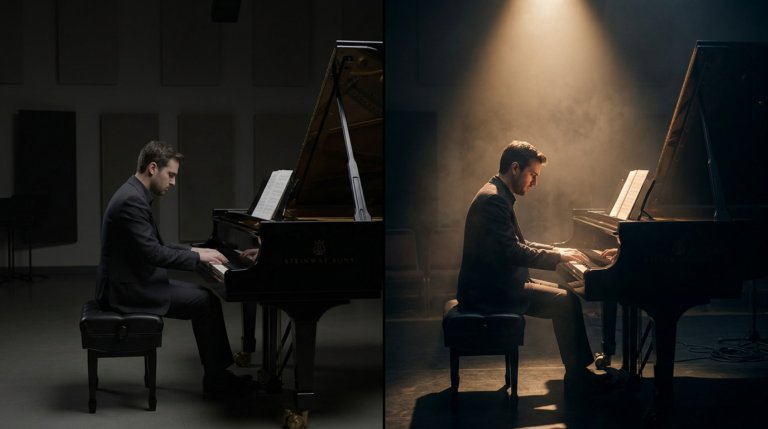
Cinematic lighting is the difference between AI video that looks generated and AI video that looks directed. This guide covers every major setup with prompt examples and techniques.
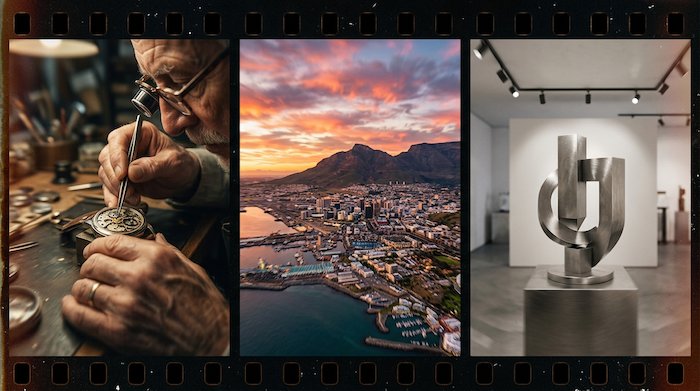
AI video generators understand cinematographic language with real precision. This guide covers every major camera movement, what each does narratively, and the prompts that produce the best results.

