


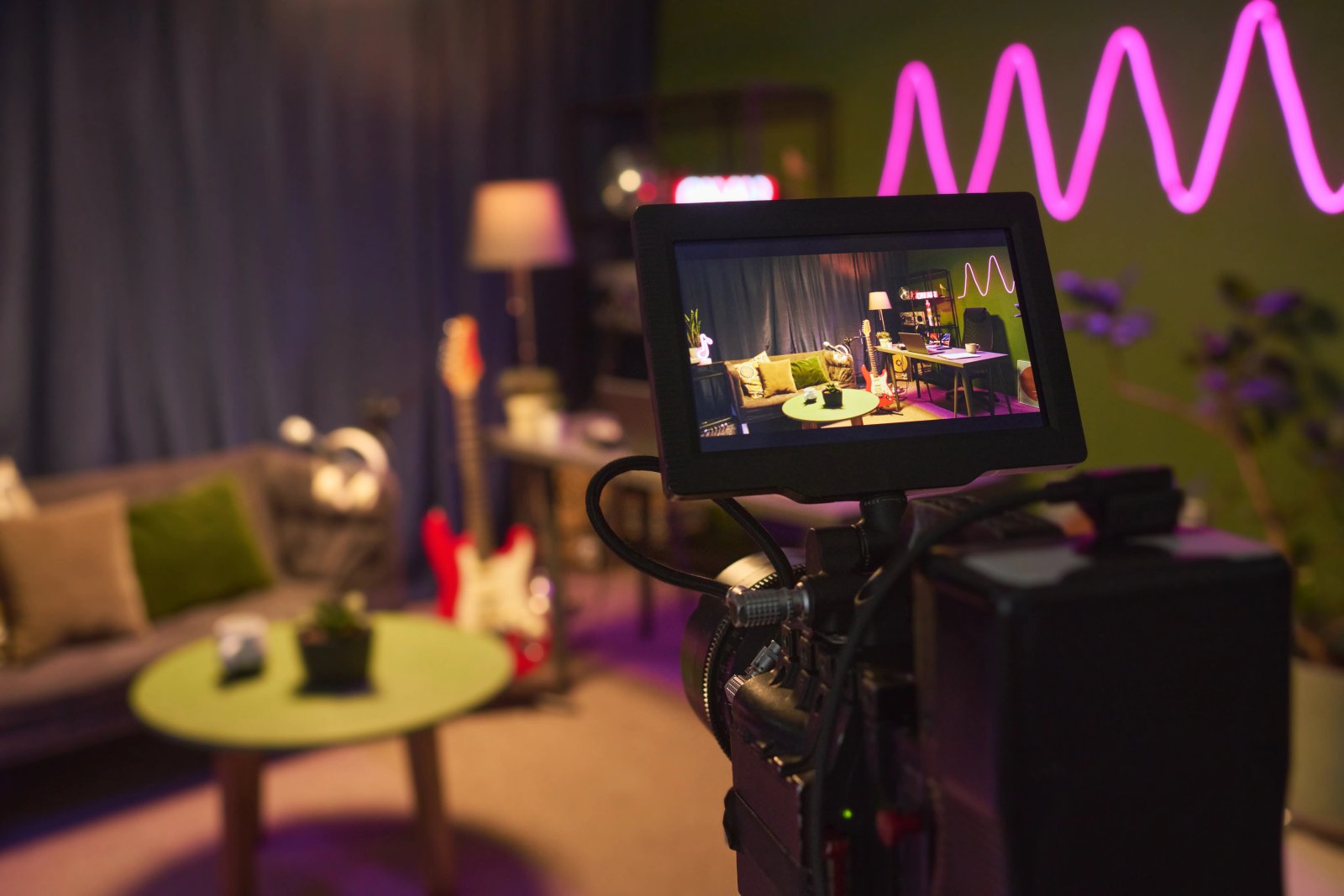
How AI is transforming filmmaking today
AI isn't making full movies yet; it's reshaping VFX, editing, and dubbing. Here's where it helps filmmakers today, and where it doesn't.
Envato: Get every type of asset for any type of project, and access to AI tools. Start now
Pitching video concepts used to mean styleframes, moodboards, rough cuts, and late nights — only to hear 'can we try something different?' AI has changed the game. Here's how to streamline your workflow.

Pitching a video concept used to require a small mountain of labor: styleframes, moodboards, voiceover, rough cuts, soundtrack tests, and plenty of caffeine-fueled nights. All of that, only to hear: “Love the direction, but can we try something completely different?”
AI has changed the game. With the help of Envato AI Video Generator, you can create high-quality prototype videos, complete with motion, style, and tone, in a fraction of the time it would take to do so manually. Pair that with Envato’s massive library of stock footage, images, music, and video templates, and you suddenly have a concept-development engine that helps clients understand your idea immediately.
And if you need inspiration, explore our guide on Video and motion design trends. It’s packed with emerging styles, storytelling shifts, and visual cues you can use to strengthen your AI video workflow and pitch concepts with even more confidence.
AI tools like Envato AI Video Generator let you generate fast, polished pitch prototypes: including scripts, visuals, motion, music, and voiceover. Combine AI with Envato’s stock assets to elevate realism, tighten storytelling, and impress clients long before full production begins.
Envato AI works best when it’s treated as a system that’s part of the Envato experience, not a feature.
When generation, refinement, design, and publishing are connected, creativity stops feeling fragmented and starts feeling fluid. This workflow demonstrates how to transform a blank idea into a finished, real-world asset: fast, repeatable, and scalable.
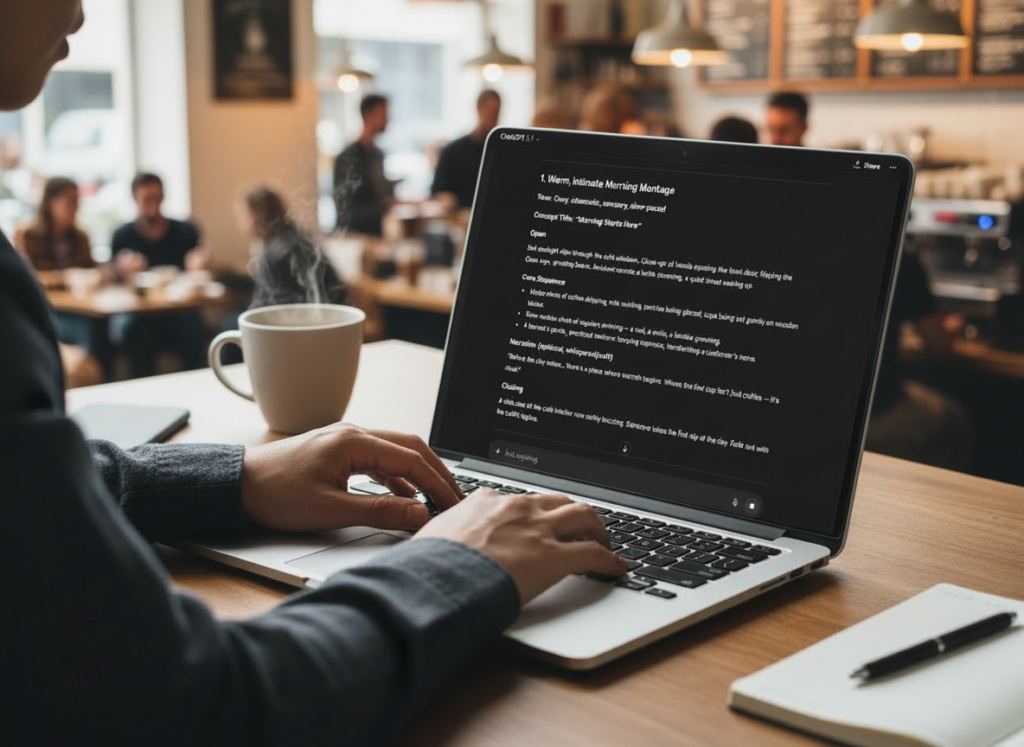
A great prototype begins with a great script. AI writing tools can provide multiple conceptual directions instantly, allowing clients to react early and help guide the creative path.
Your script drives every downstream decision: pacing, tone, framing, transitions, VO rhythm, even camera choices. AI tools excel here because they generate variations without hours of manual writing.
How to do it
Example
Client: Small, neighborhood café
Concept directions from AI:
Your outputs
This is where Envato AI Video Generator becomes your creative accelerator. Instead of only generating static styleframes, you can produce short animated sequences that simulate pacing, angles, transitions, and lighting, giving your pitch far more emotional clarity.
Clients don’t just want to see ideas, they want to feel them. AI-generated videos are incredibly persuasive, even if they are rough.
How to do it
AI visuals are great for exploration, but stock assets are what make them feel finished. When you combine AI-generated visuals with Envato video templates, motion assets, and graphic layouts, your work shifts from “concept” to “client-ready” fast.
Think of AI as your idea engine and stock assets as your structure. Templates handle pacing and layout, motion assets add energy and polish, and graphic layouts ensure consistency across formats. Together, they give your AI outputs context, rhythm, and reliability.
The result: one AI-generated idea becomes multiple polished outputs, without starting over.
This hybrid approach makes prototypes feel “near-final.”
Your storyboard is where the script, visuals, and timing come together to form a single, coherent flow.
A client-approved storyboard becomes your blueprint, reducing surprises later and hugely speeding up approval cycles.
How to do it
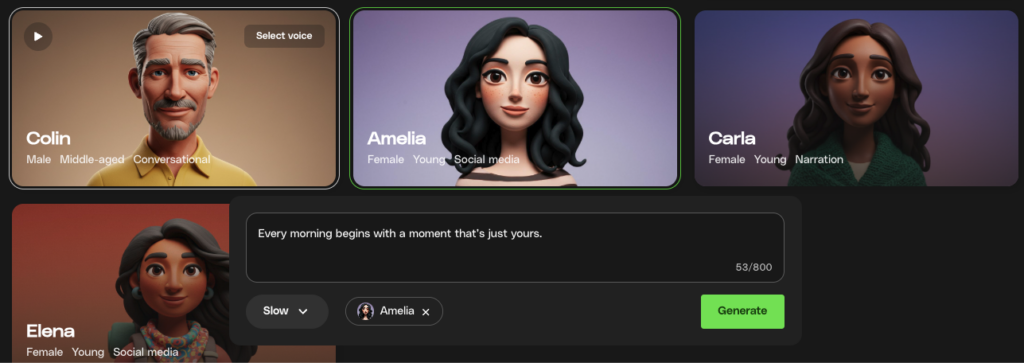
A strong voiceover (VO) track transforms a storyboard from a collection of pictures into a story with flow and emotional intent.
VO defines pacing. A script that feels fine on paper can feel too fast or too slow when spoken aloud.
How to do it
Example
Line: “Every morning begins with a moment that’s just yours.”
Music is where prototype magic happens. Even rough visuals feel elevated when paired with a thoughtful audio bed.
People primarily interpret emotions through sound, rather than visuals. A good track instantly helps your idea click.
How to do it
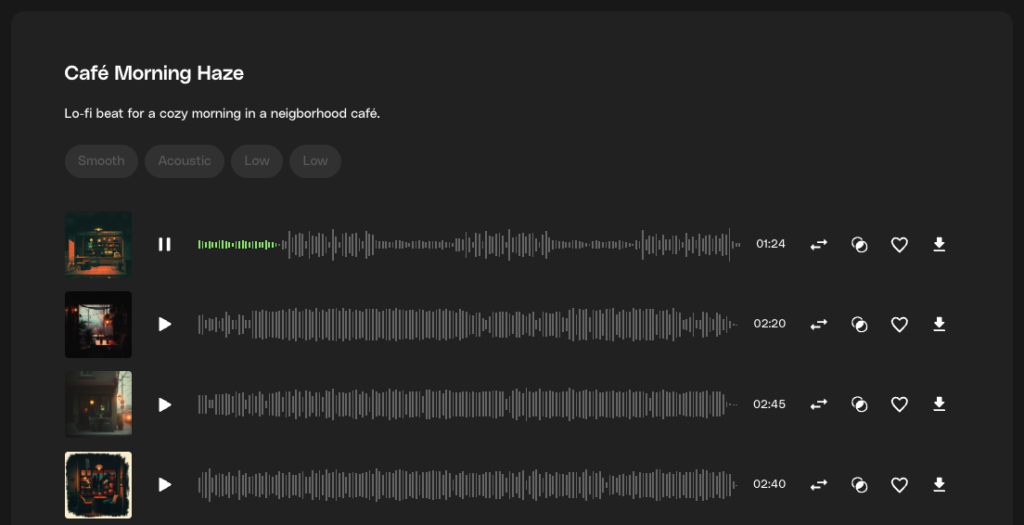
Envato offers a vast library of music and sound effects that can enhance your AI prototype. Dropping in polished real-world audio often makes rough AI visuals feel more intentional and cinematic.
Now comes the fun part: Combining everything into a cohesive preview.
Motion reveals pacing issues early, before production costs ramp up. Clients also react much more clearly to animated prototypes than static frames.
How to do it
Example
A 30-second prototype might include:
Your outputs
AI video generation gives you a strong starting point. Editing and refinement are what make those outputs usable in real projects. Instead of regenerating all assets every time something feels off, this step allows you to shape and reuse what you already have, keeping your workflow fast and flexible.
Fast refinements encourage exploration. When changes take seconds instead of minutes, feedback cycles shrink, creative confidence rises, and output volume increases without extra effort.
Even with a rough concept, presentation matters. Clean delivery signals professionalism — clients perceive the concept as stronger because it feels intentional.
How to do it
Even with powerful tools like Envato AI Video Generator and tons of creative freedom, it’s surprisingly easy for AI video prototypes to go off the rails. These mistakes are normal; every creator can make them, but understanding why they happen gives you a major edge.
Below are the most common pitfalls and why they tend to sneak into early drafts, plus what to watch for as you refine your AI video workflow.
Once you’re past the basics, the real fun begins. This is where AI stops being a novelty and becomes a powerful extension of your creativity.
These pro tips help tighten your workflow, sharpen visuals, and guide your client toward approval more quickly. They also help you avoid creative fatigue by making your tools do more of the heavy lifting.
AI and stock assets together create a powerful creative playground. With Envato AI Video Generator generating your motion prototypes and Envato providing high-quality footage, music, images, and templates, you can develop concepts faster and with greater clarity than ever before.
An AI video workflow is a structured process that uses tools like Envato AI Video Generator to generate scripts, visuals, audio, and rough edits, giving you a fast way to prototype video concepts before full production.
No, aim for clear, not final. Add real stock footage from Envato to increase realism, but keep the overall edit lightweight so clients know it’s conceptual.
Absolutely, this is where prototypes truly shine. Enhance AI-generated frames with stock footage and images, utilizing best practices for exporting high-quality images to maintain clarity and cohesion.
Not at all. AI accelerates concept development; cameras, lighting, and performers still define the final product.
Yes, often instantly. AI-generated motion clips help clients visualize pacing in a way still images never could.
Discover how an AI video workflow streamlines concept development, scripting, and production for campaigns.
AI isn't making full movies yet; it's reshaping VFX, editing, and dubbing. Here's where it helps filmmakers today, and where it doesn't.

A practical, step-by-step guide to making a short AI film — from script and shot lists to character consistency, voice, sound, editing, cost, and legal rules.
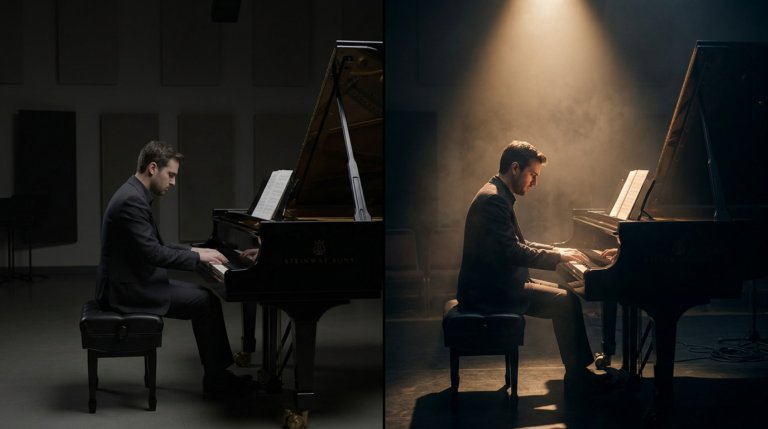
Cinematic lighting is the difference between AI video that looks generated and AI video that looks directed. This guide covers every major setup with prompt examples and techniques.

AI video generators understand cinematographic language with real precision. This guide covers every major camera movement, what each does narratively, and the prompts that produce the best results.

