


How AI is transforming filmmaking today
AI isn't making full movies yet; it's reshaping VFX, editing, and dubbing. Here's where it helps filmmakers today, and where it doesn't.
Envato: Get every type of asset for any type of project, and access to AI tools. Start now

Creating one great social video is hard enough. Creating five versions of it for TikTok, Instagram Reels, YouTube Shorts, and Facebook Stories? That’s where things get messy. Different aspect ratios, caption placements, and pacing expectations.
An AI social media video generator like AI Video Generator simplifies that chaos. It automatically edits, formats, and optimizes your content for each platform, so your video feels native everywhere you post.
But here’s the creative twist: AI works best when paired with strong source material. That’s where high-quality stock footage, motion graphics, and customizable video templates come in. When you combine AI Video Generator’s automation with polished creative assets, you’re not just saving time, you’re leveling up your visual impact.
Let’s walk through how to use AI Video Generator’s platform-specific optimization tools and where Envato’s creative assets can amplify your results.
AI Video Generator is an AI social media video generator that creates videos for TikTok, Instagram Reels, YouTube Shorts, and Facebook Stories. Pair it with professional video templates, stock footage, and royalty-free audio to create polished, platform-ready content at scale.
Before you even click “Generate,” think about your raw materials. AI Video Generator can transform prompts and scripts into polished clips, but the output improves dramatically when you feed it high-quality visuals.
Consider starting with:
Envato offers thousands of customizable video templates and stock video clips that work seamlessly with AI-generated edits. Instead of generic visuals, start with professional-grade scenes that elevate your final result.
Log in to AI Video Generator and start creating. You can paste a script, describe your concept, or upload clips sourced from your own footage or premium stock libraries.
You can use Presets that guide camera movement, composition, and pacing before generation even starts, giving each clip a stronger structure from the outset. Instead of relying on trial-and-error prompting, they help AI footage feel more intentional, consistent, and easier to refine during editing.
You can also enhance your AI-generated clips with video templates from Envato. These ready-made designs add professional transitions, motion graphics, and layouts, making it easy to turn AI footage into polished social media videos while maintaining consistent branding.
Depending on where your video will live –TikTok, Reels, Shorts, or Stories– your AI social media video generator should adjust:
Creative edge: If you’re using motion graphics templates, make sure they’re adaptable to vertical formats. Many Envato templates include flexible resizing options built for social-first layouts.
After generating your video, you can refine and adapt it using AI Video Generator Reframe and AI Video Generator Edit. These tools allow you to build on an existing generation instead of starting over, giving you more control while preserving the parts of the video that already work.
With AI Video Generator Reframe, you can generate your video first and decide on the format later. Instead of committing to an aspect ratio during generation, Reframe lets you adapt an existing AI Video Generator video to a new format after it’s created. The tool supports seven aspect ratios — 16:9, 9:16, 1:1, 4:3, 3:4, 21:9, and 9:21 — covering everything from cinematic widescreen to social media formats like TikTok and Instagram Reels.
| Platform | Resolution | Aspect ratio | Format |
| TikTok | 1080 × 1920 | 9:16 | MP4 |
| Instagram Reels | 720 × 1280 | 9:16 | MP4 |
| YouTube Shorts | 1080 × 1920 / 1280 × 720 | 9:16 or 16:9 | MP4 |
| Facebook Stories | 1080 × 1920 | 9:16 | MP4 |
Reframe goes beyond simple cropping. When a new aspect ratio requires additional frame space, the tool uses AI outpainting to intelligently extend the scene. You can guide the process with prompts, telling the AI what should fill the new space. For example, extending a beach scene with more shoreline or expanding a product shot’s background. You can also reposition the original video within the new frame, giving you creative control over how the composition translates to the new format. Reframe even works with videos from your generation history, meaning past AI Video Generator creations can instantly become vertical, square, or widescreen assets without regenerating them.
To refine the content itself, AI Video Generator Edit introduces editing capabilities that let you work with an existing generation instead of discarding it. These tools focus on refining what already works while making targeted adjustments.
Together, these editing tools shift AI video creation from a cycle of generating and discarding toward a workflow of refining, adapting, and iterating. Instead of treating each output as disposable, AI Video Generator Edit and Reframe help you turn successful generations into flexible creative assets that can evolve and be deployed across multiple formats and platforms.
Now layer in creative polish. Add branded title cards, animated call-to-action overlays, or subtle texture backgrounds from professional motion graphics packs. These details help your content stand out in crowded feeds.
You can also integrate animated logo stings at the beginning or end of each video — especially useful when repurposing content across multiple channels.
Pro tip: Keep overlays clean and legible. Bold typography works well, especially when paired with minimalist video backgrounds.
Sound design often separates “scroll-past” content from “wait, what was that?” moments. Choosing the right soundtrack is your creative decision. Pair your edit with royalty-free music and sound effects and sound effects to build atmosphere and emotional impact.
You can also use Envato SoundGen and MusicGen to create the exact sound design your video needs. This makes it easy to match your visuals with audio that feels intentional, whether you need energetic beats for a promo or subtle ambient sound for a storytelling clip.
Use Preview options on each platform to simulate how your video appears inside TikTok, Reels, and Shorts. This is crucial when using animated templates or bold typography; you want to ensure nothing gets cropped or hidden behind interface elements.
If you’re incorporating stock clips or template-based transitions, ensure key visuals remain centered within the vertical safe zones.
This is also the perfect moment to test multiple thumbnail frames. Even AI-generated videos benefit from a compelling, well-composed cover image.
Once you’ve built a repeatable workflow, scaling becomes easy.
Combine:
Now you’re producing content that feels handcrafted, but with AI speed.
Want to push further? Use this system for ads, product drops, educational series, or behind-the-scenes storytelling.
There’s no doubt an AI social media video generator can dramatically speed up your workflow, but speed doesn’t automatically equal strategy.
When creatives rely too heavily on automation without adding creative direction, small oversights can quietly reduce performance. The good news? Most of these mistakes are easy to fix once you know what to look for. Below are the most common pitfalls and how to avoid turning convenience into compromise.
| Mistake | How to avoid it |
| Relying on default visuals without upgrading with premium assets | Use high-quality stock footage, customizable video templates, and motion graphics to elevate your final edit. AI provides structure, but premium creative assets add polish and personality, helping your content stand out in crowded feeds. |
| Ignoring brand consistency across templates | Create a simple visual system for your content: consistent typography, color palette, logo placement, and intro or outro animations. Using repeatable templates ensures your audience recognizes your content instantly, even when formats change. |
| Skipping preview mode before export | Always use platform preview simulations to check safe zones, caption placement, and cropping. A quick visual check prevents logos or text from being hidden behind TikTok, Reels, or Shorts interface elements. |
| Forgetting that AI needs creative direction | Treat AI output as a draft, not the final version. Strengthen your hook, refine pacing, adjust music to match your brand tone, and clarify your call-to-action. Automation accelerates production, but creative intent drives engagement. |
An AI social media video generator like AI Video Generator makes multi-platform publishing dramatically easier. But the real magic happens when you combine AI automation with strong creative assets: cinematic stock footage, animated templates, and professional sound design. That blend of efficiency and artistry is what transforms quick videos into scroll-stopping content.
Create smarter. Polish boldly. And let AI do the heavy lifting while your creativity leads the way.
It’s a tool that uses artificial intelligence to create and optimize videos automatically for platforms like TikTok and Instagram.
Yes. Using customizable video templates and stock footage enhances the final result and keeps your content looking polished.
No. AI automates the technical side, but creative choices like visuals, music, and tone still matter.
Absolutely. High-resolution stock clips integrate smoothly and often improve the AI’s scene transitions and pacing.
Not entirely. AI speeds up repetitive tasks, while advanced editing tools still offer deeper customization.
AI isn't making full movies yet; it's reshaping VFX, editing, and dubbing. Here's where it helps filmmakers today, and where it doesn't.
A practical, step-by-step guide to making a short AI film — from script and shot lists to character consistency, voice, sound, editing, cost, and legal rules.
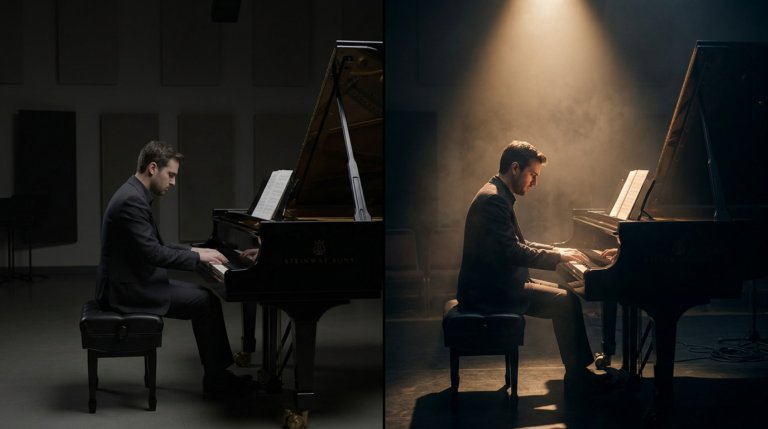
Cinematic lighting is the difference between AI video that looks generated and AI video that looks directed. This guide covers every major setup with prompt examples and techniques.

AI video generators understand cinematographic language with real precision. This guide covers every major camera movement, what each does narratively, and the prompts that produce the best results.

