


.jpg?w=900&h=506&cf_fit=cover&q=85&format=auto&s=45eb8cf86e9cf8193770d98399bcc7ac13c4195560e9666dd8ee2f8230941051)


How AI is transforming filmmaking today
AI isn't making full movies yet; it's reshaping VFX, editing, and dubbing. Here's where it helps filmmakers today, and where it doesn't.
Envato: Get every type of asset for any type of project, and access to AI tools. Start now
A quick guide to editing AI video in Premiere Pro for better results.

If you’re new to editing AI video in Premiere Pro, the good news is that the workflow is nearly identical to editing traditional footage. You’ll just need to understand a few quirks unique to AI-generated clips, and once you do, you’ll be able to create polished, realistic shots that blend perfectly with the rest of your project.
These techniques will form the foundation for effectively editing AI video in Premiere Pro.
Before you begin editing AI video in Premiere Pro, you’ll need clean, consistent AI clips. The better your AI video prompts are, the more visually appealing and realistic your AI footage will be. When prompting, be clear about the visual style, framing, lighting, and mood you want to achieve. Make it as close to the project you intend to use it for as you can. Also, describe the camera movement, such as a slow dolly, handheld, or static.
Envato’s AI video generator, AI Video Generator, simplifies this process even further by allowing you to easily select from various camera movement presets. This is handy if you don’t know the exact name of a camera move!
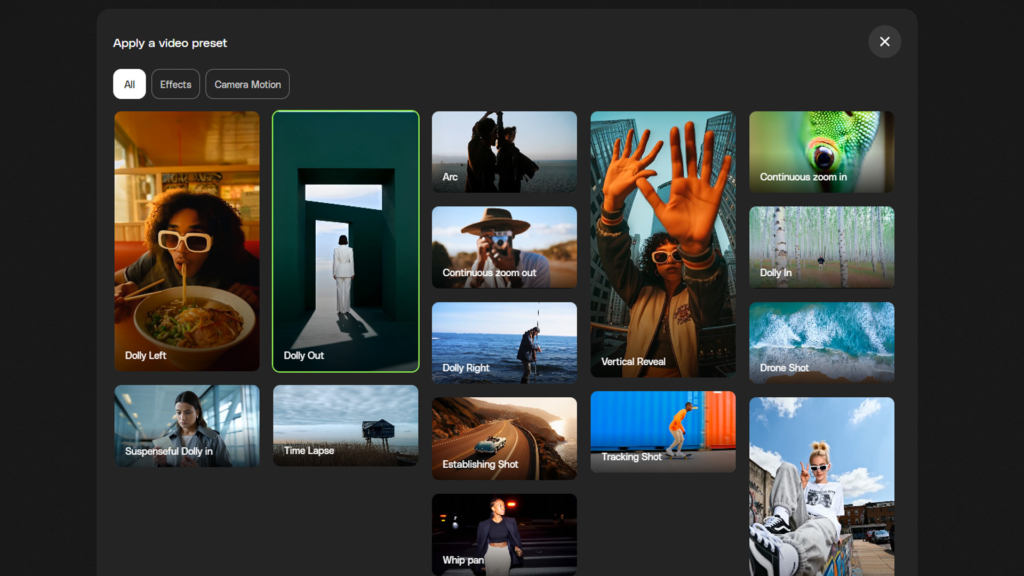
If you need consistency across multiple shots, use reference images or still frames from your existing footage to ensure continuity. Most AI video tools let you upload visual reference images to better match your project.
Keep your shots short and intentional. AI tools tend to break down when asked to create long, continuous scenes, so aim for quick inserts, transitions, and cutaways to avoid this issue. These shorter clips often look cleaner and blend more easily into a larger edit.
Bringing AI video into Premiere Pro is as simple as working with any other video footage. Drag your clips directly into the Project Panel and organize them as needed. Premiere will treat them just like standard video clips.
When creating a new sequence, base it on your final delivery settings rather than the technical specifications of your AI video clips. AI-generated video clips often come in a variety of different resolutions. (We will address this more later on in the article.) When you add an AI-generated video clip to your sequence, Premiere may display a clip mismatch prompt.
Select ‘Keep Existing Settings’ to keep the sequence locked to your preferred format.
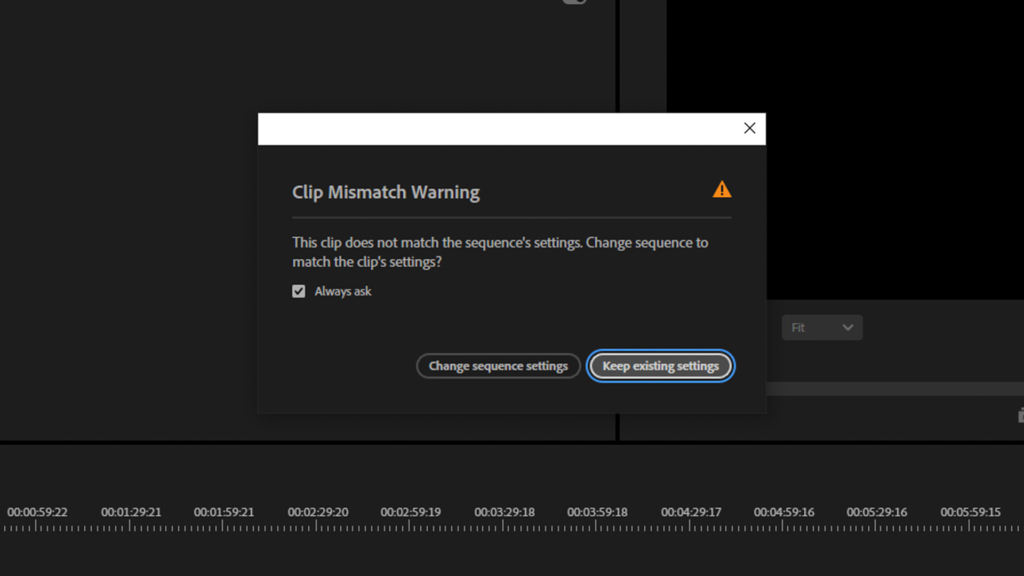
From there, you can trim, cut, and rearrange your clips normally. AI footage behaves just like camera footage on the timeline, which makes it easy to work through your edit at your usual pace.
AI clips can look great, but they often have quirks that differ slightly from traditional camera footage. Here are some things to look out for and how you can fix them quickly.
When editing AI video in Premiere Pro, frame rate inconsistencies are among the most common issues. AI tools sometimes export video in unusual or inconsistent frame rates, such as 23.97 instead of 24, or even variable frame rates that can cause jitter.
In Premiere Pro, you can open the Interpret Footage menu and set the clip’s frame rate to the exact rate you want.

AI-generated video clips often export at unpredictable resolutions. If this happens to you, you have several ways to fix it.
A better method can actually be upscaling your AI footage using AI. Some AI video generators offer this feature built in, but if yours doesn’t, you can try apps like Topaz Video to upscale your clips.
AI video errors can be distracting. Common examples include warped hands, melting textures, strange reflections, or weird physics. You can often hide these imperfections with tighter cropping, masking, or even changing the playback speed. Sometimes the easiest solution is to cut around the bad frames and use only the best parts of the AI clip in your edit.
AI videos are often highly saturated or have an unusual color cast. Use the effect Lumetri Color to dial in more natural contrast, adjust saturation, and correct the temperature and tint. This helps the AI footage blend better with the rest of your project and prevents it from standing out in a distracting way. First, focus on color-correcting your AI-generated video footage. Later, you can move on to color grading it to match the final look of your project.
AI footage often requires a bit of extra work to blend seamlessly with the rest of your edit. These adjustments will help your AI footage blend naturally when editing AI video in Premiere Pro, particularly in mixed real-world and AI projects.
Many AI clips appear unnaturally smooth. Adding a film grain overlay introduces a natural texture that mimics the look of a real camera sensor. This simple step helps AI visuals better match the character and imperfections of live-action footage.
Once you’ve color-corrected your AI footage, you can then color-grade it to match the final look of the other shots in your project. There are many ways to do this.
Apply effects like Camera Blur and mask around the edges of your AI footage to guide the viewer’s attention toward the subject. You can also keyframe the blur effect to create a rack focus. These subtle adjustments help hide imperfections and make the shot feel more dynamic.
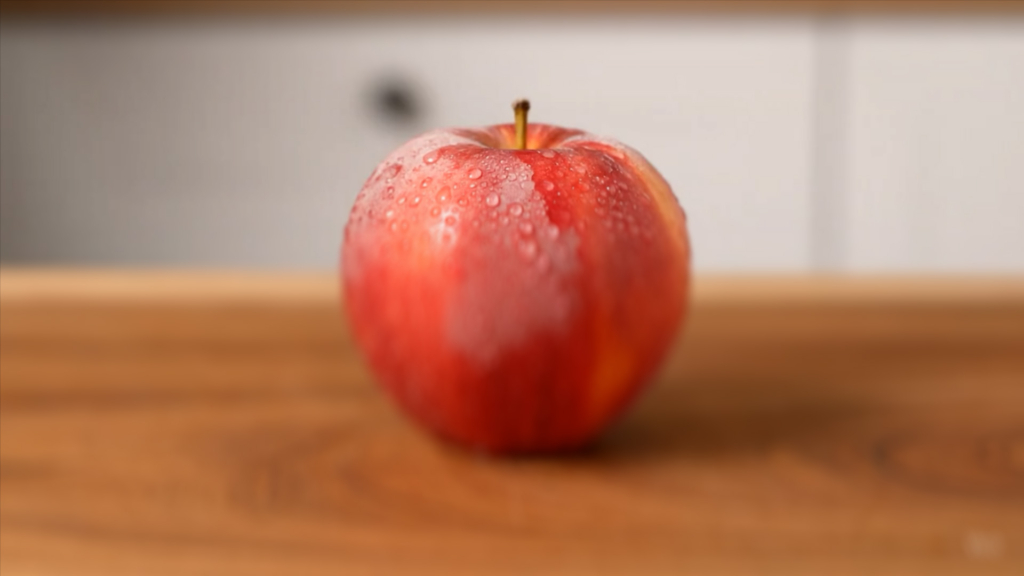
AI clips often feel unnaturally stable. Adding a touch of keyframed handheld motion helps the shot feel like it was shot with a real camera. Even a small amount of movement gives the footage weight and presence. This helps imitate subtle imperfections you see on real-world footage. And if you don’t want to keyframe anything, consider using Premiere Pro camera shake presets, which you can easily drag and drop.
The movement in AI-generated videos can often appear stuttery. Adding motion blur smooths out movements, making the shot appear more natural to the eye. For the best results with this, you’ll need to round-trip your AI video clip into After Effects and apply the effect Pixel Motion Blur to it.
Small visual imperfections can make an AI shot feel more authentic. Try layering in light leaks, dust, fog, or film burns. These overlays add atmosphere and depth, which helps tie everything together better. It can also help make AI shots less obvious by effectively overlaying and mixing real-world footage into the AI shot.
Nothing sells a shot faster than the right sound design. Add Foley, ambiance, room tone, or sound effects to anchor your AI-generated shot in a real environment. AI-generated audio is often shallow and metallic-sounding, which can also serve as a quick giveaway to viewers that the shot is AI-generated. Adding real-world sound effects will make your AI-generated shots more convincing. And if you can’t find a specific sound effect, generate your own using SoundGen.
The Essential Sound tool is ideal for refining and enhancing AI-generated audio. It can improve clarity, reduce imperfections, and balance levels with just a few clicks. This is especially useful when AI audio sounds flat, synthetic, or disconnected from the scene.
The Lumetri Color Panel makes it easy to correct and match AI footage. (You can open the Lumetri Color Panel under Window in the Menu Bar.) The Auto color correction setting can quickly balance exposure, contrast, and white balance, giving you a solid starting point. As mentioned earlier, the Match option (under Color Wheels & Match settings) enables you to align AI clips with your existing camera footage, ensuring everything feels cohesive across the timeline.

The Generative Extend Tool allows you to increase the length of a clip by using AI to create additional frames. This is extremely helpful when an AI shot ends too early or needs a little extra breathing room for an edit. Instead of regenerating the clip, you can extend it directly in Premiere Pro, keeping your edit moving smoothly.
Whether you’re fixing frame rates, smoothing motion, or blending color and grain, editing AI video in Premiere Pro gives you everything you need to take AI-generated clips from “interesting” to production-ready. Once you learn how to work around common quirks and leverage Adobe’s AI-powered tools, your results become far more consistent and far more convincing.
AI footage is powerful, but it’s your editorial decisions that bring it to life. Combine the efficiency of AI with Premiere Pro’s precision, and you’ll have a workflow that delivers polished, realistic results every time.
Mostly no, but a few common quirks require attention to improve the AI shots’ alignment with your real-world footage.
Use the Interpret Footage feature in the Premiere Pro Project Panel to manually set the frame rate for your AI-generated video clip. You can also adjust the speed of the AI-generated video clip in your sequence or add motion blur to your clip by opening it in After Effects from your Premiere Pro sequence. (Apply the effect Pixel Motion Blur in After Effects.)
Use the Lumetri Color effect. It features an Auto color correction option, or you can dial it in manually. Then you can use the Match option to color-match your AI footage to any other footage you select in your sequence.
Yes! There are many ways to add realism to your AI footage, but color grading, adding film grain, using creative overlays, and tweaking the sound design are some of the fastest and most effective methods.
Crop, mask, blur, shorten the shot, or cover generation errors with overlays. Essentially, edit around any AI weirdness that pops up, so that you are only using the best parts of your AI footage!
Absolutely. Lumetri Color, Essential Sound, and the Generative Extend Tool all utilize AI to help you get the most out of your AI footage. (And real footage too!) Adobe is continually adding more AI tools to Premiere Pro.
Use consistent frame rates, color-correct early, add overlays or grain for realism, and take advantage of Adobe’s AI tools, such as Essential Sound and Lumetri Match.
AI isn't making full movies yet; it's reshaping VFX, editing, and dubbing. Here's where it helps filmmakers today, and where it doesn't.
A practical, step-by-step guide to making a short AI film — from script and shot lists to character consistency, voice, sound, editing, cost, and legal rules.
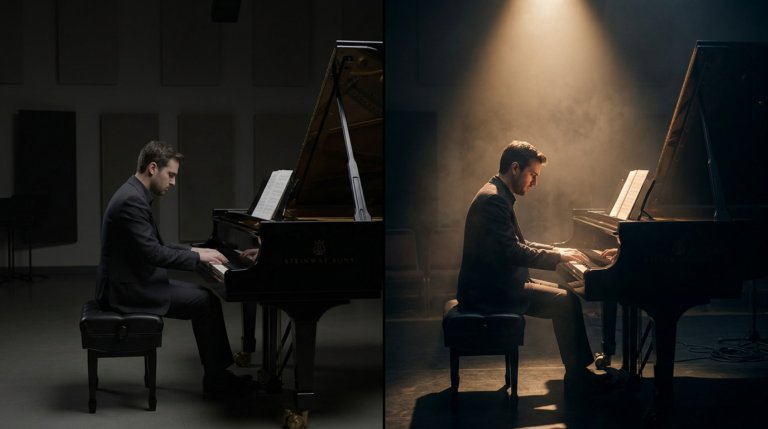
Cinematic lighting is the difference between AI video that looks generated and AI video that looks directed. This guide covers every major setup with prompt examples and techniques.
AI video generators understand cinematographic language with real precision. This guide covers every major camera movement, what each does narratively, and the prompts that produce the best results.

