VideoGen Presets guide: how to generate edit-ready AI clips

Jonathan Lam 13min read
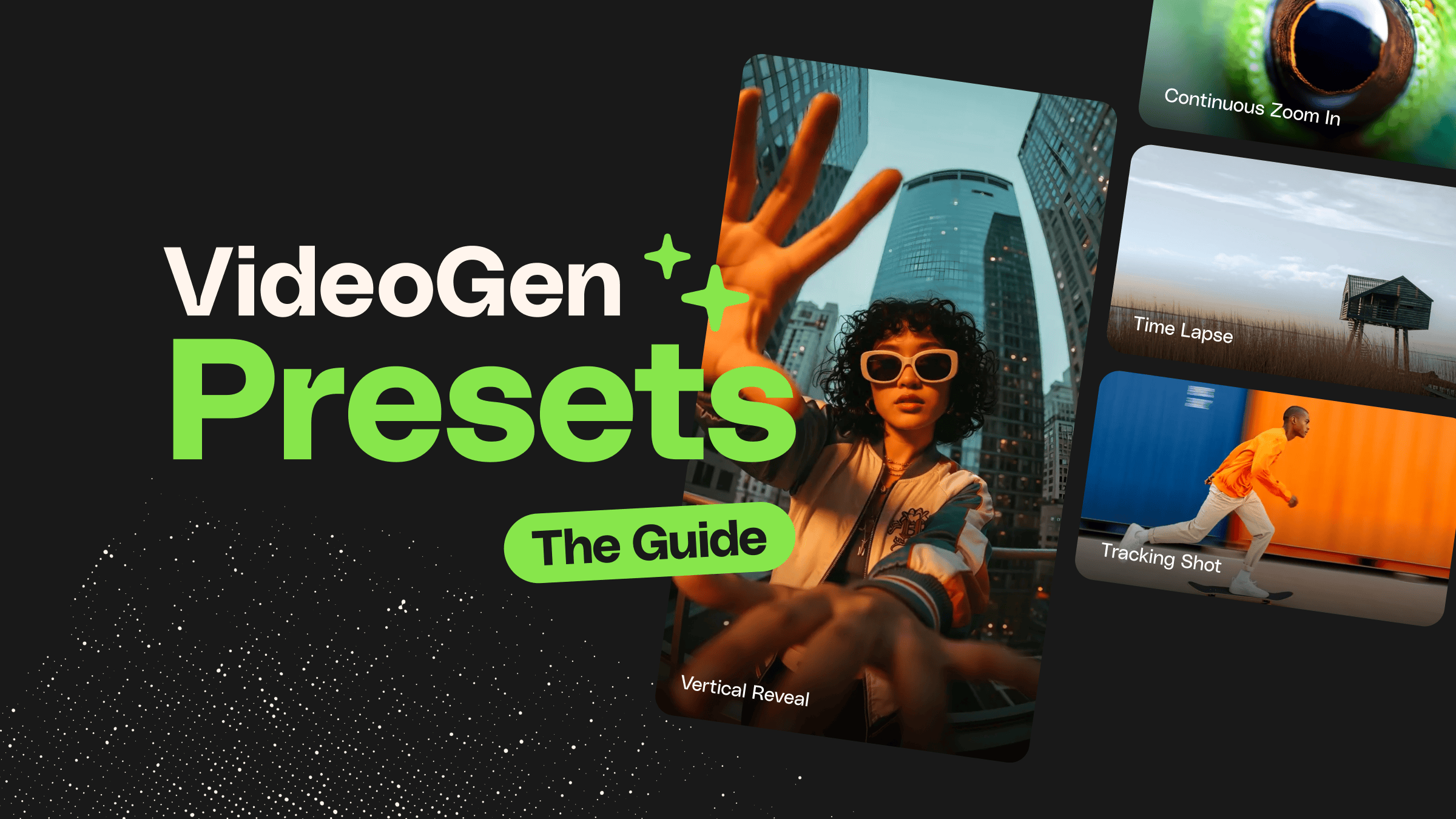
VideoGen Presets guide

AI video generation has moved fast. What began as experimental, unpredictable clips is now becoming a practical part of real editing workflows. However, many creatives still struggle to control how AI-generated footage actually behaves once it hits the timeline.

That’s where presets come in. In this VideoGen Presets guide, we’ll break down how presets shape camera movement, composition, and pacing before generation even begins, giving each clip a clearer structure from the start. Instead of relying on trial-and-error AI video prompting, presets help AI footage feel more intentional, consistent, and easier to edit from the first pass.

This approach benefits a wide range of creatives. Beginners can achieve more reliable results with Envato’s AI video generator, without requiring deep technical knowledge, while experienced editors can generate footage that behaves more like real shots, useful for B-roll, transitions, or establishing shots.

VideoGen Presets guide: what presets are and why they matter

Video Presets are predefined generation modes that influence how an AI video clip is created. Instead of relying solely on text prompts, a preset sets expectations for aspects such as camera movement, framing, and pacing before generation begins.

Envato provides preview clips for each preset to help you decide which to use. Remember, your prompt still matters, but the preset nudges the result in a specific direction.

Why presets exist in the first place

Using an AI video generator can feel unpredictable. Two similar prompts may produce clips that behave very differently, making it difficult to plan an edit or build a sequence that feels cohesive.

One of the core ideas behind this Envato’s AI video generator Presets guide is structure. Presets reduce guesswork by narrowing the range of possible outcomes. By setting boundaries around motion and framing, they make AI video generation more reliable and easier to repeat, especially when you need multiple clips that work together.

Who gets the most value from presets?

Presets are not aimed at a single type of creator. For example:

  • Video editors benefit from shots that behave more like traditional footage and cut more cleanly on a timeline.
  • Creatives can generate usable visuals faster, without constantly tweaking Ai video prompts.
  • Filmmakers and motion designers can use presets to explore ideas, build transitions, or create supporting shots without breaking their workflow.

How presets help streamline the workflow

Starting with a preset in your AI video workflow usually means fewer failed generations. The motion, framing, and pacing tend to feel more deliberate, which reduces the need to regenerate clips just to “fix” basic issues.

Presets also help when working with multiple shots. When clips share similar movement and structure, they sit together more naturally in an edit. Instead of feeling like isolated experiments, they start to function as parts of a sequence.

multiple failed videogen generations
Use VideoGen presets to avoid multiple failed video generations.

Why VideoGen uses presets

A shared visual starting point

Presets exist to give the generation process some boundaries. Instead of leaving camera movement and framing entirely open-ended, a preset sets a loose direction for how the shot should behave. That guidance helps shape the result early on, while still leaving room for the prompt to influence the subject and mood.

Fewer failed generations

AI video generators can be inconsistent, even with similar prompts. Presets narrow the range of outcomes by guiding motion and style, so fewer retries are needed to get something usable. The process becomes faster and more reliable, especially when generating multiple clips for the same project.

Easier to edit in real workflows

Clips that lack structure are difficult to cut, grade, or sequence. Presets help AI-generated footage behave more like traditional shots, making it easier to work with within standard editing tools and timelines. The result is footage that feels less experimental and more practical.

Built for speed and consistency

When creating multiple clips for the same project, consistency is crucial. Presets make it easier to generate footage that feels related, without having to fine-tune every prompt from scratch. This is especially useful for repeat content, branded work, or situations where you need usable results quickly rather than endlessly experimenting.

VideoGen Presets: what each one does + when to use it

A user interface displaying a grid of video generator presets and camera motion effects. Options include 'Analog VHS', '360°', 'Arc', 'Cinematic Lens Flare', 'Continuous zoom in', 'Continuous zoom out', 'Dolly In', 'Dolly Left', 'Dolly Out', 'Dolly Right', 'Drone Shot', 'Establishing Shot', 'Handheld Camera', 'Holographic', 'Slow motion', 'Suspenseful Dolly in', and 'Time Lapse'.
Explore a wide array of creative video presets and camera motion effects, from ‘Analog VHS’ to ‘Drone Shot’ and ‘Slow motion’, in this intuitive editing interface.

Here’s a list of all the presets currently available for use on Envato VideoGen. We’ll explain each one individually so you can choose the right one for your needs.

Dolly Left/Dolly Right

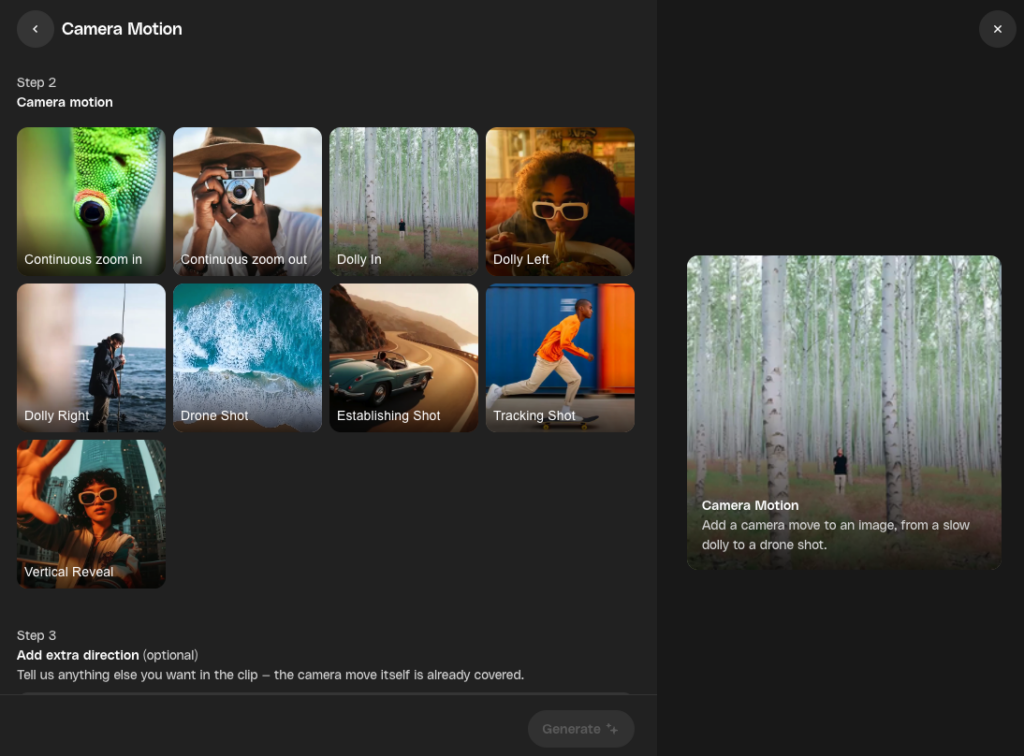
The camera moves side to side instead of in or out. You’d use this when a shot feels a bit dead, but you don’t want to change how close things feel. It tends to work best in spaces with layers (foreground, background, something to slide past).

Dolly Out

This one pulls the camera away from the subject. It’s often used to wrap up a moment or to show more of what’s going on around it. The pullback naturally slows things down and gives the scene some breathing room before a cut.

Suspenseful Dolly In

This preset maintains a slow and controlled movement. Nothing rushes forward. It tends to suit darker or quieter scenes where mood takes precedence over action, and where the camera movement should be almost imperceptible until the tension builds.

Tracking Shot

Here, the camera sticks with the subject as it moves through the scene. It works well when motion is the point of the shot, such as following a person or object through an environment. The result usually feels more grounded than a free-moving camera.

Arc

Rather than moving in a straight line, the camera curves around the subject. This can help show shape or scale without cutting away. It helps add visual interest while keeping attention on a single focal point.

Continuous Zoom Out

The frame gradually opens up as the shot plays. This is useful when you want to introduce context gradually, rather than all at once. It often works well between scenes, especially when transitioning from detail to environment.

Establishing Shot

This preset focuses on showing where the scene takes place. The camera is usually wide and steady, with little emphasis on movement. It is most effective at the start of a sequence, providing the viewer with a clear sense of location before moving in for a closer look.

Vertical Reveal

The scene is revealed vertically, making it well-suited to mobile-first formats. It works best when height or vertical space is part of the composition. This preset is commonly used for short-form or social content.

Continuous Zoom In

The camera steadily zooms in on the subject. This is useful when you want to guide attention or build subtle emphasis without a sudden change in framing. The movement feels controlled and gradual.

Dolly In

This preset physically moves the camera closer to the subject. It creates a stronger sense of presence and is often used for emotional beats or moments of emphasis. The result feels more cinematic than a digital zoom.

Drone Shot

This preset simulates aerial movement from above. It is well-suited for landscapes, travel visuals, or large spaces where scale is important. The motion tends to feel smooth and expansive.

Handheld Camera

Here, the camera employs small, natural movements rather than maintaining a perfectly stable position. This can make footage feel more grounded or observational. It is often used to reduce the polished look of a scene.

Timelapse

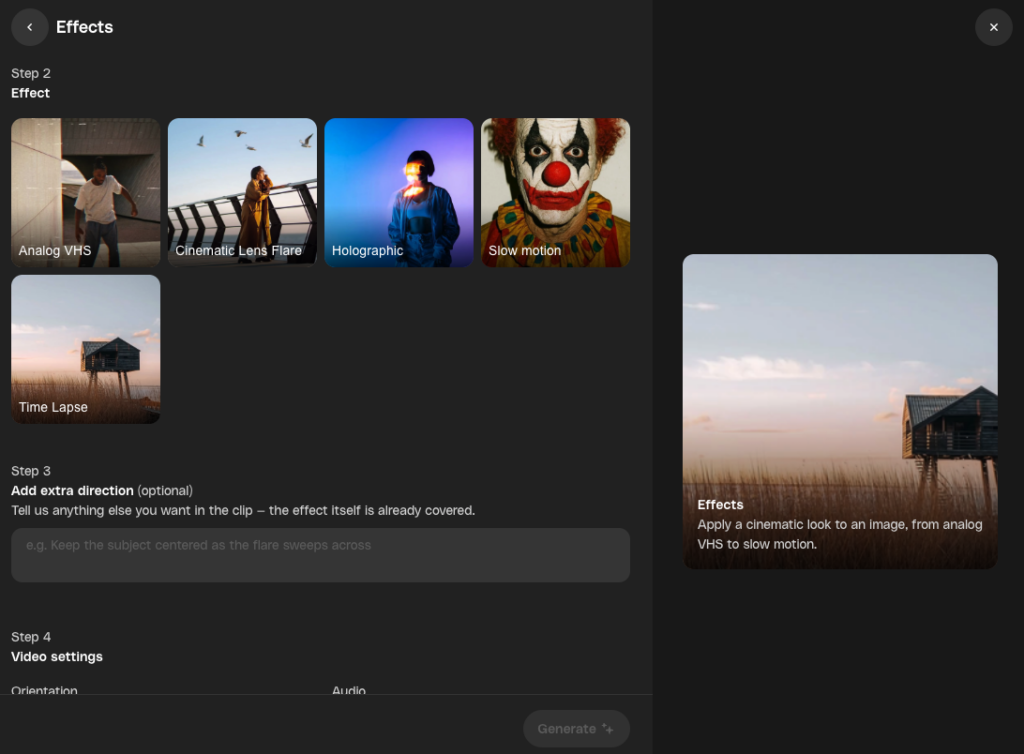
Time is compressed, allowing changes to occur quickly within a short clip. This is useful for showing progression, movement, or transformation rather than fine detail. It works best when change over time is the focus.

Whip Pan

This preset produces a very fast sideways movement across the frame. It moves fast and is often placed between clips.

Holographic

This preset makes your video clip appear to be a hologram. The image appears glowing and digital, with an intentionally artificial look rather than a natural one. It works best as a visual accent in fashion, music, or concept-led content where realism is not the goal.

Cinematic Lens Flare

This preset adds visible light flare to the image, usually around bright areas in the frame. The shot itself stays relatively still, with the emphasis placed on how light behaves rather than on camera movement. It is well-suited to atmospheric moments, such as backlit scenes or polished brand visuals.

How to use VideoGen Presets

1. Open VideoGen

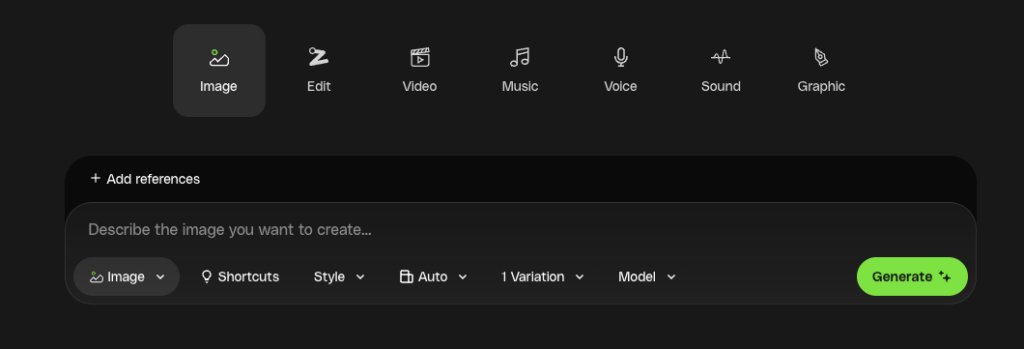
Head on over to Envato’s video generator to begin a new video generation. Inside the prompt box, you’ll find a button named “Presets”. Click on it to get started!

A video creation interface with options for start/end frames, description, preset, provider configs, aspect ratio (16:9), audio settings, and a 'Generate' button, overlaid on a blurry city night scene.
Create your next video with ease! Define your start and end frames, describe your vision, and hit generate. ✨

2. Choose a preset

Choose a preset based on how you want the shot to move.

A screenshot of a dark user interface showing a grid of 15 video or image presets, each with a small preview image and a descriptive label. 'Auto' is highlighted in green. A search bar is at the top right.
Explore a variety of creative presets for your projects, from dynamic camera movements like ‘Dolly In’ and ‘Tracking Shot’ to unique visual effects.

3. Write your prompt (or add a start frame)

Write a short prompt covering what the scene is and how it should feel. If you have a start frame, you can add it here to generate a clip that starts with exactly what you have in mind.

4. Generate a first pass and evaluate the clip

Click on the Generate button and let VideoGen create the first version. Check the result and adjust if needed. Then download the clip for editing.

click the generate button

How to bring preset-generated clips into your editing workflow

Once your base clip is ready, the next step in the VideoGen workflow is to bring it into a video editor, such as Premiere or After Effects, for editing. This is where your raw AI footage starts to transform into a polished motion design AI video.

1. Import the clips into your editor

Once the clips are ready, they can be brought straight into a standard editing setup. Simply place them on the timeline in Premiere Pro, CapCut, or DaVinci Resolve, just as you would with any other footage.

upload your videogen footage

2. Trim the start of each clip

AI clips can often “settle” in the first moments. Shave off the first few frames until the motion feels clean and more natural.

trim the start of each clip

3. Make a quick match-grade

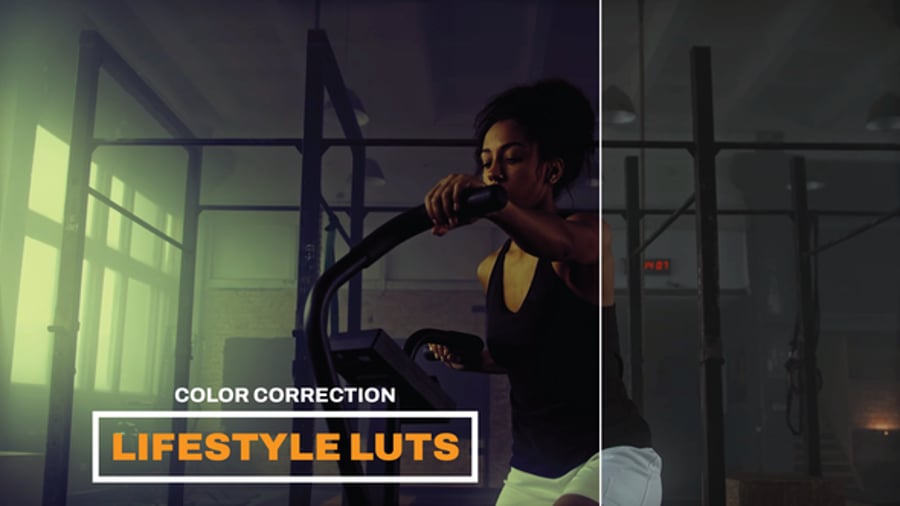
Tweak the clip so it sits comfortably with the other shots. You’re aiming for a similar brightness and colour, not a new look. For example, you could make a few small adjustments to exposure or white balance, which are usually enough.

use LUTs for a quick match grade

4. Add a small amount of texture

A touch of grain or light noise can help the clip feel less sterile and blend better with filmed material. Use just enough to unify the sequence.

add a small amount of texture

5. Use VFX packs for impact

Envato also offers pre-made VFX assets like particle bursts, smoke, fire, and energy effects. Import them just like any other video file, then scale and position them in your scene.

use VFX packs from Envato

Advanced AI video prompting tips (using presets)

Using presets does not mean your prompt needs to be complicated. In most cases, the preset already handles camera behaviour and pacing, so your job is to describe intent rather than mechanics.

Start simple, then layer detail

Short AI video prompts often work best as a first pass. They help you see how the preset behaves without over-directing the result:

  • Cinematic: Moody city street at night, shallow depth of field.
  • Horror: Empty underground corridor, flickering lights, unsettling tone.
  • Documentary: A simple office scene during the day, lit by natural window light.

Building more detailed prompts

More detailed AI video prompts tend to work better when ideas are kept separate rather than combined into a single, lengthy line. This approach keeps the prompt readable and makes it easier to adjust one element at a time:

  • Cinematic dolly preset: Interior hallway. Low light. Slow movement forward. Quiet, tense atmosphere.
  • Stylized tracking preset: Runner moving through a colourful city. High contrast. Slightly exaggerated motion.

Controlling motion, tone, and pacing

Presets handle the overall movement, but tone and pacing still respond to how you describe the scene. Words like “slow, “quiet, “energetic,” or “observational” tend to influence timing and intensity without conflicting with the preset.

Example: Empty apartment interior, quiet, slow, muted light, lingering atmosphere.

Combining Presets for bigger projects

Presets are most effective when used in combination. Rather than treating each clip as a standalone result, you can mix preset types to shape longer sequences and give different parts of a project distinct roles.

Think of each preset-generated clip like a modular building block of a larger edit. Each one serves a purpose, and the sequence brings them together. This makes planning easier and helps longer projects stay visually consistent without forcing every shot to look the same.

Dolly In + Establishing Shot (ads, brand films)

This combination appears frequently in ads and brand work. Starting wide gives quick context, then moving closer helps land attention where it matters. It’s a familiar pattern and tends to work well when time is tight.

Handheld Camera + Tracking Shot (lifestyle, documentary)

This pairing fits lifestyle and documentary-style content. Handheld shots keep things grounded, while tracking shots follow movement naturally. Together, they suit scenes that feel observed rather than staged.

Vertical Reveal + Continuous Zoom In (social, fashion)

For social and fashion content, especially in vertical formats, this mix makes sense. The reveal brings the viewer into the scene, and the zoom helps settle attention on a detail without feeling abrupt.

Drone Shot + Establishing Shot (travel, location-based)

Travel and location-driven projects often lean on this approach. An aerial view gives scale, then an establishing shot brings things back down to eye level. It’s a quick way to orient the viewer.

Suspenseful Dolly In + Whip Pan (drama, horror)

This pairing is more prevalent in dramatic or darker edits. The slow push builds tension, while a whip pan can break the scene or move things along. It’s often used around music cues or sharp cuts.

VideoGen Presets guide FAQs

Related Posts