AI sound generator guide: How to create sound effects with AI
Discover how Envato's AI sound generator creates custom sound effects from text prompts so creators can skip library searches and edit faster.
Envato: Get every type of asset for any type of project, and access to AI tools. Start now
AI ImageGen is Envato’s AI image generator that turns text prompts into high-quality, commercially ready visuals in seconds, helping creators explore ideas more efficiently.
Creating original visuals used to mean stock searches, photo shoots, or hours in design software. Today, an AI image generator can turn a simple prompt or reference image into polished visuals in seconds.
Envato’s AI Image generator is built for creatives who want flexible image creation directly in their browser. It combines multiple image models behind the scenes, supports prompt-based generation and editing, and fits naturally into the broader Envato AI workflow.
In this AI image generator guide, we’ll cover what an AI image generator is, what makes Envato’s AI Image generator different, how it works, its newest features, supported models, best practices, use cases, limitations, and frequently asked questions.
An AI image generator is a tool that creates original images from text prompts, reference images, style directions, or editing instructions using generative artificial intelligence. Most modern tools rely on diffusion or multimodal models trained to interpret language, composition, lighting, mood, and subject matter.
For creatives, an AI image generator speeds up ideation, reduces the time spent sourcing visuals, and opens up new creative directions that would otherwise require multiple tools or production steps.
Envato’s AI Image generator is available within the Envato ecosystem. It turns text prompts and reference images into high-quality visuals, while also giving you editing options through ImageEdit and workflow extensions into tools such as AI Video generator.
Instead of forcing you to choose one model or maintain separate subscriptions across multiple AI tools, Envato’s AI image generator uses a suite of image models and automatically routes prompts to the best engine for the task. This makes the workflow simpler while still delivering strong creative results.
If you want an AI image generator that fits into a real creative workflow, Envato’s AI image generator offers a simpler path than juggling separate tools, subscriptions, and model choices. You can:
Envato’s AI image generator is also part of the Envato experience, which makes the journey from idea to usable asset more straightforward. Rather than jumping between disconnected platforms, you can generate, refine, and use your visuals inside a workflow built for creative production.
Read how Envato compares to Freepik (Magnific) to see which workflow fits your needs best.
Getting started is simple:
If you’re new to AI image creation, Envato’s AI image generator is designed to feel accessible from the start. You don’t need to learn model names, write highly technical prompts, or switch between multiple creative apps just to move an idea forward.
Not all AI image generators are designed for real creative workflows. Envato’s AI image generator stands out by combining automatic model orchestration, built-in styles, integrated editing, and commercial-use clarity into a single browser-based workflow.
For many creatives, the challenge is not getting an image; it’s getting the right image quickly enough to keep a project moving. That’s where Envato’s AI image generator stands out. It combines generation, editing, style controls, and model orchestration into a single workflow, so you can move from concept to refinement without losing momentum.
This is especially useful when you’re working on campaign concepts, social visuals, product imagery, branded scenes, or text-heavy designs that need more than a one-click novelty result.
Envato’s AI image generator is built to support the messy, iterative reality of production work, where speed matters, but consistency and control matter too.
Our AI image generator is built for people who think visually. You can prototype layouts, moodboards, campaign directions, or mockups. Creatives can develop thumbnails, backgrounds, concept visuals, and story-led imagery without arranging a shoot or buying extra tools.
It is also useful for teams that want a single, accessible interface rather than a technical model-comparison workflow. Envato’s AI Image generator removes much of the complexity so creatives can focus on ideas, art direction, and refinement.
To understand why Envato’s AI Image generator feels simple to use, it helps to look at what happens behind the scenes.
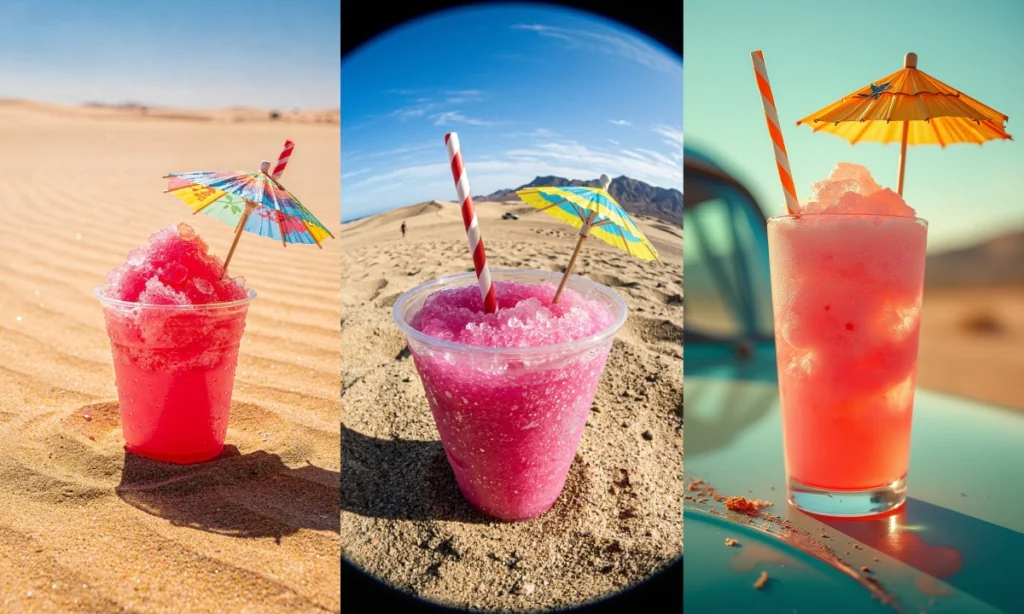
One of this AI image generator’s biggest strengths is that it does not rely on a single model. Envato’s AI image generator uses a model-agnostic approach, integrating multiple AI image models and routing prompts to the one best suited for the request.
That matters because different image tasks require different strengths: a product render may require realistic lighting and accurate material rendering; a reference-based request may require identity preservation. It handles that routing automatically, so you can stay focused on creative direction instead of technical trade-offs.
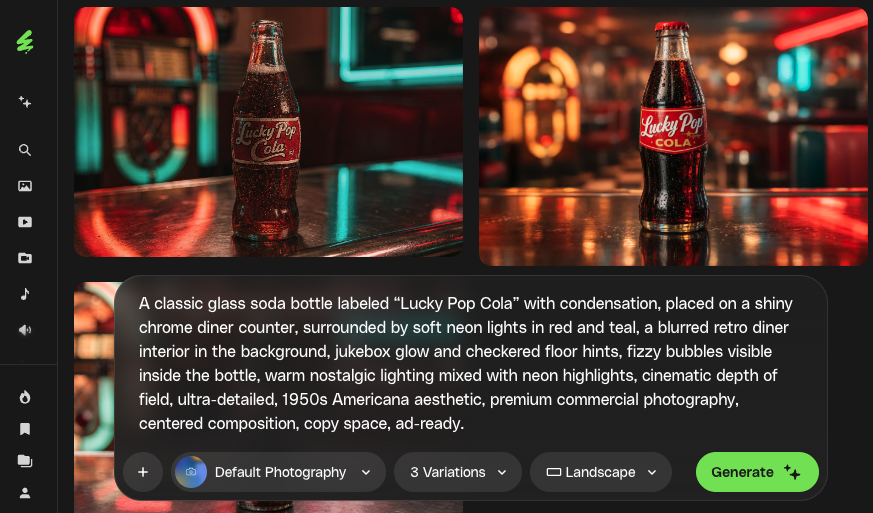
It supports both text-driven generation and reference-based workflows. You can type a prompt, upload a reference image, choose a predefined style, set an aspect ratio, and generate multiple variations at once.
When you’re working with more than one reference image, you can now target exactly which one a change should apply to by tagging it directly in your prompt — for example, “give @image1 the hat from @image2.” Instead of the model blending every reference together, each element lands where you intended, giving you tighter control over the final result without extra editing steps afterward.
Envato’s AI Image generator is designed for high-quality visual output across multiple creative use cases, including photorealistic scenes, editorial concepts, product imagery, stylized illustration, and marketing graphics.
Because the tool now includes newer models such as Nano Banana 2 and gpt-image-1.5, users benefit from quicker generations, stronger instruction-following, cleaner text rendering, improved reference consistency, and more reliable results for complex prompts.
As you generate and refine images, Envato’s AI image generator keeps a running record through Generation History. Every output is saved automatically, so you can revisit a past prompt, compare iterations side by side, or pick up a promising direction without rebuilding it from scratch.
This is especially useful during longer creative sessions, when the strongest result isn’t always the most recent one. Instead of losing track of earlier variations, you can look back through your history, grab what worked, and keep building from there.
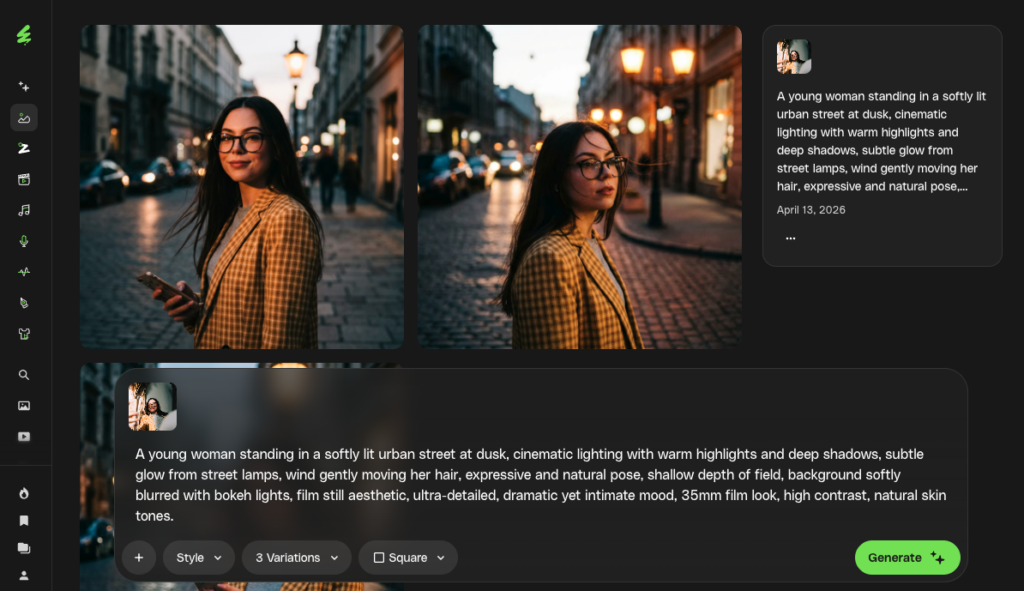
Envato’s AI Image generator combines generation, style control, editing, and model orchestration in a way that supports real creative work. Here are the core features that matter most.
| Feature | Description | Why it matters |
| Multi-model generation | Routes prompts across multiple AI engines behind the scenes. | Balances realism, speed, typography, and reference fidelity without manual model selection. |
| Variations | Lets users get options they see from one prompt. | Makes it easier to compare directions quickly and choose the strongest concept. |
| Aspect ratio controls | Supports square, portrait, and landscape outputs before generation. | Helps creatives make assets that already fit social, web, presentation, or video layouts. |
| Quick edits | Allows in-place prompt-based refinements directly on generated images. | Reduces the need to restart from scratch when only a few details need adjustment. |
| Integrated editing | Sends outputs into ImageEdit for erase, replace, extend, and refinement workflows. | Creates a smoother path from generation to polished asset. |
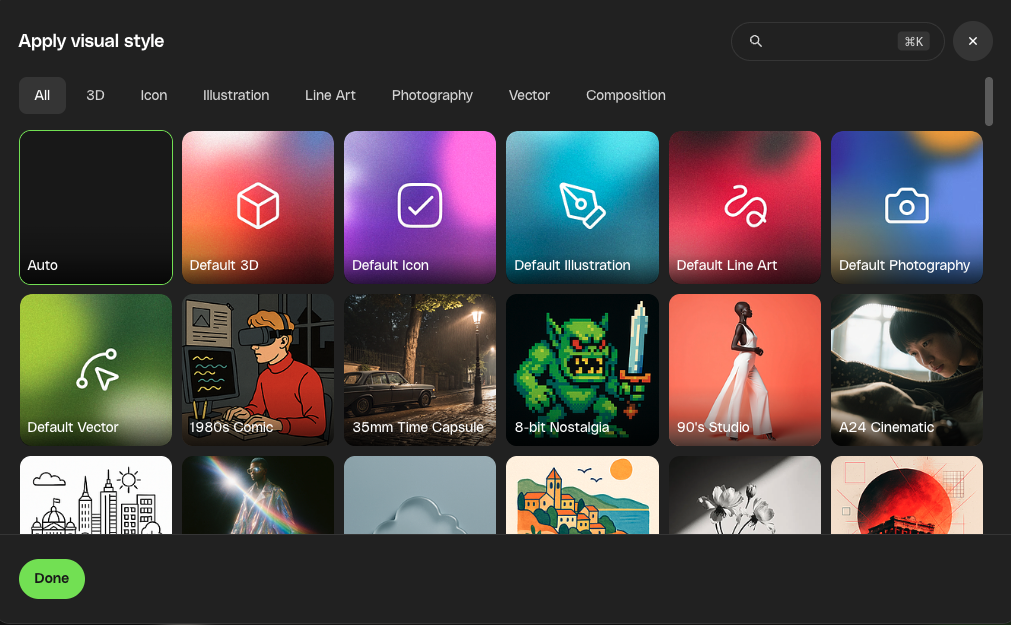
| Predefined styles | Offers built-in style presets from cinematic and photographic looks to editorial and illustrative treatments. | Speeds up ideation and helps maintain a more consistent visual direction. |
| Send to AI Video Generator | Moves generated images into Envato’s AI video workflow. | Turns still visuals into motion-based storytelling without rebuilding assets elsewhere. |
| Targeted reference tagging | Tag specific reference images in-prompt (e.g. @image1, @image2) | Gives precise control when combining multiple references instead of relying on automatic blending |
| Commercial-use clarity | Generated images are positioned for professional and client work. | Makes the tool more practical for real-world creative production. |
Out AI image generator has evolved beyond basic prompt-to-image generation. The latest updates make the tool more capable for professional production workflows, especially when speed, consistency, and refinement matter.
Envato’s AI Image generator and editor are now unified into a single, seamless workflow within the Envato experience. You can browse stock images, generate new visuals, and edit them with simple prompts—all without switching tools or losing your place.
A single prompt box now handles everything from generation to edits, while a paintbrush tool gives precise control over changes. With automatic model selection and edit history, creating and refining visuals is faster, easier, and more flexible.
Nano Banana 2, officially named Gemini 3.1 Flash Image, is now part of Envato’s AI image generation and editing tools. It brings noticeably quicker generations, sharper output, stronger reference consistency, and major improvements in text rendering.
According to Envato’s feature update, Nano Banana 2 can maintain resemblance across up to five characters and preserve the fidelity of up to 14 objects in one workflow. That makes it especially useful for storyboards, campaign variations, branded scenes, diagrams, infographics, and prompts with multiple constraints.
Envato’s AI image generator now runs across an expanding lineup that includes Flux.2, Seedream 4.5, Nano Banana 2, gpt-image-1, Luma AI’s UNI-1, gpt-image-1.5, gpt image-2. Each model is suited to different strengths, such as photorealism, reference preservation, speed, typography, or complex instruction-following.
The result is that our AI image generator improves over time without forcing you to relearn a new interface or manually compare engines. You keep prompting in a familiar workflow while the outputs get better under the hood.
| Model | What it’s especially useful for | Best-fit creative tasks |
|---|---|---|
| Flux.2 | Photorealistic, editorial, and product-style visuals with strong lighting and spatial logic | Cinematic product renders, realistic campaign visuals, editorial imagery |
| Seedream 4.5 | Reference-heavy workflows, multi-image editing, and text-heavy creative where consistency matters | Campaign visuals using faces, logos, or objects; consistent brand/reference-led outputs |
| Nano Banana 2 | Faster iteration, reference consistency, and improved text rendering | Storyboards, branded scenes, diagrams, constrained prompts, fast concept development |
| gpt-image-1.5 | Production-ready visuals, marketing assets, and text-heavy designs with stronger instruction-following | Posters, infographics, marketing layouts, designs that need accurate text and first-try reliability |
Reference-based generation gets a lot more useful when you can direct exactly how each reference is used. Envato’s AI image generator now lets you tag individual reference images inside your prompt — for example, “make @image1 wear the hat from @image2” — instead of leaving the model to interpret how multiple references should combine.
This matters most for campaign work, product variations, and any scene built from more than one source image, where automatic blending of references can produce results that miss the brief. Tagging gives you the same reference-based flexibility with a level of control that once required a follow-up edit.
One of the most valuable recent additions is a richer style system. Envato’s AI image generator includes built-in style categories spanning film and photography looks, painterly aesthetics, fantasy and whimsical treatments, urban and noir moods, fashion and editorial looks, travel-inspired imagery, retro treatments, and product-focused minimalist styles.
These style presets help creatives move quickly because the style itself carries part of the visual instruction. Instead of describing every nuance from scratch, you can select a style and then focus your prompt on subject, composition, and mood.
Envato has also emphasized faster iteration. Quick edits let users click on a generated image and refine details directly with the prompt box, while deeper workflows continue in ImageEdit for erasing, replacing, expanding, or polishing the image further.
This matters because strong AI image generation is often iterative. The goal is not always to start over, but to refine a promising result into a more usable asset.
Generating multiple options from a single prompt speeds up concept exploration. Instead of rewriting your prompt every time, you can compare several interpretations side by side and quickly spot the strongest composition, lighting, or mood.
Combined with model routing and improved engines like Nano Banana 2, this gives teams a faster way to explore, select, and refine ideas.
Open Envato’s AI image generator, enter a prompt or upload a reference image, choose a style and aspect ratio, and generate your first set of visuals in seconds. If one result is close but not quite there, use quick edits for fast refinements or continue in ImageEdit for more precise changes.
And if your idea is heading toward motion, you can send your image into AI Video Generator to keep building from the same visual direction instead of starting over somewhere else.
Let’s walk through how to use the AI image generator from prompt to finished asset.
Start with a clear description of the subject, style, composition, and mood. Strong image prompts usually work better when they are specific but not overloaded. Think like a creative director: define what the viewer should see, how it should feel, and what visual style best suits the idea.
A simple structure that works well is:
subject + style + composition + lighting + mood
For example, instead of writing a vague prompt like “make a cool product image,” try something more directed, such as:
A minimalist perfume bottle on stone, luxury product photography, centered composition, soft studio lighting, elegant editorial mood.
This gives the model clearer priorities and makes it easier to refine the result later.
Select a predefined style to guide the visual language more quickly, then choose the aspect ratio that matches your output format: square for social posts, portrait for vertical content, or landscape for presentations and web banners.
Generate multiple options at once so you can compare composition, lighting, and interpretation without rewriting the prompt every time. This is one of the fastest ways to spot a strong direction early.
When you’re still exploring, use variations to test different creative directions. When you’re closer to the result you want, narrow your focus and use smaller iterations to fine-tune what’s already working.
The goal at this stage is not to chase perfection immediately. It’s to identify the most promising image and build from there.
Once you have a promising image, refine it instead of starting over. Use quick edits when the image is already close and you only need to adjust a few details, such as styling, wording, mood, or visual emphasis.
Move into ImageEdit when you need more control over the result. That might include erasing objects, replacing elements, expanding the frame, or making more substantial AI-assisted changes before export.
A helpful mindset here is: generate for direction, edit for polish.
That keeps the workflow fast while still giving you room to shape the output into something more production-ready.
When you are happy with the result, download the image for your design workflow or send it to AI Video Generator if you want to build motion-based storytelling from the same visual concept.
Want to see these techniques in action? Watch this step-by-step guide on AI prompts to learn exactly how to generate, refine, and elevate your visuals using Envato’s AI tools.
Getting strong results from an AI image generator depends on how clearly you direct the tool and how well you refine the output. The best results usually come from treating Envato’s AI image generator as part of a workflow, not a magic one-step solution.
A simple framework can improve results immediately:
subject + style + composition + lighting + mood
This keeps prompts focused and gives the model clear priorities. If a result feels vague or inconsistent, the issue is often not that the model failed, but that the prompt did not establish the visual hierarchy clearly enough.
Built-in styles are more than aesthetic shortcuts. They help define the visual language of the image from the start. A cinematic style, product-minimal look, painterly treatment, or editorial mood can dramatically improve consistency and reduce the amount of description needed in the prompt.
Too many competing adjectives or conflicting style cues can dilute the result. Clarity usually beats complexity. Start with the core image idea first, then add detail only where it improves direction.
If an image is close but not perfect, refine it with quick edits or ImageEdit rather than discarding it immediately. Strong AI image generation is often iterative, and small refinements usually get you further than rewriting everything from scratch.
In early ideation, prioritize speed, variety, and exploration. Later in the process, prioritize consistency, reference fidelity, cleaner text rendering, and polished output. Envato’s AI image generator multi-model approach supports both modes, which is why it works well across concepting and production.
Envato’s AI image generator works best when it feeds into a broader workflow. Generate concepts, refine the strongest visuals, move into ImageEdit for polish, and then carry those images into campaigns, presentations, mockups, or motion workflows as needed.
Envato’s AI image generator fits into a wide range of modern creative workflows.

Prompt: A luxury perfume, holographic bottle with the label “Floria” floating among peony petals, with a soft glow and high-end, realistic, advertising style.
Generate campaign concepts, ad visuals, thumbnails, social posts, and branded images quickly while exploring multiple directions before committing to production.

Prompt: A young Hispanic woman in a sports bra, shorts, and chunky sneakers crouches in a dynamic pose against a vibrant, colorful graffiti mural.
Use Envato’s AI image generator to prototype visual concepts, creative directions, or moodboards for presentations, pitches, and client reviews.
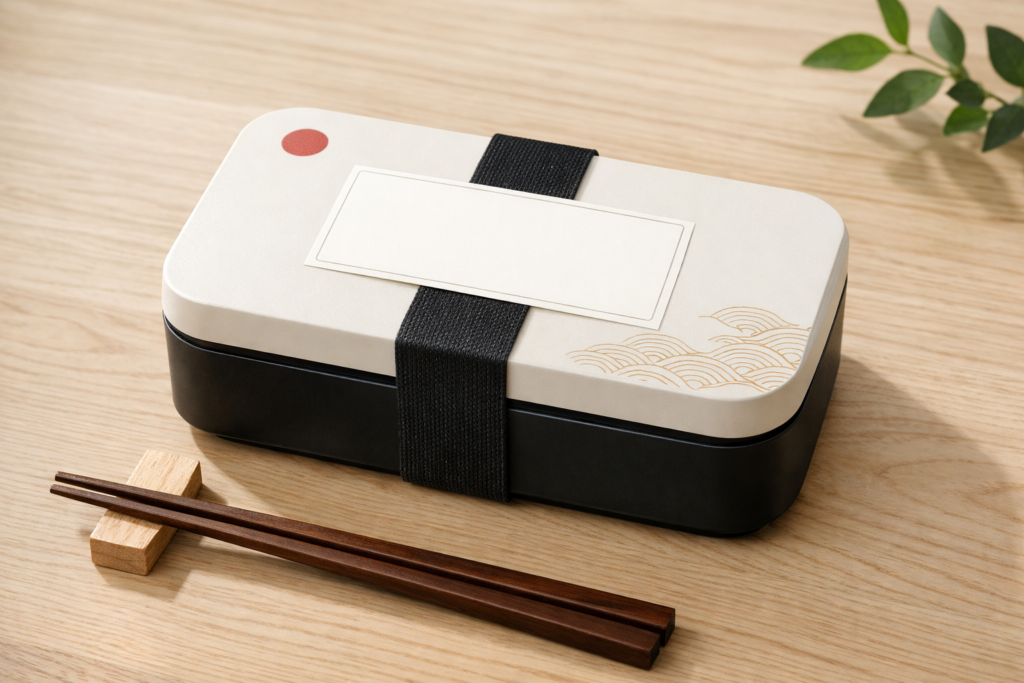
Prompt: A modern bento packaging box with subtle Japanese design elements, placed on a light wooden surface, natural lighting, minimal composition, blank label space for branding, and high-end food photography style.
Create polished product imagery, hero images, layout concepts, or mockup-ready scenes that can be refined further for professional deliverables.

Prompt: A tiny civilization living inside a coffee cup, buildings made of sugar cubes and biscuits, warm morning light, tilt-shift photography style, hyper-detailed.
Develop character visuals, scene concepts, editorial imagery, fantasy worlds, and visual narratives that can feed larger campaigns, videos, or creative experiments.
Across all of these use cases, the value of Envato’s AI image generator is not just that it creates images quickly. It helps teams move from concept to usable asset with less friction. You can explore options early, refine the strongest direction, and keep building inside the Envato workflow rather than restarting across disconnected tools.
Like any AI image generator, Envato’s AI image generator still has practical limits. The first result is not always the final one, and some prompts still require iteration to land precisely. Complex scenes with many objects, strict brand requirements, or highly specific compositions may need refinement or editing after generation.
AI also does not replace design judgment. Envato’s AI image generator works best as a creative assistant that accelerates ideation and production, not as a replacement for human taste, art direction, or finishing work.
One of the biggest advantages of using Envato’s AI image generator is the simplicity and flexibility of its licensing. Every image you generate or download is covered by a commercial license by default, meaning you can use your visuals in client work, marketing campaigns, and personal projects without extra steps. There’s no need to assign a project name or manage licensing during download: everything is handled automatically so you can focus on creating.
You still have full control if you want to stay organized:
This streamlined system removes friction and gives you confidence to move from idea to execution.
Envato’s AI Image generator is more than a basic prompt-to-image tool. It’s a production-minded AI image generator built for creative professionals who need speed, flexibility, editing control, and commercial-ready results within a single workflow.
With automatic model routing, built-in styles, integrated editing, send-to-AI Video generator workflows, and newer engines, Envato’s AI Image generator keeps getting more useful as the underlying technology improves.
If you want to bring ideas to life, experiment with styles, prompt structures, and refinements. The more intentionally you use the tool, the more powerful it becomes in your creative process.
The best AI image generator depends on your workflow. Envato ImageGen is designed for creatives who want a browser-based tool with multiple models, built-in styles, editing workflows, and commercial-ready outputs in one place.
Envato positions ImageGen outputs as commercially cleared for professional use, which makes the tool practical for client work, marketing assets, and branded projects.
No. ImageGen automatically routes prompts to the most suitable model behind the scenes.
Recent updates include Nano Banana 2, improved text rendering, better reference consistency, built-in style systems, quick edits, 3, 6, or 9 output options, integrated ImageEdit workflows, and send-to-AI Video Generator functionality.Want to compare ImageGen with other AI tools? Read our comparison guide to see which workflow fits your needs best.
Getting started is simple. Log in to your Envato account, head to ImageGen, and enter a prompt or upload a reference image. From there, you can choose a style, set your aspect ratio, generate options, and refine the strongest result without leaving the broader Envato workflow.
If you’re new to AI image creation, ImageGen is designed to feel accessible from the start. You don’t need to learn model names, write highly technical prompts, or switch between multiple creative apps just to move an idea forward.
Getting started is simple. Log in to your Envato account, head to ImageGen, and enter a prompt or upload a reference image. From there, you can choose a style, set your aspect ratio, generate options, and refine the strongest result without leaving the broader Envato workflow.
If you’re new to AI image creation, ImageGen is designed to feel accessible from the start. You don’t need to learn model names, write highly technical prompts, or switch between multiple creative apps just to move an idea forward.
For many creatives, the challenge is not getting an image — it’s getting the right image quickly enough to keep a project moving. That’s where Envato ImageGen stands out. It combines generation, editing, style controls, and model orchestration in one workflow, so you can move from concept to refinement without losing momentum.
This is especially useful when you’re working on campaign concepts, social visuals, product imagery, branded scenes, or text-heavy designs that need more than a one-click novelty result. ImageGen is built to support the messy, iterative reality of production work, where speed matters, but consistency and control matter too.
Open ImageGen, enter a prompt or upload a reference image, choose a style and aspect ratio, and generate your first set of visuals in seconds. If one result is close but not quite there, use quick edits for fast refinements or continue in ImageEdit for more precise changes.
And if your idea is heading toward motion, you can send your image into AI Video Generator to keep building from the same visual direction instead of starting over somewhere else.
Open ImageGen, enter a prompt or upload a reference image, choose a style and aspect ratio, and generate your first set of visuals in seconds. If one result is close but not quite there, use quick edits for fast refinements or continue in ImageEdit for more precise changes.
And if your idea is heading toward motion, you can send your image into AI Video Generator to keep building from the same visual direction instead of starting over somewhere else.
| Model | What it’s especially useful for | Best-fit creative tasks |
|---|---|---|
| Flux.2 | Photorealistic, editorial, and product-style visuals with strong lighting and spatial logic | Cinematic product renders, realistic campaign visuals, editorial imagery |
| Seedream 4.5 | Reference-heavy workflows, multi-image editing, and text-heavy creative where consistency matters | Campaign visuals using faces, logos, or objects; consistent brand/reference-led outputs |
| Nano Banana 2 | Faster iteration, reference consistency, and improved text rendering | Storyboards, branded scenes, diagrams, constrained prompts, fast concept development |
| gpt-image-1.5 | Production-ready visuals, marketing assets, and text-heavy designs with stronger instruction-following | Posters, infographics, marketing layouts, designs that need accurate text and first-try reliability |
Across all of these use cases, the value of ImageGen is not just that it creates images quickly. It helps teams move from concept to usable asset with less friction. You can explore options early, refine the strongest direction, and keep building inside the Envato workflow rather than restarting across disconnected tools.
Discover how Envato's AI sound generator creates custom sound effects from text prompts so creators can skip library searches and edit faster.

We tested 9 AI image generators on identical artistic prompts (same style-transfer task, same day) to see which one actually paints like an artist.
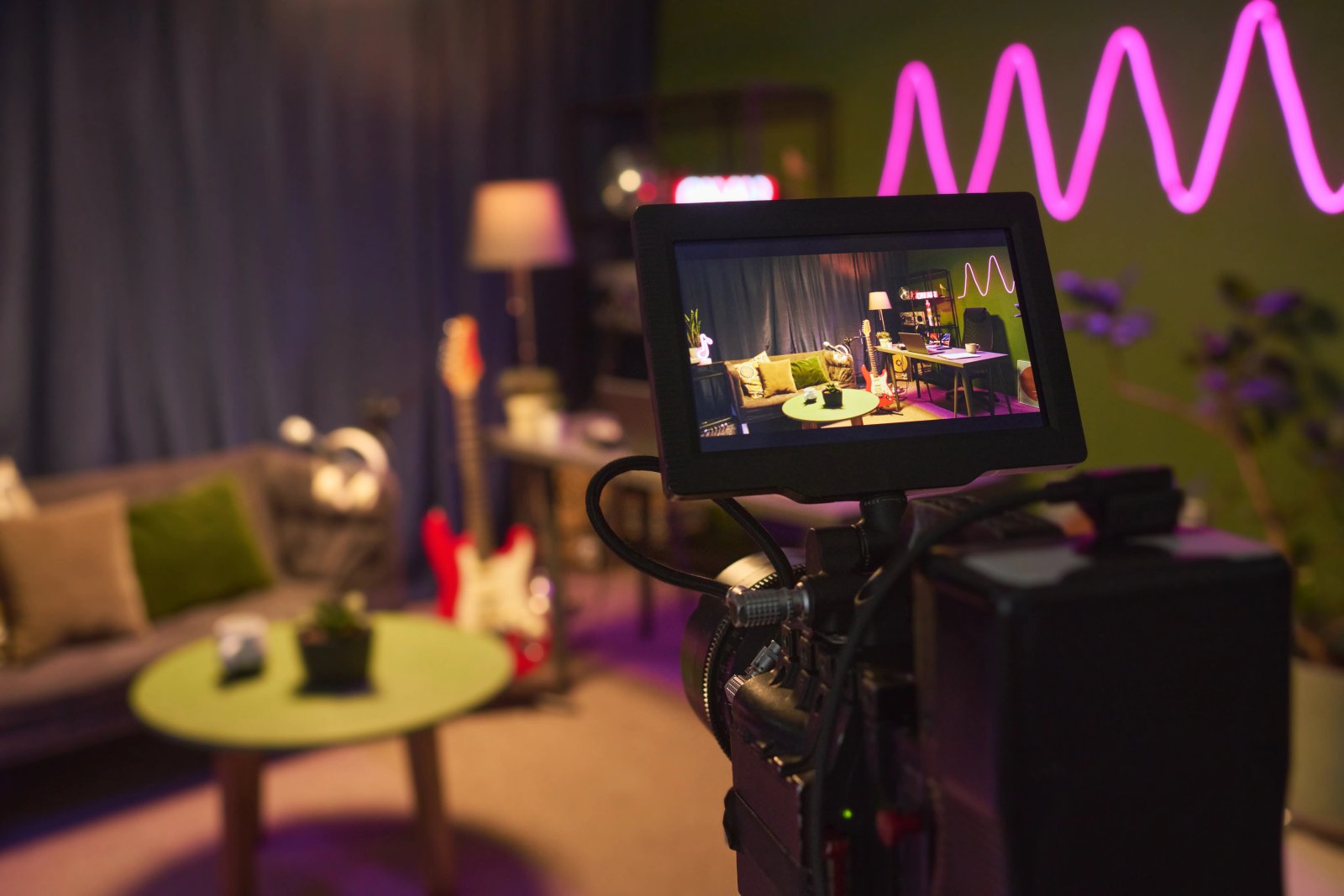
AI isn't making full movies yet; it's reshaping VFX, editing, and dubbing. Here's where it helps filmmakers today, and where it doesn't.
A practical, step-by-step guide to making a short AI film — from script and shot lists to character consistency, voice, sound, editing, cost, and legal rules.

