
How to edit with AI using Envato stock photos
Learn how to edit with AI on Envato stock photos, customizing images instantly by removing objects, changing backgrounds, and creating polished visuals without leaving the platform.
Envato: Get every type of asset for any type of project, and access to AI tools. Start now
OpenAI’s GPT Image 1.5 is now working behind the scenes in ImageGen. With stronger lighting, cleaner text, and more reliable edits, your images are now more realistic and publish-ready—without changing how you work.
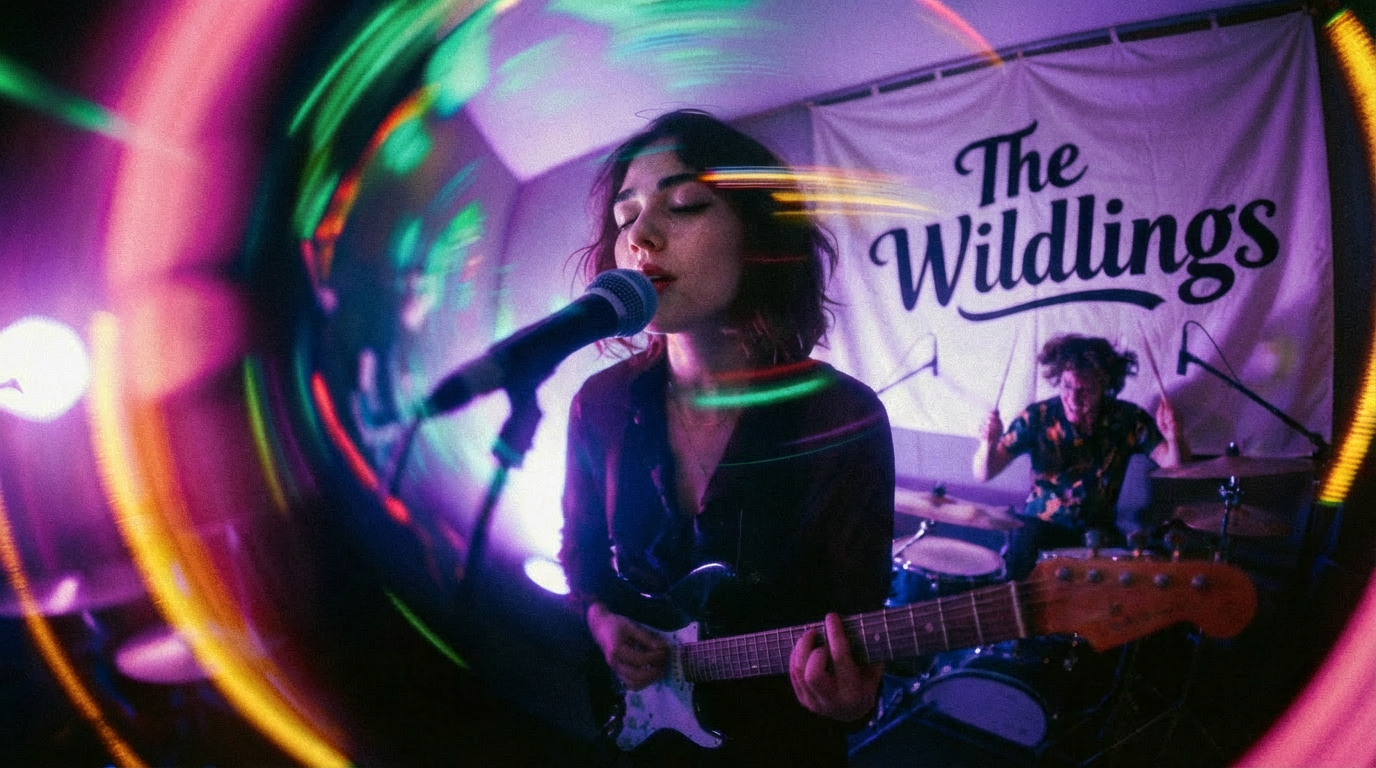
OpenAI has released GPT Image 1.5, a major upgrade to its earlier GPT Image 1 model, and it’s now one of the image engines powering Envato ImageGen behind the scenes.
You won’t see a new toggle or model picker. Instead, ImageGen quietly routes certain requests through GPT Image 1.5 so you get better color, lighting, text, and edits without changing how you work.
Here’s what GPT Image 1.5 is, how it evolves OpenAI’s image offering, and what it unlocks for Envato subscribers.
GPT Image 1.5 is OpenAI’s latest flagship image generation and editing model. It’s designed to:
Compared to GPT Image 1, it’s faster, more intentional, and much more suited to production work, especially for marketing, branding, and e-commerce visuals.
For Envato subscribers, this means ImageGen can now rely on GPT Image 1.5 when your prompt or use case requires that extra level of realism, detail, or typographic control.
GPT Image 1.5 is essentially GPT Image 1 grown up and ready for the real world.
Key improvements include:
The model handles:
Result: images look less “AI-ish” and more like something you’d be happy to ship in a campaign or client pitch.
Earlier AI models struggled with dense or small text. GPT Image 1.5 is a big step forward for:
You can still expect some quirks (it’s AI, not InDesign), but the model is far more capable of producing readable, structured text inside the image.
GPT Image 1.5 does a much better job with prompts that have:
For Envato subscribers, this means fewer retries and generations that more closely match what you described.
You don’t need to flip a switch. ImageGen simply uses GPT Image 1.5 as one of the models under the hood when it’s the best fit for what you’re asking.
Here’s where you’re most likely to feel the difference.
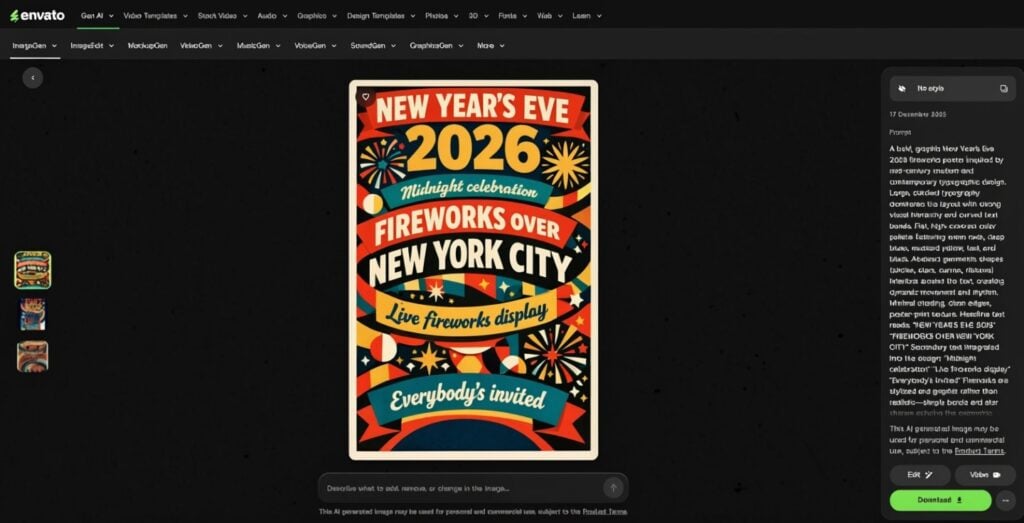
Because GPT Image 1.5 handles lighting, color, and detail so well, your generations are more likely to be:
Less “fix this in Photoshop”, more “drop it into the layout”.
GPT Image 1.5 is particularly strong for:
As we continue to extend it into editing workflows in ImageEdit, you’ll also see improvements in logo and brand consistency across variations.
If you’re using ImageGen for:
GPT Image 1.5 helps ImageGen generate clearer, more legible text blocks and layouts. You’ll still refine typography in your design tools, but your starting point is now much closer to the real thing.
A quick recap of what this means in practice:
You don’t need a new playbook, but a few tweaks can help:
GPT Image 1.5 is OpenAI’s latest image generation and editing model. It improves realism, lighting, color, text rendering, and instruction following compared to GPT Image 1.
No. It’s used automatically as one of the models under the hood. You just open ImageGen and create images as usual.
Right now, it powers parts of ImageGen. We’ll extend it to more editing workflows (such as ImageEdit) as we continue to integrate and test.
It offers more realistic lighting and color, better text rendering and layout control, more reliable multi-step editing, and stronger adherence to complex instructions. In short, it’s more suited to production-ready creative work.
Yes. It does a better job of preserving composition and key elements across iterations, making it a stronger foundation for brand, product, and campaign imagery.
It’s a clear improvement over earlier models. You’ll still refine final typography in your design tools, but GPT Image 1.5 gives you cleaner, more structured starting points.
No. It’s included as part of your Envato subscription and built into ImageGen. You gain access to GPT Image 1.5, alongside other premium models, at no additional cost.
Not really. Just keep doing what works: be clear, specific, and descriptive. If you mention lighting, mood, structure, and any text you want included, GPT Image 1.5 will help ImageGen get you closer to your vision on the first try.
Learn how to edit with AI on Envato stock photos, customizing images instantly by removing objects, changing backgrounds, and creating polished visuals without leaving the platform.
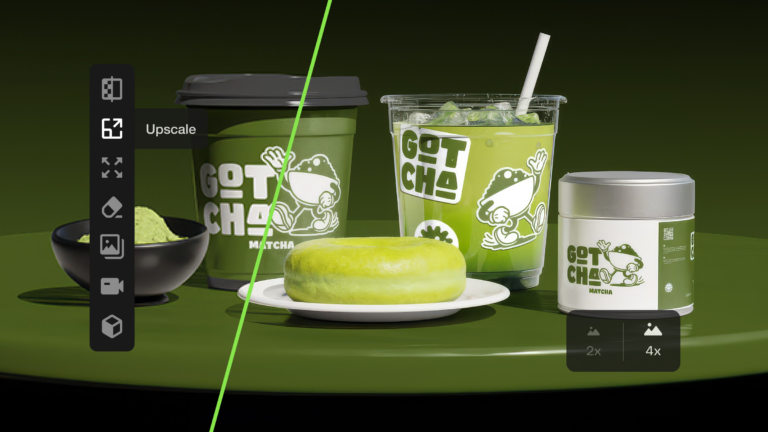
Learn how to upscale images with AI using ImageEdit. Enlarge photos 2x or 4x while preserving sharpness, texture, and detail for print, design, and marketing.

Compare the best AI image editors for professional workflows, including features, pricing, licensing, and output quality to choose the right AI photo editing tool.
Ready to level up your photography? Here are 10 essential edit pro tips to help you work smarter, move faster, and take full creative control of your photo edits.

