AI image generator guide: Unlock creative workflows with ImageGen
This AI image generator guide will help you create high-quality visuals fast with smart styles, quick edits, and seamless creative workflows.
Envato: Get every type of asset for any type of project, and access to AI tools. Start now
Search, generate, edit, refine — Envato's AI image tools now work as one connected workflow.
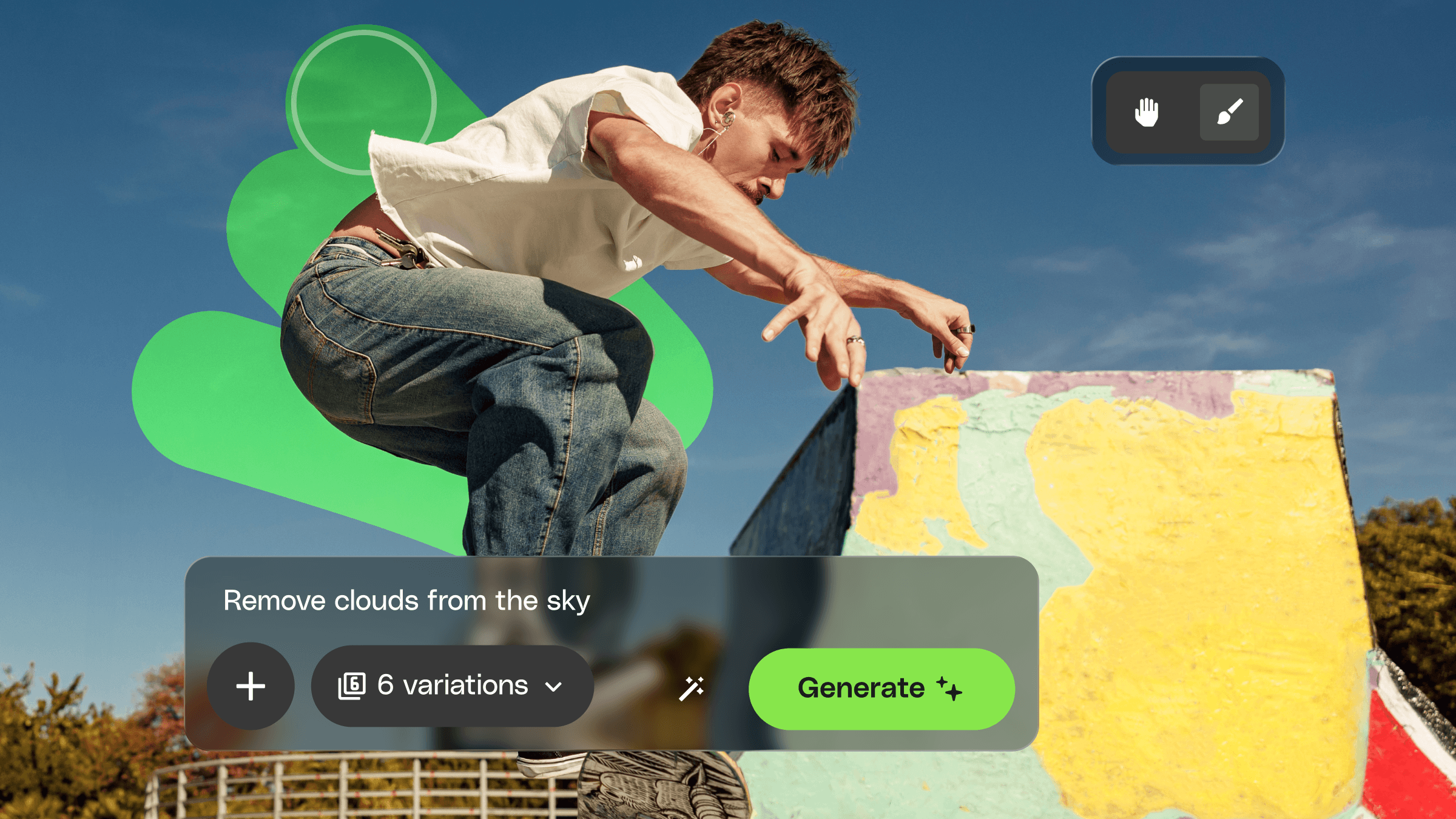
If you’ve opened Envato’s AI image generator or AI image editor recently and thought something felt different, you’re right! Both tools now live together alongside our creative asset catalog inside the Envato experience, and the changes go well beyond a fresh coat of paint.
Generating AI images, editing them with AI, and browsing stock photography now happen in one continuous flow. Find a stock photo, click into the AI editor, describe the changes you want in plain text — swap a background, add a product, adjust the lighting — and the AI handles the execution. When you’re done, hit back and you’re right where you left off in your search results. No more bouncing between separate destinations or losing your place.
Here’s what’s new and what it means for how you work.
This is the change that simplifies the most. If you used “Generate Similar” or “Riff It” before, those features haven’t disappeared — they’ve been absorbed into the AI editor’s prompt box alongside your standard editing prompts. One box now handles generating variations, riffing on existing images, and directing edits. The separate buttons and workflows are gone because they didn’t need to be separate in the first place.
You can also attach reference images directly in the prompt box. Say you’re editing a desk scene and your client wants a specific product added — drop that product image in as a reference, use the paintbrush to mark where it should go, and the AI composites it in. That workflow used to mean exporting, opening a different tool, manually placing elements, and re-importing. Now it’s one prompt box and a brush stroke.
The AI editor’s Replace and Erase tools have been merged into a single paintbrush that gives you fine-grained control over every edit. Paint over the exact area you want changed, describe the edit, and generate. The AI gets spatial context alongside your prompt — not just what to change but where to change it.
Want to swap an object in the foreground without the AI touching the background? Brush over it, type what you want instead, and generate. Need to remove something entirely? Same brush, same flow. Fewer regeneration cycles, more usable results from every attempt.
Here’s where the unified Envato experience really pays off. When you find a stock image in the Envato library, you can move directly into the AI editor without leaving your workflow. One click takes you from search results to the AI editor, with your full toolkit ready — the paintbrush, prompt box, reference images, and automatic model selection.
Find a beach scene that’s almost right but needs a dog in it? Click into the AI editor, brush the area where the dog should go, type the prompt, and generate. Want to use a specific dog from another stock image as reference? Attach it in the prompt box and the AI uses it as a guide.
When you’re done editing, hitting back in your browser returns you to your search results exactly where you left off — same filters, same scroll position. That may sound like a small detail, but anyone who’s lost their place in a filtered search after opening an image knows the frustration it removes.
You might notice that Nano Banana is no longer directly selectable from the editor’s dropdown menu. That’s intentional. The AI editor now automatically routes your edits through the best available model for the task — including Nano Banana Pro, Nano Banana 2, and Seedream 4.5.
What this means in practice: you stop spending time choosing between models and start getting better results by default. The system reads your prompt and intent, then selects the model most likely to deliver what you’re asking for.
Every edit you make is now tracked in a visible timeline. You can jump back to any previous version, compare iterations, and branch off from an earlier version without losing the work you did after it.
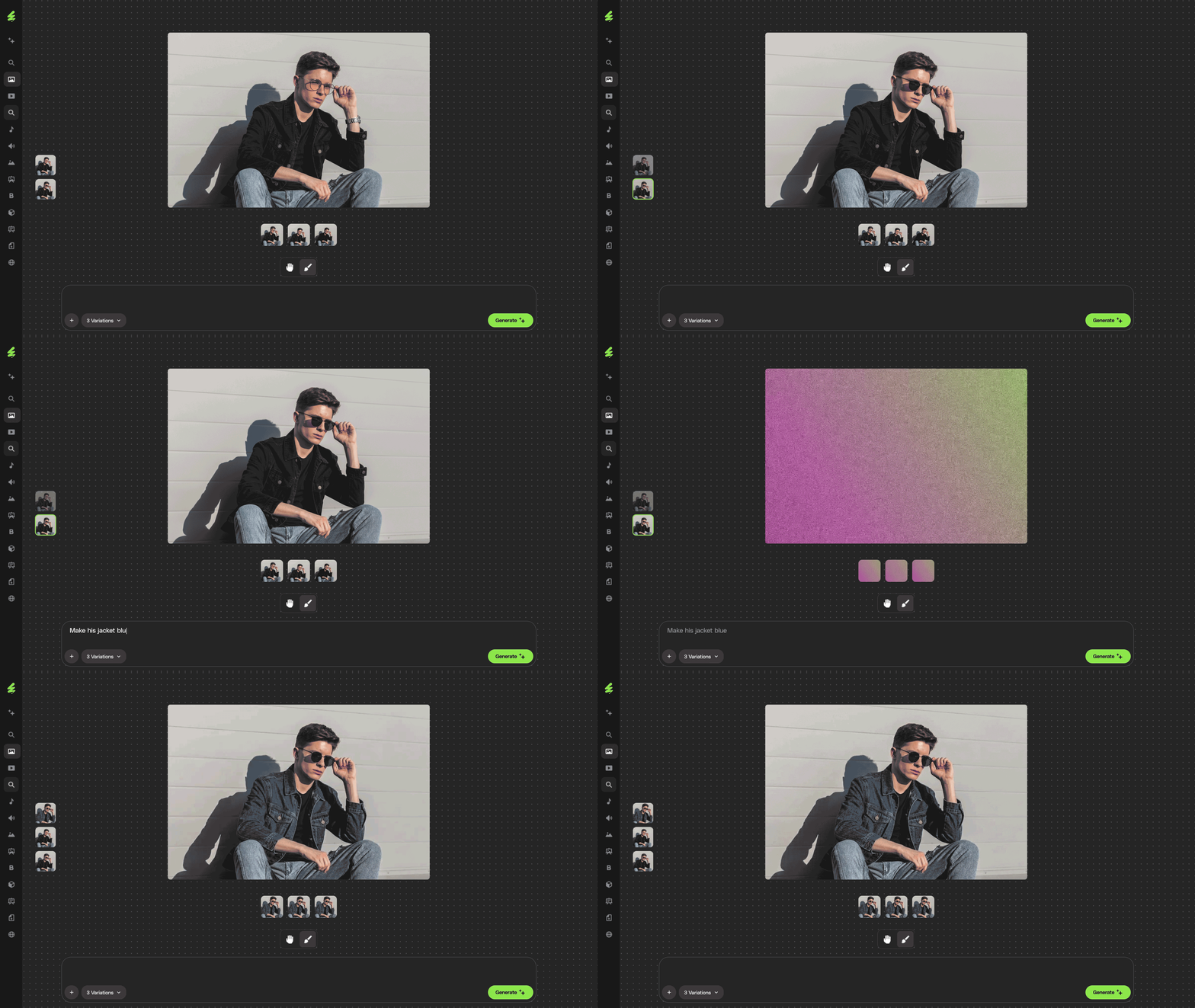
If you’ve ever gone three edits deep, realized the second version was actually the strongest, and had no clean way to get back there (nightmare!) — this fixes that. The edit history turns a linear process into something more like version control: experiment freely, knowing you can always return to any point and take a different direction.
Envato’s AI image generator has also moved into the Envato experience, with a few workflow improvements worth knowing about.
Auto style selection is now the default. Instead of choosing a visual style manually before generating, auto mode reads your prompt and matches it to the most appropriate style. You can still pick a style yourself if you have something specific in mind, but auto reduces the guesswork when you’re exploring and don’t have a locked-in direction yet.
Queue multiple generations without waiting for each one to finish. Previously, you’d submit a prompt and sit idle or go make a tea or get distracted by your phone while it processed before you could start the next. Now you can stack several prompts and let them generate in parallel — a genuine time-saver when you’re testing different concepts or deep in a large project.
The transition from generating to editing is seamless now too. Create an AI image, click edit, and you’re in the AI editor with the paintbrush, prompt box, and full toolkit ready to go. No export, no re-upload, no friction.
These updates reflect a shift in how Envato’s AI tools are designed: less about individual features in isolation, more about how those features connect into a single creative workflow. The paintbrush is useful on its own, but it becomes significantly more powerful when it’s one click away from your stock search and backed by automatic model selection and full version history.
If you’ve been using Envato’s AI image generator and editor as separate stops in your process, your next project is going to feel noticeably faster. Pull up something you’re working on and take the new workflow for a spin.
And this is just the AI image tools. The rest of Envato’s AI suite is getting the same treatment — stay tuned.
Both the AI image generator and AI image editor now live within the Envato experience as one connected workspace. You can move between stock search, generation, and editing without switching tools.
The Replace and Erase tools have been merged into a single paintbrush. Paint over the area you want to edit, write your prompt, and the AI targets that region.
One click takes you from a stock search result into the AI editor. Hit back in your browser and you’re returned to your search results.
Yes. Stack prompts and let them process in parallel instead of waiting for each one to finish.
They’re built into the AI editor’s prompt box now. Same functionality, fewer steps.
Yes! Full edit history is tracked in a timeline. You can jump back to any version or branch off from an earlier edit.
It reads your prompt and selects the best style match automatically. You can still choose manually if you prefer.
No. This is a workflow upgrade. Your plan and limits stay the same.
This AI image generator guide will help you create high-quality visuals fast with smart styles, quick edits, and seamless creative workflows.
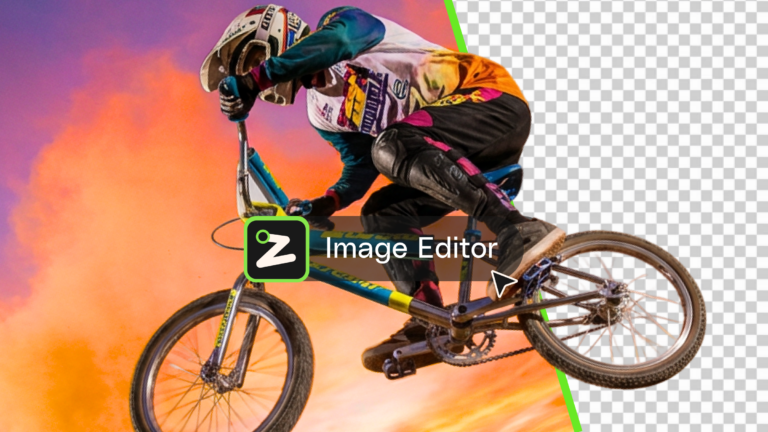
Learn what an AI image editor can do, and how to create polished visuals faster with AI.
Compare Envato vs Freepik across pricing, AI tools, and assets to find the best platform for your workflow, creative needs, and long-term project scalability.
GPT Image 2 improves AI image generation with better layouts, accurate text, and smarter prompts — delivering more usable visuals directly inside Envato’s ImageGen, ImageEdit, and GraphicsGen tools.