Envato MCP Server: A new way to search Envato via your LLM of choice
Envato MCP server connects AI assistants to the Envato library, enabling real-time, structured asset search directly inside tools like ChatGPT, Claude, and Gemini.
Envato: Get every type of asset for any type of project, and access to AI tools. Start now
Let's bring your portraits to life.

AI portraits are no longer just still images — now they can breathe, blink, and subtly move like real people (well, if you have the right prompt). Welcome to the era of generative video, where creativity meets cinematic precision. Whether you’re crafting character reels, concept films, or atmospheric moodboards, this guide will walk you through creating a photorealistic, film-style portrait that comes to life using ImageGen and AI Video Generator.
Spoiler: this isn’t about hitting “Generate” and hoping for the best. It’s about directing your subject like a pro — from the lighting setup to their final on-camera moment.
This guide on how to create an AI portrait will take you through each technical step. Let’s get into it.
Understanding how to create an AI portrait starts with mastering your foundation prompt. To keep things consistent, you’ll use a master prompt, which is your blueprint. It has strict rules for quality, lighting, framing, and style.
Here’s what it needs to include:
Pro Tip: This prompt doesn’t change with each subject — only the character details do.
Example Master Prompt:
Photorealistic studio portrait of a woman of Polynesian descent in her 30s, her face framed by long, wavy dark hair. The image has the fine grain and rich tonality of professional analog film. The composition is a horizontal 16:9, medium shot, with her head and shoulders placed in the bottom two-thirds of the frame, leaving the top third as clean negative space. Dramatic Rembrandt lighting sculpts her features, set against a uniform, dark charcoal grey background. Her direct, calm gaze and simple dark shirt complete the powerful, minimalist look.
The next phase of learning how to create an AI portrait involves generating and refining. Take your master prompt into your AI generator of choice (like ImageGen) and bring your subject to life.

If the style clicks, save it. If it’s 80% there, use it as a style reference and generate more variants.
You’re not just generating a face — you’re casting a character.
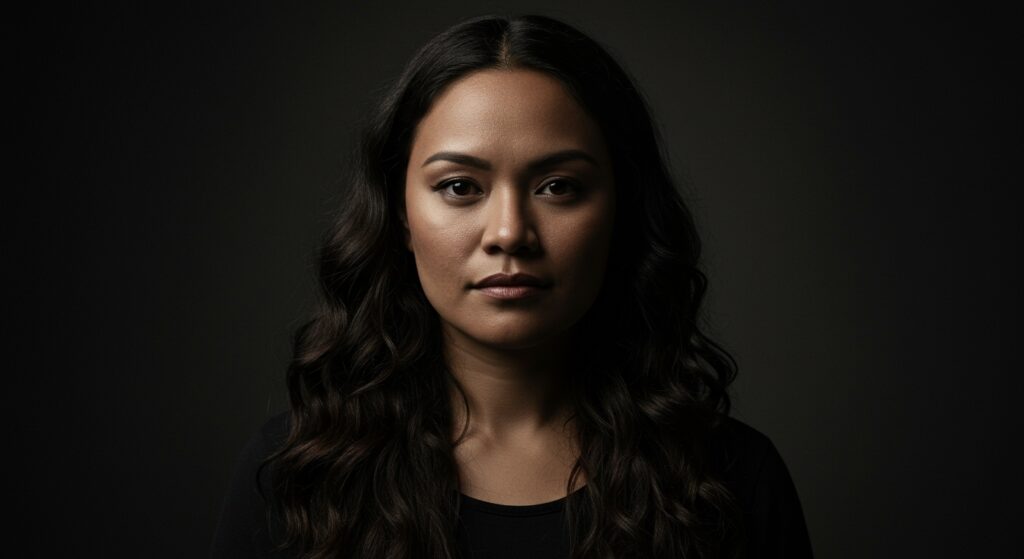
Pro Move: Don’t change the prompt style — just swap out character traits to explore different personas.
Even the best-looking portrait needs a glow-up. Import your selected image into ImageEdit and upscale it by 4X.
Why? Because your subject is about to move on camera, and every pore and pixel needs to hold up under motion. Compression artifacts and blur? Not invited.
This step ensures crisp textures, smooth transitions, and plenty of image data to experiment with later.
Proper framing is a crucial aspect that many overlook when learning how to create an AI portrait.
Studio portraits need clean headroom to look cinematic. Take your upscaled image into Photoshop and use generative expand to adjust the canvas.
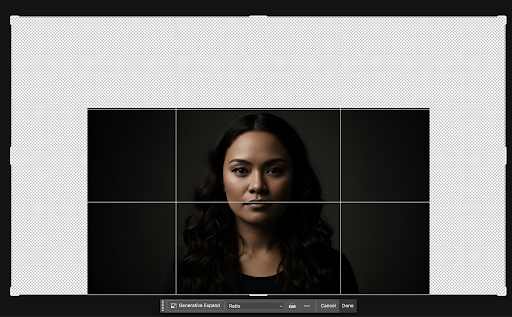
This gives you:

Note: This step isn’t currently possible with ImageEdit, since it doesn’t offer the precision needed for this project. Photoshop’s generative tools are your best bet here.
The final stage of how to create an AI portrait transforms your static image into living art.
Import your upscaled and reframed image into AI Video Generator. This is where your subject stops being a static character and starts becoming a living one.
Here’s what to remember:
Good prompt: She looks at the camera and smiles shyly, then pushes her hair back a little.
Bad prompt: A woman with long black hair smiles.

Why? Because at this point, you’re directing the performance, not redesigning the actor.
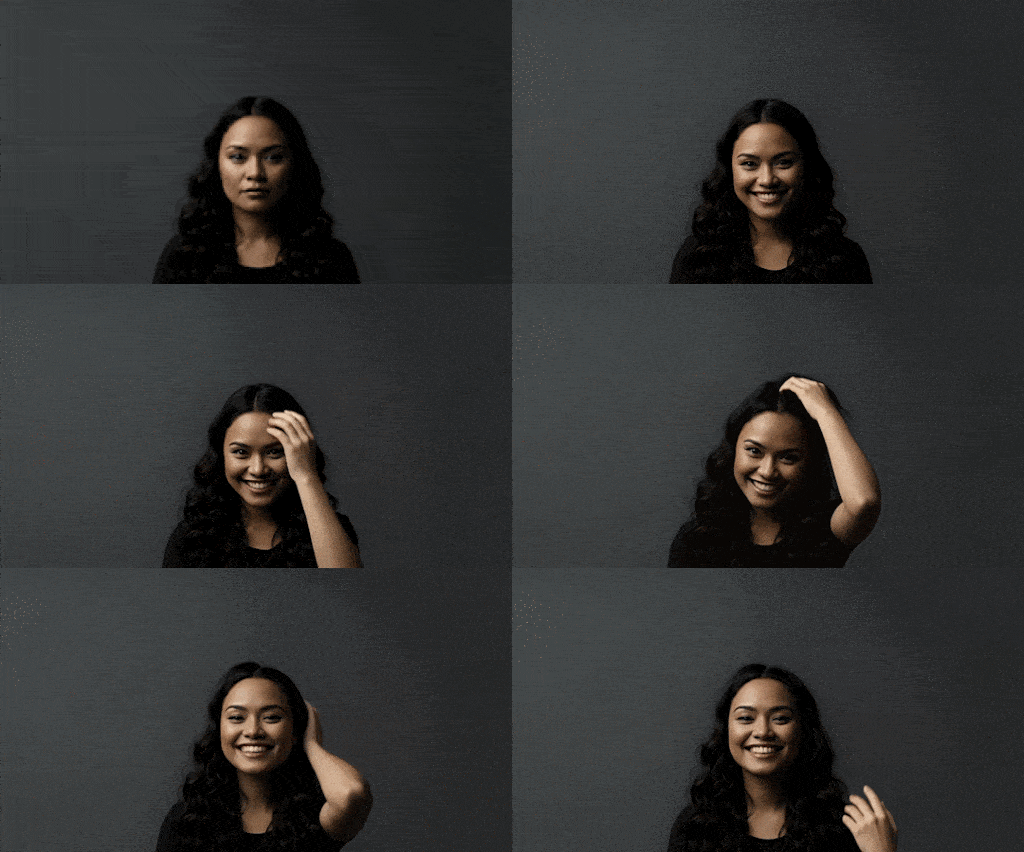
Optional: Add “fixed camera” if the AI introduces weird zooms or tracking movements. This helps preserve that studio stillness.
Mastering how to create an AI portrait isn’t a shortcut — it’s an art form.
It’s about building characters with intention, directing performances with clarity, and embracing tools like AI Video Generator as creative extensions of your vision. And while the tools might be new, the principles — lighting, composition, emotion — are timeless.
So go ahead. Cast your character. Light them like a cinematographer. Direct them like you’re shooting the opening frame of your dream film.
The camera’s rolling. You in?
Q: What’s the best aspect ratio for AI-generated portraits like this?
A: Always use 16:9 landscape for this process. It matches studio portrait conventions and gives you the negative space needed for subtle framing and cinematic motion.
Q: Why not describe the character again when using AI Video Generator?
A: You already “cast” your subject in the image generation phase. Re-describing them in AI Video Generator can confuse the AI and change the look. Stick to action-only prompts.
Q: Can I use other AI tools for steps like upscaling or expanding the frame?
A: Yes, as long as they give you control and quality. But for this particular style, Photoshop offers the best generative expand, and ImageEdit delivers clean upscale results.
Q: Do I need to add motion to make this portrait effective?
A: No, but subtle motion (like a blink, smile, or glance) adds realism and emotional connection — especially if your end goal is storytelling, branding, or character development.
Q: What kind of lighting works best for this process?
A: Stick with Rembrandt lighting using a half key setup, a negative fill, and a soft rim light. This adds depth, realism, and a cinematic edge that elevates the final result.
Envato MCP server connects AI assistants to the Envato library, enabling real-time, structured asset search directly inside tools like ChatGPT, Claude, and Gemini.

Discover what filmmaker Desire Lacap is obsessed with right now, from favourite films and music to creative habits and editing shortcuts.

A good mockup is often the only thing between a scroll-past and a sale. Here's how to use print on demand mockups to present your designs — across t-shirts, posters, mugs, and more — and build credible listings before you've printed a single item.

Learn how to create AI product photography with Envato Shortcuts. Generate commercial-ready product scenes, backgrounds, and concepts in minutes.

