




The grunge design trend: Why raw, messy aesthetics are back (and how to use them in 2026)
Discover why grunge design is trending again in 2026 and how to use textures, distressed type, and controlled chaos without sacrificing clarity or hierarchy.
Envato: Get every type of asset for any type of project, and access to AI tools. Start now
See how your logo will look in real life, with instant mockups from MockupGen.
When you’ve spent countless hours designing a logo, that first moment you see it on a baseball cap or tote bag is special. That’s when the brand truly comes to life. It’s when you can tell whether the logo is distinctive and memorable enough, and whether it communicates your brand characteristics.
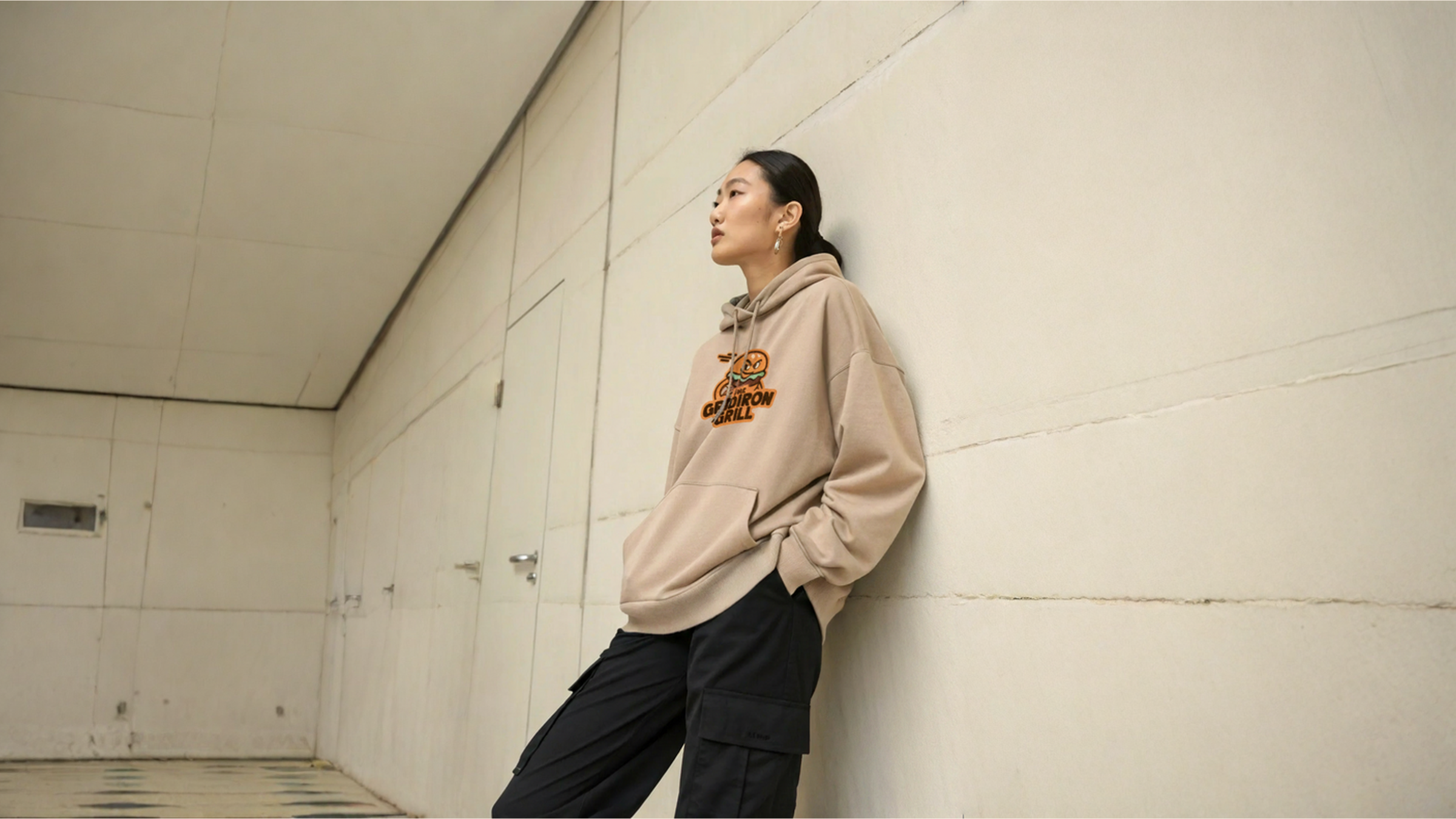
With an AI logo mockup generator, you can now create that moment instantly. Envato MockupGen brings logos to life in seconds. A few clicks and prompts, and you’ll see your logo on a sweatshirt, on signage, pasted twenty feet high on a billboard next to a highway, or wherever else your imagination takes you. Plus, your Envato subscription includes a full stack of AI tools and unlimited downloads of millions of creative assets.
Want to know more? Let’s see how to use AI to generate mockups that are ideal for pitches, portfolios, and brand development.
First, why would you want to mock up a logo in AI? What are the benefits?
An AI logo mockup generator lets you instantly place logos into polished, presentation-ready scenes in a fraction of the time you’d need with traditional tools like Photoshop. It analyzes the logo’s shape, contrast, and intended use to produce layouts that look utterly realistic and compelling.
Logo mockup generator AI tools handle the sizing, placement, and basic visual adjustments automatically. This removes repetitive setup work and produces consistent results across multiple mockups.
Today’s AI logo mockup generators can successfully simulate shadows, reflections, textures, and depth. The result is a logo that fits into its environment rather than looking pasted on.
From packaging and signage to apparel and digital displays, AI can be applied across a wide range of contexts. This helps you explore many different scenarios for your brand, without spending time or money on sourcing and staging physical assets.
Professional mockups help clients visualize how a logo will perform in real-world settings. This reduces uncertainty, clarifies design intent, and often accelerates approval. Using a tool like MockupGen is your first big step toward client approval.
Creating an AI logo mockup in MockupGen is easy and intuitive. Here’s a quick step-by-step walkthrough of how to use AI to generate mockups in no time.
First, you’ll need a logo. If you already have one, great! If not, follow our tutorial on designing a logo with AI and Illustrator.
If you have a design but need to refine it, simply fire up GraphicsGen and make all the changes you want.
For example, let’s say you downloaded this circle logo from Envato, but you want to use a slightly different illustration style.

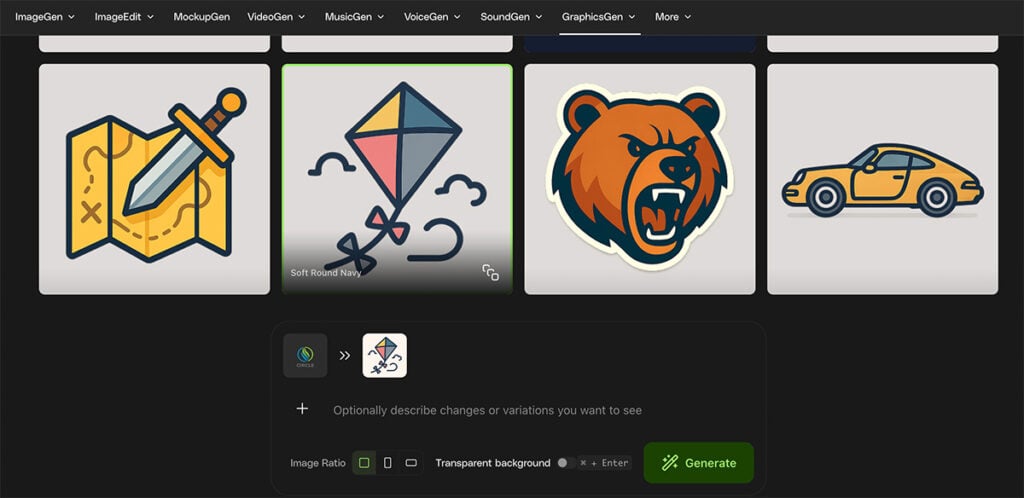
All you need to do is upload it to GraphicsGen and click on the style you want to apply.

You can describe specific changes you want to make (check out our AI graphics prompting guide for ideas), or simply choose a style and click Generate to get the same logo in a different illustration style:

If you want to make very specific, granular edits, head over to ImageEdit. Here, you can crop, erase, expand, and much more, all with simple AI prompts.
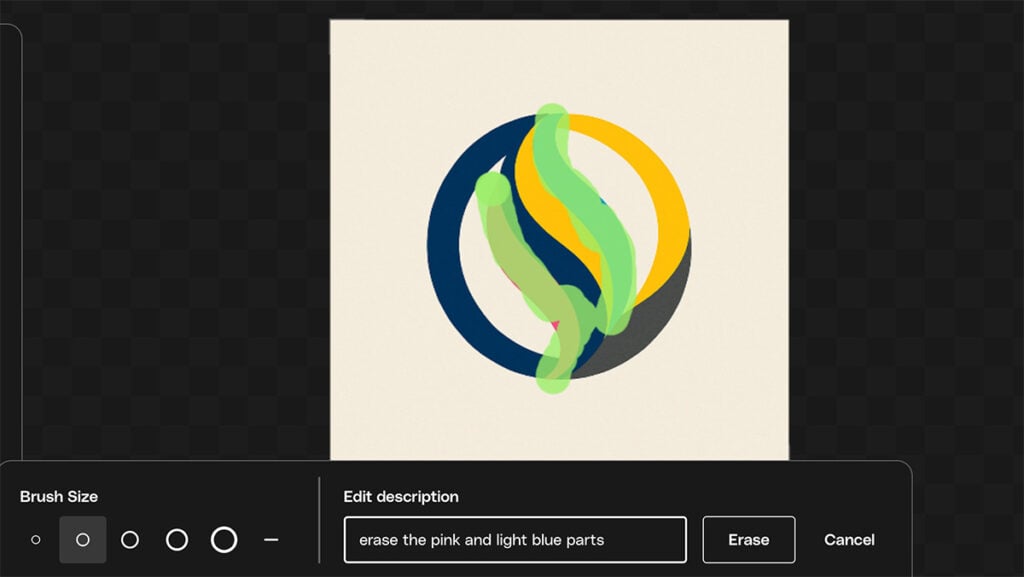
For example, if you want to remove the pink and light blue parts of the logo, just type that in and brush over the parts you want to erase.

As you can see, you don’t need to be precise with your brushwork! ImageEdit can figure out what you mean and give you a nice, clean logo with your changes made.

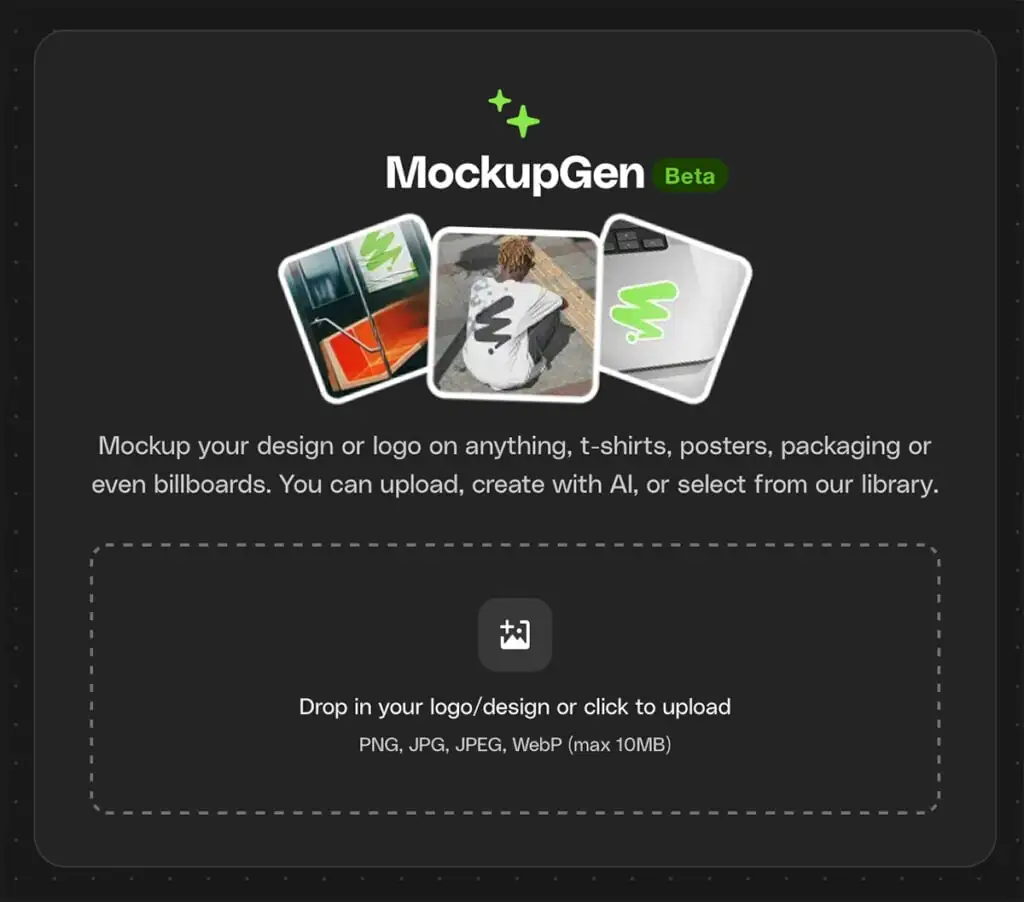
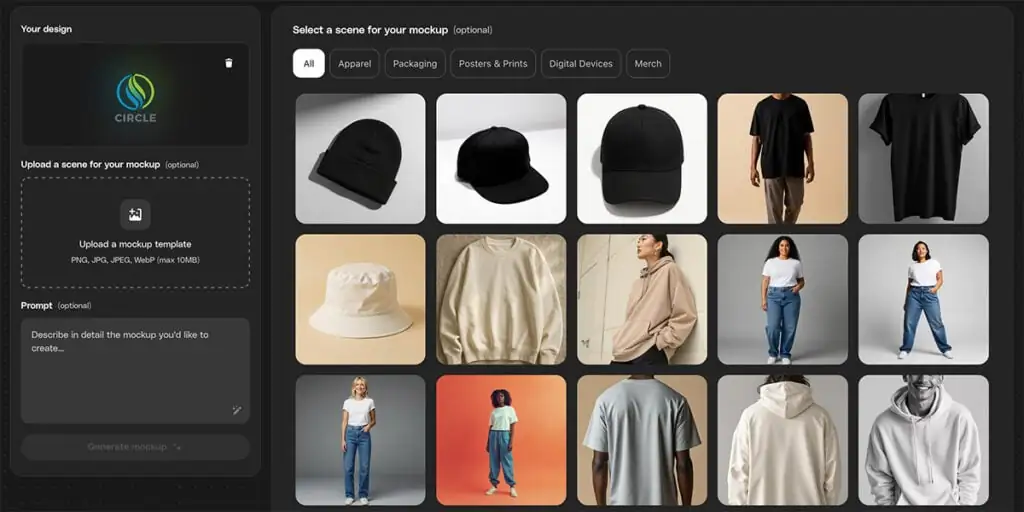
When you have a logo you’re happy with, head over to MockupGen and upload it.

Now for the fun part! Use the AI mockup generator to create a realistic scene featuring your logo. You’ll see loads of good default options right away. Just click on one you like, or cycle through the categories at the top to narrow your choices to apparel, packaging, posters, digital devices, or merch.

Here’s our logo applied to an AI t-shirt mockup, for example:

The defaults are great, but you can also use the AI mockup generator to create exactly what you want. For example, let’s choose a baseball cap this time, and type in a simple prompt: “Put the cap on the head of a trendy young man.”

Pretty good, right? But what if we want a less casual look? Just type: “make him more fashionable” and generate a new version. Voila! The sweatshirt is gone, and we get a classy pullover with some subtle accessories. With MockupGen, you get unlimited generations, so you can keep experimenting with new variations as long as you like until you get exactly what you want.

You can also upload any mockup template or photo you already have, and MockupGen will simply insert your logo into it in a realistic way. Or download one of the thousands of professionally designed mockup templates from Envato.
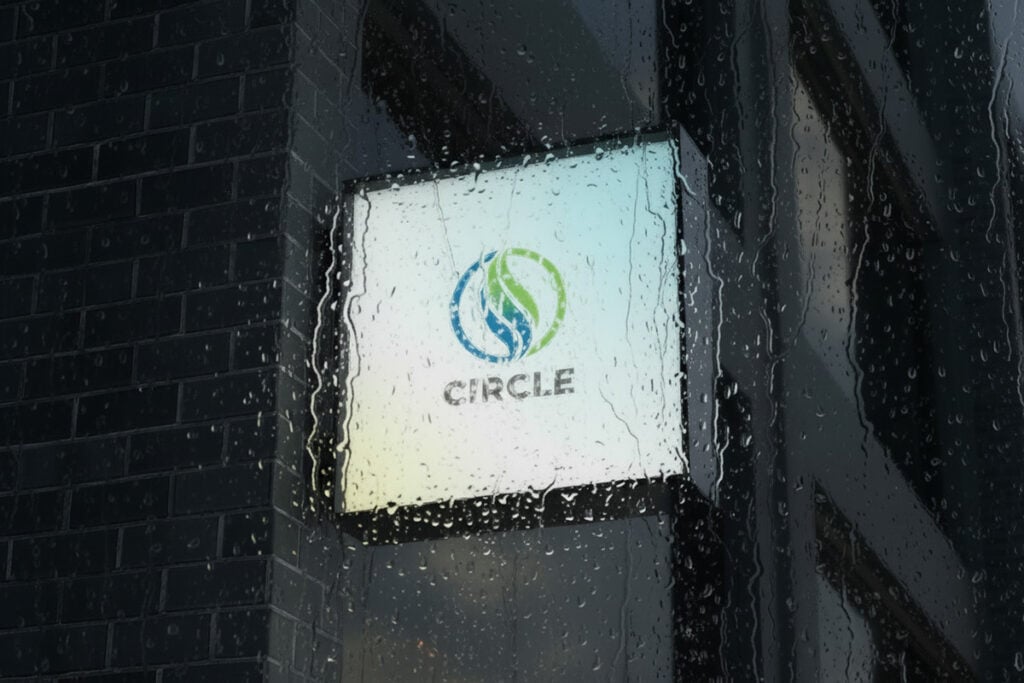
After you’ve uploaded your image, generate your AI logo mockup the same way. Here’s our logo added to a square sign mockup.

MockupGen is built to create realistic lighting for any scene you choose, so you don’t need to refine the lighting or textures if you don’t want to. But if you decide you want a different look, you can just describe what you want, and MockupGen will make the necessary adjustments.
Here’s our sign at night. The prompt was very simple: “Make it nighttime”.

Or how about that moody texture that comes from rain falling on the camera lens? Simple! Just type: “Make it rainy.”

As you can see, simple prompts work very well. If you want to get into the granular details, you can give longer and more specific prompts, and the logo mockup generator AI tool will give you what you want.
When you have an AI logo mockup you like, simply hit the “Download” icon in the bottom-right of your image, and you’ll get a high-quality PNG image that’s ready to use in brand decks, client presentations, web portfolios, and much more. And all the images you generate are covered by a broad commercial license.
While MockupGen works as a standalone tool, you’ll get the most value out of it if you combine it with other Envato tools and assets. The new Envato experience is all about integrating AI tools and creative assets into a seamless workflow.
Check out Envato’s vast selection of photos, for example, to find cool background ideas.
Then use Envato logo templates to help you design your logo.
If you still need more scene options, you can generate additional backgrounds with ImageGen . It’s simple, intuitive, and gives you all the creative control you need to craft the perfect image.
Need to present your logo to a client? Don’t sweat for hours in PowerPoint. Build faster pitches using Envato presentation templates.
Watch this quick video for more inspiration on how to combine Envato’s AI tools with creative assets to complete a brand design project in record time.
Once you have your logo design and AI logo mockup finalized, it’s time to present your ideas to the client. Here are some tips for making your mark and winning over stubborn clients.
A logo rarely exists in isolation, so it’s important to display it across varied touchpoints. Include applications such as signage, packaging, apparel, digital interfaces, and print collateral. These contextual frames allow stakeholders to understand scale, legibility, and visual impact in realistic situations. If you need more options, just go back to the AI logo mockup generator and whip up some new ones.
Color accuracy is essential. Present the logo using approved brand color values and ensure consistency across all mockups. This includes verifying conversions between RGB, CMYK, and spot colors. Consistent color application reinforces brand recognition and establishes confidence in the system’s reliability.
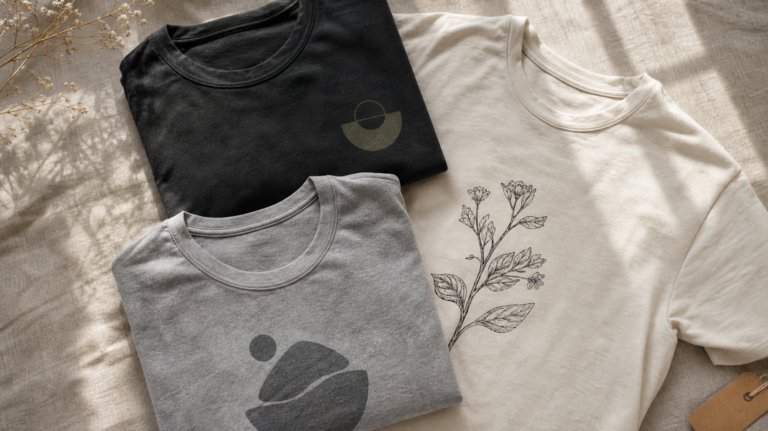
Mockups with appropriate materials—paper stocks, fabric textures, embossing, foil, metal, or digital surfaces—help communicate production quality. Realistic finishes ground the presentation in practical execution and provide a more accurate sense of how the logo will behave in physical and digital environments.
A comprehensive presentation illustrates how the logo adapts to light and dark backgrounds, constrained spaces, and varying aspect ratios. Show lockups, responsive versions, and orientation options. The goal is to confirm that the system is robust enough to operate across the full range of expected applications.
In addition to real-world applications, include concise explanations of spacing rules, minimum sizes, and core design decisions. These elements help stakeholders appreciate the identity system’s underlying logic without overwhelming them with technical detail.
Used together, these practices provide a clear and persuasive demonstration of how a logo performs in the environments where it will ultimately live. And don’t forget to use a solid presentation template to maintain visual consistency in your pitch.
Now that you’ve seen how easy MockupGen is to use and how powerful its results are, you can probably think of dozens of ways to integrate it into your workflow. But here’s some inspiration just in case.
When you’re testing ideas and seeing what sticks, MockupGen gives you fast, polished previews. It’s an easy way to spot which concepts have real-world potential before you dive deeper.
Instead of spending hours creating mockups in Photoshop, use MockupGen to do it in minutes. You’ll be able to explore more ideas and refine them with more variations, leading to stronger results.
Mockups help clients “get it” instantly. Instead of imagining how a logo or design might look, they see it in action—on packaging, signage, screens, and more. It’s clear, simple, and far more convincing. Use MockupGen to help you win them over and get approval.
Launching a brand is smoother when everything looks unified. MockupGen delivers consistent visuals for guidelines, internal previews, and announcement materials, so the whole identity feels cohesive from day one.
Need to set a vibe or sell a concept, including an AI product mockup? High-quality mockups make moodboards and pitch decks feel polished and intentional. They help bridge the gap between inspiration and execution.
Bring your logo to life with MockupGen. It’s an intuitive tool to work with, and it makes it so easy to turn a static logo into a living brand experience.
Whether you want to see your logo on a sweatshirt or plastered across the side of a bus, MockupGen can make it happen. Why not start exploring all the creative possibilities?
Yes. Upload any photo you want to use, along with your logo, and MockupGen will combine them to create a powerful, realistic mockup.
Sure! Just use the Prompt box to describe exactly what you want, and MockupGen will handle it. For example, you could take an existing photo and type in: “Make it a rougher wool texture.”
Yes, MockupGen works for all those scenarios and more. Wherever you want to visualize your logo, MockupGen will add it. You have thousands of mockup templates to choose from, or simply create your own with ImageGen.
Discover why grunge design is trending again in 2026 and how to use textures, distressed type, and controlled chaos without sacrificing clarity or hierarchy.
Learn how to upscale images with AI using ImageEdit. Enlarge photos 2x or 4x while preserving sharpness, texture, and detail for print, design, and marketing.
Swash fonts add a touch of drama and elegance to any design. Explore our curated selection of fonts with swashes and flowing tails to give your typography that extra flourish your projects deserve.
Explore 27 Norse fonts for standout branding in 2026, from rune-inspired and Viking display styles to modern Scandinavian typefaces with bold character.