AI sound generator guide: How to create sound effects with AI
Discover how Envato's AI sound generator creates custom sound effects from text prompts so creators can skip library searches and edit faster.
Envato: Get every type of asset for any type of project, and access to AI tools. Start now
This guide shows how to use AI voiceover for video to create clear, well-synced narration using practical editing workflows and VoiceGen.
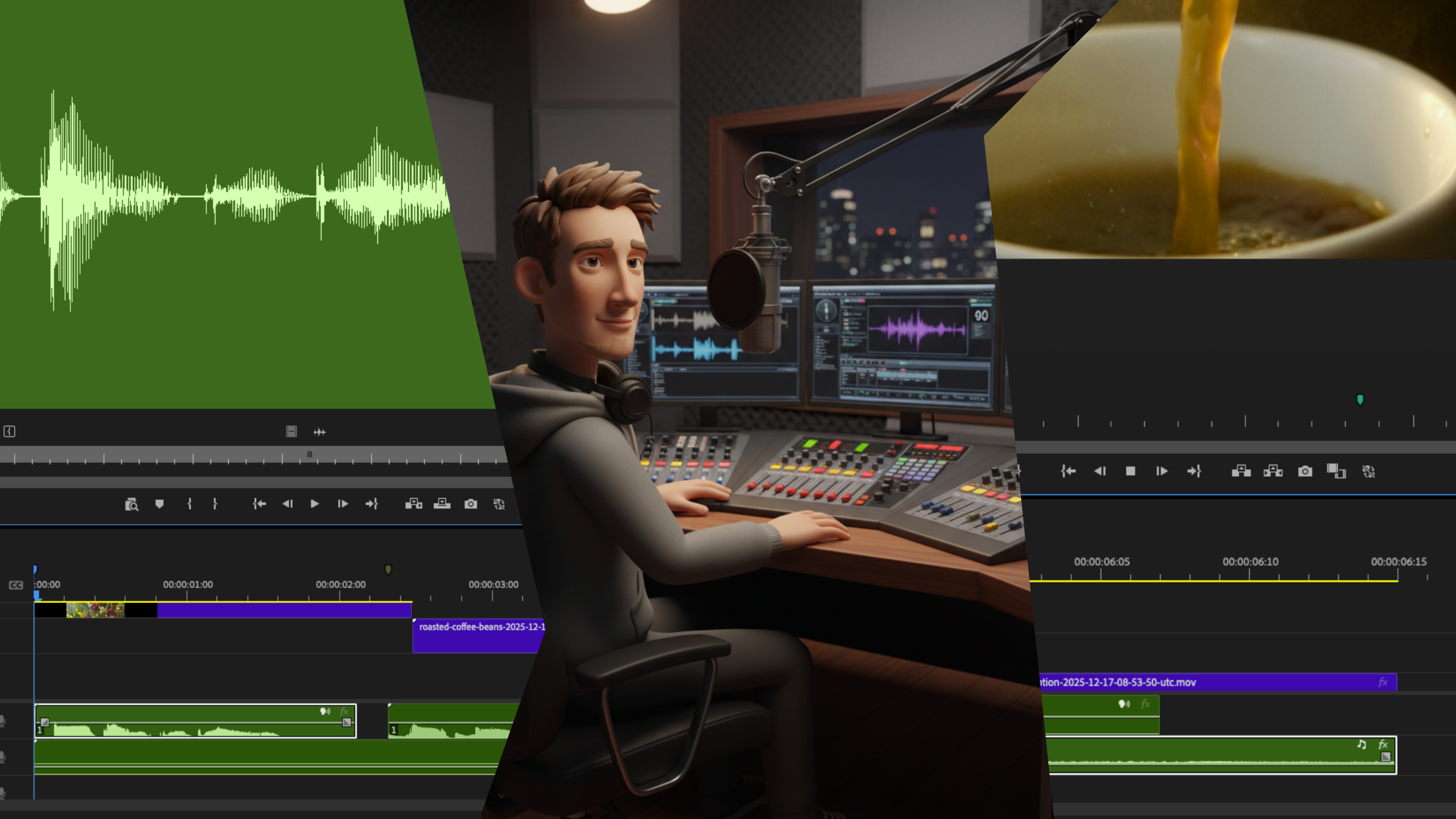
Adding a voiceover can turn a silent edit into a story-driven video, but only if the narration is clean, well-paced, and perfectly synced. In this guide, you’ll learn how to add and sync an AI voiceover for video, with practical workflows for creatives. We’ll cover both traditional tools and modern AI options, with a deep dive into Envato’s VoiceGen as a primary solution for fast, precise video narration.
You can add an AI voiceover for video by generating the narration, importing it into your video editor, and syncing it to visual beats using markers, waveforms, and timing adjustments. Tools like VoiceGen speed this up by generating editable narration that’s easy to align with cuts, motion, and pacing.
An AI voiceover for video is narration generated by artificial intelligence using trained voice models. Instead of recording a human speaker in a studio, you input a script and receive a polished audio file that can be edited like any other voice track.
For video editors, the real value is not novelty; it’s control. AI narration allows you to:
This makes AI voiceovers especially effective for tutorials, explainers, corporate videos, social content, and any project where clarity and speed matter more than dramatic performance.
Voice sync is not just about matching audio to pictures. It’s about aligning meaning, emphasis, and rhythm. When narration lands too early or too late, viewers feel the disconnect even if they can’t articulate why.
Well-synced video narration:
In poorly synced videos, narration often sounds rushed, visuals feel late, or key points get missed entirely. Syncing is where technical editing skill really shows.
Before opening VoiceGen or your editing software, start with a script designed for editing. Editors often make the mistake of writing narration like prose, resulting in long, hard-to-sync sentences.
Instead, structure your script around visual beats:
For example:
Instead of writing:
“Organically grown, thoughtfully roasted, brewed your way.”
Break it into:

This approach gives you far more flexibility when syncing narration to cuts or animations.
If your narration still feels slightly off, don’t guess: diagnose it. Take a look at our AI voiceover troubleshooting guide to fix pacing issues, awkward pauses, and common voice sync mistakes fast.
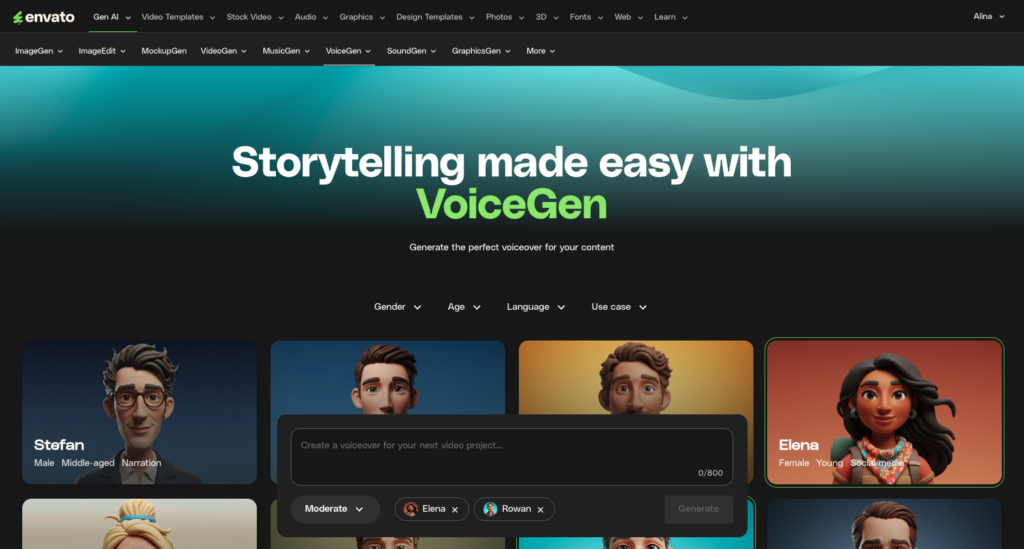
Once your script is ready, generate the narration using VoiceGen. Paste the script, choose a voice style that matches your project, and review pacing before export.
For technical or instructional videos, neutral and steady voices usually sync better than expressive ones. The goal is clarity, not performance.
Why editors like VoiceGen:
Bring the voiceover into your editor: Adobe Premiere Pro, Final Cut Pro, or DaVinci Resolve all work similarly for this stage.

Place the narration on its own dedicated track, typically above music and sound effects. This separation makes trimming and automation easier later.
At this stage, don’t cut anything yet. Listen through once to understand the narration’s natural rhythm.
Markers are one of the most underused tools for syncing voiceovers. As you listen to the narration, add markers at:
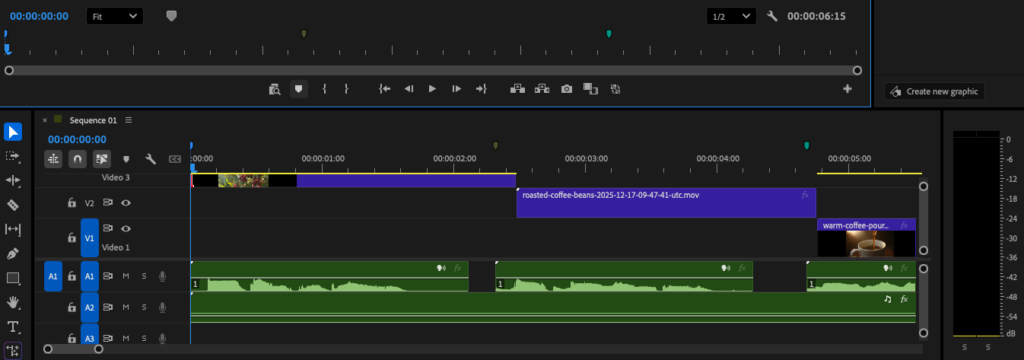
In Premiere Pro, you can drop markers directly on the audio track. In DaVinci Resolve, clip markers serve the same purpose. These markers become your roadmap for aligning visuals.
This step saves time later by giving you clear sync targets.
Now align the narration with your visuals at a high level. Match each script segment to the appropriate scene, shot, or graphic without worrying about frame-perfect timing.
Think of this as blocking, not polishing. The goal is structural alignment.

Once the rough sync works, zoom into the waveform. This is where professional voice sync happens.
Look for:
Use small trims, slip edits, or nudges of a few frames at a time. Even adjustments of 2–3 frames can dramatically improve perceived sync.
If pacing feels off, subtle time-stretching of under 5% usually remains transparent.
One of the biggest mindset shifts for editors is allowing narration to lead the edit. If the voice explains something important, the visual should stay long enough for that explanation to land.
This might mean:
When visuals rush ahead of narration, comprehension drops. Good video narration feels like visuals are responding to the voice.
Once synced, balance your mix so narration sits comfortably above everything else.

General guidelines:
Apply gentle compression and EQ if needed, but avoid overprocessing. AI voiceovers are usually clean enough to require minimal treatment.
Finally, watch the video at normal speed, without scrubbing. Then listen once without watching the screen.
If the narration makes sense on its own and still feels perfectly timed when you watch, your voice sync is working.
For many editorial workflows, AI narration is now the practical default, especially when speed and flexibility matter. Here’s a comparison between AI voiceover and recorded voiceover:
| Aspect | AI voiceover for video | Recorded narration |
| Production speed | Extremely fast. Scripts can be generated and revised in minutes, which is ideal when edits are still evolving or deadlines are tight. | Slower. Requires scheduling talent, recording sessions, and potentially multiple takes before a usable version is ready. |
| Revision workflow | High flexibility. Lines can be regenerated instantly if timing, wording, or emphasis changes during the edit. | Low flexibility. Even small script changes often require a full re-record or pickup session. |
| Consistency | Very consistent tone, pacing, and volume across long videos or multi-part series. | Natural variation between takes can add character, but may introduce inconsistencies across sections. |
| Sync control | Easier to sync precisely. Clean waveforms and predictable pacing make voice sync adjustments faster at the timeline level. | Sync can be trickier due to uneven pauses, breathing, or varying emphasis across takes. |
| Emotional nuance | Controlled but limited. Best suited for instructional, corporate, and explanatory video narration. | A strong emotional range and personality make it better suited to storytelling, character-driven, or cinematic work. |
| Technical setup | No studio, microphone, or acoustic treatment required. Works entirely in software. | Requires proper mic setup, room treatment, and audio cleanup to achieve professional-quality results. |
| Cost over time | Predictable and scalable, especially for frequent content or ongoing projects. | Higher cumulative cost due to talent fees, studio time, and retakes. |
Adding an AI voiceover for video is no longer just a time-saving trick; it’s a professional editing tool. When you script with visuals in mind, generate clean narration with VoiceGen, and sync deliberately, your videos feel clearer, more intentional, and easier to follow.
Strong voice sync doesn’t draw attention to itself. It simply makes everything else work better, and that’s exactly what great video creation is supposed to do.
Yes, for most projects. Modern AI voiceover tools like VoiceGen deliver clean, consistent narration suitable for tutorials, explainers, ads, and social video, especially when synced carefully.
Absolutely. Once exported, an AI voiceover behaves like any other audio clip; you can trim, fade, time-stretch, and process it in your editor.
Use micro timing adjustments. Small trims, slips, or slight time-stretching (under 5%) can fix sync issues without changing your edit structure.
Less than it used to. With proper pacing, natural scripts, and light audio processing, most viewers won’t notice it’s AI-generated.
This guide explains how to use AI voiceover for video to create clear, professional narration that syncs seamlessly with your visuals. Designed for video editors, it covers scripting, generation with VoiceGen, precise voice sync techniques, and real-world editing workflows to help you deliver polished, efficient video narration every time.
Discover how Envato's AI sound generator creates custom sound effects from text prompts so creators can skip library searches and edit faster.

We tested 9 AI image generators on identical artistic prompts (same style-transfer task, same day) to see which one actually paints like an artist.
AI isn't making full movies yet; it's reshaping VFX, editing, and dubbing. Here's where it helps filmmakers today, and where it doesn't.
A practical, step-by-step guide to making a short AI film — from script and shot lists to character consistency, voice, sound, editing, cost, and legal rules.

