AI sound generator guide: How to create sound effects with AI
Discover how Envato's AI sound generator creates custom sound effects from text prompts so creators can skip library searches and edit faster.
Envato: Get every type of asset for any type of project, and access to AI tools. Start now
Learn how to create polished UI sound design with SoundGen. Generate, refine, and mix custom interface sounds for apps and games using AI-driven workflows.

UI sound design influences how users perceive and interact with an app or game. A tiny click confirms that a button has worked. A warm chime rewards an achievement. A muted bump warns of an error — gently. These micro-sounds guide attention, emotion, and timing more than users realize.
With Envato SoundGen, you no longer need synthesizers, Foley gear, or massive sound libraries to build polished interface audio. You can describe the sound you want, adjust the length anywhere from one to 22 seconds, and control how strictly SoundGen follows your prompt. It transforms UI sound design into a creative, iterative process even non-audio specialists can enjoy.
If you need inspiration as you work, browsing sound effects for apps or exploring game UI assets can be a great way to warm up your mood, tone, and style. Even better, you can mix your AI-generated sounds with Envato’s huge collection of professional sound effects to build richer, more expressive UI soundscapes. This hybrid approach gives you both the creative freedom of AI and the polished detail of studio-grade UI sound design.
SoundGen generates UI sounds, such as taps, notifications, transitions, and menu feedback, based on text prompts. You can set an exact duration (1–22 seconds), adjust the prompt influence, and then refine the results. Export the audio, then clean, EQ, and mix it using lightweight tools to prepare it for seamless integration into a real app or game.
UI sound design is the craft of creating short auditory cues that guide users through an interface. These sounds (or microinteractions) confirm actions, communicate errors, enhance navigation, and reinforce the brand’s feel. With AI-powered tools like SoundGen, creatives can quickly produce customizable audio for apps and games while maintaining clarity, consistency, and emotional tone.
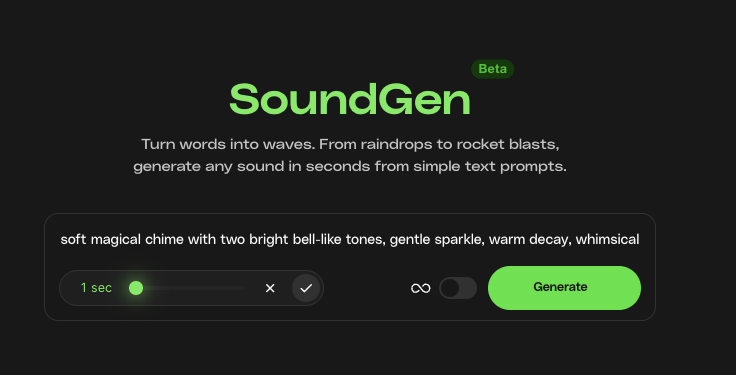
Below are seven expanded sections reflecting SoundGen’s real capabilities: prompt creation, sound length adjustment, and prompt influence control.
Before touching SoundGen, know what moment you’re designing for. UI sound design isn’t just “a sound”, it’s a message.
For example, a mobile banking tap should feel subtle, precise, and trustworthy. Think about how Apple Pay sounds. It’s a short, bright, two-tone chime; clean, friendly, and unmistakably positive. The sound resolves quickly, with a smooth upward interval that subtly communicates “approved.”
A kid-friendly game inventory UI sound design can be bright, bouncy, and fun. Games from studios like Nintendo use cheerful plucks, chimes, or bubbly sounds that make children feel rewarded and excited as they interact with characters or collect items.
Finally, a productivity app notification should be clean, non-intrusive, and never startling. Tools like Slack prioritize low-intensity chimes that gently acknowledge reminders or task updates without hijacking your focus. These apps rely on calm, restrained audio because their entire value is helping users stay organized, not overwhelmed.
That being said, understanding interaction types becomes easier when you reference mobile app UI sound design basics, especially patterns around hierarchy and interaction states.
SoundGen’s results depend heavily on the clarity of your text prompt. Essentially, your prompt instructs SoundGen on which physical world your sound belongs to, whether it’s digital or abstract.
We recommend using the formula:
Action + Material/Texture + Mood + Frequency/Pitch descriptors + Purpose
Prompt for a mobile tap:
“very short digital click, plastic texture, clean high-frequency transient, neutral mood”
Length: 1 second
Influence: 50%
Prompt for game menu confirm:
“bright, bouncy confirm sound with a soft plucky transient, cheerful upward tone, light cartoon-like sparkle, playful game aesthetic, clean attack, no harsh highs, suitable for fun menu interactions.”
Length: 1 second
Influence: 75%
This is a major advantage of SoundGen: you can shape not just what the sound is, but how long it lives. Duration directly influences clarity, responsiveness, and users’ perceptions of feedback. Research from Nielsen Norman Group highlights that interface audio must be immediate and brief to avoid disrupting interaction flow.
With precise length control, SoundGen enables you to shape audio that aligns seamlessly with these best-practice principles, ensuring every sound supports, rather than competes with, the user experience.
| UI Sound Type | Recommended Duration |
| Taps / Clicks | 80–150ms |
| Hovers | 120–200ms |
| Notifications | 200–600ms |
| Transitions | 300–1000ms |
| Game menu animations | 200–800ms |
| Brand stingers | 1–3 seconds |
| Tutorial transitions or quest reward sequences | 3–6 seconds |
Anything longer (e.g., 10–22 seconds) works great for ambient loops, menu backgrounds, or soft sci-fi beds under UI animations.
For UI work, short lengths keep the interface responsive and uncluttered.
SoundGen lets you decide how closely the output should follow your prompt:
Prompt for an error sound:
“short beep with low-mid pitch, muted mechanical tone, crisp but gentle transient, slight downward interval to signal rejection, no reverb, functional UI aesthetic, suitable for error or invalid action feedback.”
Length: 1 second
Influence: 80%
Prompt for a notification sound:
“gentle two-tone chime with warm digital bell texture, smooth attack, soft upward interval, 250ms duration, calm and unobtrusive, minimal reverb, low-mid emphasis, suitable for quiet productivity or task reminder notifications”
Length: 1 second
Influence: 50%
Prompt for an 80s gaming sound:
“short synthetic blip with classic 80s arcade tone, bright square-wave timbre, slight pitch step, punchy but clean transient, minimal noise, retro game menu aesthetic, subtle detuned shimmer for vintage character”
Length: 1 second
Influence: 10%
SoundGen returns a set of results, and your task is to select the one with the desired timbre, attack, and mood. Don’t choose the loudest file. Loudness is adjustable later; character is not.
Pro tip: Choose 3–5 variations of the same action. Rotating them prevents user fatigue, especially in games where actions repeat hundreds of times.
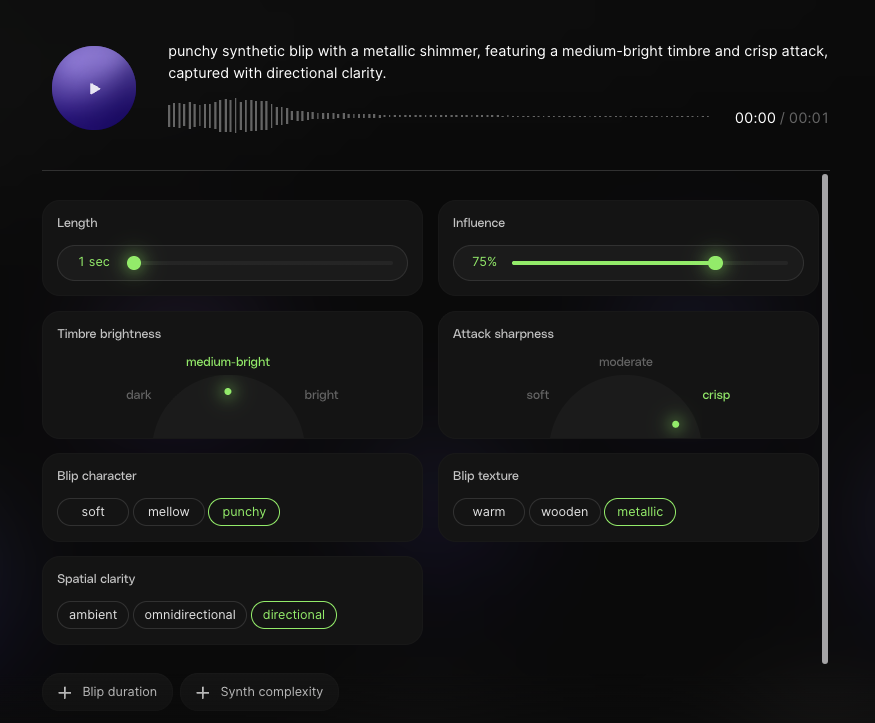
AI gets you about 70–90% of the way to great UI audio, and you can refine your SoundGen results by adjusting the length, influence, timbre brightness, attack sharpness, blip character, blip texture, spatial clarity, blip duration, and synth complexity.
However, the real magic happens in the polishing phase, that’s where your sounds go from “good” to “professionally sharp.”
Once SoundGen gives you a solid foundation, you can refine timing, clean up frequencies, and shape character using a handful of reliable audio tools. Here are some of our favorite options for taking AI-generated sounds across the finish line.
Audacity is ideal for beginners or those who need to make quick edits. It lets you trim, normalize, fade, and clean up AI-generated UI sounds with minimal setup. Its simplicity makes it perfect for fast iteration and batch processing of short clips.
Audition provides professional-grade tools for polishing audio. Its spectral editor makes removing clicks, hiss, or harsh resonances incredibly accurate. You also get powerful EQ, compression, and noise tools for producing clean, consistent UI assets.
Reaper is a highly customizable Digital Audio Workstation that’s perfect for UI sound design, especially for those who want more control. You can layer multiple generated sounds, automate volume or pitch changes, build variations, and apply effects—all at a low one-time cost.
GarageBand is a beginner-friendly yet surprisingly capable tool for Mac and iOS users. It’s excellent for layering UI sounds, adding subtle synth tones, applying gentle EQ, and experimenting with effects using a clean, visual interface. Ideal for designers who prefer a musical, playful workflow.
Regardless of your software, a limiter prevents sudden peaks from making UI sounds feel overly sharp, while an EQ shapes frequency balance to keep audio crisp and clean. These two tools are essential for creating a polished and consistent UI sound design across an entire product.
Refinement steps:
A perfect UI sound design in the studio may feel off in the product. Always test on real devices, such as phones, tablets, laptops, and controllers.
When you’re generating audio with AI, it’s surprisingly easy to create dozens of great-sounding clips that don’t quite work together in context.
This checklist will help you slow down and evaluate each sound on clarity, timing, emotional tone, loudness, and platform compatibility. In short, it’ll protect your users’ experience and your product’s polish.
Checklist:
For games, test scenes with overlapping UI actions: inventory spam, menu navigation, rapid tapping, and ensure your sound set remains clean and pleasant.
Great UI sound design isn’t just about generating audio; it’s about shaping the emotional choreography of your app or game. Every click, chime, and transition plays a small but meaningful role in how users feel as they navigate your experience.
With SoundGen, you’re no longer limited by libraries or long production cycles. You can experiment freely, sculpt variations, and refine your soundscape until it perfectly matches the personality of your interface. Whether you’re building a productivity tool, a playful mobile game, or a bold sci-fi dashboard, the combination of AI generation and thoughtful mixing gives you the freedom to create UI audio that feels intentional, cohesive, and delightfully on-brand.
If you’re ready to keep exploring what the Envato experience can unlock for your creative workflow, dive into our Music Trends article and start crafting a sound identity that truly stands out.
Most UI sounds work best between 80ms and 300ms. Taps and clicks need to feel instant, while notifications or transitions can be slightly longer. With SoundGen, you can set the exact duration, from 1 to 22 seconds, so your audio always fits the rhythm of your interface. Shorter sounds keep apps feeling responsive; longer ones are great for stylized game menus or ambient transitions.
WAV at 44.1kHz is a safe default for clean, crisp UI audio. It preserves transients and avoids compression artifacts that can make small sounds feel muddy. Games and web apps sometimes prefer OGG for performance.
MP3 is suitable for lightweight apps or casual games where file size is a concern, but it can introduce audible compression on short UI cues. Web-based or performance-focused projects often use OGG for its balance of quality and efficiency. With SoundGen, you can export clean audio first, then convert to WAV, MP3, or OGG depending on your platform’s needs.
Yes, light polishing makes a huge difference. Even strong AI-generated sounds benefit from trimming, EQ, or soft limiting to match loudness across your UI. Tools like Audacity, Adobe Audition, Reaper, Ocenaudio, or GarageBand help you refine timing and tone, ensuring your audio sounds consistent and professional.
Absolutely. Micro-sounds can become part of your product’s identity. Think of Apple Pay’s chime or Slack’s notification tone. With SoundGen, you can explore variations around a single prompt to build a cohesive sonic “family” that feels unique to your app or game.
Mono is usually best for UI sounds. It keeps audio consistent across phones, tablets, laptops, and small speakers. Stereo can be useful for atmospheric transitions or game menus, but most interaction sounds — such as taps, hovers, and confirms — should remain simple and focused. SoundGen lets you generate clean audio for either format.
Quiet enough to support the interaction, not dominate it. Most taps sit around −18 to −14 LUFS, with notifications slightly louder. After generating sounds with SoundGen, use a limiter or loudness meter in your editor to maintain consistency and comfort throughout your entire sound set.
Discover how Envato's AI sound generator creates custom sound effects from text prompts so creators can skip library searches and edit faster.

A cinematic sound effect isn't just the event — it's the material, the space, and the emotion. This guide covers prompts for the most common cinematic sounds, from rain to whooshes.

The best AI sound effect generators for 2026 — compared for quality, control, pricing, and commercial licensing safety.

Discover how sonic branding AI tools help you create unique brand sounds, from audio logos to UI effects, and build a consistent, memorable sonic identity across platforms.

