AI sound generator guide: How to create sound effects with AI
Discover how Envato's AI sound generator creates custom sound effects from text prompts so creators can skip library searches and edit faster.
Envato: Get every type of asset for any type of project, and access to AI tools. Start now

Stock photos are as popular as ever, but finding the perfect image is not always easy. Sometimes a photo is almost perfect but needs a small tweak to match your brand, layout, or story. That is where Envato’s “Edit with AI” feature comes in. Built directly into Envato’s stock photo library, it lets you open any supported image and make changes using our AI image editing tool, ImageEdit, without ever leaving the platform!

In this guide, we’ll walk through how to edit stock photos using Envato’s AI capabilities and apply those edits in real-world scenarios. We’ll also cover how to export your final image so it is ready to use in your project.
Edit with AI is a built-in feature inside Envato’s stock photo library that lets you edit and customize images directly in your browser using AI. Instead of downloading a file and opening it in a separate editing app, you can make changes instantly on Envato; no Photoshop, no file handoffs, no extra steps.

Powered by Envato ImageEdit, Edit with AI brings advanced AI image editing tools into a simple, visual interface. It uses powerful AI image models, including Nano Banana Pro, with additional models being added over time. The result is a fast, flexible way to adapt stock photos to your exact needs before you download them.

Once you select Edit with AI on a stock photo, you can start shaping the image to fit your project. You can:
All edits happen directly on the image, making it easy to experiment and iterate until the result feels right.
Edit with AI drastically reduces friction in the creative process. It’s especially valuable for designers, content creators, and social media managers who need polished visuals on tight timelines.
Key benefits include:
Compared to traditional photo editing workflows, Edit with AI saves time while encouraging fast, low-pressure experimentation, something many high-volume creative teams rarely have room for.
Because everything happens inside Envato, Edit with AI fits seamlessly into real-world workflows. You can explore ideas, refine details, and export only the final version you actually need. That means fewer files, fewer tools, and more time spent focusing on creative decisions rather than technical steps.
In short, Edit with AI turns stock photos from “almost right” into visuals that feel intentional, customized, and ready to use.
Edit with AI is easy to find when you are browsing Envato’s stock photo library. When you click on a stock photo to view it, you will see the “Edit with AI” button next to the photo, usually near the download options. Clicking this button opens the image directly in Envato ImageEdit, where you can begin making changes.

If you’re looking for a quick change, you can enter a prompt beneath the image preview to describe the edit you’d like to make. For example, you might ask to “update the model to wear rose-tinted glasses”, “make the lighting warmer”, or “change the background to a modern office”.
You’ll also find one-click AI shortcuts for common edits, including:
These options are particularly useful when you’ve found a stock photo that’s almost perfect but needs a few adjustments to better match your project.

Whether you start with a prompt, use one of the AI shortcuts, or click the Edit with AI button, you’ll be taken into Envato ImageEdit with your selected stock photo already loaded and ready to edit. From there, you can continue refining the image using ImageEdit’s full suite of AI-powered editing tools.
ImageEdit currently supports JPG and PNG photos, depending on the editing features you use (transparent background photos must be PNG). Support continues to expand as ImageEdit evolves, so more file types and tools will become available over time!
Editing a stock photo with Envato’s AI tools is designed to be fast and intuitive. You can go from browsing to a customized image in just a few clicks. Let’s walk through how it is done!
Start by browsing the Envato photo library and choosing an image that fits your concept. Once you find a photo you like, click Edit with AI to open it in ImageEdit. This launches the editing interface with your chosen image already loaded and ready to modify.
ImageEdit gives you several editing tools that each serve a specific purpose.

| Tool | Functionality |
|---|---|
| Remove Background | This tool uses AI to automatically remove backgrounds or backdrops from your images. The image will then be exported as a PNG to retain the transparency. |
| Upscale | Use this tool to upscale the resolution of your image. This is perfect if you have made some AI edits and want to upscale the final image before exporting. |
| Expand | Extends the canvas and generates new background content that blends naturally with the original image. This is useful when you need more space for a layout or a different crop ratio. |
| Replace | Lets you swap elements or add new objects. You can introduce new props, change what is in the scene, or transform part of the image into something else. |
| Erase | This tool removes objects, people, or visual distractions from your photo. It is perfect for cleaning up clutter or simplifying a scene. |
| Generate Similar | Use this tool to automatically generate new image variations that are similar to the stock photo you are working with. Makes it easy to create a variety set! |
| Crop | Quickly crop your image to several different aspect ratios. |
| Generate Video | Automatically generate an AI video from the stock photo using AI Video Generator. |
| Camera Angles | Use this tool to rotate the camera’s perspective view of a stock photo. You can rotate horizontally, tilt vertically, and zoom. |
If the tool you use requires a prompt, use clear and natural language to describe what you want to change. Simple instructions often work best. For example, you might type “Add a coffee cup onto the desk” or “Remove the rings and jewelry from the person’s hands.” You can also try prompts like “Change the background to a soft beige studio backdrop” or “Make the lighting soft and cinematic.”
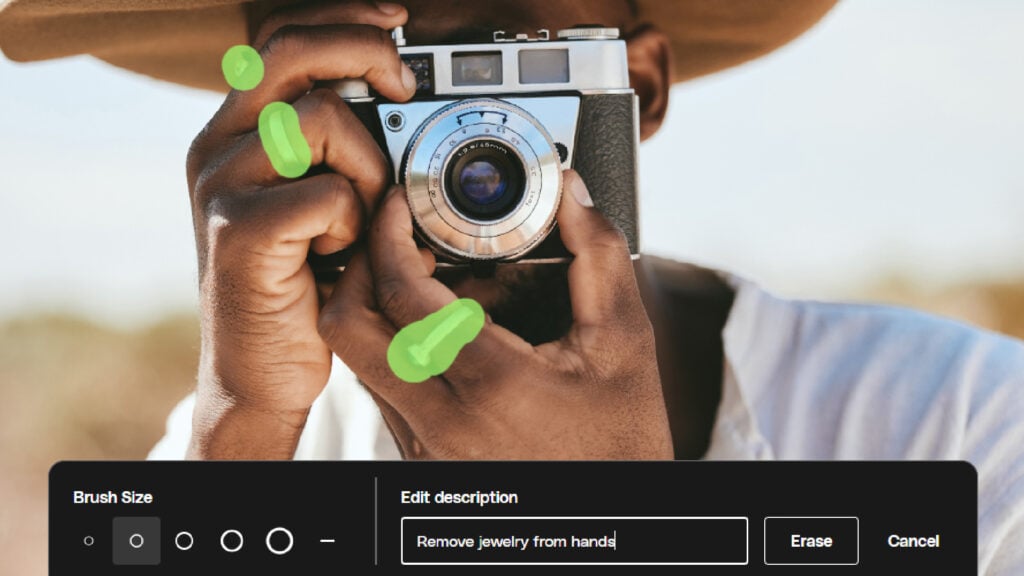
After you generate a result, take a moment to review it. You can create multiple variations, tweak your prompt, or undo changes and try again. This makes it easy to experiment until you get a version that feels right.
When you are happy with the result, you can then download your image. From there, you can use it in your project or continue editing in other tools, if needed.

Envato’s Edit with AI feature fits into a wide range of creative workflows, making it easy to turn stock photos into tailored visuals for different teams and projects. Let’s take a look at a few common use cases.
Social teams often need fresh visuals that stay on brand while moving fast. With Edit with AI, they can create multiple image variations from a single stock photo, remove logos or distracting elements, and add props or details that match a specific campaign or promotion. This makes it easy to keep feeds looking consistent without repeating the same images.
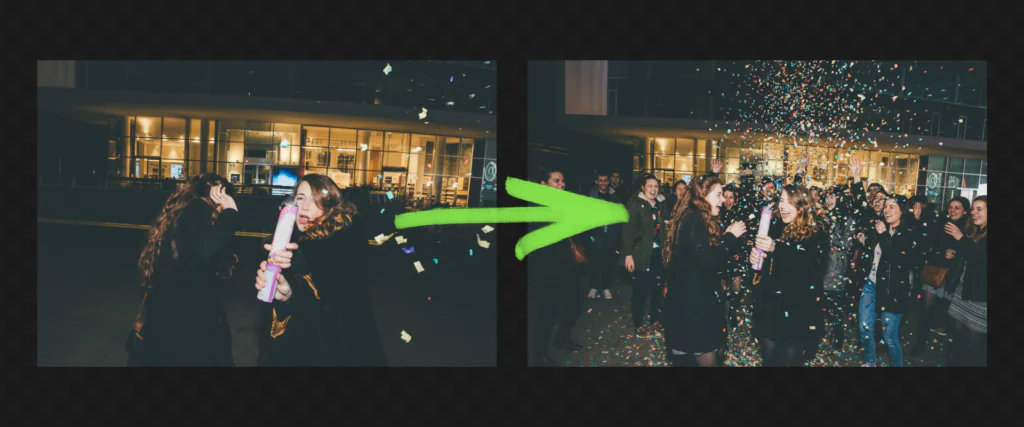
Ad agencies can use AI editing to easily transform generic stock photos into custom campaign assets. Backgrounds can be adjusted to match brand colors, lighting can be refined to fit a visual style, and props can be placed into realistic scenes. This helps create visuals that feel intentional and aligned with the message of the campaign.

For web designers, small details matter. Edit with AI makes it simple to clean up stock shots and change color schemes, or remove backgrounds entirely. This ensures that the photos mesh perfectly with the web design, and saves countless hours hunting for the perfect image.
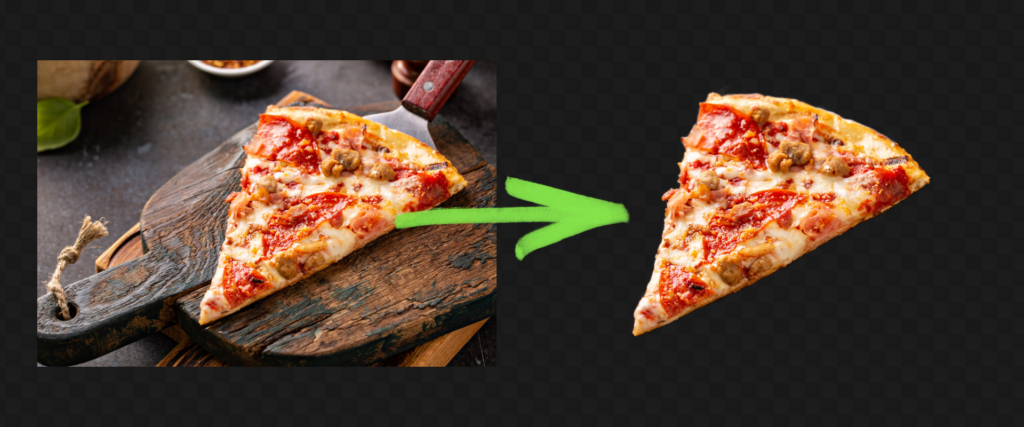
Creators can use AI editing to explore multiple creative directions quickly. They can generate different versions of an image for mood boards, or for video thumbnail testing, all without committing to a final look too early. This makes experimentation easier than ever!

Getting better results with AI image editing often comes down to how you write your prompts.
AI editing is powerful, but it is not perfect. More complex or realistic edits may take several attempts before you get a result that looks just right. Regenerating variations and refining prompts is often part of the process.
Some details are still challenging for AI, especially hands, readable text, and very fine textures. These areas can look slightly off and may require extra passes or a lighter touch. You can refine specific problematic areas with the Replace tool. It is also a good idea to Upscale your image as the final step before exporting, so that your image is the highest resolution possible.

Not every image supports every AI editing tool yet. Depending on the photo and the current ImageEdit features, some options may be unavailable or produce limited results.
Heavy or dramatic edits can also introduce subtle visual mismatches. Changes in lighting, texture, or perspective may not always blend perfectly, so it is usually best to make thoughtful, focused adjustments rather than pushing a single image too far.
No. You can edit the photo directly on Envato using Edit with AI before you download anything. This lets you experiment and refine your image before committing to a final file.
Edit with AI is designed to work on licensed stock photos inside Envato. You should always download assets through your subscription to ensure they are properly licensed and free of watermarks.
Yes. You can download the edited image and continue working on it in other design tools if you need more control or further refinement.
Yes. Edited images downloaded from Envato can be used in client projects under the Envato Elements license, just like any other stock asset.
Yes. When you download an edited image, it is covered by the same Envato Elements license as the original stock photo, so you can use it in your projects just like any other asset.
Not every image supports every tool yet. Support depends on the file type and the current ImageEdit features, but more options are being added all the time.
In most cases, yes. The tool is designed to preserve the main subject and overall look of the image, but very large or complex edits may change small details.
Instead of settling for images that are “close enough”, you can use Edit with AI to shape images to fit your exact needs. Whether that means removing distractions, adjusting colors, or adding new details. And by keeping the entire process within Envato, you save a lot of time and remove friction from your workflow. You can test ideas without jumping between tools or managing multiple files.
Most importantly, Edit with AI encourages creators to push stock imagery further. With just a few prompts and a few clicks, you can turn a standard stock photo into something that feels custom, branded, and uniquely yours!
Discover how Envato's AI sound generator creates custom sound effects from text prompts so creators can skip library searches and edit faster.

We tested 9 AI image generators on identical artistic prompts (same style-transfer task, same day) to see which one actually paints like an artist.

AI isn't making full movies yet; it's reshaping VFX, editing, and dubbing. Here's where it helps filmmakers today, and where it doesn't.

A practical, step-by-step guide to making a short AI film — from script and shot lists to character consistency, voice, sound, editing, cost, and legal rules.

