How AI is transforming filmmaking today
AI isn't making full movies yet; it's reshaping VFX, editing, and dubbing. Here's where it helps filmmakers today, and where it doesn't.
Envato: Get every type of asset for any type of project, and access to AI tools. Start now
A quick guide on how to <a href="https://earnwithdigital.online/learn/how-to-add-luts-in-final-cut-pro" data-wpil-monitor-id="206">combine video clips with AI</a> tools and polish your final edit easily.
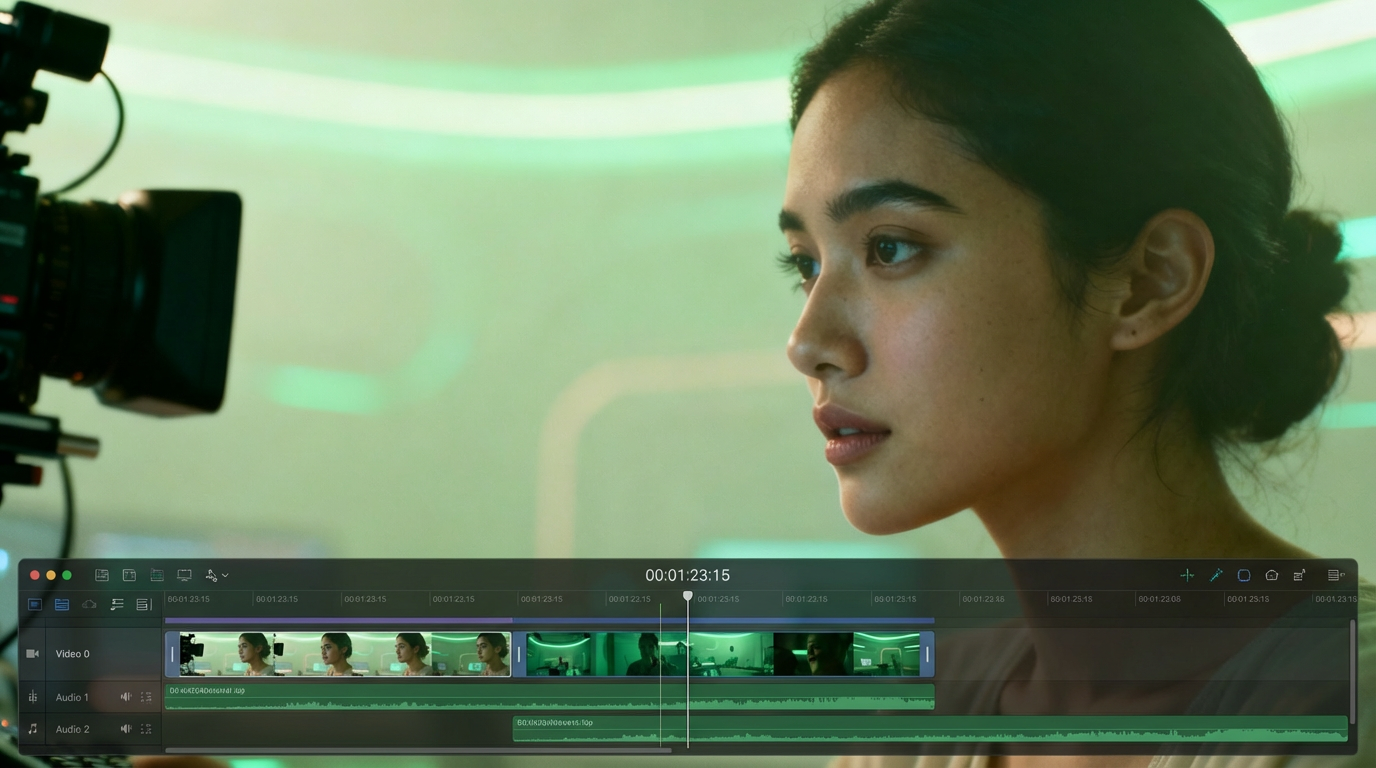
Merging a bunch of video clips used to be a slow process. You’d line them up by hand, trim each one, and hope they flowed together. Now, AI video tools can handle a lot of that work for you, taking separate clips and turning them into a smooth sequence very quickly.
If you’re wondering how to combine video clips without spending hours on a manual timeline, AI tools can now handle most of the heavy lifting for you. We’ll run through merging clips with Descript and Vidio.ai, then move into Premiere Pro or DaVinci Resolve to refine everything.
Along the way, we’ll point out where AI can speed things up, when it’s worth going manual, and a couple of ways to dodge those export issues that can wreck a final render.
TL;DR: AI video editors like Descript and Vidio.ai automate the tedious parts of combining clips: arranging, closing gaps, smoothing joins, so a folder of raw footage becomes a watchable sequence in minutes. Use them for the merge, then take the output into Premiere Pro or DaVinci Resolve for polish: refined joins, color correction, and audio balancing. Export at the highest quality your workflow allows to avoid detail loss on re-export.
If you’ve ever tried to combine video clips together manually, you’ll know it’s not the quickest job. You drag them in, shuffle things around, trim a bit here and there… then notice something’s still slightly out of sync. It’s the sort of task that eats time without you realizing.
AI tools significantly alleviate that pain. They can arrange the clips in the correct order, close any gaps, and even smooth the joins for you. You hit a button, grab a drink, and most of the grunt work is done.
The big gain? Time. You can transform a messy folder of files into something watchable in minutes. That means you get to play with different orders, test new flows, and still have energy left for the fun stuff like pacing, color, and sound.
Every AI video editor has its own quirks. Some are lightning fast but bare-bones. Others let you fiddle with every join and transition. It’s not really about which is “best”, it’s about which one fits the way you work.
For example, Descript is great if you’ve got a lot of talking in your clips. You can move scenes around by using AI video editing to manipulate the text transcript, rather than searching through a timeline. On the flip side, Vidio.ai keeps things simple. You can join video clips online by simply uploading, arranging, merging, and exporting them. Done!
| Feature | Descript | Vidio.ai |
| Best for | Dialogue-heavy content, interviews, tutorials | Quick edits, simple merges, social clips |
| Main workflow | Rearrange clips by editing the text transcript | Upload clips, drag into order, export |
| Speed | Moderate (depends on transcription) | Very fast |
| Control over edits | High: Fine-tune timing, cuts, and audio | Low: Mostly clip order and transitions |
| Export quality options | Multiple formats, good for post-production | Limited formats, geared for quick delivery |
| Runs on | Cloud based | Cloud based |
Descript is a strong option if you’re learning how to combine video clips that include dialogue or interviews.
Here’s the flow most people use:
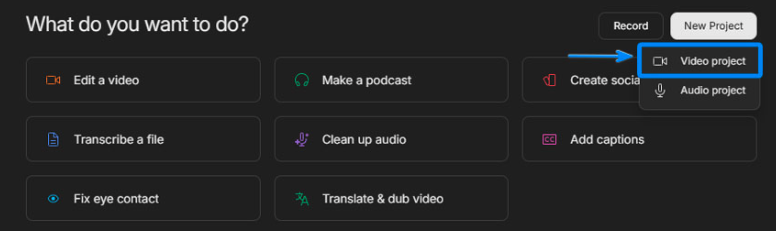
First, navigate to the Descript website and log in. Then click on New Project > Video Project.
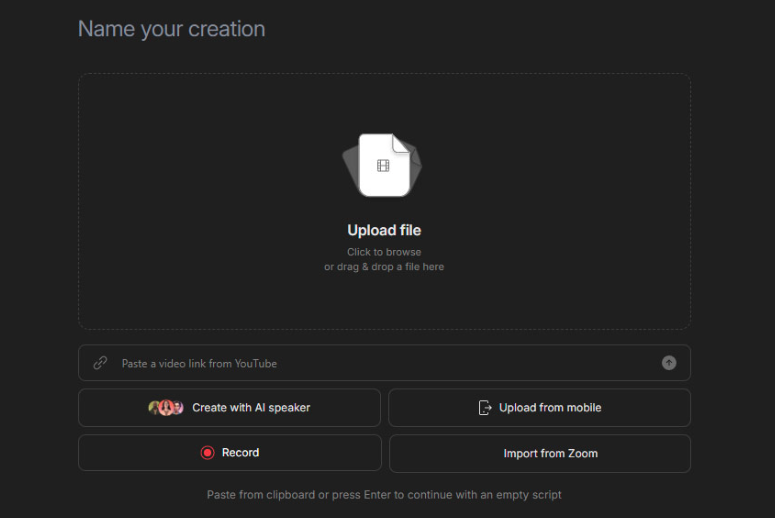
Drag all video files into the project (or Upload file). Then wait for uploads to finish.
When prompted, start transcription for each clip (this should happen automatically if speech is detected). Let Descript generate the script so you can edit it by text.
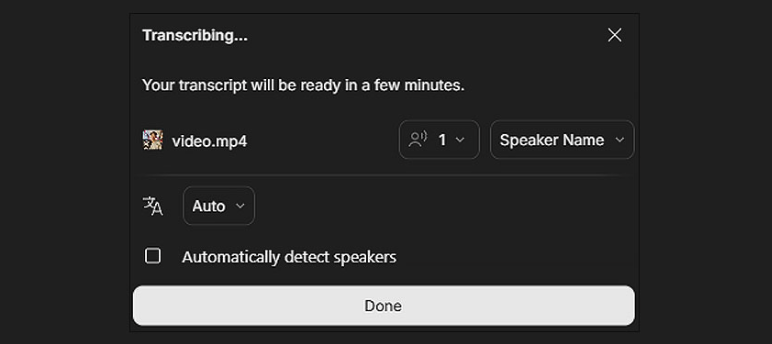
You should see your text next to the video. Just go through it and check if it is correct, and make any changes if needed.
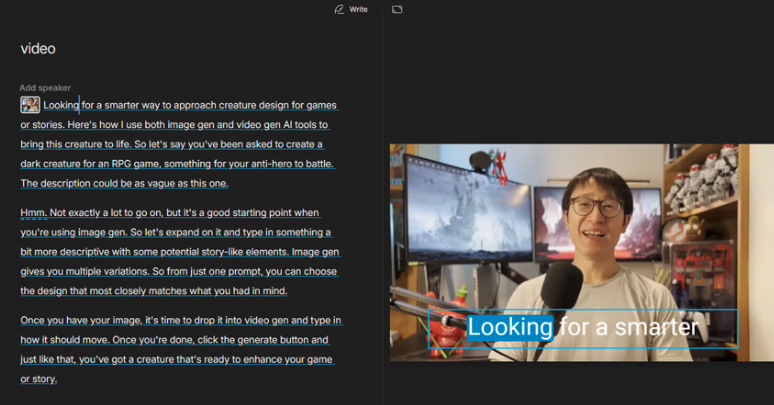
Upload more clips by clicking and dragging them into the timeline. Or click the Add New Scene button. From there, you can start editing your clips by cutting them or re-ordering them on the timeline.

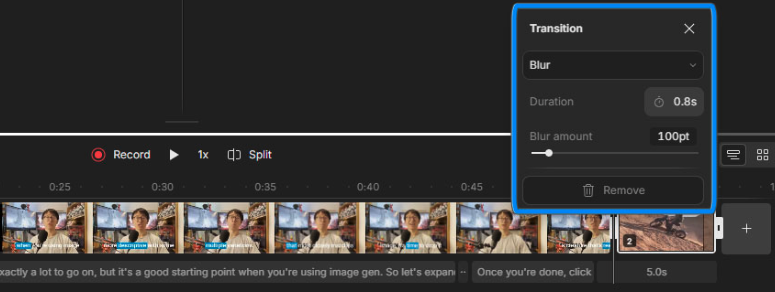
Place the cursor in between each scene, and a new Edit Transition button appears. Click on it and choose the transition you want to use.
Select File > Export > Video, and then you can have a look at the following options before hitting the Export button.
Note: If you want to remove the watermark, you may need to upgrade from the free version of Descript.
Vidio.ai is ideal if you want to combine video clips online with minimal setup. Everything is done on the website, so you can join video clips online. Here’s a basic workflow to follow:
Go to Vidio.ai and sign in. From the menu on the left, select Tool > Editing and Summarization > OneEditor > Create a New Project, which will then allow you to start editing.
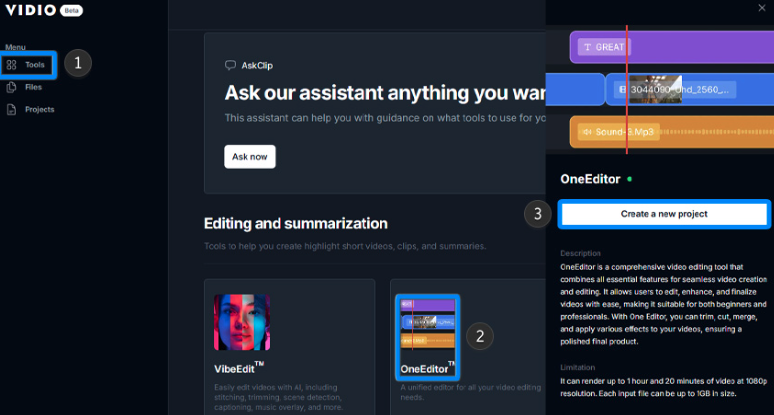
You’ll automatically be assigned a template to work with. If you want to use something else, look to the left menu and select the template you would like to use.
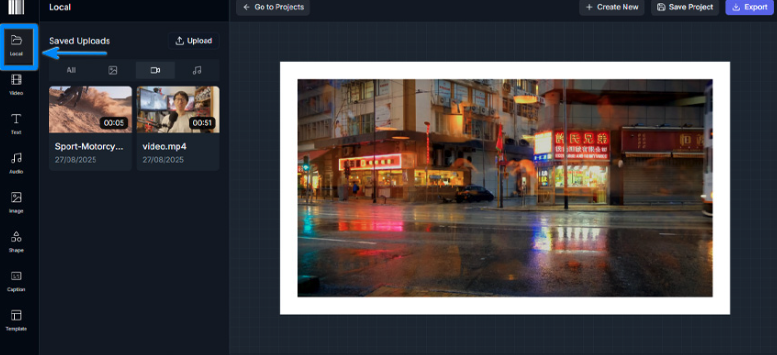
Select “Load” and click the “Upload” button to upload the video clips you would like to use for the project. You can upload your music tracks here as well.
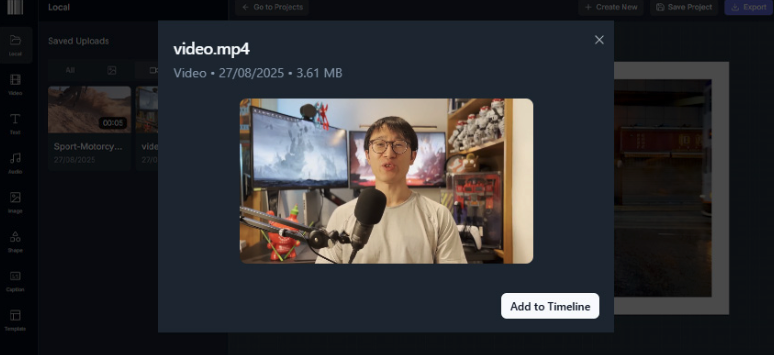
Now simply click your uploaded video, and click on the Add to Timeline button.
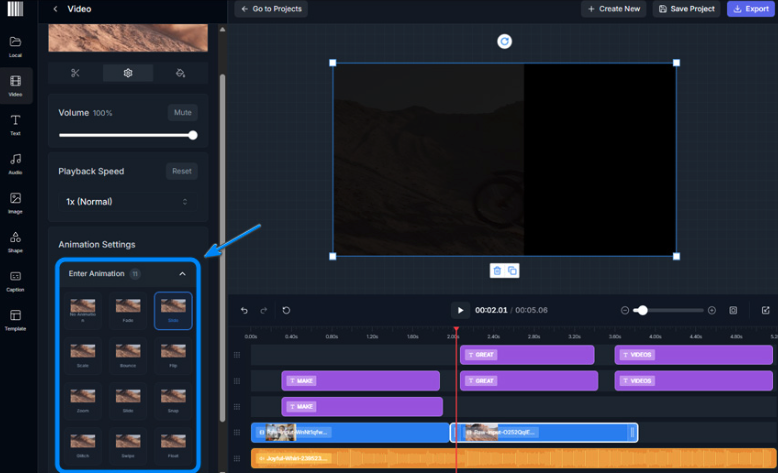
From there you can start editing your clips by cutting them or re-ordering them on the timeline. To add a transition, just click on your clip and choose the transition you want to use from the menu on the left.
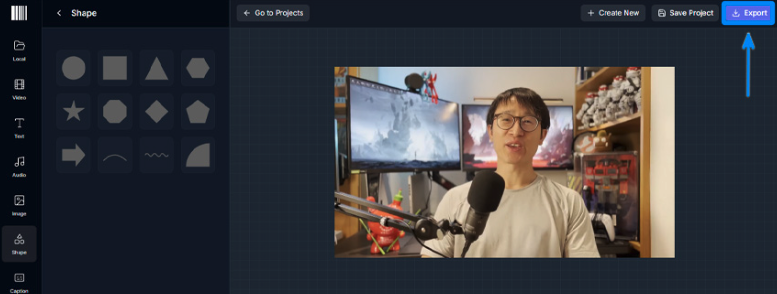
Once you’re done, save your project and simply hit the Export button. This will download your project as an MP4 file.
Once you’ve got your merged file from Descript or Vidio.ai, here’s how to finish it in a traditional editor:
Open Premiere Pro or DaVinci Resolve. Create a new project and bring your merged file into the media pool.
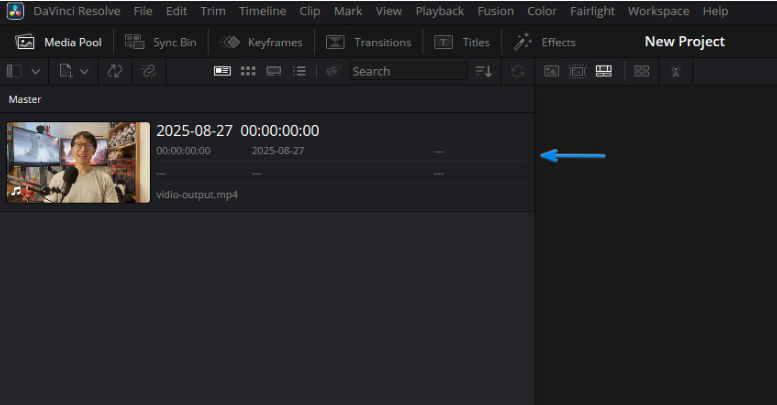
Drag the video onto a new sequence (Premiere) or timeline (Resolve). Make sure your sequence settings match your video resolution and frame rate.
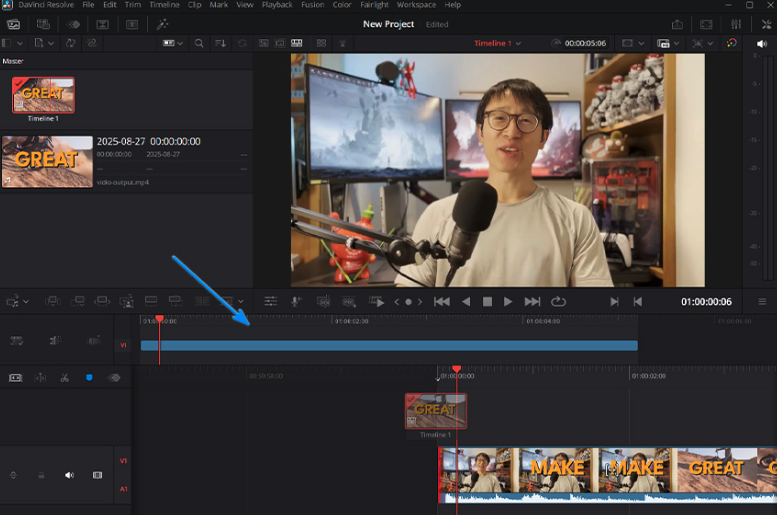
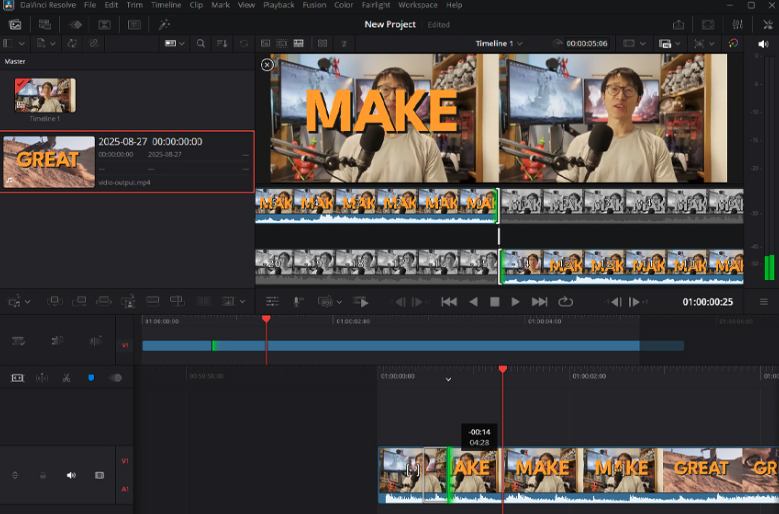
Zoom into any cuts that feel abrupt. Use crossfades, J-cuts, or L-cuts to smooth them out.
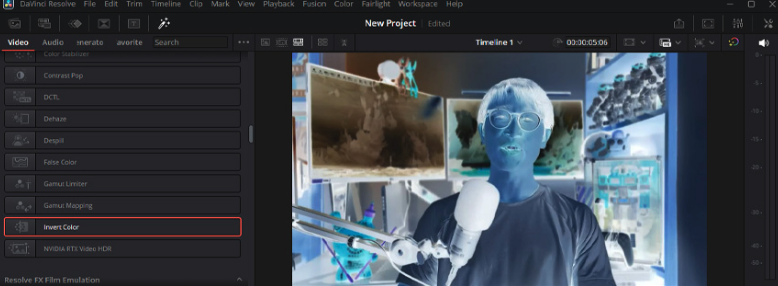
Apply basic color correction so all clips feel consistent. Add a LUT or grading style if you want a particular look.
Balance volume levels so nothing jumps out or drops suddenly. Use noise reduction if any clips have background hum or hiss.
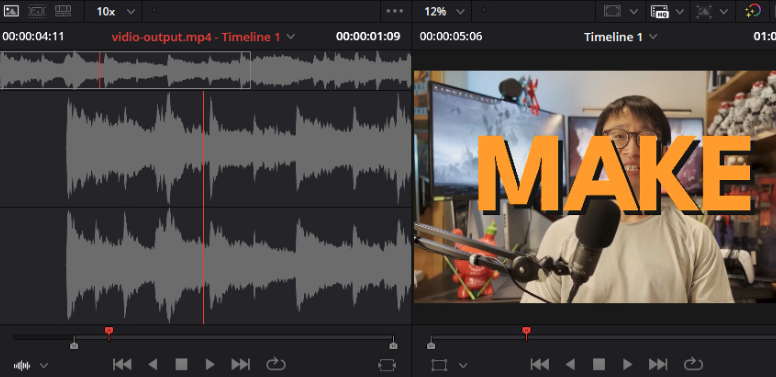
Name and save your project before proceeding to the final export, so you can return to it later if needed.
If you’re already building videos in an Envato subscription workflow, Envato’s AI video generator can help you generate short b-roll or filler clips to slot between your main footage during the combine phase. Envato’s AI sound generator covers the same gap for audio — custom SFX or ambient beds that fill silence or bridge cuts. Both work well as complements to Descript’s transcription-based merging or Vidio.ai’s fast browser edits.
Learning how to combine video clips doesn’t have to be slow or frustrating anymore. AI tools like Descript and Vidio.ai take care of the repetitive work, so you can focus on pacing, color, and sound.
Sometimes you’ll only need a fast AI merge. At other times, combining clips is just the first step before refining everything in Premiere Pro or DaVinci Resolve. Try both workflows and stick with the one that helps you move faster without sacrificing quality.
The best tool is the one that fits your editing style and helps you combine video clips efficiently every time.
Tip: If you know you’ll be doing more polishing later in Premiere or Resolve, export in the highest quality format you can. It keeps the footage looking clean and prevents detail loss when you re-export later.
The fastest way to combine video clips is by using an AI video editing tool. Platforms like Descript or Vidio.ai can automatically arrange clips, close gaps, and export a single video file in minutes. This removes most of the manual timeline work you’d normally do in traditional editors.
Yes. If you want to combine video clips online, cloud-based tools like Vidio.ai let you upload your clips, arrange them in order, and export the final video directly from your browser, no downloads required.
Many tools offer free plans that allow you to combine video clips, although they may add watermarks or limit the export quality. For example, Descript’s free tier allows basic clip merging, while paid plans unlock higher-resolution exports and watermark removal.
For clips with dialogue or music, use a tool that supports transcript-based audio editing, like Descript. After combining, balance the audio levels and add crossfades to avoid abrupt sound changes at the joins.
AI is ideal when speed is the priority — quickly combining clips into a single sequence. Manual editing in Premiere Pro or DaVinci Resolve is the better call when you need precise timing, advanced transitions, or detailed color and audio control.
If you plan to do more editing later, export in the highest quality format available (high-bitrate MP4 or ProRes). This preserves detail and avoids quality loss on the final export.
AI isn't making full movies yet; it's reshaping VFX, editing, and dubbing. Here's where it helps filmmakers today, and where it doesn't.

A practical, step-by-step guide to making a short AI film — from script and shot lists to character consistency, voice, sound, editing, cost, and legal rules.
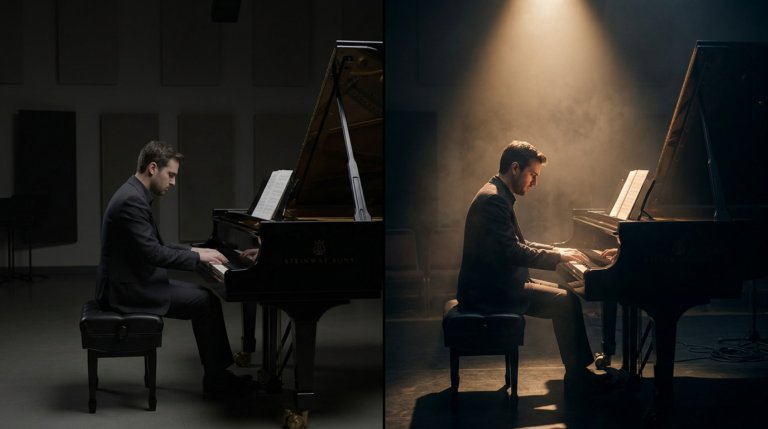
Cinematic lighting is the difference between AI video that looks generated and AI video that looks directed. This guide covers every major setup with prompt examples and techniques.

AI video generators understand cinematographic language with real precision. This guide covers every major camera movement, what each does narratively, and the prompts that produce the best results.

