The best AI tools for extending images
AI image extension tools compared for professional creative work — evaluated on output quality, prompt control, workflow integration, and commercial licensing.
Envato: Get every type of asset for any type of project, and access to AI tools. Start now
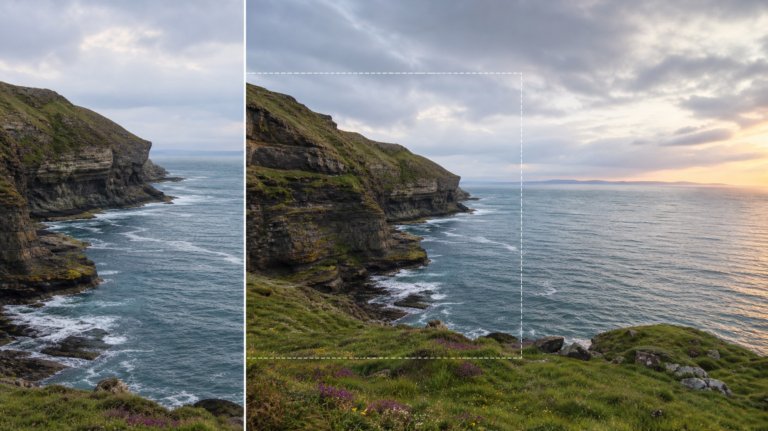
This step-by-step tutorial explores how to use ImageEdit’s Generative Fill feature to expand images with AI. Learn how designers and photographers can automatically adjust aspect ratios, add contextual content, and reframe visuals using advanced outpainting technology powered by Nano Banana.

A beautifully framed image can make or break your design, but what happens when your photo doesn’t fit your layout? Perhaps you require additional space for text in a banner, a wider crop for a cinematic frame, or a vertical version for social media. Traditionally, expanding an image meant painstaking manual work — cloning, masking, and patching every detail pixel by pixel.
That’s where AI image expansion comes in. With ImageEdit’s Generative Fill, powered by Nano Banana technology, you can automatically expand images with AI. It seamlessly fills the extra space, matching the lighting, textures, and details — all without manually selecting, brushing, or masking anything. It’s a fast, reliable way to adapt your visuals for any ratio or format.
Whether you’re a designer preparing assets for multiple layouts or a photographer looking to tell a broader story, AI outpainting gives your images new creative life.
AI image expansion automatically extends your photo’s borders with realistic, context-aware content. With ImageEdit’s Generative Fill, you can:
The result: Seamlessly extended, professionally balanced images ready for any platform or composition.
Start by launching ImageEdit and uploading your photo. You can drag and drop files directly into the workspace or click the Upload button in the toolbar. Supported formats: JPG and PNG.
For best results, use a high-resolution image — clear details help the AI interpret textures and edges accurately.
💡 Tip: You can use a stock photo from the Envato library or even an AI-generated image or graphic.

Once your image has loaded, look at the right-hand sidebar and click Expand. This opens the AI Generative Fill feature, which automatically analyzes your image composition and determines how to extend it naturally.
Unlike traditional editing, there’s no need to mask or paint selections — ImageEdit handles it automatically. The AI predicts how the image should continue based on lighting, colors, and subject context.

Old-school Photoshop methods require clone stamping, edge healing, and constant adjustments. With ImageEdit, AI does all that instantly, creating a clean, realistic expansion in seconds
In the Expand panel, you’ll see preset ratios designed for common creative formats:

Simply click on the desired ratio, and ImageEdit will automatically expand your canvas. The AI instantly fills in any new empty space with content that visually matches the edges of your image.
When the AI finishes generating, you’ll receive one option for your expanded image. It’s important to review the result carefully:
If you spot any inconsistencies, simply cancel and regenerate until you find the version you prefer.
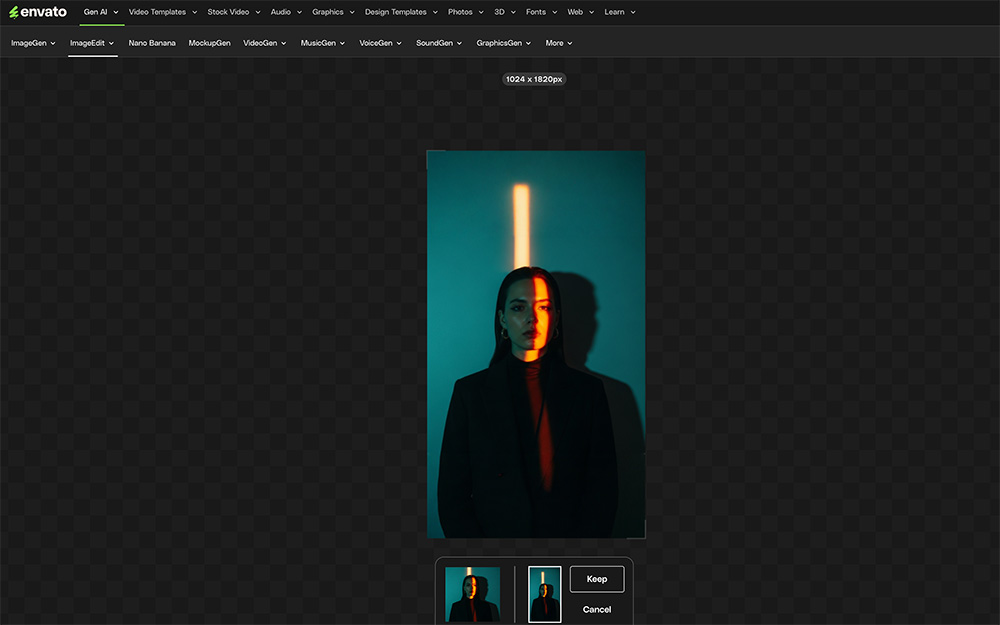
Why previewing matters: Inconsistent textures or lighting can make an image feel artificial. Always select the option that maintains visual harmony.
Once you click Keep, you can then select Download, and your new, expanded image will be saved automatically as a high-quality PNG file.

If you need to expand a different image, simply click on New to start again. Then you can choose a different ratio according to your needs.


To get the most out of ImageEdit’s Generative Fill, try these professional tips:
AI image expansion isn’t just a convenience tool — it’s a game-changer for creative workflows.
While other tools require manual brushing or area selection, ImageEdit automates the entire process.
The AI doesn’t just stretch your image; it recreates new contextual content — sky, water, walls, fabric, scenery — that fits seamlessly into your expanded frame.
This makes it ideal for designers who need quick adaptations across campaigns or photographers looking to frame shots for new media formats.
Even the best tools can be misused. Avoid these pitfalls for flawless AI image expansion:
Q: What is AI image expansion?
A: AI image expansion (also called outpainting) uses artificial intelligence to generate new visual content beyond an image’s existing edges, extending it naturally without manual editing.
Q: Which ratios can I expand to in ImageEdit?
A: You can choose from 1:1, 16:9, 9:16, 2:3, 3:2, 3:4, or 4:3, each suited to different design needs.
Q: Do I need to make selections or use brushes?
A: No — ImageEdit automatically analyzes your image and fills in borders contextually. No manual selection needed.
Q: What is Nano Banana?
A: Nano Banana is Google DeepMind’s image generation model integrated into ImageEdit. It understands composition, color, and context to generate natural extensions and background fills.
Q: Can I use the expanded image commercially?
A: Yes. Under Envato’s commercial license, you can use AI-generated results for marketing, e-commerce, or creative projects.
Q: Is ImageEdit only for designers?
A: Not at all — it’s equally powerful for photographers, marketers, and content creators who need fast, high-quality results without technical complexity.
With ImageEdit’s Generative Fill (also available on stock photos via Edit with AI), expanding your images with AI is no longer a technical challenge — it’s a creative advantage.
You can reframe, reformat, and rethink your visuals without opening a single selection tool. Whether it’s turning a portrait into a wide hero banner or giving your composition more breathing space, AI outpainting unlocks new storytelling possibilities.
What once required hours of manual cloning and retouching now takes a few clicks. Combined with Nano Banana’s contextual intelligence, ImageEdit’s AI image expansion is fast, natural, and accessible — perfect for the modern designer’s workflow.
Your images no longer have to fit the frame. Now, the frame fits your imagination.
AI image extension tools compared for professional creative work — evaluated on output quality, prompt control, workflow integration, and commercial licensing.
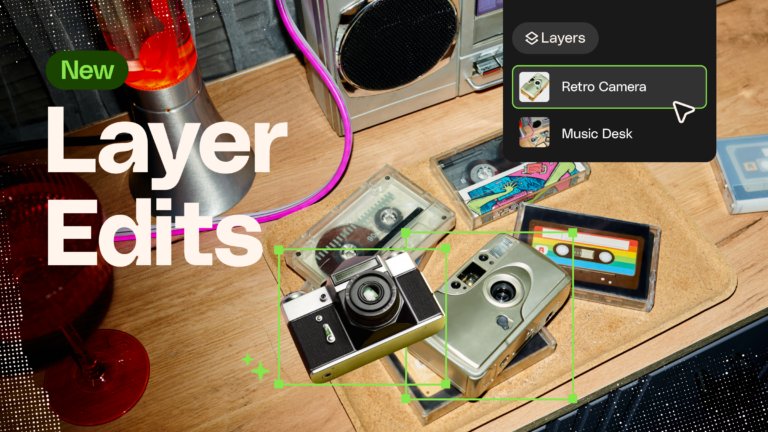
Learn how to separate an image into editable layers with Envato Layers, then move, resize, transform and export individual elements.
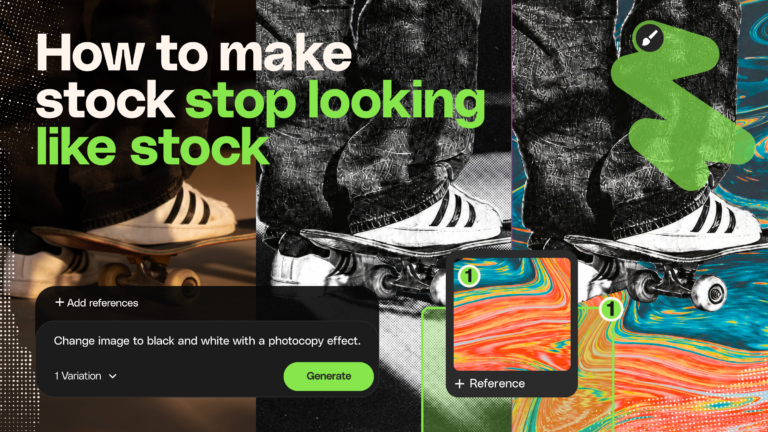
The best stock assets aren't the ones nobody recognizes. They're the ones you've riffed on — recolored, relit, reframed, and reshaped until they feel like they were made for your project.
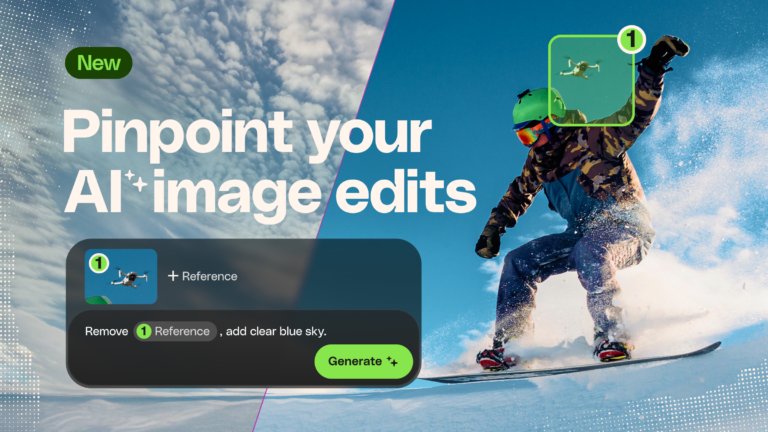
Learn how to edit an image with AI using Envato’s image annotation tool to select specific areas, make precise changes, and control where edits appear.