How to separate an image into editable layers with Envato Layers
Learn how to separate an image into editable layers with Envato Layers, then move, resize, transform and export individual elements.
Envato: Get every type of asset for any type of project, and access to AI tools. Start now
Your image is the right shot — just not wide enough. Here are the tools that fix that without faking it.

The image is perfect. The lighting works, the subject is sharp, the composition is strong — for a 4:3 frame. But the layout needs 16:9, the banner needs a wider canvas, and the social post needs vertical. You’ve been here before. The traditional options were cropping in (losing content), stretching (losing dignity), or reshooting (losing time). None of them are great.
AI tools for extending images solve this by generating new content beyond the original frame — analyzing the existing scene and continuing it outward with matching lighting, perspective, texture, and spatial logic. When it works well, the extension is invisible. When it doesn’t, it looks like someone glued a stock background to the edge of your photo. The difference comes down to which tool you’re using and how you direct it.
This guide compares the best AI tools for extending images in 2026, evaluated on what actually matters for professional work: output quality, the level of control you have over what gets generated, how the tool fits into your production workflow, and whether the result is licensed for commercial use.
Before comparing specific tools, it’s worth naming the things that separate a usable extension from one that falls apart at the seams.
Edge coherence. The most common failure point. The AI-generated content needs to match the color, lighting, and grain of the original image at the boundary line. Any visible seam — a slight tonal shift, a change in sharpness, a texture discontinuity — breaks the illusion. The best tools handle this seamlessly; weaker ones leave you retouching the join manually.
Prompt control. Basic extension tools just continue what’s there. Better ones let you describe what should appear in the new space: “continue the brick wall,” “add open sky with scattered clouds,” “extend the desk surface with a coffee cup on the right.” The ability to direct the generation rather than accepting whatever the AI guesses makes the output usable rather than just technically extended.
Aspect ratio flexibility. Some tools offer preset ratios (16:9, 9:16, 1:1). Others let you drag the canvas edges freely. For professional work where you’re extending to fit a specific layout — a particular banner dimension, a print template, a slide deck — free-form control matters.
What happens next. Extending the canvas is rarely the last step. You’ll often need to refine a detail in the new area, upscale the result, or edit another part of the image. Tools that handle extension alongside other editing tasks save you the export-import cycle that standalone extenders require.
Envato’s AI image editor handles image extension through its generative expand tool — select the direction you want to extend, optionally describe what should fill the new space, and generate. The expansion matches the lighting, color grade, and texture of the original image, and you can run multiple variations to compare before committing.
Where Envato’s approach is strongest: the extension happens inside the same workspace where you’d do everything else. Once you’ve expanded the canvas, you can remove an unwanted object in the new area, replace an element, adjust the composition, or upscale the result to print resolution — all without leaving the tool. If you started from a stock photo using Edit with AI, the whole workflow — find, extend, refine, download — happens in one place. Everything you generate comes with a lifetime commercial license.
For a step-by-step walkthrough of the expansion workflow and when to pair it with upscaling, our AI image editor guide covers both in detail. For creative professionals who need to extend, edit, and deliver from one workspace without juggling exports between apps, this is the most complete workflow available.
Adobe offers Generative Expand in two places: inside Photoshop (as part of a Creative Cloud subscription) and through the Adobe Firefly web app (free with an Adobe account, subject to generative credit limits). The Photoshop version gives you the deepest editing context — the generated content lands on its own layer, so you can mask, blend, and refine it with the full toolset. The Firefly web version is lighter and faster if all you need is the extension itself.
Both versions produce strong results. As of January 2026, Generative Expand outputs at 2K resolution with noticeably fewer artifacts and better prompt matching than earlier versions. You can add a text prompt to guide what appears in the new space, or leave it blank and let the AI continue the scene.
The tradeoff is cost and complexity. Photoshop requires a Creative Cloud subscription, and the full editing workflow assumes fluency with layer-based editing. Generative credits are limited by plan tier, so high-volume extension work can hit ceilings. The free Firefly web app is a good option for one-off extensions, but it lacks the post-extension editing depth that Photoshop and Envato offer.
Firefly-generated content is commercially licensed under Adobe’s terms, with usage governed by your plan’s generative credit allocation.
Canva’s Magic Expand is the most accessible option. Open an image in the Canva editor, select Magic Expand, choose a target aspect ratio or drag to a custom size, and the AI extends the canvas. No prompt input — Canva decides what to generate based on the existing image, and produces several variations you can choose between.
The simplicity is both the strength and the limitation. For quick social media resizing — turning a square image into a landscape banner, or a horizontal photo into a vertical story — Magic Expand is fast and the results are usually good enough. For more precise work where you need to control what appears in the new space, the lack of prompt guidance means you’re at the mercy of the AI’s interpretation. If the AI guesses wrong about what should fill the new area, your only option is to regenerate and hope for a better variation. For social media resizing, that’s usually fine. For commercial deliverables where precision matters, it’s a significant limitation.
Magic Expand is available on Canva Pro ($15/month) with limited credits on the free plan. Output is commercially usable under Canva’s content license.
OpenAI’s image capabilities have evolved significantly — what was once DALL-E 3 was replaced in March 2025 by GPT Image, a native image generation system built directly into ChatGPT. GPT Image 2 followed in April 2026. The current system handles image extension conversationally: upload an image and ask ChatGPT to extend it in a specific direction, optionally describing what should appear in the new space.
The conversational approach gives you creative flexibility — you can describe the extension in natural language and iterate through follow-up messages. However, this is a conversational AI generating an extended image, not a dedicated canvas tool. There are no drag handles, no aspect ratio presets, and no pixel-level control over where the extension starts and stops. Results can be strong for creative and illustrative work, but photorealistic extensions — particularly of product photography or headshots — can be inconsistent with the original’s tonal range and sharpness.
The workflow is also entirely standalone. There’s no integrated editor to refine the result, so any post-processing requires downloading and bringing the output into another tool. For exploration and creative concepting, ChatGPT’s image extension is genuinely useful. For production work where precision and repeatability matter, dedicated extension tools deliver more reliably.
Commercial usage is permitted under OpenAI’s terms for ChatGPT Plus and Enterprise subscribers.
Image extension and image upscaling solve different problems, and they’re often confused. Extension adds new content beyond the frame — more sky, more background, a wider scene. Upscaling increases the resolution of the existing image — making it larger while preserving (and enhancing) detail. They’re complementary, not interchangeable.
The professional workflow often requires both: extend the canvas to fit the layout, then upscale the whole result to print resolution. In Envato’s editor, this is a two-step sequence within the same workspace — expand first, then upscale 2x or 4x using the AI upscaler. In Photoshop, you’d use Generative Expand followed by Image Size with Preserve Details. In Canva or ChatGPT, you’d need to export and bring the result into a separate upscaling tool — an extra step that adds friction to the workflow.
Extend one direction at a time. Extending all four edges simultaneously gives the AI too many boundaries to match at once. Extend left, review the result, then extend downward. Sequential extensions produce cleaner output because each step has more original-image context to work from.
Prompt the environment, not just the direction. “Extend right” tells the AI nothing about what should appear. “Continue the exposed brick wall with matching mortar lines” gives it a clear target. Even a brief description of the expected content dramatically improves edge coherence. This is where tools with prompt support — Envato, Photoshop, and ChatGPT — have a real advantage over Canva’s promptless approach.
Check the seams at 100% zoom. AI extensions that look seamless at a thumbnail view often show tonal shifts or texture mismatches when viewed at full size. Always inspect the boundary between original and generated content before delivering the file.
Upscale after extending, not before. Running an upscale first increases the file size the extension tool has to process and can amplify artifacts at the new boundary. Extend at the original resolution, finalize the composition, then upscale the combined result. In Envato’s editor, this is a two-click sequence — expand, then upscale — without exporting between steps.
For related workflows — replacing objects within an image, swapping backgrounds entirely, or adapting stock photos to specific briefs — our guides to object replacement and AI background design cover those adjacent tasks in depth.
AI image extension (also called outpainting or generative expand) adds new content beyond the original frame of an image. The AI analyzes existing lighting, texture, and perspective to generate content that continues the scene seamlessly.
In Envato, Photoshop, and ChatGPT, yes — you can describe what should fill the new space. Canva’s Magic Expand doesn’t support text prompts, so the AI decides based on the existing image.
Extending adds new content beyond the frame (more scene). Upscaling increases the resolution of the existing image (more detail). Most professional workflows require both — extend first, then upscale.
On Envato, click Edit with AI on any stock photo to open it directly in the editor, then use generative expand. The commercial license covers both the original photo and your extended version. Other tools require downloading the stock photo first and uploading it separately.
For professional creative work, Envato offers the most complete workflow — extension, editing, upscaling, and stock browsing in one workspace with a lifetime commercial license. Photoshop offers deep manual control. Canva is fastest for quick social resizing.
On Envato, yes — lifetime commercial license on everything you generate, even after cancellation. Adobe, Canva Pro, and ChatGPT Plus all permit commercial use under their respective terms.
Extend one direction at a time, use prompts to describe the expected content, and check the boundary at 100% zoom before delivering. Sequential single-direction extensions produce cleaner results than expanding all edges at once.
Learn how to separate an image into editable layers with Envato Layers, then move, resize, transform and export individual elements.
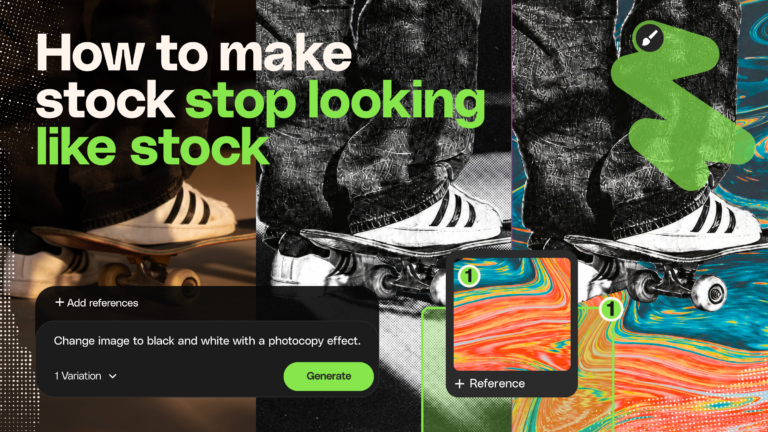
The best stock assets aren't the ones nobody recognizes. They're the ones you've riffed on — recolored, relit, reframed, and reshaped until they feel like they were made for your project.
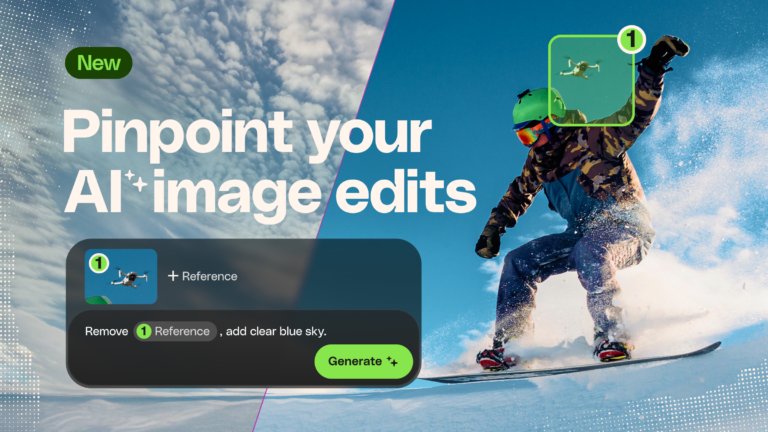
Learn how to edit an image with AI using Envato’s image annotation tool to select specific areas, make precise changes, and control where edits appear.

AI is reshaping photography at capture, edit and trust. Here's which segments are exposed, what provenance actually proves, and the skills that hold their value.