How to edit with AI using Envato stock photos
Learn how to edit with AI on Envato stock photos, customizing images instantly by removing objects, changing backgrounds, and creating polished visuals without leaving the platform.
Envato: Get every type of asset for any type of project, and access to AI tools. Start now
Make your prompts powerful with this guide to AI image fails and how to avoid them.
AI is great, right? Fun, creative images in just a few words. But, wait, what’s that? It’s a seven-fingered nightmare you’ve just slapped onto the landing page of your client’s new website. Yup, AI fails do happen, but the good news is they are easily rectified with these handy tips and tricks.
Be reassured, you’re about to become a prompt whisperer. Read on for 10 common AI image generation fails (dead eyes, mushy text, random attractive people floating in space), and how to fix them using smarter and more specific prompting. As much as funny AI fails make for great workplace banter, we’re wanting AI images that look good. Let’s clean up those digital disasters, shall we?
OK, so we have to give AI a bit of credit before we unpick its rough patches.
First of all, generative AI has come on leaps and bounds in an incredibly short time. With sophisticated AI image generators it’s now possible to create images that really do look like the real deal, whether it’s a photograph, illustration, or artwork. Perhaps we’re already becoming complacent with the incredible versatility of this still relatively new technology.
Secondly, it’s helpful, like genuinely helpful. Whether it’s for quick content creation or when designers need an image at the drop of a hat, the automated power of AI really has transformed the way creatives work.
But (and it’s a big but) it definitely isn’t flawless, and it’s easy to forget that AI really does require a lot of input and direction from you, the human being typing in that AI art prompt.
The most common AI fails in images include things like wibbly text (AI struggles to render text and typography accurately in generated images), and characteristics in images of people or animals that just appear a bit ‘off’, breaking the illusion that the subject is real. We’re talking dead-fish eyes, extra fingers or limbs, and teeth or skin that look too white, glossy or artificial. The other AI fail commonly reported is sheer randomness — elements not specified in your prompt that haunt your AI images like a bad smell. Floating heads, fire-breathing cats…we’ve seen them all.
Mistakes happen, we’re only robot human, after all. The great thing about AI image generators like ImageGen is there’s always scope for giving it another go. Refine your initial prompt with these top tips and see the flaws melt away.
“Why does this man have twelve fingers…and five extra thumbs?!”

The AI hands fail. That old chestnut. Artificial intelligence can do amazing things, but it’s not always great at counting fingers. In some images of people, expect extra fingers, warped palms or hands randomly growing out of foreheads. Sigh.
Use these prompt tips to refine your image and eliminate those pesky digits from the AI hands fail.
Pro tip: If you’re done fighting the fingers, just go for “close-up portrait, hands not visible.” A beautiful headshot, no thumbs in sight. Boom. Problem buried.

To remove unwanted extra digits, the image above was created using this prompt:
A detailed cinematic aerial photo of a large neoclassical statue on an island, holding a banana, photo real, 8k highly detailed, epic cinematography photo, cinematic shot. The hands have five fingers each.
“If a smile glows in the dark, it’s maybe too white.”

Taking pearly whites into another dimension, AI-generated smiles can be, well, creepy to be completely honest. Super wide (literally ear-to-ear), full of tiny teeth (argh) and with a white gloss that could strip paint.
Your own smile might be wiped from your face right now, but don’t worry. These prompt refinements are guaranteed to spark joy.

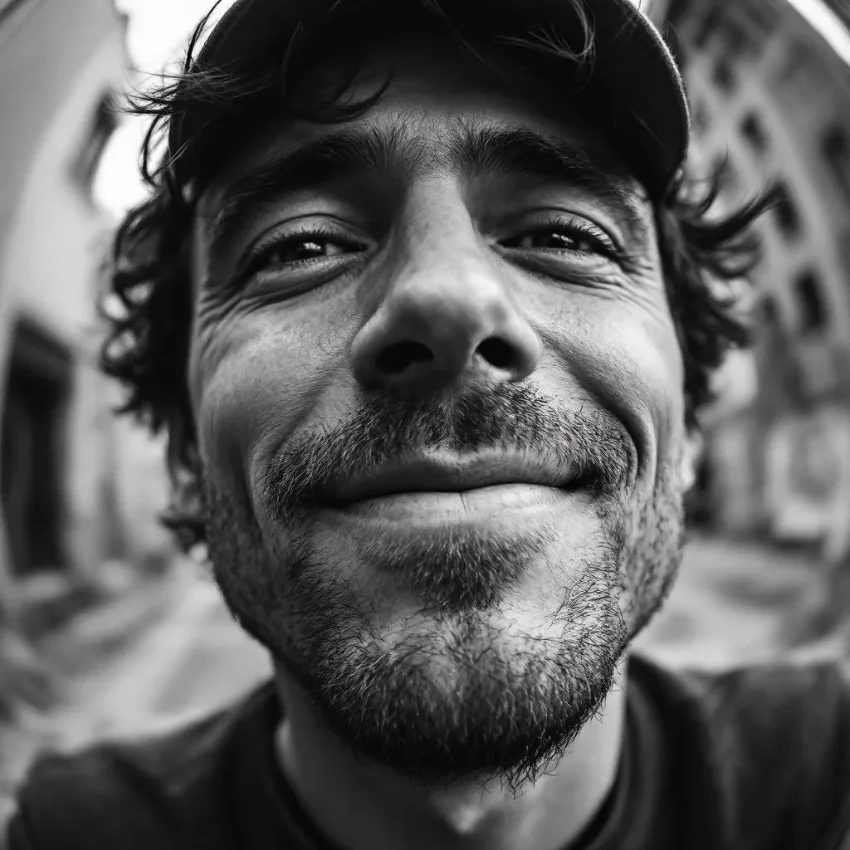
This image depicts a more subtle kind of smile, by using this prompt:
Photo of a man with a subtle smile, close-up, fish-eye camera style, raw, authentic, black and white photograph style.
“Welcome to Løræm ßlurgh Café!”

Ask AI for an image that includes signage or a book, and you’ll probably get a jumbled soup of nonsense characters. AI can do ‘words’…just not real ones.
Words are overrated right? No, I’m kidding. Wingdings text is never a great look on website mockups or flyer designs, and a dead giveaway of AI use. Use these tips to make AI text more legible:

This image reads clearly and legibly by using specific words directed in this prompt:
Colorful desert retro signage reading clearly ‘Welcome to Fabulous Las Vegas Nevada’, soft vintage light and palm trees in the background.
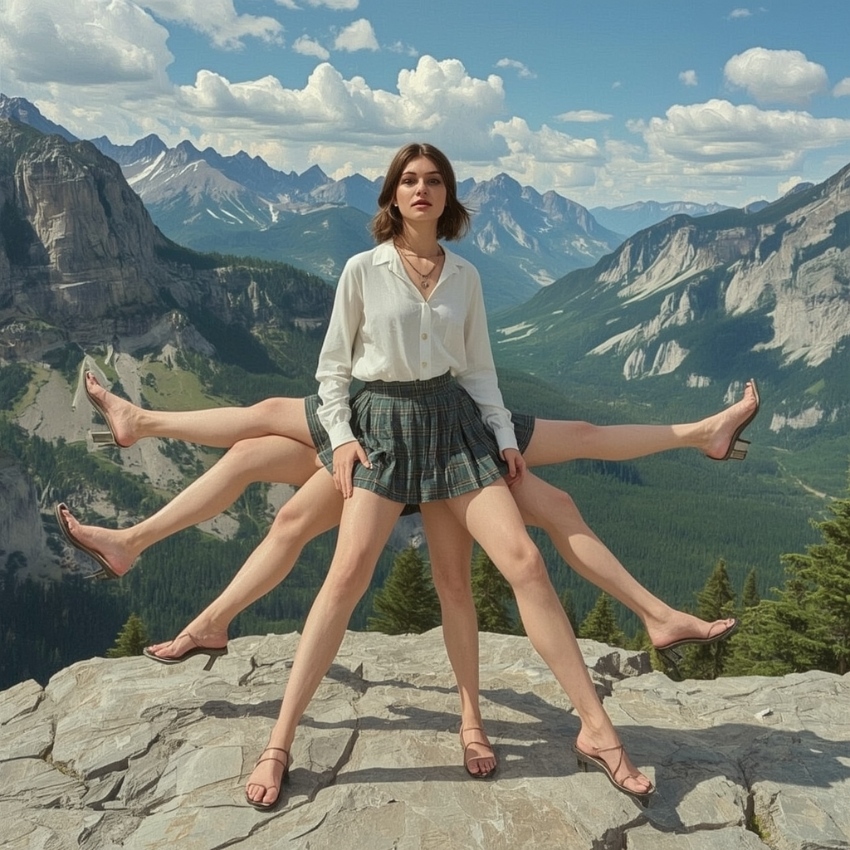
“She’s got legs. And more legs. And still more legs.”

Top of funny AI fails perhaps. Results are always…astonishing. But come on, give it a break — AI isn’t human, so why would you expect it to restrict itself to just two human legs? Get with it people. Two legs are so last year.
OK, so there are situations (numerous) when you don’t want a picture of a chap with three legs. Lessen the limbs with these tips.

Bring the leg count down by being specific about anatomy basics, like in the prompt for this image:
Woman with two legs standing on a scenic mountainside, looking straight to camera, with beautiful green valley in the background.
“Stop looking at me that way, dude.”

Misaligned eyes, dead-eyed stares, or one misty pupil looking at you while the other searches for meaning.
The eyes are the window to the soul, but we’ve got news for you — AI ain’t got no soul. It’s your job as a decent human to bring some life back into the situation.

Bring the light back to eyes in your AI images, like in this prompt:
Portrait of a man in oil painting style, with intense soulful eyes staring out from the canvas. Neutral, calming colors and a plain painterly background.
“How does this sweater have a zipper that becomes a pocket that becomes a sleeve that becomes a…centaur?”

Outfits that look like they’ve been assembled by a mad bag of cats, asymmetrical or missing clothing, and don’t even expect your AI person to be fashionable. Robots don’t have innate style, daaahling.
You’ll need to style your AI imagery to achieve an outfit that looks put together. Here are some pointers:

A classic suit never goes out of fashion, even for monkeys. The image above uses this prompt:
Monkey wearing a smart tailored suit, crisp shirt and tie, and a smart bowler hat, carrying a walking stick.
“That’s not a violin. That’s a plank of wood with spaghetti. Oh, and there goes the floating cat again.”

As with limbs, AI also stumbles on that painfully common item — the everyday object. Instruments, work tools or seemingly simple food items become disfigured, dismembered and no longer subject to the rules of gravity.
Luckily this AI fail is easily fixed with a good dose of detail. Here’s how:

Keep your objects grounded and the material you want them in, like in this example prompt:
A surreal desert landscape inspired by Salvador Dali, showcasing a beautiful wooden classical violin, bathed in warm, dreamlike lighting, with melting clocks and elongated shadows enhancing the bizarre atmosphere.
“Why is there a floating castle hovering behind this bored office worker?”

Inconsistent or surreal backgrounds that make no sense, and seem at complete odds with the subject of the AI image.
Backgrounds can be neglected when you’re focusing on just trying to make your person look like the real deal. Remember to keep the backdrop in mind as part of your prompt.

Remember to include background detail in your prompt, like in this example for the image above:
Bored office worker seated at a wooden desk in an office setting in a photorealistic style with soft lighting. In the background a cityscape of tall office buildings and clouds set against a blue sky are visible from the window.
“Stacey, I’m going to make you a super cute puppy. Ah, OK…wow.”

Robots clearly don’t own pets, because it can’t seem to figure out the basic anatomy of your average domestic dog. And quite often, the haunting white smile that dogs (sorry) your people images comes back to give Fido a real sinister expression.
AI needs a little guidance on pet care. After all, we’re not at the stage where robots are allowed to own their own cats (yet).

This prompt uses breed-specific words and clarifies that the image should be realistic:
Photorealistic portrait of a cute pet labrador dog with golden fur, with anatomically correct body and posture, seated on a vintage wooden floor, spotlit by a natural light beam from the nearby window.
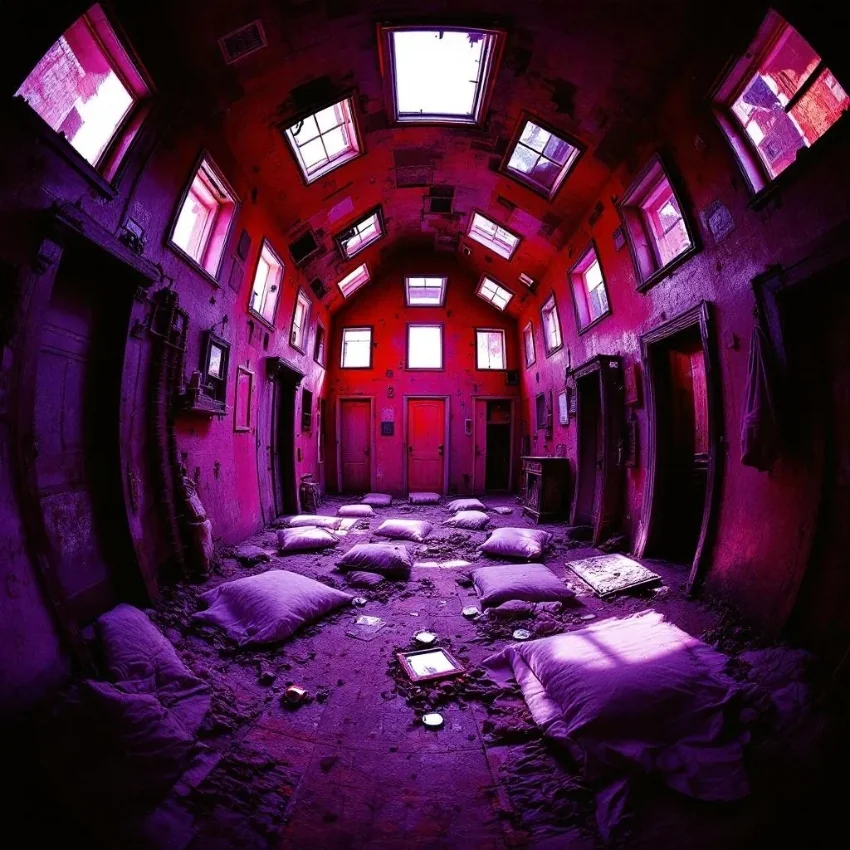
“Is that a door? A window? Or a portal to Narnia?”

AI often struggles with perspective and proportion, resulting in physics-defying furniture, windows that look like doors, and buildings that loop into themselves. It’s all very Inception.

Clarify perspective in your prompts to help AI focus, like in this prompt example:
Room with a door at the far end and windows either side of the room, with a strong sense of perspective. Purple and red neon colors light the room, which has a dark atmosphere.
So you’ve mastered the prompts, conquered those pesky extra fingers, and tamed the floating cats. But what if we told you there’s an even easier way to fix those AI fails — without having to regenerate your images over and over?
Enter ImageEdit with Nano Banana. This is where things get seriously next-level.
Remember all those fixes we just walked through? ImageEdit can handle most of them in seconds flat. Got a perfect portrait but the background’s gone rogue with floating castles? Use ImageEdit’s “Replace Background” feature and simply type what you want instead. Those stubborn extra fingers refusing to disappear? The “Erase” tool with Nano Banana’s intelligence understands context — it’ll remove the extras and naturally fill in what should be there.
The beauty is, you don’t need to start from scratch. Take your AI-generated image, upload it to ImageEdit, and polish it to perfection with the help of Nano Banana. It’s like having a professional retoucher on speed dial, except it’s AI that actually gets what you’re trying to do.
AI isn’t perfect (who is?), but as long as you understand a little more about how prompting works, you can quickly learn how to get the most out of this fun, creative tool. Here are some common questions about AI fails, and helpful answers too!
A floating animal or disjointed body part has a real habit of spoiling your lovely AI image. The reason? AI image generators sometimes introduce random elements because they’re trained on huge datasets and learn broad associations, rather than strict rules. As a result, an image generator might ‘hallucinate’ details they think fit the context, even if you didn’t request them. In other words, it’s trying to be helpful (bless), but sometimes misses the target. Being specific and using negative instructions (“Don’t include a floating head”) in your prompts can help.
Some AI images don’t look fake at all and require a really close look to identify their AI origin. But yes, many AI images do look artificial, and this is because the AI model guesses what things should look like based on data patterns, not real-world understanding. AI can struggle with fine details like hands, text, reflections, or symmetry, which betray its artificial nature. While quality is fast-improving, small inconsistencies can break the illusion of realism. Incorporating words like “photorealistic” and “naturalistic” in prompts can dial down fake-looking features.
If realism is your goal — and it can be desirable for things like human portraits — try using detailed prompts that specify lighting, setting, and camera angles, just as a photographer would try to achieve in real life. You can also adjust settings like resolution if available, and post-editing touches like filters can also work wonders to improve realism in imagery.
AI images can be used for a wide range of creative projects, from concept art to storyboarding, social media content to web banners. If you’re lacking in budget or time, AI imagery is handy for generating unique visuals without the need for a photographer or studio. Designers also use AI images for mood boards and inspiration, or even complete layouts for posters, websites, and social posts.
Hmm, good question. The debate still rages on. In one sense, AI images can be considered ‘art’ because they involve creativity, intention, and visual expression, often guided by a human-imagined prompt. Some AI artists see it as a new form of digital art, one which blends human ideas with machine execution.
The other side of the coin? Some creatives argue that AI images lack true originality or emotional depth, because AI doesn’t create images with conscious intent. So, whether AI images are ‘art’ depends on how you personally define art and the role you believe humans play in the creative process.
With the right AI image generator to hand, the world of creative AI is your oyster. From creating compelling imagery for print to clickable content for social media, AI images are great for building an instant wow factor into your projects. Of course, AI failures do happen, but that’s all part of the fun! The key thing is that they are easily rectified with clear AI art prompts. AI isn’t a mind-reader (though that might not be far off into the future), so you need to act as art director to benefit from the best results.
Go forth and prompt like a pro. You’ve got this.
And for even more AI tips, you won’t want to miss these 5 ways to use Envato’s AI tools in your creative work, from automatic voiceovers to video creation, as well as how AI impacts graphic design trends.
Ready to start using AI-generated assets in your marketing projects? Craft emotive AI videos for YouTube with VideoGen, beautiful soundtracks for creative content with MusicGen, and use creative AI prompts to get the best from your campaign imagery with ImageGen.
Learn how to edit with AI on Envato stock photos, customizing images instantly by removing objects, changing backgrounds, and creating polished visuals without leaving the platform.
Explore the tennis aesthetic trend for 2026, from preppy style and color palettes to branding and design ideas inspired by tennis culture, fashion, and modern creative projects.
Fourteen World Cup shirts that still matter, from Brazil 1954 to Cameroon's banned vest. The design thinking behind the kits that lasted, and what they all have in common.
Canary yellow explained: meaning, hex code, color psychology and design ideas. Learn how to use this bold yellow in branding, UI and 2026 creative projects.