

How to upscale 1080p video to 4K using Premiere Pro and After Effects

This article shows how to upscale 1080p video to 4K in Premiere Pro and After Effects, preserving detail and improving export quality.

Andrew Childress 9min read 7 Apr 2026
how to upscale 1080p video to 4K blog header

4K video resolution is now the standard for high-production projects. However, when it comes to editing, you might not always have 4K footage available. Learn how to upscale 1080p video to 4K using Premiere Pro and After Effects for sharper detail, cleaner edges, and a more professional final export.

TL;DR

To upscale video to 4K without softening your footage, use After Effects’ Detail-Preserving Upscale instead of standard scaling. This workflow helps 1080p clips retain edge clarity and texture, so they integrate naturally into a 3840 × 2160 (UHD) timeline.

Check out the difference below. The left image shows a simple stretch with no upscaling applied. On the right, edge definition and surface texture are noticeably clearer, especially in the rock and background areas, where standard scaling would normally introduce softness.

Before-and-after comparison showing how to upscale 1080p video to 4K improves edge definition and surface texture
Before-and-after comparison showing how upscaling video to 4K improves edge definition and surface texture.

The example on the right side shows the version with detail preserved, which includes sharper details in the rock area.

To achieve that result on your 1080p footage, let’s upsample from standard HD (1920 × 1080) to 4K UHD (3840 × 2160) while preserving as much detail as possible.

Step-by-step: How to upscale video to 4K in Premiere Pro

Before we start, here’s why we’re using After Effects for this process. Adobe Premiere Pro doesn’t include a true, native method for upscaling footage. Sure, you can take a 1920×1080 clip and stretch it to a 4K canvas, but you’ll lose detail and won’t get the best results.

Our method uses Detail-Preserving Upscale in After Effects to intelligently increase the image size. This interpolation technique analyzes surrounding pixels to preserve fine detail far better than simply stretching them. 

Note for 2025 to 2026 users:

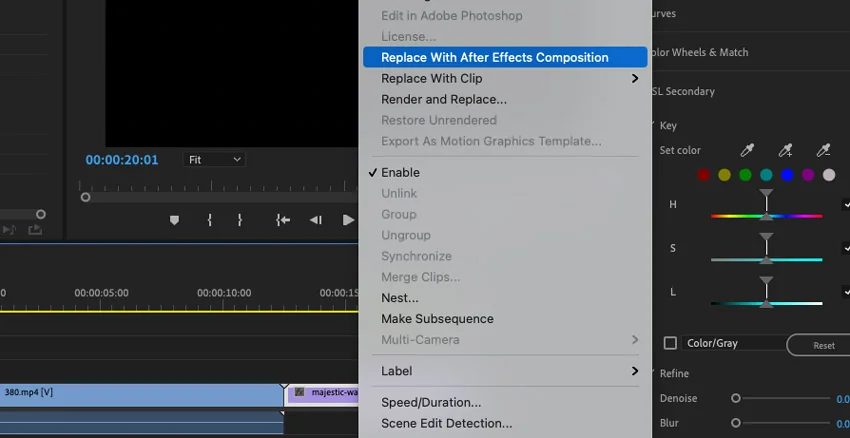
Earlier versions of this tutorial relied on the one-click “Replace with After Effects Composition” (Dynamic Link) feature. In recent versions of Premiere Pro and After Effects, this feature may not function consistently. The updated method below works independently of Dynamic Link, so you can follow it regardless of your software version.

Premiere Pro context menu showing the Replace With After Effects Composition option to upscale video to 4K
Premiere Pro context menu showing the Replace With After Effects Composition option to upscale video to 4K.

Tip before you start:

Make sure your Premiere Pro edit is completely finalized before starting this process, including cuts, effects, music, and subtitles. After Effects should be the final step in your workflow. If you return to Premiere Pro to make changes after upscaling, you’ll need to repeat the entire After Effects process.

Here’s the stock video template we’ll use for this tutorial. You can explore several similar options on Envato to create your own complete, polished videos.

A multi-tiered waterfall with white water flowing over light brown rocks, surrounded by dense green trees and foliage.

1. Edit and export your footage from Premiere Pro

Start by importing your clips and arranging them on the timeline in your preferred order.

Premiere Pro timeline with imported clips arranged and ready to upscale 1080p video to 4K
Premiere Pro timeline with imported clips arranged and ready to upscale video to 4K.

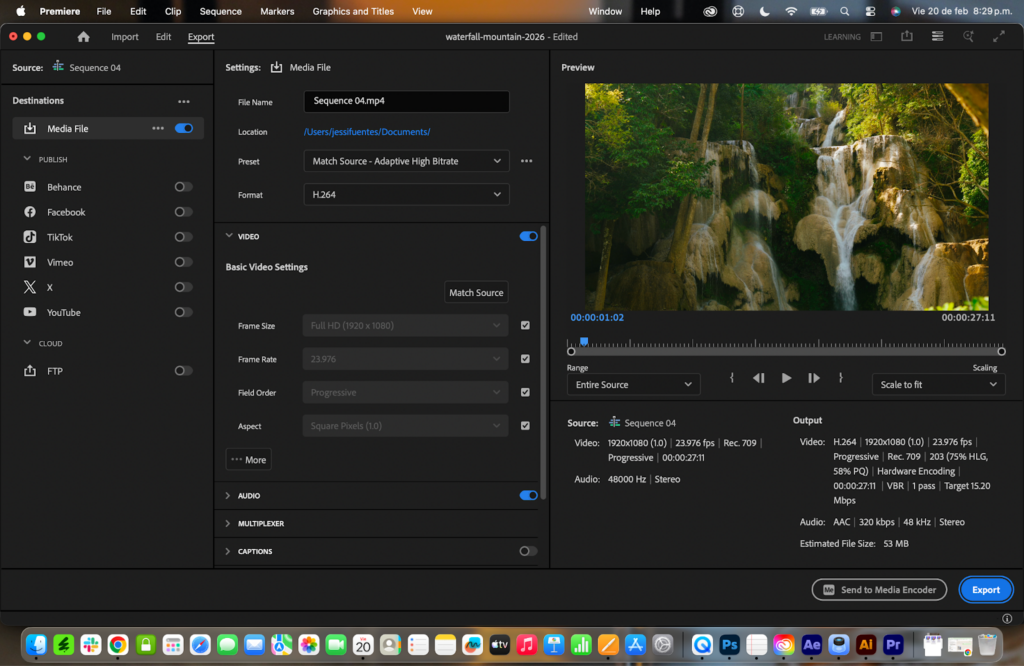
Once your edit is completely finished, export the final sequence in its original 1080p resolution.

Go to File > Export > Media and use these settings:

  • Format: H.264
  • Preset: Match Source – Adaptive High Bitrate
  • Resolution: 1920 × 1080 (keep it in Full HD for now, After Effects will handle the upscale)

Click Export.

Screenshot of Adobe Premiere Pro's export window showing video settings and a preview of a waterfall.
Premiere Pro export settings showing H.264 format and Full HD 1920×1080 resolution before upscaling video to 4K in After Effects

2. Open After Effects and create a 4K composition

Open After Effects and import the 1080p file you just exported from Premiere Pro.

Go to File > Import > File and select your video.

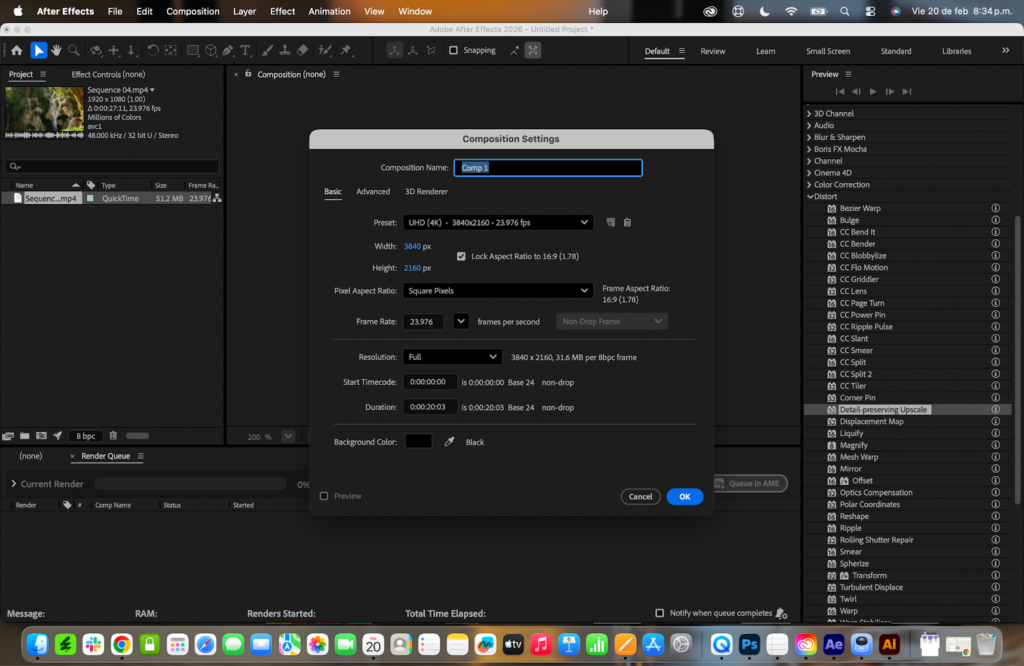
Next, create a new composition by selecting Composition > New Composition.

Set the following settings:

  • Frame size: 3840 × 2160 (4K UHD)
  • Frame rate: Match your original footage (for example, 23.976fps)
  • Duration: Match the length of your exported clip

Click OK.

After Effects Composition Settings panel showing 3840x2160 UHD 4K resolution to upscale video to 4K
After Effects Composition Settings panel showing 3840×2160 UHD 4K resolution to upscale video to 4K

3. Apply the Detail-preserving Upscale effect 

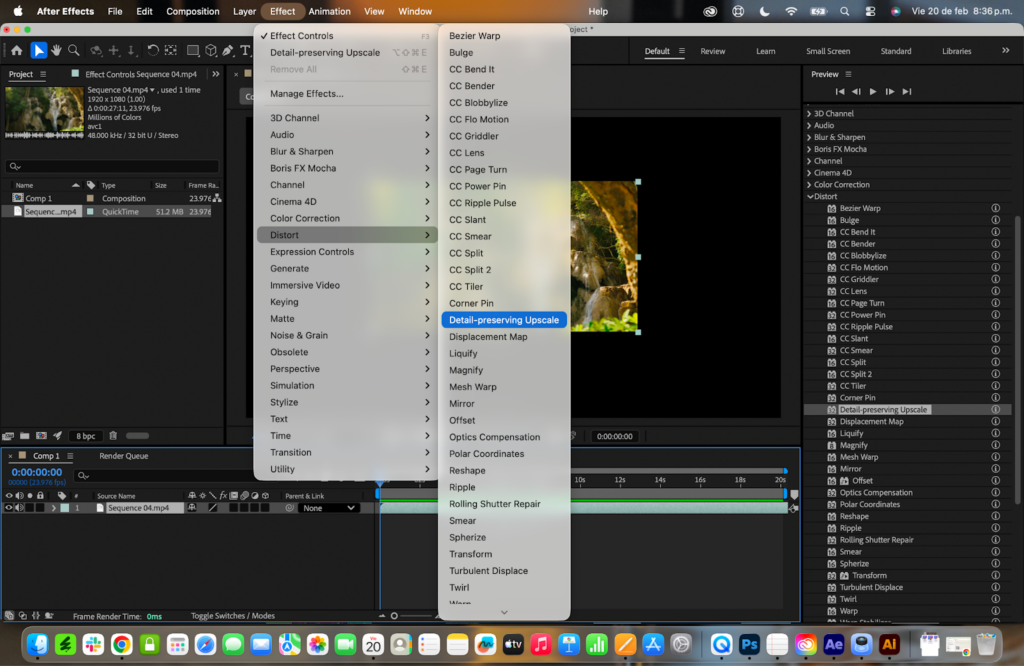
With your clip selected in the timeline, go to Effect > Distort > Detail-preserving Upscale to apply the effect.

After Effects Effect menu showing Detail-preserving Upscale under Distort to upscale video to 4K
Applying the ‘Detail-preserving Upscale’ effect in Adobe After Effects to enhance video quality.

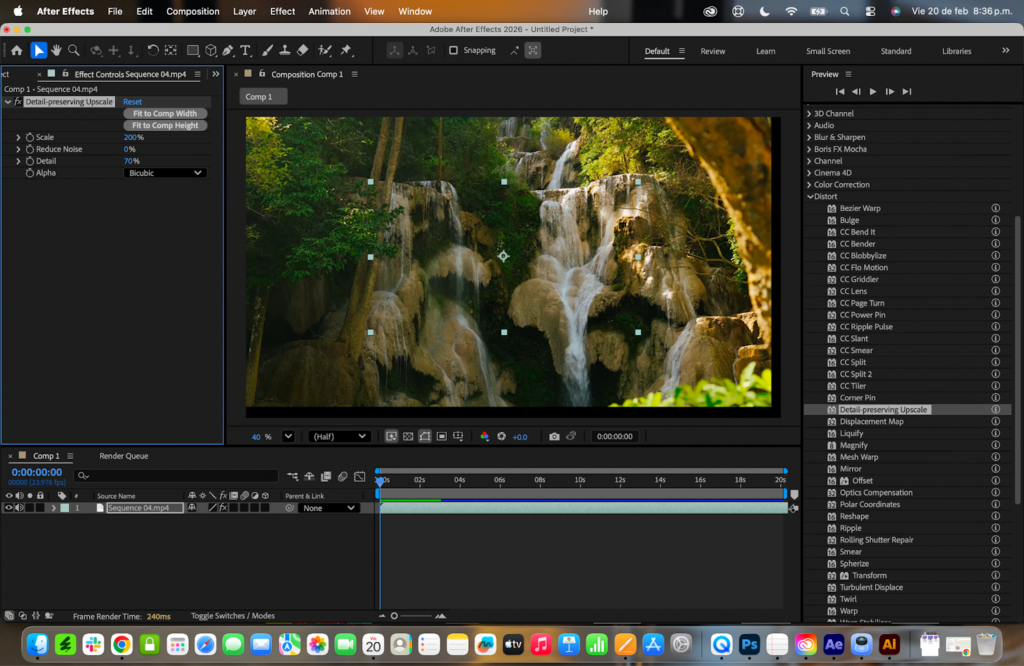
In the Effects Control panel, you’ll see several key settings:

Search for Detail-preserving Upscale and double-click to add it to your active clip.

  • Fit to Comp Width: Click this first. It scales your 1080p footage to fill the 4K composition width automatically.
  • Detail: Set this to around 70% to preserve more sharpness and fine texture. The default 50% is a safe starting point, but increasing it often produces noticeably cleaner results.
  • Reduce Noise: Leave this at 0% unless your footage looks grainy. If needed, try values between 20% and 30% to reduce digital noise without oversoftening the image.

There’s no single perfect setting here. Upscaling is partly technical and partly a visual judgment. Adjust the Detail slider gradually and preview the results until the footage looks natural and sharp, not over-processed.

After Effects Effect Controls panel showing Detail-preserving Upscale settings with Fit to Comp Width and Detail at 70% to upscale video to 4K
After Effects Effect Controls panel showing Detail-preserving Upscale settings with Fit to Comp Width and Detail at 70% to upscale video to 4K.

Before moving on, save your After Effects project by going to File > Save. It’s a small step, but it protects your work if anything crashes (and yes, it happens).

4. Export your 4K file from After Effects

Go to File > Export > Add to Render Queue.

After Effects File menu showing Export and Add to Render Queue option to upscale video to 4K
After Effects File menu showing Export and Add to Render Queue option to upscale video to 4K.

In the Render Queue panel:

  • Output Module: Click this and choose your preferred format. You can choose H.264 for a compressed delivery file (via Media Encoder) or QuickTime for higher-quality output.
After Effects Render Queue panel showing Output Module naming options to export upscaled video to 4K
After Effects Render Queue panel showing Output Module naming options to export upscaled video to 4K.
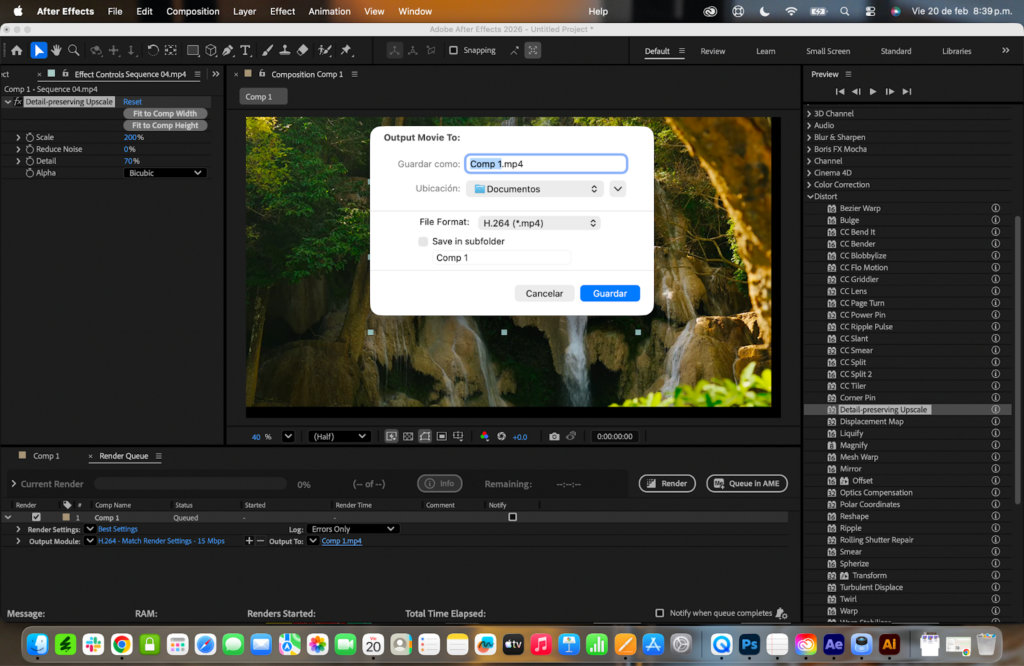
  • Output To: Click this to choose where your file will be saved. You can keep the automatic naming option or rename the file manually before selecting your destination folder.
After Effects Output Movie dialog showing file naming and save location to export upscaled video to 4K
After Effects Output Movie dialog showing file naming and save location to export the upscaled video to 4K.

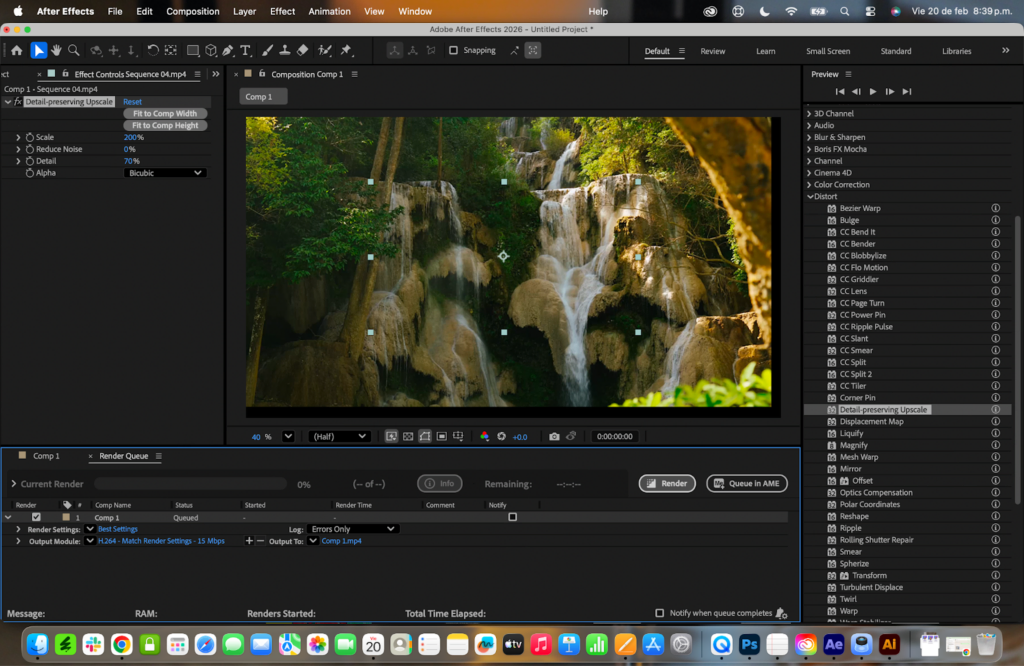
Once everything looks correct, click Render to begin exporting. After Effects will now process the upscale and generate your final 4K file.

After Effects Render Queue is ready to export with the Render button to complete the upscaling video to 4K
After Effects Render Queue is ready to export with the Render button to complete the upscaling video to 4K.

Note:

Rendering can use a significant amount of your computer’s CPU and GPU resources, so the interface may appear slow or less responsive during export. This is normal. Let the render complete fully before opening or moving the file. 

Once the progress bar reaches 100%, your 4K video will be saved automatically to the folder you selected.

After Effects Render Queue showing active progress bar while rendering and upscaling video to 4K
After Effects Render Queue showing active progress bar while rendering and upscaling video to 4K.

Plugins to upscale footage in Premiere Pro

Several third-party tools offer AI-powered upscaling, often promising sharper results or better edge reconstruction than native workflows.

Check out these other tools as options for upscaling to 4K:

The source for 4K footage

If your footage doesn’t hold up after upscaling, the best solution isn’t always to push the resolution further; it may be to start with native 4K clips. While many creative platforms offer 4K video, having access to a large, curated library makes the process more efficient. 

Envato includes hundreds of thousands of 4K stock videos – alongside stock music, video templates, and motion graphics – covering cinematic landscapes, business scenes, lifestyle footage, and motion graphics. With a single subscription, you can download assets as needed while it’s active, making it a practical solution for ongoing creative work.

Trending Premiere Pro resources in 2026

Today’s editors rely on more than just footage. From transitions and motion graphics to sound design and AI-powered tools, having a complete creative toolkit helps streamline production and maintain consistent quality across projects.

That’s where staying current matters. The resources below reflect what many Premiere Pro users are incorporating into their projects in 2026.

AI-powered creative tools

AI is now embedded in modern video editing workflows. In 2026, editors use it to automate repetitive tasks, generate supporting visuals and audio, and explore ideas more efficiently.

Instead of spending hours sourcing individual elements, you can combine high-quality stock footage, music, voiceovers, graphics, and templates to build polished edits faster. When paired with ready-to-use assets, AI-enhanced tools help streamline production without compromising creative control.

A grid of nine panels, each showcasing an AI creative tool with an image and text. Examples include car crash for video, fashion model for image generation, drummer for music, woman with visor for image editing, diverse faces for voice, tablet with icons for graphics, skateboard for sound, and t-shirt with phone for mockups.
Explore a suite of AI-powered creative tools for video, image, music, voice, graphics, sound, and mockups.

Transitions that feel intentional

Transitions are more than visual effects; they control pacing and storytelling. In 2026, editors are moving beyond simple crossfades and experimenting with stylized wipes, glitch effects, light leaks, and cinematic camera transitions that reinforce brand identity.

Using pre-built transition packs can save time while maintaining consistency across projects. Whether you’re cutting a YouTube short or a commercial edit, having flexible transitions in your toolkit makes your timeline cleaner and your edit more cohesive.

Motion graphics that elevate your edit

Motion graphics separate a functional video from a memorable one. Animated titles, lower thirds, and branded overlays help guide attention and reinforce key messages.

Instead of building every animation from scratch, customizable templates let you adapt professional motion design to your own style. This means you spend more time shaping the story and less time adjusting keyframes.

Unlimited creative assets. Access to AI tools.

Purple And Yellow Contrast Mesh With Neon Glowing Rings Background VJ Loop In 4K

ProximaCreate
Purple And Yellow Contrast Mesh With Neon Glowing Rings Background VJ Loop In 4K

Vertical Video of Skyscrapper Against Sky

icetray
Vertical Video of Skyscrapper Against Sky

Abstract green digital background animation. Green glowing particles and lines on dark background

alesiak3
Abstract green digital background animation. Green glowing particles and lines on dark background

Templates built for social platforms

Vertical video isn’t a trend anymore, it’s the format. With TikTok, Instagram Reels, and YouTube Shorts shaping how audiences consume content, editors need templates that are optimized for fast, mobile-first viewing.

Social-ready templates make it easier to:

  • Adjust aspect ratios quickly
  • Keep text readable on small screens
  • Maintain consistent branding across platforms

Publishing faster doesn’t mean lowering quality. It means having the right starting point.

Final thoughts on how to upscale video to 4K

Upscaling won’t magically replace native high-resolution footage, but learning how to upscale video to 4K properly can dramatically improve how HD clips hold up in modern projects. By combining Premiere Pro for editing and After Effects for precision scaling, you create a workflow that balances flexibility with professional-level output.

As 4K delivery becomes standard across streaming platforms, client projects, and social content, knowing when and how to upscale video to 4K gives you more control over your final result and more confidence in your edit.

Upscale 1080p video to 4K FAQs

Related Posts