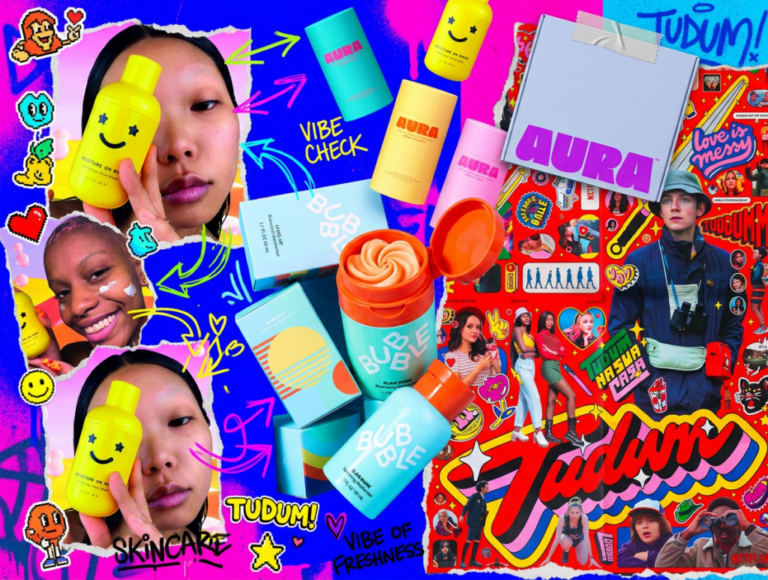
The grunge design trend: Why raw, messy aesthetics are back (and how to use them in 2026)
Discover why grunge design is trending again in 2026 and how to use textures, distressed type, and controlled chaos without sacrificing clarity or hierarchy.
Envato: Get every type of asset for any type of project, and access to AI tools. Start now
Want to learn how to make your very own font? From planning out a letter set to refining the font design, here's how to create a font in Adobe Illustrator.
If you’re a designer or illustrator comfortable creating glyphs in Illustrator, creating a font should be right up your alley! In this tutorial, we’ll teach you how to make your own font in Illustrator and create a simple, fun type for your projects – or which you can even sell on Envato Elements (just check out the available fonts for inspiration for your personal designs).
Today, we’ll show you how to create your own font in Illustrator by planning out a letter set, refining the font design, and preparing files for use in a font-making program, all from the comfort of Adobe Illustrator. In the following tutorial, we’ll teach you how to create a custom font with our vector letterforms – you can even follow along with us on the Envato Tuts+ YouTube channel!
What the font are you waiting for? Let’s get started!
In this section, we’ll learn how to design your own font in Illustrator and start designing a font from scratch. Whether you’re drawing out letters in a digital art program like Adobe Photoshop, Paint Tool SAI, Krita, or something else or drawing out your lettering on paper, I like to start with an alphabet quickly drawn in whatever style I want my font to have. Note the differences in the ‘w’s seen below. Consider how your letters relate to one another.

An option to keep your drawn letters from getting messy is using grid lines in a drawing program like Adobe Photoshop. You can create a Grid Layout or place grid lines manually. This allows you to keep track of the height and width of each letterform in an informal setting.

You can also scan in drawn or written letterforms and adjust the Threshold (Image > Adjustments > Threshold) so your image is clean, black-and-white, and ready for importing into Adobe Illustrator. This is optional, as you can also just draw your font freehand in Adobe Illustrator or import your image without adjusting it in Adobe Photoshop. This is important as you learn how to make a custom font. In the next section, we’ll learn how to make a font in Illustrator.

Now, we’ll learn how to make a font in Illustrator. Before we launch into creating vector versions of our letterforms, we must prepare the imported image file. I’m using lettering I drew in Adobe Photoshop. Open the jpeg in Adobe Illustrator. In the Image Trace panel, consider the following settings (yours may differ):
Hit Trace (this happens automatically if you’ve enabled Preview), and your drawing will instantly be traced as a vector image.

Select your newly traced image and go to Object > Expand. This will expand your traced image into vector objects. Ungroup the objects and use the Magic Wand Tool (W) to select the white-filled objects. Delete these, so you’re only left with the black letterforms.

Create a New Document. Mine is sized to my best guess for how big I want the largest of my letterforms to be: 0.55 in by 1.26 in. You can choose the correct file size for your needs, of course.

Now, we’ll continue learning how to create your own font in Illustrator. In your New Document, import or Paste (Control-V) your letterform group. Ungroup them so you have complete control over each object. I added Grid lines over my Artboard to help define the limits of each part in my letterform set. The lines define the highest and lowest points of uppercase and lowercase letters.
Place your first letter object on your Artboard. You’ll want to make sure that if it doesn’t have any descenders (like the letters p, g, j, and y have), you’ll want to place it at the baseline indicated by your gridline.
Scale and adjust your letterform within your gridlines and Artboard as you see fit.

Some letters are similar in size, shape, and overall design. I also tend to use the lowercase ‘b’ as ‘d’s, ‘p’s, and ‘q’s. Also, note how your letters compare from lowercase to uppercase. I’ll be redrawing everything in the next section of this tutorial, so how your letterforms relate to each other will be entirely up to you. Make notes about changes you’d like to make at this point before we refine letters.

Each glyph type (lowercase, uppercase, punctuation, and numbers) is placed on the Artboard in turn and then organized into its category’s corresponding layer within the Layers panel. As I refine each letter, new objects will be placed into their corresponding layer.
Creating a font can be a big project, so the more organized you are, the easier it will be.

The size and placement of punctuation and special characters are up to you. Numbers will likely be around the size of your uppercase letters, but punctuation needs to fit with both lowercase and uppercase letters. Note the arrows below. I’ve placed my asterisk at the highest point of my font forms, while for now, my plus sign sits closer to the midpoint.
Experimenting with your letter and glyph objects will inform you of your most desirable punctuation placement. Play around with your objects until you find an arrangement you like!

In this section, we’ll learn different ways to design a font using the Brush Tool. Let’s start with four different ways to refine your letterforms.
If you opt for the Blob Brush Tool, you’ll create font Illustrator objects as each letterform. If you opt for the Brush Tool, you’ll be creating paths that you can change with various brushes. I’ll be using a custom brush, created next, and the Brush Tool.

My custom brush is a Calligraphic Brush with the following options:
Please note that I’m using a pressure-sensitive graphics tablet. The Pen Tool (P) is likely a better option if you’re using a mouse or something other than a stylus for drawing.

In this step, you’ll learn how to design a font. Time to redraw and refine your letterforms! On a layer above your letter category (these are lowercase), set each letter as visible, one at a time, and draw over them. My custom brush keeps the look of my letters as though they were drawn with a chiseled marker. Use like characters to influence the look of others. All four of the characters below were drawn from the ‘b’ that I drew.
Place each letter above the next, hiding those you’re not working on at the moment in the Layers panel.

For some letters, I’ve changed their overall design after working through the alphabet. I’ve also made sure that descenders hit the same line, below the baseline, and lowercase letters that aren’t l, h, t, or k don’t go past the top line of the other lowercase letters.
As ever, it’s entirely up to you whether or not your letterforms follow these rules. Have fun with your creations, and use the drawing tools you like most within Adobe Illustrator!

Refine special characters and punctuation as well. My pound sign (or hashtag) was a bit too large and lanky for the style of the rest of my characters. As such, I redrew it with the Brush Tool so it’s smaller and chubbier overall.

In this section, we’ll learn the first steps of moving from vector to font. Let’s start with the final versions of all 89 of my characters for this font. At this point, I’ve done the following:

If you’re going to export the content to another program, you’ll need to save each and every glyph as its own SVG file. I’ve kept the default settings for saving SVG files and have simply made sure that there are 89 files organized by character name in a folder once I’m done. This is how you create a font in Illustrator.

For each SVG file, I’ve also done the following to make sure my file sizes are as small as possible:
These steps, though a bit tedious, took my file size down from 800kb to 1kb or less. From here your files are ready to be imported into your font-making program of choice.

Now that you know how to design your own font in Illustrator and you’ve created all 89, or so, of your typeface characters, you’re ready to jump on over to part two of this tutorial: font creation, where you’ll learn the next steps of moving from vector to font! We’ll explore options for in-app font creation using the font creator plugin for Illustrator with a purchased script, exporting the character set into apps like Font Forge, and more.
While you’re here, check out some top fonts on Envato Elements below!
Vezthisory is an elegant script font that is made with a digital pen stroke. The font would be perfect for a luxury fashion brand, wedding invitations, and logos. It features both uppercase and lowercase letters, numbers, and punctuation, and works on both PC and Mac.
Capslock is a playful handwritten font that is perfect to use for logos, social media posts, product design, or any other project. It features web fonts and works on both PC and Mac.
Hopkins and Angela is a casual handwritten font that gives your project a personal touch. It features both uppercase and lowercase letters, numbers, and punctuation. This font is perfect for logos, invitations, magazines, wedding cards, and branding.
Rebelia is a vintage-style font that features tons of glyphs, alternates, and ligatures and works on both PC and Mac. This font is perfect for logos, posters, business cards, branding, and more!
Eather | Modern Grunge Typeface is a modern grunge style typeface that features tons of glyphs, alternates, and ligatures. It comes with multilingual support and works on both PC and Mac. This font is perfect for greeting cards, posters, branding, business cards, and more!
From hand-written fonts to experimental typefaces, explore thousands of fonts in the Envato Elements library. With a monthly or yearly subscription, you’ll have unlimited downloads – just head over to Envato Elements to subscribe and start browsing. Or, for more inspiration, check out the top Font Trends of the year!
Discover why grunge design is trending again in 2026 and how to use textures, distressed type, and controlled chaos without sacrificing clarity or hierarchy.
Learn how to upscale images with AI using ImageEdit. Enlarge photos 2x or 4x while preserving sharpness, texture, and detail for print, design, and marketing.
Swash fonts add a touch of drama and elegance to any design. Explore our curated selection of fonts with swashes and flowing tails to give your typography that extra flourish your projects deserve.
Explore 27 Norse fonts for standout branding in 2026, from rune-inspired and Viking display styles to modern Scandinavian typefaces with bold character.