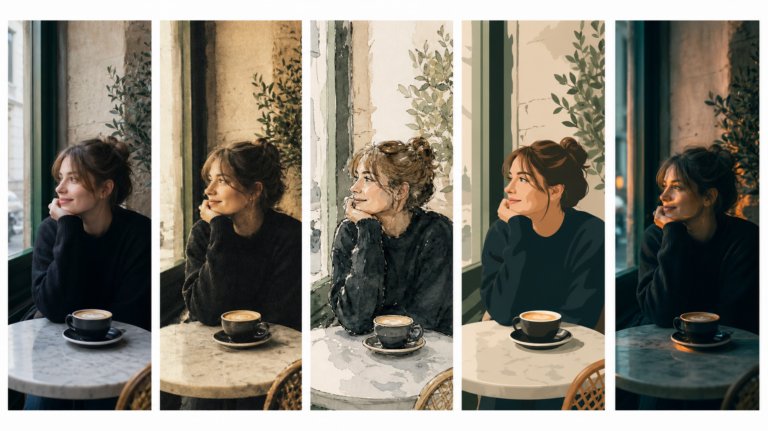
The best AI tools for image recreation
AI image recreation covers style transfer, reference-based generation, variations, and scene recreation. This guide compares the tools that handle each workflow for professional creative work.
Envato: Get every type of asset for any type of project, and access to AI tools. Start now
Learn how to create AI product photography with Envato Shortcuts. Generate commercial-ready product scenes, backgrounds, and concepts in minutes.

Photographers and graphic designers know the feeling.
You have a clear vision for how a product should exist in the world. Maybe it’s a luxury fragrance sitting on dark marble under cinematic lighting. Maybe it’s a skincare bottle surrounded by fresh botanicals. Maybe it’s a running shoe photographed at sunrise on a mountain trail.
The problem isn’t the idea.
It’s everything required to make that idea happen.
Locations cost money. Props take time to source. Studio setups need planning. Reshoots can eat through budgets faster than a camera battery on a cold morning.
Instead of treating product photography as limited to physical environments, AI product photography lets you generate commercial-ready scenes from existing product images. One photo can become dozens of campaign concepts, lifestyle scenes, ecommerce variations, and marketing assets.
AI product photography is the use of artificial intelligence to create, enhance, edit, or transform product images into marketing, ecommerce, and advertising visuals. It can generate new environments, replace backgrounds, adjust lighting, and create multiple scene variations from a single product photograph.
Rather than photographing a product in every possible environment, AI generates new scenes around an existing product image. This allows brands, marketers, photographers, and designers to create lifestyle imagery, advertising concepts, seasonal campaigns, and e-commerce assets from a single source photograph.
For example:
The goal isn’t to replace photography.
The goal is to remove production barriers that make experimentation expensive, slow, or simply impossible.
At its core, AI product photography uses machine learning models to understand a product image and generate new visual elements. Most AI product photography workflows follow a similar process:
The AI first identifies the main subject within the image.
This could be a skincare bottle, a pair of headphones, or any other product. The system separates the product from its surroundings and analyzes its shape, color, perspective, and visual details.
The clearer the product appears in the original image, the easier it is for the AI to preserve important details during generation.
Once the product has been identified, the AI creates a new environment around it.
This is where AI product photography differs from simple background removal tools.
Instead of replacing a backdrop with a flat color, modern AI tools can generate realistic commercial scenes, such as:
The goal is to create an environment that feels consistent with the product and believable to the viewer.
One of the most important parts of AI product photography is maintaining visual consistency.
The AI attempts to match shadows, highlights, perspective, and lighting direction so the product feels naturally integrated into the new environment.
Without this step, generated scenes often look artificial or disconnected from the original image.
Unlike traditional photography, AI can create multiple versions of the same concept in minutes.
A single product image might be transformed into:
This ability to generate alternatives quickly is one of the biggest reasons creative teams are adopting product photography AI tools.
AI product photography isn’t replacing traditional photography. Instead, it’s helping creative teams produce more content, test more ideas, and work more efficiently.
Traditional photoshoots require planning, setup, lighting, props, and post-production.
AI can dramatically reduce the time needed to create scene variations and campaign concepts.
A product photographed once can be adapted into multiple marketing assets without organizing additional shoots.
Creating ten different environments traditionally might require multiple locations, prop purchases, and additional studio time.
AI enables brands to explore different creative directions without physically recreating every scene.
Creative direction rarely arrives fully formed. The ability to generate multiple concepts quickly encourages experimentation and often leads to stronger final ideas.
Instead of debating concepts in a meeting, teams can generate visual examples and compare them side by side.
Despite its advantages, AI product photography isn’t perfect.
Understanding its limitations helps set realistic expectations and leads to better results.
Products made from glass, chrome, or highly reflective materials can be challenging.
Reflections often interact with their surroundings, making it harder for AI to generate completely realistic results.
This is especially true for luxury fragrances, drink bottles, and highly polished electronics.
Products photographed under dramatic lighting conditions can be harder to integrate into new environments.
The AI may generate convincing scenes, but subtle inconsistencies can sometimes appear in shadows or reflections.
AI can generate attractive imagery, but it doesn’t automatically understand a brand’s visual identity.
Creative teams still need to evaluate whether generated images align with established brand guidelines and campaign goals.
AI generation is often an iterative process.
The first result isn’t always the best result.
Generating multiple variations and refining the creative direction remain important parts of the workflow.
AI works best when it starts with a strong image.
Poor lighting, low resolution, motion blur, or unclear product edges can reduce the quality of generated results.
While AI can work with many types of products, some categories naturally produce stronger results.
These products typically have clean shapes and clear visual separation, making them easier to integrate into new environments.
These scenarios can still work, but stronger source photography generally improves final output quality.
AI product photography and traditional product photography aren’t competing approaches.
For most brands, they work best together.
| AI product photography | Traditional product photography |
| Generates multiple concepts | Requires a dedicated photoshoot |
| Easy to test different environments | Every new environment must be created physically |
| Lower production costs for variations | Higher production costs |
| Ideal for concept exploration | Ideal for hero imagery |
| Scales easily across campaigns | More time-intensive to scale |
Traditional photography remains the gold standard when absolute accuracy and complete creative control are required.
AI product photography excels in a different way, allowing teams to explore possibilities quickly.
Envato Shortcuts makes that process even easier by turning AI product photography into a guided workflow rather than a blank prompt box.
If you’ve ever wished your product photo could exist somewhere else without organizing an entirely new photoshoot, this Shortcut was built for you.
Shortcuts are guided creative AI workflows designed to simplify common image generation and editing tasks.
Instead of starting with an empty prompt and trying to describe every detail yourself, you select a specific creative objective and follow a structured workflow designed around that outcome.
The product photo Shortcut focuses specifically on AI product photography.
Rather than learning prompt engineering or building complex composites manually, you simply upload a product image, choose a commercial scene, and generate professional-looking results through a guided process.
This is part of a broader shift in creative AI tools.
The technology handles repetitive production work while you focus on creative direction, visual storytelling, and selecting the strongest concepts.

Shortcuts aren’t built around one generic AI interface. They’re designed as a growing set of specialised AI workflows, each focused on a different type of creative task.
| Shortcut | Best used for |
| Style transfer | Reimagining aesthetics without rebuilding compositions |
| Relight | Shifting mood, realism, and atmosphere |
| Background swap | Moving subjects into entirely new environments |
| Character swap | Replace characters in images while preserving the scene, composition, and visual style |
| B-roll generator | Generating cinematic supporting footage and atmospheric visual sequences |
| Replace/add text | Updating typography directly inside compositions |
| Outfit change | Exploring fashion styling, wardrobe variations, and character looks |
| Product photography | Creating polished commercial visuals |
| Digital devices mockup | Presenting work across screens and devices |
| Posters and prints mockup | Visualizing print designs in realistic settings |
| Merch mockup | Developing promotional merchandise concepts |
| Storyboard | Building connected narrative sequences |
The important part isn’t just the feature list. It’s the fact that each workflow understands the creative logic behind the task itself.
Finding the product photo Shortcut takes only a few seconds once you know where to look.
Start inside Envato’s AI image generator.
Within the editor, look for Shortcuts near the image generation controls.
This opens a collection of guided workflows designed around specific creative outcomes.
Select Shortcuts to launch the workflow library.
From there, choose a product photo to begin creating AI product photography scenes.
Upload the product photograph you want to transform.
The strongest results typically come from images where the product is clearly visible and separated from the background.
Good source images usually include:
For example, a simple studio photograph of a fragrance bottle can become a luxury beauty campaign, while a coffee package photographed on white can be transformed into a lifestyle scene.
The better the source image, the easier it becomes for the AI to preserve important product details.
Once your image is uploaded, you’ll see a selection of preset environments.
Current options include styles such as:
These presets provide a fast starting point when you already know the type of imagery you need.

A cosmetics brand might compare Clean Studio against Natural Light. A premium fragrance company may prefer Dark Moody. A food product might perform better within a Tabletop Scene that feels authentic and approachable.
The advantage isn’t choosing the perfect option immediately.
It’s being able to explore several directions in minutes.
Sometimes the presets get you close.
Sometimes you already know exactly what you’re trying to create.
That’s where custom scene generation becomes useful.
You can either:
For example:
Unlike traditional AI tools, the workflow helps structure the creative process, keeping you focused on visual direction rather than prompt engineering.
That’s a surprisingly valuable difference.
Most creatives would rather think about the image than debate whether a comma belongs inside a prompt.
Generate the image once you’ve selected your preferred scene.
The Shortcut analyzes the source image and builds a new commercial environment around the product.
Strong AI product photography should:
The most effective results don’t look like AI-generated work.
They look like they were photographed that way from the beginning.
That’s the benchmark worth aiming for.
One of the biggest advantages of AI product photography tools is speed.
Traditional photography makes experimentation expensive.
AI makes experimentation part of the process.
Generate several versions and compare them side by side.
You might test:
Often, the strongest concept isn’t the first one.
It’s the third, fourth, or fifth variation that reveals an idea nobody expected when the project started.
Once you’ve found a version that works, save the image and continue refining your project.
At this point, the AI has already handled much of the production-heavy work.
Your job becomes creative direction rather than technical execution.
Product photography has always been shaped by physical limitations.
The right location might be unavailable. The perfect lighting setup might exceed the budget. The concept in your head might require resources that simply don’t exist for the project.
AI product photography changes that equation.
You still decide how the product should look. You still choose the creative direction. You still determine what feels authentic to the brand.
The AI simply helps bridge the gap between the image you have and the image you wish existed.
If you’re ready to create more product concepts without creating more photoshoots, the product photo Shortcut gives you a faster path from idea to finished image.
Yes, for many use cases. AI product photography works particularly well for lifestyle imagery, marketing assets, and supplementary product visuals. Many brands still use traditional photography for primary product images while using AI-generated scenes for campaign content.
Yes, it can. Most AI product photography tools generate new environments from a single product image, enabling you to create multiple commercial scenes without additional photography.
Products with clear edges work best. Cosmetics, fragrances, packaged goods, electronics, and lifestyle products typically produce strong results because they are easy for AI systems to identify and preserve.
Access depends on your Envato plan. The Product Photo Shortcut is available within Envato’s AI creative workflow ecosystem, allowing users to generate commercial product imagery through a guided process.
An editor modifies existing images. An AI product image generator creates entirely new imagery. The Product Photo Shortcut combines elements of both approaches by using an existing product image while generating a completely new commercial environment around it.
Not entirely. AI product photography excels at concept generation, marketing variations, and content scaling, while traditional photography remains the preferred option when absolute product accuracy and complete creative control are required.
AI image recreation covers style transfer, reference-based generation, variations, and scene recreation. This guide compares the tools that handle each workflow for professional creative work.

We tested 9 AI image generators on identical artistic prompts (same style-transfer task, same day) to see which one actually paints like an artist.
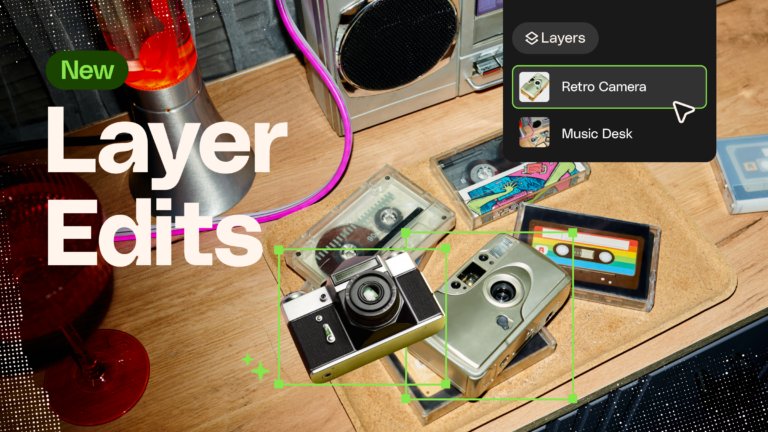
Learn how to separate an image into editable layers with Envato Layers, then move, resize, transform and export individual elements.
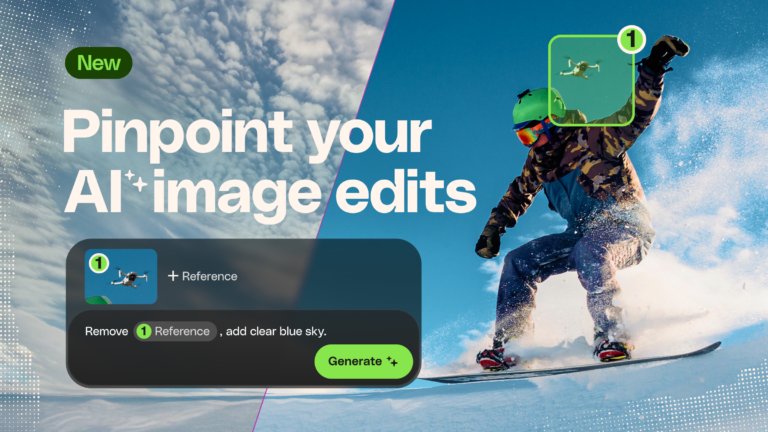
Learn how to edit an image with AI using Envato’s image annotation tool to select specific areas, make precise changes, and control where edits appear.