
How to remove green screens in After Effects like a pro

Want to become a video editing pro? Learn how to remove green screens in After Effects and master the skill of background replacement with these helpful tips.

Simone Richardson 11min read 3 Jan 2026
Learn how to remove green screens in After Effects (2026). Use the Keylight effect, fix spill, and create seamless composites like a video editing pro.

TL;DR: In 2026, removing green screens in After Effects is faster, smarter, and more intuitive than ever. The built-in Keylight effect remains the go-to tool for clean chroma keying, now enhanced by Adobe Sensei’s AI for automatic matte and lighting correction. Designers and editors can pair Keylight with advanced plugins, such as Primatte Keyer, Key Correct Pro, and Mocha, for ultra-precise results.

To achieve a flawless composite, match your lighting, refine edges with Screen Matte controls, and use AI tools to remove color spill automatically and elevate your visual storytelling.

If you’re filming video content using a green screen, Adobe After Effects is probably your go-to for post-production. The software makes it easy to replace that green backdrop with any background you choose, helping your footage stand out and your visuals come to life.

But if you’re new to After Effects or experimenting with green screen techniques for the first time, it can be hard to know exactly where to begin.

In this guide, we’ll walk you through the essentials of chroma keying, step-by-step instructions to remove green screen in After Effects 2026, and a few common pitfalls to avoid along the way. Let’s get started!

Why use a green screen?

In modern video production, a green screen opens up endless creative possibilities. It’s a creative toolkit that expands what’s possible on set. Here are the key benefits:

  1. Unlimited creative freedom
    Replace your background with virtually anything, from clean studio spaces to fantasy worlds or cinematic landscapes. Green screens give you total control over the visual environment.
  2. Enhanced storytelling potential
    Create dynamic scenes, motion graphics, or branded effects that would be impossible (or wildly expensive) to shoot in real life. Think futuristic holograms, dreamlike backdrops, or stylized brand visuals, all from one space.
  3. Consistent visual control
    Maintain uniform lighting, color, and framing across multiple shots. This consistency is especially valuable for product demos, tutorials, and promotional videos.
  4. Streamlined production workflow
    Skip the hassle of location scouting, travel, and complex set builds. A single green screen setup can stand in for dozens of environments, dramatically reducing logistical challenges.
  5. High cost and time savings
    By minimizing on-location shooting and prop building, green screens help you allocate your budget toward what matters most: talent, storytelling, and post-production polish.

Chroma Keying and removing a green screen

What is Chroma keying in After Effects?

Chroma keying is a technique that enables you to remove the green screen from your footage and replace it with a new background or image. It targets a specific color range, typically green or blue, and treats it as transparent, so your chosen backdrop can sit cleanly behind the subject.

Done well, the new background blends seamlessly with the foreground for a polished, cinematic result. But how do you pull this off in After Effects? Let’s walk through the process step by step to see what a chroma keying tutorial in After Effects looks like.

Steps to use the keylight effect and remove a green screen

Adobe After Effects includes a powerful built-in chroma keying tool called Keylight, and it’s completely free. Using Keylight to remove a green screen is straightforward and efficient, letting you achieve professional results in just a few steps. Here’s how to use the keylight in After Effects in seven simple stages.

Step 1: Import and prepare your footage

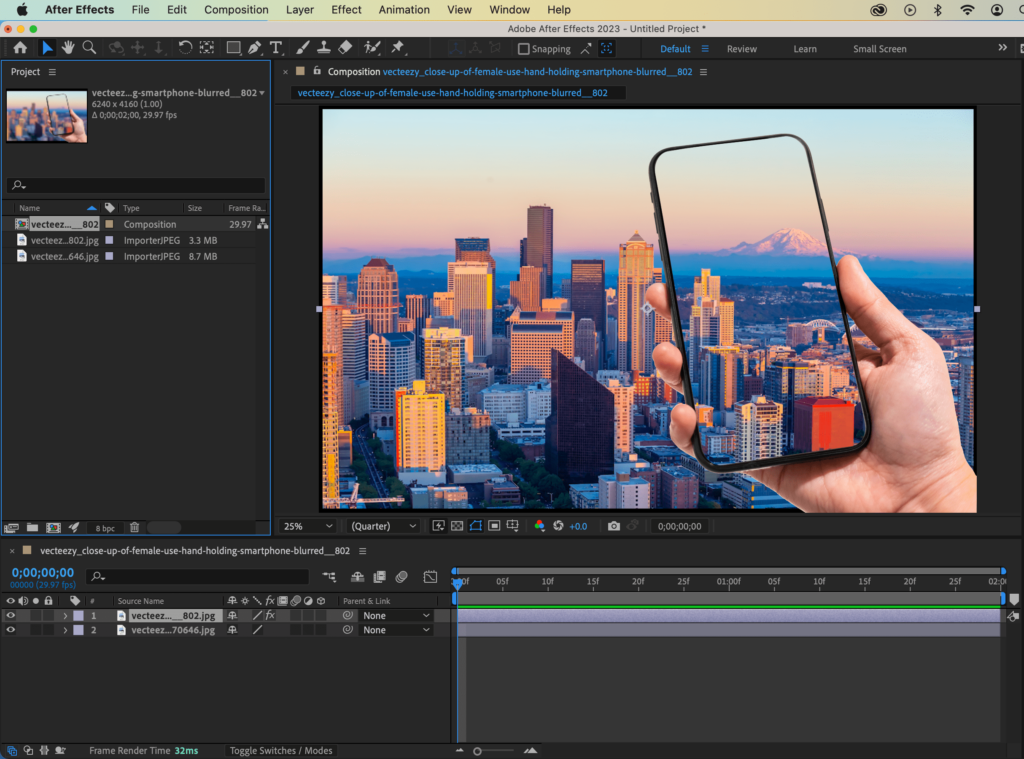
Start by launching After Effects and importing your green screen footage. Once imported, drag the clip onto the timeline to create a new composition. This gives you a clean workspace to begin your edit and ensures all your settings match the footage you’ll be working with.

import the footage to remove green screens

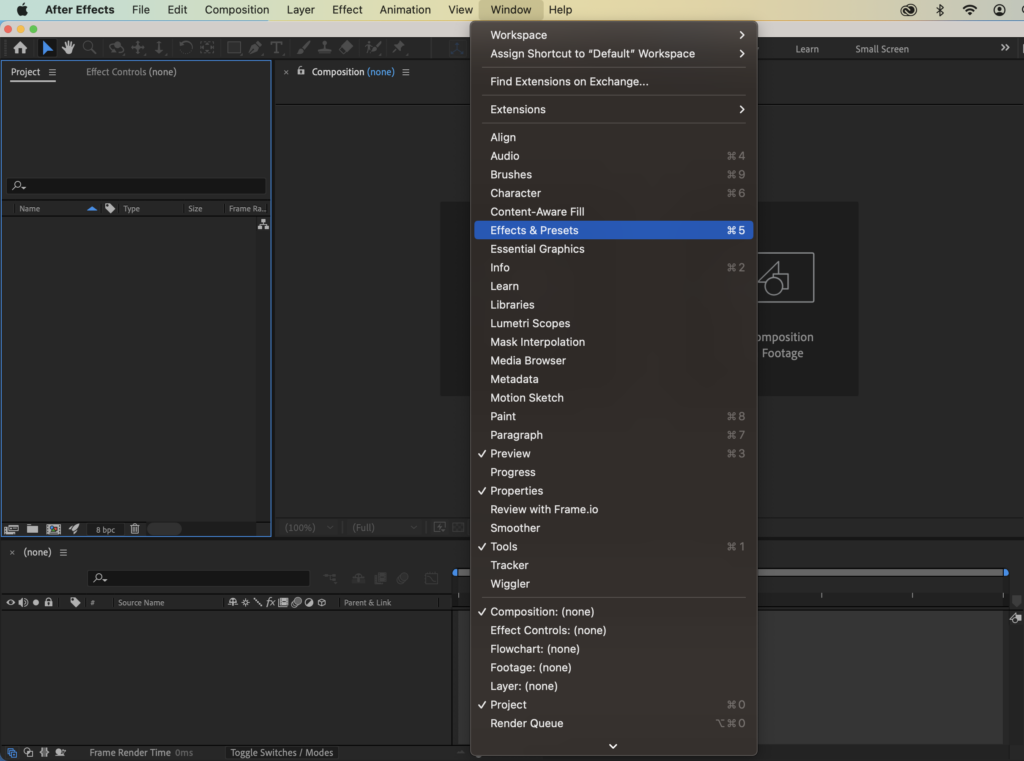
Step 2: Select your footage layer and open the Effects & Presets panel

Click on your footage layer in the timeline, then navigate to the Effects & Presets panel on the right-hand side of your workspace. This is where you’ll find all the built-in effects in After Effects, including the Keylight tool you’ll use to remove the green screen.

effects and presets panel

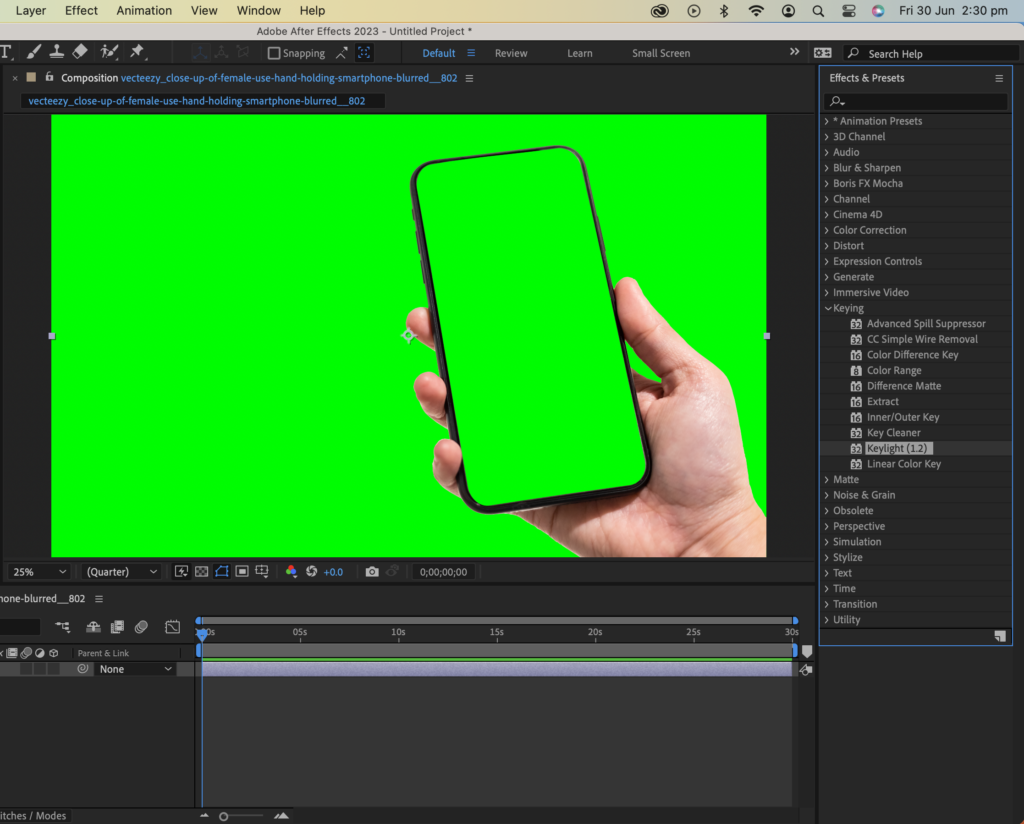
Step 3: Search for “Keylight” and apply it to your footage layer

In the Effects & Presets panel, type “Keylight” into the search bar. Once it appears, drag the Keylight (1.2) effect directly onto your footage layer in the timeline. You’ll now see Keylight appear in the Effect Controls panel. This is where you’ll fine-tune your green screen removal

Search for "Keylight" and apply it to the footage layer.

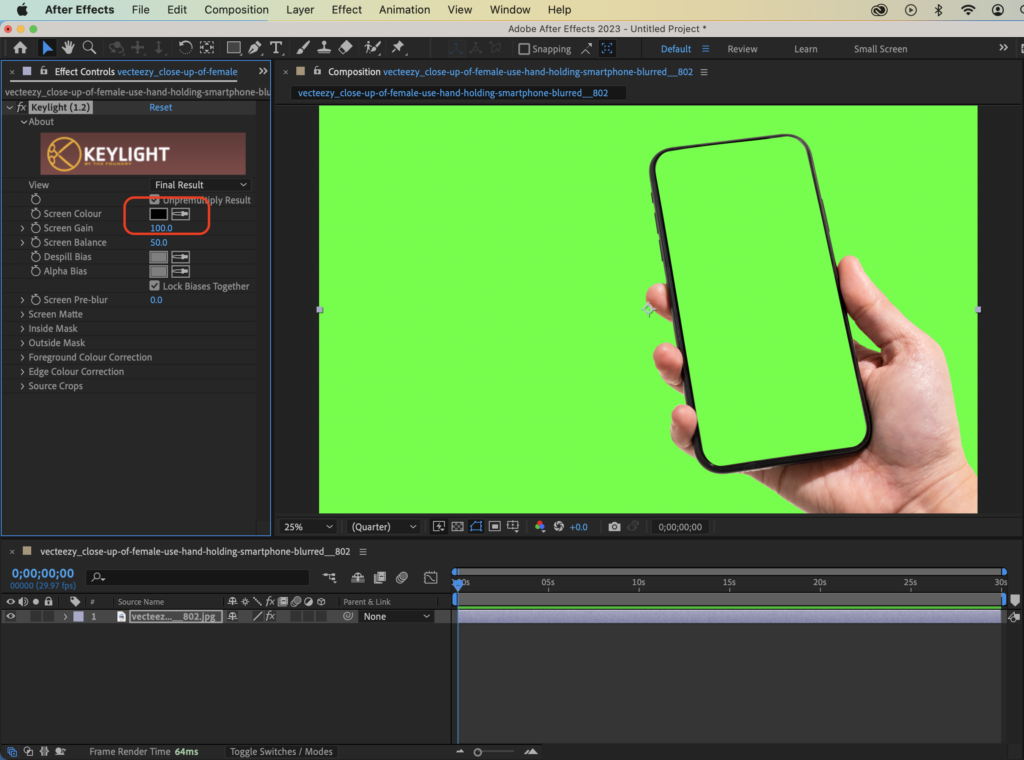
Step 4: Use the Eyedropper Tool to select the green from your background

In the Effect Controls panel under Keylight, click the Screen Color eyedropper and select the green area in your footage. After Effects will automatically remove that color range, turning it transparent and revealing a clean background layer underneath. This is the core step in chroma keying, isolating your subject from the green screen.

Use the Eyedropper Tool to select the green color from the background

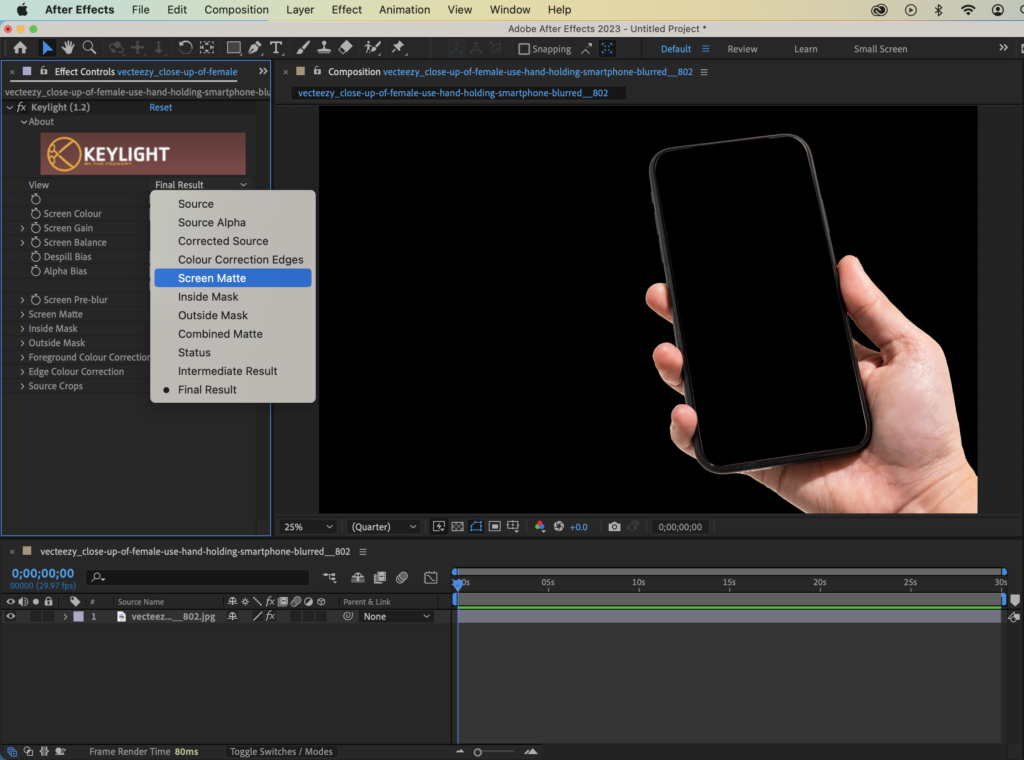
Step 5: Fine-tune your key using the Matte Generation settings

Once you’ve keyed out the green, refine the result by adjusting the Matte Generation and Screen Matte controls in the Effect Controls panel. Tweak settings like Clip Black, Clip White, and Screen Shrink/Grow to clean up edges, remove leftover green spill, and make your subject blend naturally with the new background. Continue adjusting until you achieve a smooth, realistic result.

Adjust settings such as matte generation

Step 6: Add your new background to complete the effect and export your finished composite

To finish, import your chosen background image, video, or graphic and place it below your keyed footage layer in the timeline. This creates the illusion that your subject is naturally part of the new environment. Once everything aligns visually, preview your composition and make any final color or lighting tweaks to ensure the layers blend seamlessly.

Then, it’s time to export your project. Head to Composition > Add to Render Queue, or use File > Export > Add to Adobe Media Encoder Queue for more control over formats and compression. Choose a high-quality codec like H.264 or Apple ProRes to keep your colors crisp and transitions smooth.

add a new background layer or image behind the footage layer

Extra pro tip: You can experiment with 3D environments, gradient backdrops, or even AI-generated visuals from VideoGen for a modern, cinematic touch. Subtle camera movement or lighting variation can make your composite feel even more dynamic and real.

Adjust the keylight settings for better results

If you want a cleaner, more professional chroma key, fine-tuning the Keylight settings is essential. Small adjustments can make a big difference in how natural and seamless your final composition looks. Here’s how to refine your key for the best results:

  1. Start with screen matte controls: Adjust these settings to ensure you’re only removing the green screen, not parts of your subject. Aim for solid white areas where your subject remains visible and pure black where transparency is applied.
  2. Tweak despot white and despot black: These controls help remove unwanted shadows, highlights, or noise that can appear on the keyed background. Use them gently to preserve detail.
  3. Refine edges with clip black and clip white: Sharpen your subject’s edges and clean up any green spill or soft transitions. This step helps your subject blend naturally with the new background.
  4. Use screen shrink/grow for precision: Adjust this setting to subtly expand or contract the matte edge, tightening the key and ensuring no halo or edge spill remains.

How to fine-tune the edges and remove spill

Cleaning up edges and removing spill is a key step in creating a professional, polished chroma key. Spill refers to the unwanted green light that bounces off the green screen and reflects onto your subject, often visible around hair, shoulders, or shiny surfaces. Correcting it ensures your subject blends naturally with the new background.

Here’s how to refine your footage after applying the Keylight effect:

  1. Check your transparency: In the Effect Controls panel, open the Screen Matte view to inspect your transparency. Solid white areas should represent your subject, while pure black areas indicate full transparency.
  2. Remove green reflection: Use the Spill Suppressor settings to clean up any lingering green tint or reflection on your foreground subject.
  3. Refine and smooth edges: Adjust the Edge Thin and Choke controls to reduce fringing or uneven outlines. For softer transitions, apply a touch of Edge Softness to blur harsh lines.
  4. Balance color naturally: Finally, fine-tune the Screen Balance control to even out any remaining color spill and achieve a more natural, cohesive look.

These small refinements make a big difference, turning a basic key into a seamless composite that feels believable and professional.

Seamless composites vs. Common green screen mistakes

3 Tips for seamless background composites3 common mistakes to avoid in green screen removal
3. Depth of field
The depth of field in your footage is another essential factor to consider. Slightly blurring the background and adding creative effects, such as lens flares or bokeh, can make your composite look more natural and enhance the overall effect.
1. Rushing the keying process
Take your time when adjusting your Keylight settings. Subtle tweaks to Screen Matte, Clip Black, or Spill Suppression can make a huge difference in realism. Rushing this step can leave unwanted green halos or uneven transparency around your subject.
2. Matching perspectives
Pay close attention to the perspective of both your foreground and background footage. You can adjust your layers’ position, scaling, and rotation to make your composite more realistic and seamless.
2. Skipping the Screen Matte view
Always check your matte by enabling View: Screen Matte in the Effect Controls panel. This view helps you identify missing edges, leftover spill, or areas where the key hasn’t fully removed the background. Ignoring it often means more cleanup work later.
2. Matching perspectives
Pay close attention to the perspective of both your foreground and background footage. You can adjust the positions, scaling, and rotation of your layers to make your composite more realistic and seamless.
3. Overlooking edge refinement
Edges can make or break a composite. Use Edge Thin, Choke, and Softness controls to smooth jagged outlines and ensure your subject blends seamlessly into the new background. A refined edge gives your final composite that polished, studio-quality finish.

Advanced plugins & techniques for professional chroma keying

Once you’ve mastered the basics of chroma keying, using advanced plugins and techniques can help you elevate your work and achieve a truly cinematic finish. Here are a few tools and methods that professionals rely on:

  • Primatte Keyer: Ideal for challenging shots, such as hair, motion blur, or transparent fabrics, Primatte Keyer offers powerful controls for fine-tuning color spill and edge detail. It’s especially useful for complex footage that standard keying tools struggle with.
  • Key Correct Pro: This plugin helps you refine the edges of your key and perfectly match your subject to the background. You can also add light wraps, adjust color balance, and blend layers more realistically, giving your composite a cohesive look.
  • Color Correction: After keying, subtle color grading adjustments can unify your scene. Use tools like Curves, Hue/Saturation, and Lumetri Color to ensure that lighting, tones, and shadows are consistent between your subject and background.
  • Tracking: When your camera or subject moves, motion tracking ensures your background moves naturally too. Use After Effects’ built-in tracker or third-party options like Mocha AE to sync motion between layers for a seamless, realistic composite.
  • Light Wrap: A light wrap effect helps blend your subject and background by simulating the natural glow or light spill that would occur in real-world lighting. This simple technique adds depth and realism to your composite.
  • Luma Keying:  For tricky lighting setups or reflective surfaces, luma keying can sometimes outperform chroma keying. Instead of targeting color, it isolates based on brightness (luminance), giving you more control in uneven lighting or non-traditional setups.

Mastering these tools and techniques helps you push your chroma keying from good to great, delivering seamless, professional-quality results every time.

To wrap up

Mastering the art of green screen background replacement in After Effects doesn’t need to be time-consuming or complicated. With the right techniques and a little practice, you can create professional, seamless results in just a few steps. So dive in, experiment boldly, and bring your creative ideas to life; the only limit is your imagination.

Looking for more After Effects tips and tutorials? Learn how to cut clips in After Effects to split layers like a pro, or explore how to animate a logo to give your brand identity new energy and movement. And if you want to save time while producing stunning visuals, check out the full range of After Effects templates on Envato, perfect for speeding up your workflow and elevating your next project.

How to remove green screens FAQs

Related Posts