Envato: Get every type of asset for any type of project, and access to AI tools. Start now

How To Render a Video in After Effects (Faster)

Want to speed up your video renders in Adobe After Effects? Need a guide that walks you through the process of rendering your videos quickly? Learn these tips and tricks to render your After Effects videos with excellent results.

Charles Yeager 8min read
How To Render a Video in After Effects (Faster)

Ready to speed up your video renders in Adobe After Effects? This guide walks you through the process of rendering quickly with strong results.

Whether you’re new to After Effects or migrating from another video editor like Premiere Pro, the tips below will save you real time on your next export.

TL;DR: To render faster in After Effects: strip unused layers and effects, enable Multi-Frame Rendering and GPU acceleration, keep your disk cache on a separate SSD, allocate more RAM to After Effects, and export directly from the Render Queue in ProRes rather than pushing everything through Adobe Media Encoder.

how to render a video in after effects

Why Does Fast Rendering Matter?

In the world of video production, time is of the essence. Faster rendering not only means quicker project turnarounds, but also smoother workflows and less problematic surprises.

If you’re working on projects like promo videos, social media shorts, animations, educational content, vlogs, or podcasts, timely and efficient rendering is crucial.

Setting Up Your Project

Before we dive into the rendering process, let’s make sure your After Effects project is optimized for speed.

First, delete any unnecessary layers in your After Effects composition. This could be anything from:

  • layers that are turned off because you decided not to use them
  • to layers that animate off-screen but are still the full length of your composition.

So go through your composition and delete any layers that are in there that you aren’t actually using. Also, trim layers down that don’t need to extend the full length of the video composition.

Next, clear out any unnecessary files you aren’t using that are in the Project Panel.

An easy way to do this is to use the Reduce Project function built into After Effects. Select the composition you are about to render out in the After Effects Project Panel. Then navigate to File > Dependencies > Reduce Project.

Finally, limit the use of resource-intensive effects or third-party plugins. All effects in After Effects are not created equal, some will render much slower than others. Camera Lens Blur is a notorious example. So be conscious of effects that render slowly and limit their use if you are on a tight time limit.

Add Your Video to the Render Queue

Now we need to add the video composition that you would like to render to the Render Queue.

First, open up the Render Queue by navigating to Window > Render Queue. Now simply drag and drop the composition you would like to render from the After Effects Project Panel to the Render Queue. Alternatively, you can select your composition in the Project Panel and navigate to File > Export > Add to Render Queue.

Add Your Video to the Render Queue

Rendering Settings

Now, let’s dial in our render settings for faster exports.

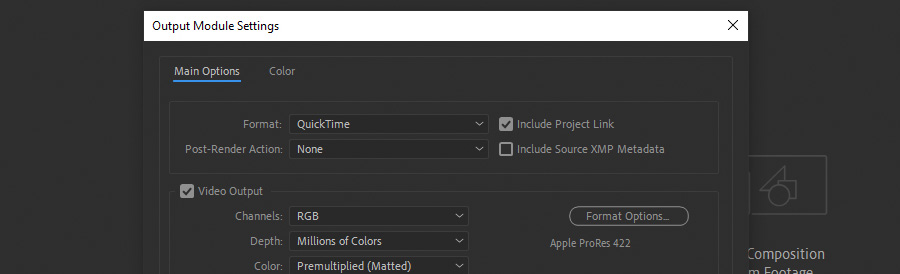
The first settings we need to explore are in the Output Module. Double-click on the Output Module to open up the settings. We will need to select an output video format.

Video formats with less compression will render faster. (More compression often means more time to render and export.) The only drawback is that less compressed video formats will result in large video files. (Often too large to upload.) “Lossless” video formats like AVI will have no compression, but again, they will result in the largest file size.

I recommend finding a balance and rendering in a format like Quicktime with a ProRes codec. This file format will have compression, but not nearly as much as formats like H.264.

Rendering Settings

Rendering in After Effects vs. Adobe Media Encoder

When it comes to rendering, you have two options. You can render your video directly in After Effects or send your video to Adobe Media Encoder.

If you are trying to render your videos out the fastest, there is only one answer: Render directly in After Effects. This is because rendering in Adobe Media Encoder will use more resources than After Effects alone. (This makes sense because you are opening up a completely separate app to render along with After Effects.)

Adobe Media Encoder does offer plenty of benefits, but we are focusing on fast renders. For that goal, you would not want to use Adobe Media Encoder. This also means you will not want to continue to work in After Effects while you have a video rendering! You want After Effects to use all of its resources to render your video the fastest.

6 Tips for Faster Rendering in After Effects

Take advantage of these tips to further speed up your After Effects renders. Slow renders are often a result of a system bottleneck. If you can identify the bottleneck in your workflow, you’ll drastically speed up your renders!

1. Enable Disk Cache

Enabling disk caching in After Effects will result in faster renders.

The disk cache effectively works by “pre-rendering” your video. It will also speed up your workflow and previews while you are working in After Effects.

Navigate to Edit > Preferences > Media & Disk Cache. Enable the Disk Cache and set the cache size. It is best to set your disk cache to an SSD and ideally a separate SSD from the one that After Effects and your working media files are installed on.

enable disk cache

2. Enable Multi-Frame Rendering

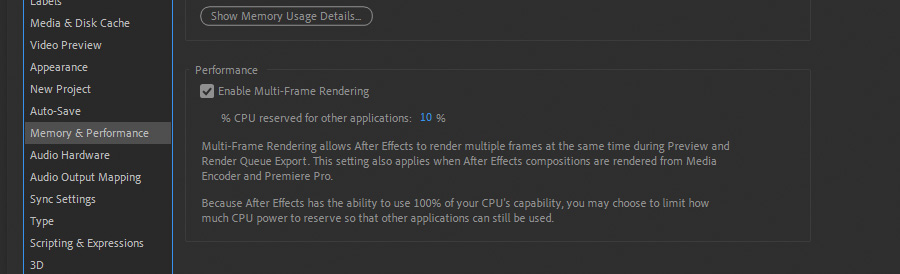
Enable multi-frame rendering in After Effects to render multiple frames simultaneously. This can significantly speed up the rendering process on multi-core CPUs. Navigate to Edit > Preferences > Memory & Performance.

Enable Multi-Frame Rendering

3. Allocate RAM Settings

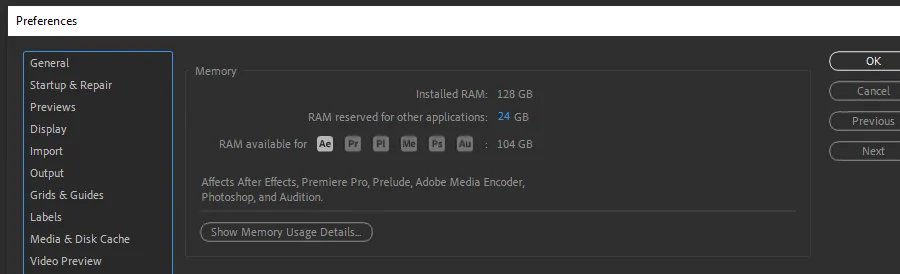
Adjust the amount of RAM reserved for other applications while After Effects is running to optimize performance. You can allocate more RAM for After Effects to speed up the rendering process. Navigate to Edit > Preferences > Memory & Performance.

Allocate RAM Settings

4. GPU Hardware Acceleration

If your computer has a compatible GPU, enable GPU acceleration in After Effects. This can significantly boost rendering performance. Especially, for effects that leverage GPU processing. Navigate to File > Project Settings and then set the Video Rendering and Effects to use GPU Acceleration.

GPU Hardware Acceleration

5. Use SSD Hard Drives

Using solid-state drives (SSD) for both your project files and rendered output can greatly improve rendering speed. SSDs offer faster read and write speeds compared to traditional HDDs.

6. Simplify Your Compositions

As mentioned earlier, complex compositions with numerous layers and effects can slow down rendering. Simplify wherever possible. Trim and delete unused layers in your composition timeline.

How to Exporting Your Video

With your project optimized and output settings selected, it’s time to export and render your video. Be sure to name your file and select a destination folder for your video to be rendered. (Again, rendering to and from SSDs will result in faster renders!) Finally, hit the Render button in the Render Queue window and watch.

Wrapping up

Fast rendering in Adobe After Effects makes a real difference in your production workflow.

By optimizing your project, tuning your preferences, and using the right hardware, you can render videos faster with fewer headaches. Whether you’re a beginner or a seasoned motion designer, these techniques will speed up every future render.

If you’re planning to fold generative content into your workflow, Envato’s AI video generator is worth a look for short b-roll and ideation clips you’d otherwise need to shoot or license — you can drop the results straight into an After Effects comp and render them out with the settings above. And if you need custom music or SFX to sit under the finished piece, the AI music generator and AI sound generator produce license-safe assets quickly.

While you’re here, check out this guide on how to animate a photo in After Effects or these top 10 creative After Effects templates.

FAQs

What’s the single biggest change I can make to render faster in After Effects?

Enable Multi-Frame Rendering under Edit > Preferences > Memory & Performance. On modern multi-core CPUs, it’s the change that produces the largest single speed-up, often 2x or more on complex comps, because it lets After Effects render multiple frames in parallel instead of one at a time.

Should I use Adobe Media Encoder or render directly from After Effects?

For pure speed, render directly from After Effects. Media Encoder is better when you want to keep working in After Effects while a render runs in the background, or when you need to queue multiple exports to different formats in one go. The tradeoff is that Media Encoder is slower per render.

What’s the best export format for After Effects?

Match the format to the destination. QuickTime with ProRes 422 is the standard for intermediate files and passing footage to editors. H.264 (MP4) is the right call for final delivery to YouTube, Instagram, or clients who just want to watch the video. ProRes 4444 is worth it if you need alpha channel transparency or plan to color grade afterward.

Do I need a specific GPU for After Effects to render faster?

Any modern discrete GPU helps, but the biggest wins come from Apple Silicon (M-series) Macs and current NVIDIA RTX cards on Windows. Both handle GPU-accelerated effects well and pair with Multi-Frame Rendering to cut export times significantly. Integrated graphics work, but you’ll feel the difference on anything more than a simple comp.

Why is my After Effects render still slow after enabling these settings?

Check for hidden bottlenecks: a spinning-disk HDD holding your scratch, unused third-party plugins loading at startup, effects like Camera Lens Blur or third-party glows that don’t multi-frame render, or a comp full of high-resolution assets that could be downscaled. Rendering a short section to isolate where the slowdown lives is the fastest way to find the culprit.

Related Posts