The best AI art prompts for abstract art
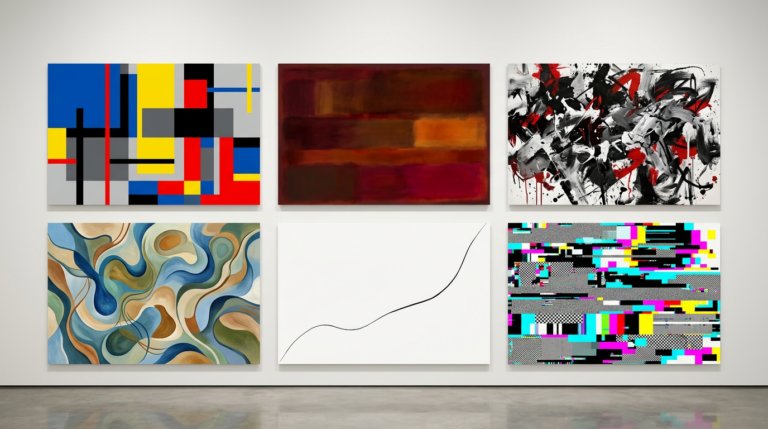
The usual prompt formula breaks down with abstract art. This guide covers the specific approaches that produce intentional compositions — organized by sub-style, with prompt examples for each.
Envato: Get every type of asset for any type of project, and access to AI tools. Start now
Generating a graphic is the easy part. Getting it print-ready is where the real decisions happen.
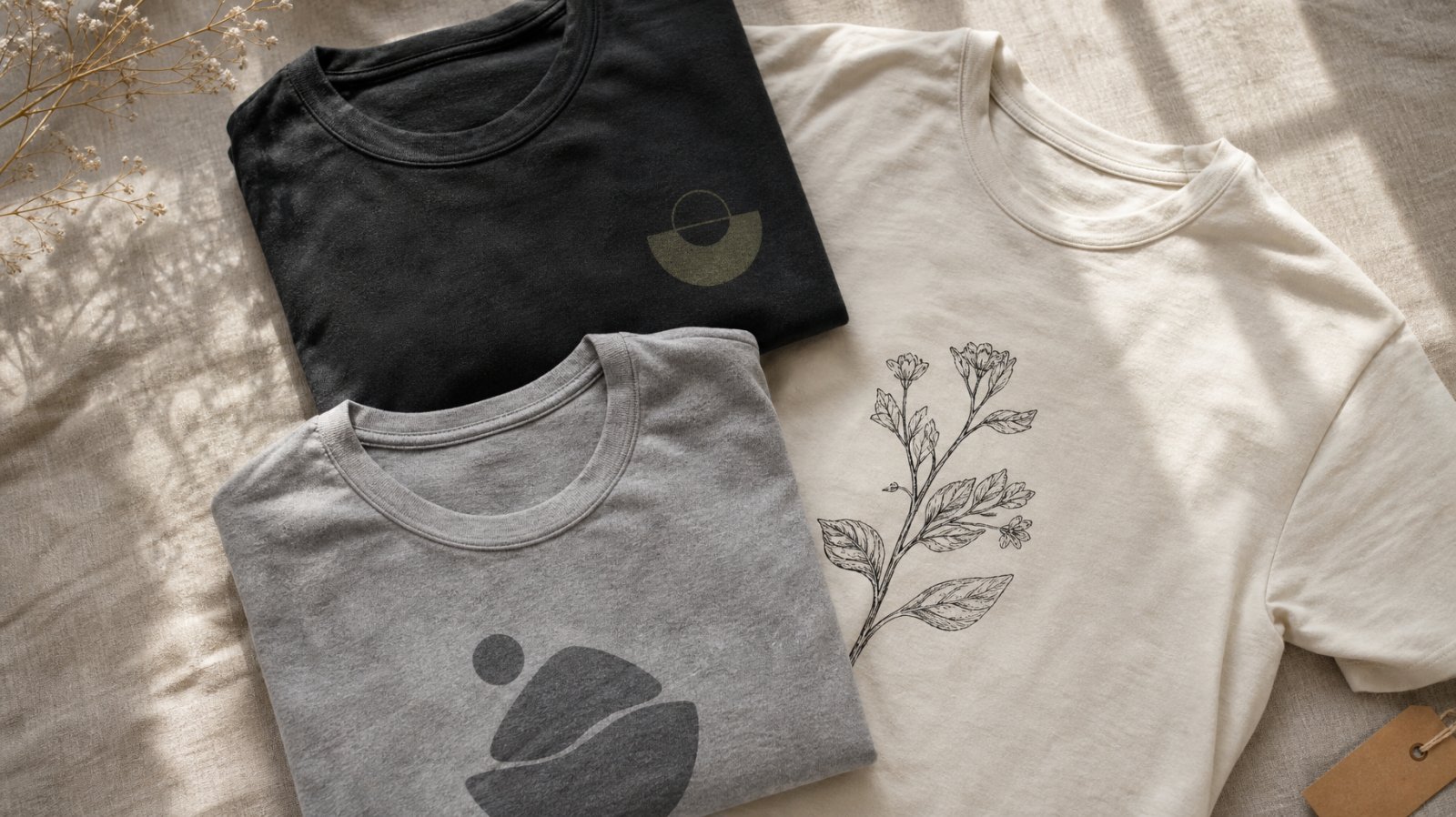
AI t-shirt design has come a long way. The illustration quality, the style variety, the speed — all of it has reached a point where a well-prompted generation can produce something that would hold up next to hand-drawn work. But generating a graphic and producing a wearable t-shirt design are two different jobs, and the gap between them is where most AI-generated apparel falls apart.
The issue isn’t the artwork. It’s everything around it: resolution that falls apart at print scale, RGB colors that shift when converted for printing, compositions that look great on screen but crowd the chest, transparent backgrounds that aren’t actually transparent, and designs that ignore the physical constraints of ink on fabric. These are the things worth understanding before you generate a single graphic — because fixing them after the fact is always harder than accounting for them from the start.
This guide covers what to keep in mind when generating t-shirt designs using AI — the print-specific considerations, the prompting approach that works differently from general AI art, and the workflow from first generation to print-ready file. If you’re looking for the broader prompting framework, our complete guide to AI art prompts covers the fundamentals. This piece is specifically about the t-shirt use case.
A digital illustration and a t-shirt graphic have fundamentally different constraints. Digital work lives on backlit screens with millions of colors and near-infinite resolution. A t-shirt design lives on fabric, printed with a limited number of ink colors, at a fixed physical size, on a surface that moves, stretches, and folds. Designing for print means thinking about all of that before you prompt — not after you’ve already generated something you love that won’t survive the transition from screen to shirt.
The specific considerations that matter: your output format and resolution (PNG versus SVG, and at what scale), your color profile (RGB versus CMYK), your background transparency, your composition (what works centered on a chest versus what works on a screen), your color count (especially for screen printing), and your licensing terms. Each of these affects whether the design you generated actually becomes a t-shirt someone can wear.
This is the most common place where AI t-shirt designs fail. The graphic looks crisp on screen at 1024 pixels wide, then falls apart when scaled to print resolution. T-shirt printing typically requires 300 DPI at the physical print size — for a standard chest print of roughly 12 by 16 inches, that means an image around 3,600 by 4,800 pixels.
Envato’s AI Graphics generator outputs in both PNG and SVG. For t-shirt work, SVG is the stronger choice when available — it’s a vector format that scales to any size without losing quality, which eliminates the resolution question entirely. SVG also makes color separation easier for screen printing, where each ink color needs its own stencil. Several of the generator’s style presets (including Playful Line Art, Bold Block Print Aesthetic, and others in the vector category) support SVG output directly.
When SVG isn’t available for your chosen style, generate in PNG and upscale before sending to print. Envato’s AI image editor includes a 2x and 4x upscale tool — taking a 1024-pixel generation to 4096 pixels, which is typically enough for a standard chest print at 300 DPI. Upscale before you make any other edits, because upscaling works best on the cleanest possible source file.
Every AI graphics generator works in RGB — the color space of screens. Commercial t-shirt printing uses either CMYK (for direct-to-garment printing) or spot colors (for screen printing). The problem is that some RGB colors — particularly vivid blues, bright cyans, and neon greens — don’t have exact equivalents in CMYK. They shift, usually becoming duller and less saturated.
The practical fix is simple but easy to forget: after downloading your design, open it in Photoshop or a similar tool and convert to CMYK. Check for any colors that shifted noticeably. If you’re designing for screen printing, you’ll also want to limit your color count — most screen print jobs use two to four ink colors. Prompting with a limited palette from the start (“two-color design in black and warm red,” “monochrome with gold accents”) produces output that’s already closer to print-viable.
If you’re using direct-to-garment or direct-to-film printing, you have more color freedom, but the CMYK conversion check is still worth doing. A neon pink that looked perfect on your monitor arriving as a muted mauve on the finished shirt is the kind of surprise nobody needs.
Transparent backgrounds matter for t-shirt printing because the fabric itself is your background. Envato’s AI graphics generator includes a transparent background toggle — enable it before generating. If transparency wasn’t set during generation, you can remove the background afterward in Envato’s AI Image editor with a single click, though generating with transparency from the start produces cleaner edges.
Composition for t-shirts follows different rules than composition for screens. A t-shirt design typically sits in a defined print area on the chest, roughly 12 by 16 inches on an adult garment. That means vertically oriented compositions — portrait ratio — generally work better than landscape or square. The design needs clear edges with breathing room around it, because artwork that bleeds to the edges of the print area looks like a mistake rather than a design choice.
Centered, symmetrical compositions are the safest approach for t-shirt placement, though deliberately asymmetric placements (left chest, oversized shoulder-to-hem) work too if they’re intentional. When prompting, specify the composition explicitly: “centered vertical composition for a t-shirt chest print, all elements fully contained with clear margins” gives the generator a spatial constraint that produces more usable output.
The general AI art prompt formula — subject, style, medium, lighting, color, mood — applies here, but t-shirt work adds a few specific considerations that are worth building into every prompt.
Limit your colors. Even if you’re printing direct-to-garment and technically have full color available, t-shirt designs with restrained palettes tend to look more intentional and more professional. Two to four dominant colors with an accent produces stronger results than a full-spectrum rainbow. Name the colors specifically in your prompt: “palette of deep navy, antique red, and off-white” gives the generator a clear tonal range.
Specify the style preset. Envato’s AI graphics generator includes over 100 curated styles — and for t-shirt work, the style selection matters more than in most use cases. Bold Block Print, Rough Stamp, Editorial Line Art, and Neon Drenched are all strong choices depending on the aesthetic you’re after. Selecting a style before you prompt constrains the generator in ways that produce more consistent, print-friendly output.
Include text carefully. Typography in AI-generated t-shirt designs is hit-or-miss. AI generators can render text, but the results aren’t always reliable — misspellings, inconsistent kerning, and broken letterforms are common. For simple, bold text (“RIDE FREE,” “MOOD”), include it in the prompt and check the output carefully. For anything typographically complex, generate the graphic without text and add typography manually in Illustrator or Photoshop, where you have full control over font, spacing, and hierarchy.
Describe the graphic, not the shirt. Your prompt should describe the artwork itself, not the finished garment. “A neo-traditional tattoo illustration of a coiled snake wrapped around blooming roses, limited palette of black and neon pink, centered composition, transparent background” produces a usable graphic. “A t-shirt with a snake on it” produces something the generator has to interpret far too broadly.
These prompts follow the principles above — limited palettes, specified styles, print-aware composition, transparent backgrounds. Each one is built for the AI graphics generator and ready to adapt to your own projects.
Prompt example (editorial line art): “Continuous single-line drawing of two hands exchanging a pomegranate, delicate and unhurried, fine black ink on nothing, botanical detail on the fruit with seeds visible in cross-section, asymmetric composition sitting slightly above center, transparent background, SVG”
Prompt example (bold block print): “Abstract face constructed from stacked geometric shapes — half circles, quarter arcs, offset rectangles — in terracotta, warm sand, and a single accent of cobalt blue, Bauhaus-influenced, flat color, no gradients, compact square composition, transparent background”
Prompt example (rough stamp): “Single oversized fly agaric mushroom rendered in high-contrast two-color risograph style, deep burgundy and off-white, visible ink texture and slight misregistration, centered, scientific illustration meets zine aesthetic, no text, transparent background”
Prompt example (neon drenched): “Close-up of a rotary telephone melting into liquid chrome, receiver floating mid-air still connected by a coiled cord, reflective pooling surface beneath, palette of silver, electric violet, and black, surreal product photography feel, transparent background, high-resolution PNG”
For more prompting approaches across materials, mediums, and art movements, our AI art prompts guide covers the full range. The best AI graphics generators comparison also covers how different tools handle style presets and vector output.
Once you’ve generated a design you’re happy with, the path to a print-ready file follows a consistent sequence. Upscale the image if it’s PNG (2x or 4x in Envato’s AI image editor). Verify the background is truly transparent — some generators produce near-white backgrounds that look transparent on screen but print as a visible rectangle on fabric. Convert from RGB to CMYK and check for color shifts. Add or refine typography in a vector editing tool if the AI-rendered text isn’t clean enough. And if you’re screen printing, separate your colors into individual layers.
Before sending to print, preview the design on a garment mockup. Envato’s stock library includes t-shirt mockup templates that let you see how your graphic looks on fabric, in context, at scale — which often reveals composition issues that aren’t visible when the design is floating on a white canvas. A graphic that looks balanced on screen might sit too high, too large, or too busy on an actual shirt. Catching that before it’s printed saves money and frustration.
Every graphic generated through Envato comes with a commercial license that covers use in commercial projects, including merchandise. That said, it’s worth familiarizing yourself with the specific terms around AI-generated output used as the primary element in a product for sale — the Envato license terms detail what’s covered and what constitutes a complete end product. The general principle: your design should be a meaningful creative work, not a raw, unmodified AI output resold as-is. Adding typography, combining elements, or integrating the graphic into a broader design concept — which you’d typically be doing anyway for a professional t-shirt — keeps you clearly within scope.
300 DPI at the physical print size. For a standard chest print, that’s roughly 3,600 by 4,800 pixels. Generate in SVG when possible (infinite scale), or upscale PNG output using Envato’s AI image editor before sending to print.
Yes. AI generators output in RGB, but commercial printing uses CMYK or spot colors. Convert in Photoshop after downloading and check for color shifts, especially in vivid blues and neon tones.
For simple, bold text it works reasonably well, but check for misspellings and kerning issues. For anything typographically complex, generate the graphic without text and add typography manually in Illustrator or Photoshop.
Yes — Envato’s commercial license covers merchandise. The design should be a meaningful creative work, not unmodified raw output. Check the license terms for specifics on AI-generated content used in products for sale.
SVG is the stronger choice — it scales without quality loss and makes color separation easier for screen printing. Use PNG when your chosen style doesn’t support vector output, and upscale before printing.
Enable the transparent background toggle before generating. If you forgot, Envato’s AI image editor can remove the background afterward, though generating with transparency from the start produces cleaner edges.
Two to four. Each color in screen printing requires a separate screen, so fewer colors means lower cost and cleaner results. Prompt with a limited palette from the start to keep your output print-viable.
The usual prompt formula breaks down with abstract art. This guide covers the specific approaches that produce intentional compositions — organized by sub-style, with prompt examples for each.

Envato AI tools guide covering video, image, audio and voice generation. Learn how to use AI to speed up creative workflows without adding complexity.

Discover how Envato GraphicsGen helps creatives with this AI graphics generator guide for icons, vectors, illustrations, and more.
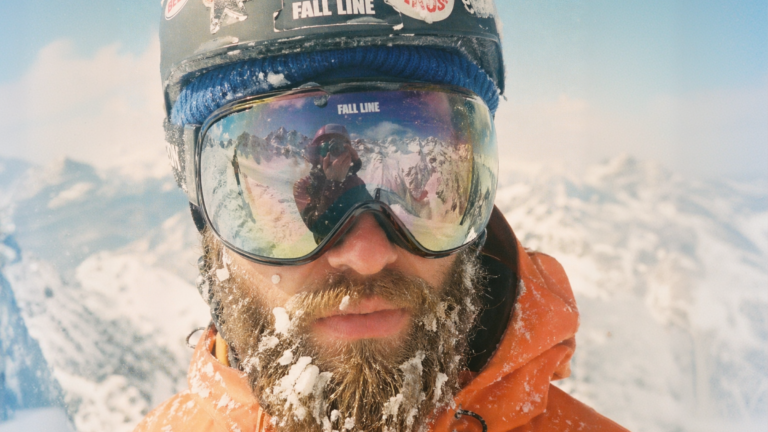
GPT Image 2 improves AI image generation with better layouts, accurate text, and smarter prompts — delivering more usable visuals directly inside Envato’s ImageGen, ImageEdit, and GraphicsGen tools.