50 best PowerPoint templates for 2026: education, business & more
Explore PowerPoint templates with professionally designed layouts to create polished, modern, and visually cohesive presentations.
Envato: Get every type of asset for any type of project, and access to AI tools. Start now
Design posters with AI using ImageGen, refined in Illustrator into polished, professional visuals for projects.

AI is truly revolutionizing the design process, turning any fleeting idea into a visual concept in seconds. For poster design, this is a game-changer. Suddenly, brainstorming a hundred different directions and angles for a poster or a motivational print isn’t a week-long struggle; it’s an afternoon of creative play.
But let’s be real: if you’ve tried designing a poster or flyer, you’ve likely experienced a moment of brain fog. Generating an AI illustration is often a brilliant starting point to a graphic, but it’s rarely what you might call a final, print-ready file.
This AI poster design guide is your bridge. We’ll walk through the entire workflow, from generating your core poster art with a tool like ImageGen, to enhancing it with professional assets from Envato, and finally, finessing it to perfection in Adobe Illustrator.
Whether you’re crafting promotional posters, event marketing materials, or creative art prints, this easy approach keeps your creative process smooth while ensuring you stay professional.
The process of transforming AI-generated art into a print-ready, professional poster begins by using ImageGen to create stunning base artwork. Then we’ll layer on premium Envato fonts, graphics, and mockups. Finally, we’ll refine the color, resolution, and layout in Adobe Illustrator to guarantee a flawless, print-ready result. So let’s begin!
Before opening ImageGen, let’s establish a clear creative direction. Start by identifying your purpose and audience. Are you creating a poster for an event, an exhibition, or as an art print? This clarity will guide every visual choice you make.
For this project, we’ll cover how to design a poster for an event. Let’s create a poster design for a Cubist art exhibition at a modern gallery. It should feel avant-garde and sophisticated, possibly in a portrait format, to balance visual weight while leaving enough space for key details, such as dates and titles.
The audience consists of art enthusiasts and museum-goers, so the design should resonate with those who appreciate intellectual and abstract visuals.
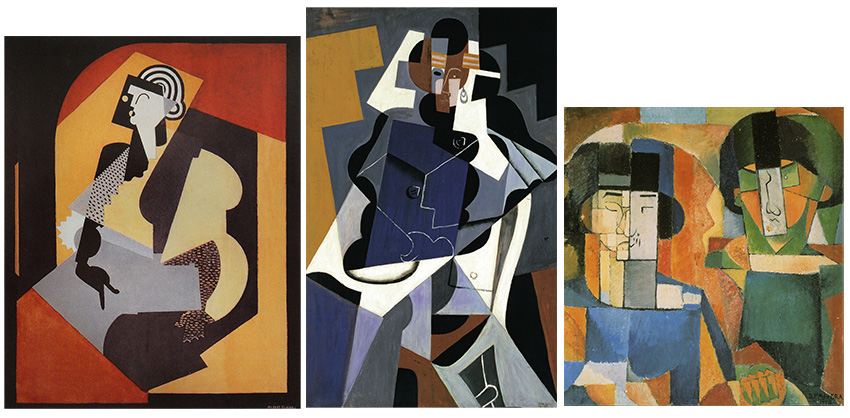
Gather cubist-style art references from artists like Picasso, Juan Gris, and Albert Gleizes, focusing on their signature styles: fragmented forms, multiple perspectives, and a muted color palette of earthy tones such as ochres, greys, and browns.
Use these references to craft a specific AI art prompt with the keywords: “Cubism, fragmented planes, multiple perspectives, earthy color palette.” Your prompt should deconstruct a classic subject, such as a portrait, into a signature Cubist style.
Once you’ve collected cubist art references and outlined your vision, you’re ready to craft your first prompt in ImageGen.
Are you stuck on your initial poster design layout? Don’t start from scratch. Browse Envato’s collection of professionally designed poster templates to kickstart your print graphic design.

Head over to Envato’s GenAI → Image Gen, which features over 40 selected styles. These built-in styles cover a wide creative spectrum, allowing you to achieve your desired aesthetic in just a few clicks without wrestling with complicated prompts.
To craft Cubist-inspired artwork for the exhibition poster, clarify the composition, style, texture, and atmosphere for your prompt. First, select ‘Auto style’, ‘Portrait orientation’, and the 6-variation set. Then refine and optimize your prompt:
Prompt: “A modern museum illustration inspired by early 20th-century Cubism, an abstract geometric composition featuring fragmented faces, musical instruments, bottles, and architectural forms arranged in a harmonious, balanced layout (Composition) + Rendered with overlapping planes, angular shapes, and multiple perspectives to match Cubist styles (Style) + Add visible brush textures, paper collage effects, and layered transparencies (Texture) + Use a CMYK-friendly palette of muted ochres, terracotta reds, slate blues, grays, ivory, and black, no neon or oversaturated colors. Lighting is soft and diffuse, enhancing the painterly texture. Stylized but sophisticated, ideal for a museum exhibition poster (Atmosphere).”

Once you’ve created your perfect poster artwork in ImageGen, export it at a high resolution to maintain sharp print quality. Stay away from low-res web defaults. When your image looks right, tap it and select the Edit icon to open ImageEdit. Then, select Upscale to increase your artwork size by 2× or 4×. After you upgrade, tap “Keep,” then download the final version. Now it’s set for layout and finishing touches in Adobe.

Select the appropriate Adobe app based on your poster design requirements. For this project, we’ll use Adobe Illustrator, as it excels at creating sharp, scalable graphics. If you’re working with a lot of text and images, then Adobe InDesign is ideal for tidy layouts. If you want to create textures, adjust lighting, or apply photo effects, consider using Adobe Photoshop.

Next, find assets from Envato to use in your poster design. For this Cubist-inspired art exhibition design, we’re starting with the Art Exhibition – Flyer & Instagram Set. We can expand the A4 flyer to an A3 poster.
For the text, choose font pairings from Envato’s Font Pairs. For this poster, we’re pairing the Groptika font with Host Grotesk. To bring out the Cubist art theme, add angular, abstract shapes from the Man and Woman Fine Art Vector Illustration set. Download the assets and start designing.
After importing your AI-generated artwork and assets from Envato, start by setting up a print-ready canvas. By following these steps, you’ll give your poster a polished look using Illustrator.
Open the A4 flyer template downloaded from Envato. Go to File > Document Setup and ensure the Bleed is set to 3 mm on all sides. Then, click OK.

Press Shift-O, then Enter to open Artboard Options. Change the preset from A4 to A3, then click OK. Press Command-A to select all. Hold Shift (proportions) and Alt (scale from center) and drag a corner until your design fills the A3 artboard.
Need more help with sizing and setup? Refer to our Print Graphic Guide for guidance on resolution, bleed, and color settings.

Go to File > Document Color Mode and set it to CMYK. Then click Effect > Document Raster Effects Settings and set Resolution to 300 ppi.

Select the Selection Tool (V) and remove any irrelevant graphics, placeholders, or background shapes to create space for the AI-generated image and new cubist art elements.

Go to View > Rulers (Command-R) and enable Smart Guides (Command-U). Drag out guides to establish margins and align text areas. A modular grid—split vertically and horizontally—adds flexible structure. Lock guides via View > Guides > Lock Guides.

Go to File > Place (Shift-Command-P), select your image, and place it. Use the Selection Tool (V); hold Shift to keep proportions and press Alt to scale from the center. Position the image within the grid and send it behind graphics and text via Object > Arrange > Send Backward. Adjust for balance and adequate negative space.

Type your text to establish hierarchy. Use Groptika for a bold headline. For subheaders, use Host Grotesk at a smaller size and semibold weight. Details should be provided in regular weight for items such as date, time, and venue.
These type choices come from the Envato font collection, which offers paired fonts for cohesive, professional design.

After adding the text, check spelling, adjust sizes, tweak tracking and line spacing, and use Character and Paragraph Styles for consistency.

Align text and graphics along guides or columns. Use the Align panel for even distribution and spacing. Maintain consistent margins and ensure the layout is aligned.

Adjust block and text colors for contrast and align everything to the grid. Add geometric shapes using the Rectangle Tool (M) and abstract cubist art graphics from the selected Envato assets to achieve a cubist art style. Balance the composition.

Hide guides via View > Guides > Hide Guides (Command-;). Double-check spelling, fonts, and colors. Save your file. Then File > Export > Export As a PDF/X-4 with 3 mm bleed and Trim Marks on. For digital or social, export JPG/PNG, RGB, 72 ppi.


Drop your Cubist art style design into real-world poster mockup templates (such as street billboards, gallery walls, etc.). Open in Photoshop, replace the smart object with your poster, and save.

A: Standard poster sizes are A3 (297 mm × 420 mm / 11.7 in × 16.5 in) or Tabloid (11 in × 17 in). Design at 300 dpi and include bleed to avoid trimming errors.
A: AI tools are great for brainstorming and concept art, but you’ll want to refine in Adobe and incorporate licensed assets for a professional, print-ready result.
A: Choose bold, legible headlines with clean supporting text. Envato’s font collections are excellent for pairing options.
A: InDesign for structured layouts, Illustrator for vector-based or geometric designs, and Photoshop for photography or textured effects—pick what suits your project.

Now you know how to design a poster for an event that truly stands out—combining creativity, technology, and professional polish. By using Envato’s AI tools, such as ImageGen, you can explore countless visual directions in minutes, experimenting with poster design styles inspired by Cubist art and abstract Cubist art.
Think of this workflow as your creative dream team: ImageGen for idea generation, Envato for professional-quality assets, and Adobe software for perfecting the final layout.
To wrap things up, showcase your finished poster using Envato’s mockup templates or the MockupGen AI tool to visualize it in real-world scenes. And if you’re hungry for more inspiration, dive into Envato’s extensive poster design assets and cubist art style resources—your next masterpiece is just a concept away.
Explore PowerPoint templates with professionally designed layouts to create polished, modern, and visually cohesive presentations.
Learn what font Nike uses, explore its typography evolution, and discover Nike font alternatives to create bold, minimal, high-impact designs for branding and campaigns.
Discover bold music video fonts for 2026, with top picks and bonus styles that help creators match sound, genre, and mood with striking visual identity.

Learn how to create an AI infographic design using GraphicsGen and Illustrator, from idea to reusable systems, with a step-by-step workflow for consistent, scalable visuals.