Movie typography in 2026: why does it suddenly look so good?
Explore movie typography trends shaping 2026, from bold film fonts to cinematic branding, with inspiring examples and practical tips for creating impactful, screen-ready typography.
Envato: Get every type of asset for any type of project, and access to AI tools. Start now
Wondering why After Effects won't render? We're here to help! Read on to discover the top causes of After Effects not rendering and how to fix them.
After Effects is a powerful compositing application for creating motion graphics and visual effects. However, encountering issues with rendering can be frustrating and disrupt your workflow. In this blog post, we will explore common reasons why After Effects may fail to render, provide practical solutions to fix the problem and address frequently asked questions related to rendering issues.

There are several reasons why After Effects may encounter problems when attempting to render a composition. Understanding these causes can help you troubleshoot and resolve the issue more effectively. Here are a few common factors:
After Effects requires a considerable amount of memory to perform rendering tasks. If your computer’s RAM is insufficient, it can lead to rendering errors or crashes. Complex compositions with numerous effects and high-resolution assets may particularly strain system resources.
To ensure smoother performance, it’s crucial to manage your computer’s memory effectively. Learning how to clear RAM in Windows 10, 11, macOS, and other OS can help prevent issues during rendering and improve overall system stability.
Incompatibility between After Effects, operating system updates, or third-party plugins can lead to rendering problems. This can occur because outdated plugins or older After Effects versions may lack the necessary compatibility to execute the rendering process smoothly.
If After Effects cannot access or read the necessary media files (footage, audio, images) within the composition, it will encounter rendering issues. Missing, relocated, or corrupted media files can prevent successful rendering.
Incorrect output module settings can cause After Effects to fail to render a composition correctly. Incorrect file formats, codecs, or other settings may result in incomplete or problematic output files.
Let’s look at the most common causes of After Effects render crashes and some solutions for how to fix them.
Ensure that your computer meets the minimum system requirements for After Effects. Allocate more memory (RAM) to After Effects by closing other unnecessary applications – especially other Adobe or editing apps.) Consider upgrading your hardware or rendering on a more powerful machine for resource-intensive projects.
Double-check the output module settings in the Render Queue panel. Ensure the file format, codec, resolution, and other settings are appropriate for your desired output. Experiment with different settings or use the default options if you’re unsure or are experiencing crashes.

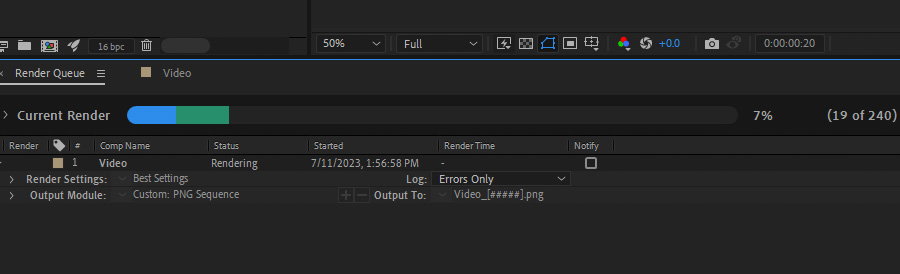
One fix for frequent crashes is rendering your composition as a PNG sequence, rendering each video frame as a PNG image. This will store all the rendered frame images in your output folder until the frame After Effects crashes, from which you can try rendering again.
Verify that all media files used in the composition are accessible and correctly linked. Check for missing or relocated files and relink them within After Effects. If files are corrupted, replace them with backups or fresh versions. Sometimes a faulty hard drive can cause issues, so store your video media and assets on solid-state drives (SSDs) whenever possible.
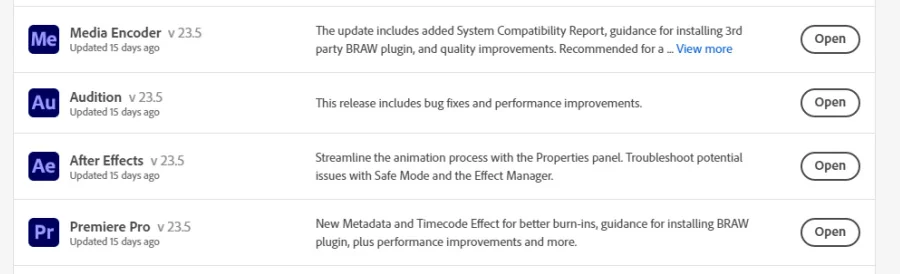
Ensure you are using the latest After Effects version by updating any plugins or third-party software you rely on. You can resolve most compatibility issues using up-to-date software, so check for updated versions on the Creative Cloud desktop app. If you are still encountering errors, try rolling back to a previous After Effects version, or experiment with the beta versions of After Effects available on the Creative Cloud app.

Sometimes, corrupt preferences can cause rendering problems. Resetting After Effects preferences to their default state can help resolve issues. Hold down the Ctrl+Alt+Shift (Windows) or Command+Option+Shift (Mac) keys while launching After Effects to reset preferences.
Try enabling the “Render Multiple Frames Simultaneously” option in the preferences. Navigate to Preferences > Memory & Performance. This allows After Effects to use multiple CPU cores, significantly speeding up the rendering process. However, if this setting is already on and you are experiencing crashes, turn it off to see if that fixes the issue.

For compositions with multiple effects and heavy processing requirements, consider pre-rendering sections of the composition. This involves rendering the problematic parts separately and importing the pre-rendered footage into the main composition. This solution can’t be understated enough. I‘ve often used this method to solve After Effects rendering crashes in real-world applications.
Let’s quickly reiterate some of the most frequently asked questions regarding After Effects rendering issues and look at where you can troubleshoot to find solutions.
Insufficient system resources, including memory and processing power, can cause freezing or crashing during rendering. Ensure your computer meets the minimum requirements and optimize your composition settings accordingly. Make sure After Effects and 3rd-party plugins are up to date. Also, try rendering sections of your composition and video as a PNG sequence to help minimize rendering issues if crashes occur.
Several techniques can help reduce render times, such as using proxies, optimizing composition settings, and rendering in the background using multiple cores. Turning off unnecessary effects or using third-party plugins designed explicitly for faster rendering can also help improve efficiency. Using faster hardware (such as GPU and CPU) will enhance your After Effects render time, as well as using separate SSDs for your media and memory cache.

Also, enable the Preview setting “Cache Frames When Idle.” Navigate to Composition > Preview > Cache Frames When Idle.
If you encounter an error during rendering, take note of the error message or code from After Effects. Try troubleshooting the specific error by searching for solutions online or consulting the Adobe After Effects community forums. You can often resolve errors by updating software, checking system resources, or adjusting project settings.
Yes, After Effects allows you to continue working on your project while rendering. However, keep in mind that rendering can consume system resources, which may affect the overall performance of the software. It’s advisable not to work simultaneously to help alleviate rendering issues – working while rendering opens the door to more problems and bugs.
This issue can occur for various reasons, such as incorrect output module settings, missing or corrupted media files, or incompatible codecs. Double-check your output settings, ensure all media files are correctly linked, and verify the codec compatibility. If the problem persists, consider rendering to a different format or seeking assistance from the After Effects community forums. Also, try rendering to a different codec or file format to check if the output is still an empty or black-screen file. If it isn’t, it’s likely an issue with the first codec you tried to render to.
Factors like high-resolution assets, complex effects, or insufficient system resources can cause slow rendering. To troubleshoot, optimize your composition settings, use proxies for high-resolution assets, allocate more memory to After Effects, or render on a more powerful machine. You can also consider pre-rendering sections of the composition to alleviate processing demands. If you’re performing minimal editing and compositing, you may be better off rendering in Premiere Pro. Check out our blog post on After Effects vs. Premiere Pro to learn about the pros and cons of using each app for your video!
We hope this blog helps you spend less time troubleshooting and more time creating! While you’re here, brush up on more of your After Effects skills – from Getting Started with Time Remapping to How to Make a Background Transparent in After Effects. Don’t forget to check out this Tuts+ course on After Effects for Beginners, and head to Envato Elements to check out our vast range of After Effects Templates and start creating today.
Explore movie typography trends shaping 2026, from bold film fonts to cinematic branding, with inspiring examples and practical tips for creating impactful, screen-ready typography.
Seedance 2.0 — ByteDance's AI video model known for its physical realism and scene complexity — is now part of the model lineup behind Envato's AI video generator. Here's what changes.
Discover bold music video fonts for 2026, with top picks and bonus styles that help creators match sound, genre, and mood with striking visual identity.
Learn how to build an AI character design workflow, from generating concepts with AI to refining and transforming them into clean, stylised 3D characters in Blender.