Movie typography in 2026: why does it suddenly look so good?
Explore movie typography trends shaping 2026, from bold film fonts to cinematic branding, with inspiring examples and practical tips for creating impactful, screen-ready typography.
Envato: Get every type of asset for any type of project, and access to AI tools. Start now
There’s nothing more frustrating than when After Effects crashes in the middle of a project. Read this guide learn how to stop After Effects from crashing.

If you’re in the business of creating videos, motion graphics, or animations, you’re likely familiar with Adobe After Effects. After Effects is one of the most popular video editing programs on the market and an essential tool for many video creators—that is, until it crashes.
After Effects crashing is a common problem many users face and can be incredibly frustrating. Not only does this issue disrupt your workflow, but it also presents the possibility of lost work.
If you want to know how to stop After Effects from crashing, we’ve got you covered. Read on to learn how to fix After Effects crashing, top troubleshooting techniques, and preventative tips to avoid a future After Effects crash so you can enjoy a smooth, steady video production process – minus the profanities!
If you’re wondering why After Effects isn’t responding or keeps crashing, more than one factor could be at play. Let’s look at the most common causes of After Effects crashing.
Now you’re up to speed on the common causes of After Effects experiencing technical issues, let’s look at how you can fix it! Here are some simple techniques to troubleshoot and prevent After Effects crashes:
Keeping After Effects up to date is vital to a smooth and reliable experience—plus, it’s super easy to do. Software updates aim to fix problems and enhance the platform’s usability with added new features. You can check for updates in Creative Cloud and install them to get the latest improvements, helping to prevent crashes. Here’s how:
Adjusting the preferences and settings in After Effects can help boost its performance. Try tweaking how much memory you’re using or enabling multiprocessing to simultaneously use multiple parts of your computer. Experiment with different settings to find what works best for your computer and project!
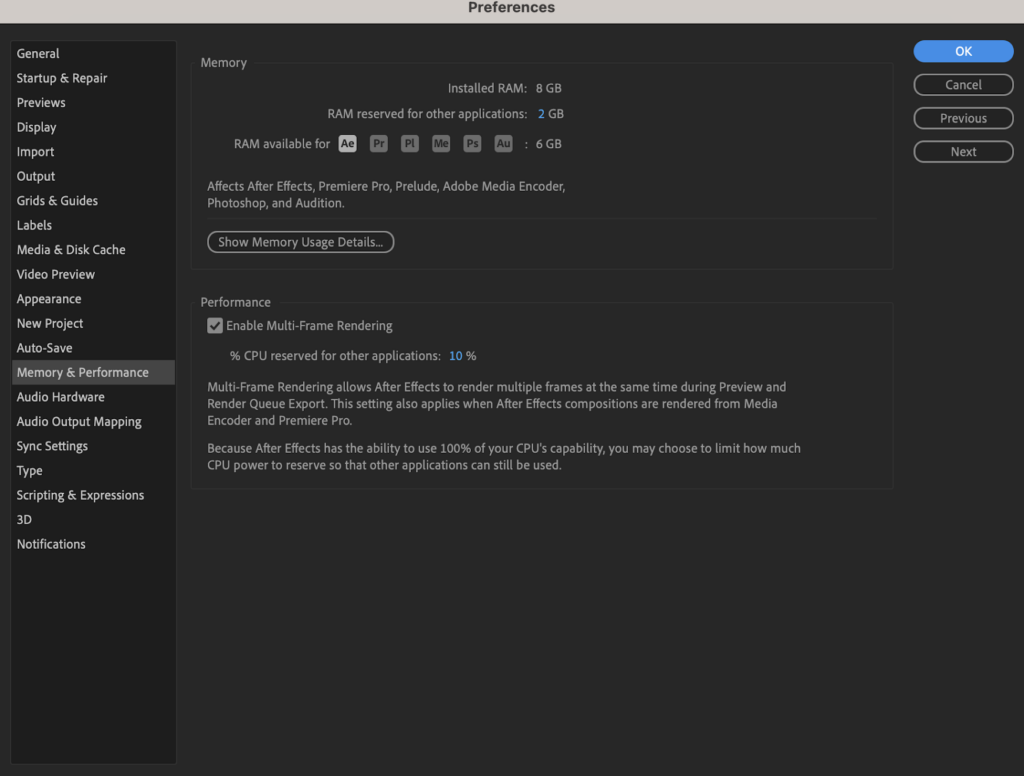
This is a simple fix, but it does tend to slip the mind, so think of this as your friendly reminder! For each additional program open on your computer, your machine works extra hard in the background to provide a seamless experience. Closing any programs or tasks you don’t need can free up memory and processing power, filtering it back into where it’s required: After Effects.
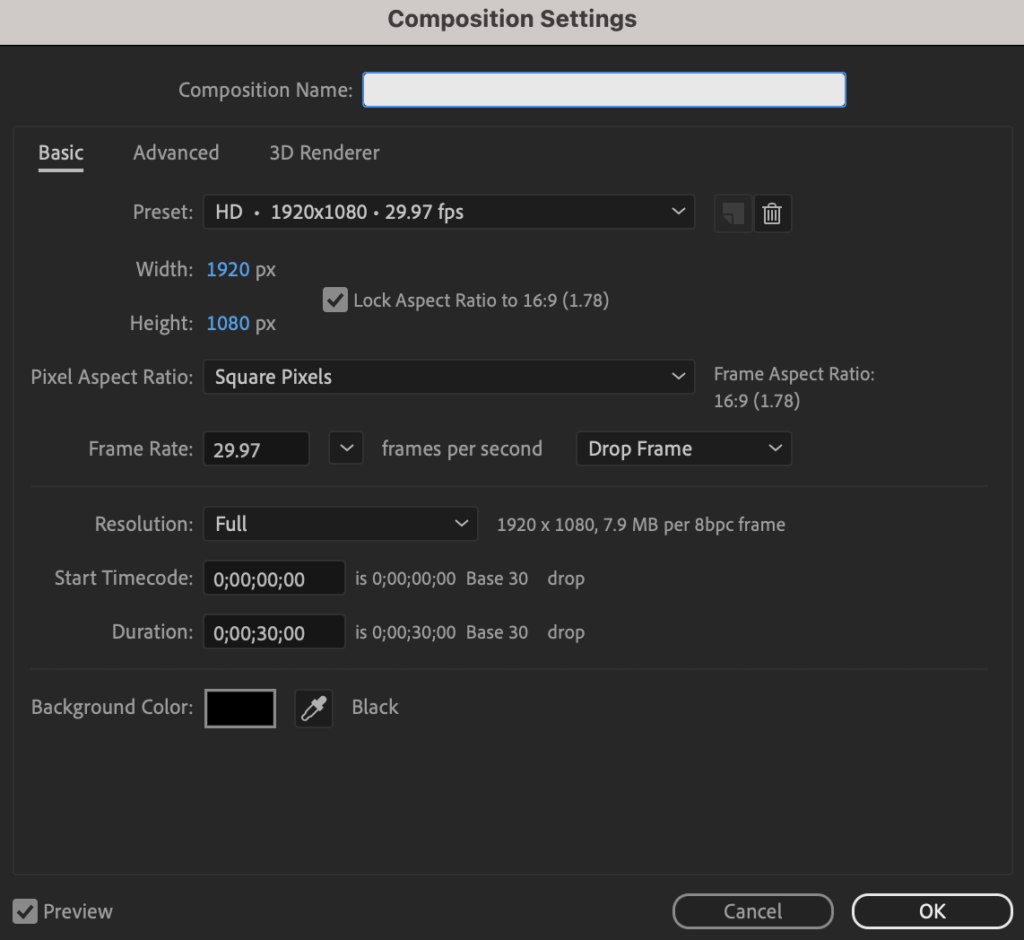
This is particularly relevant if you’re doing heavy rendering work, like creating detailed 3D animation or working with intricate visual effects or multiple layers. If this sounds like the projects you often work on, you can adjust the rendering settings in After Effects to lessen the burden on your hardware.
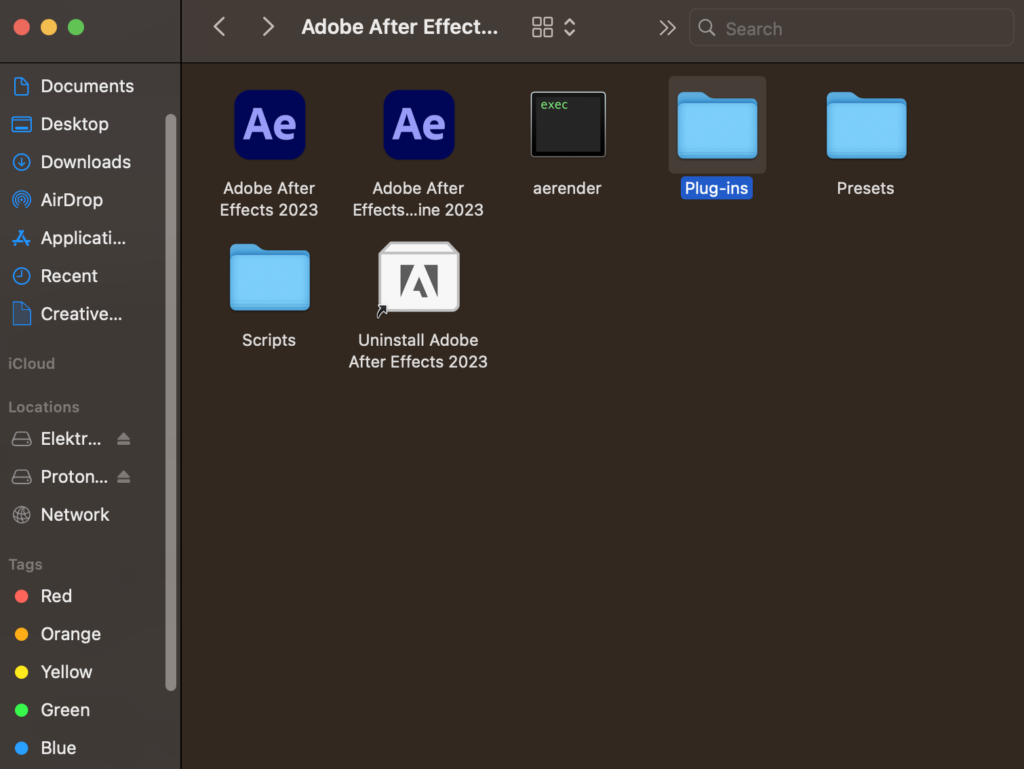
Third-party plugins can be super helpful for streamlining workflow and maximizing efficiency, but they can also mess up your system. The best way to fix any problematic plugins is to delete them from your software folder and ensure all your plugins are current and work with your After Effects version.
Organizing and managing project assets is essential for a smooth workflow. It’s helpful to use folders and clear names to keep track of your files and remove anything you don’t need to avoid clutter. You can also regularly perform housekeeping tasks within After Effects to keep your project clean and lower the risk of crashes.
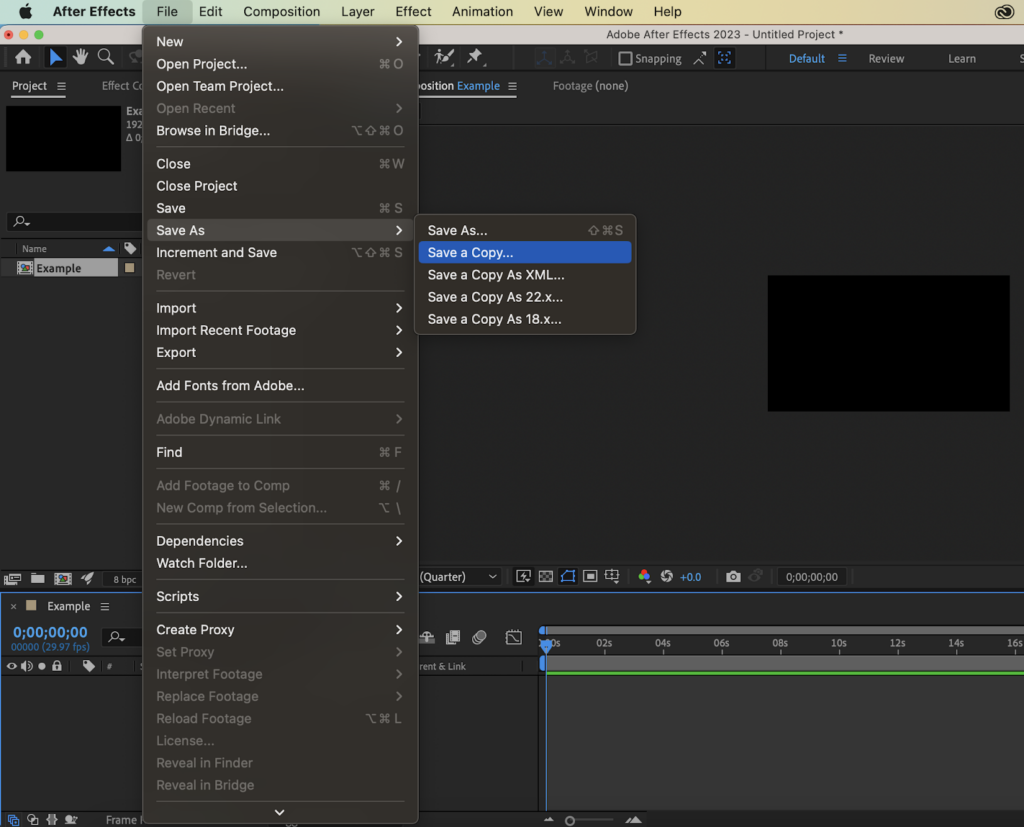
Regularly saving and creating backups of your project files can help to prevent losing your work if After Effects crashes. Start saving your work incrementally in different versions to ensure you have multiple recovery points. It’s also helpful to follow best practices for file organization and archiving, like creating a folder structure and storing files in a secure location.
If you’ve exhausted all the steps above, and After Effects still keeps crashing, what now? Let’s look at some additional tips and best practices that could help future you should a crash arise.
We briefly touched on this earlier, but breaking your work into stages and frequently saving means you can return to previous versions if there are crashes or mistakes.
Make the most of After Effects’ preview and RAM caching feature to ensure playback and rendering is smoother and faster. This reduces the likelihood of crashes while previewing your work or rendering the final output. Some of these include:
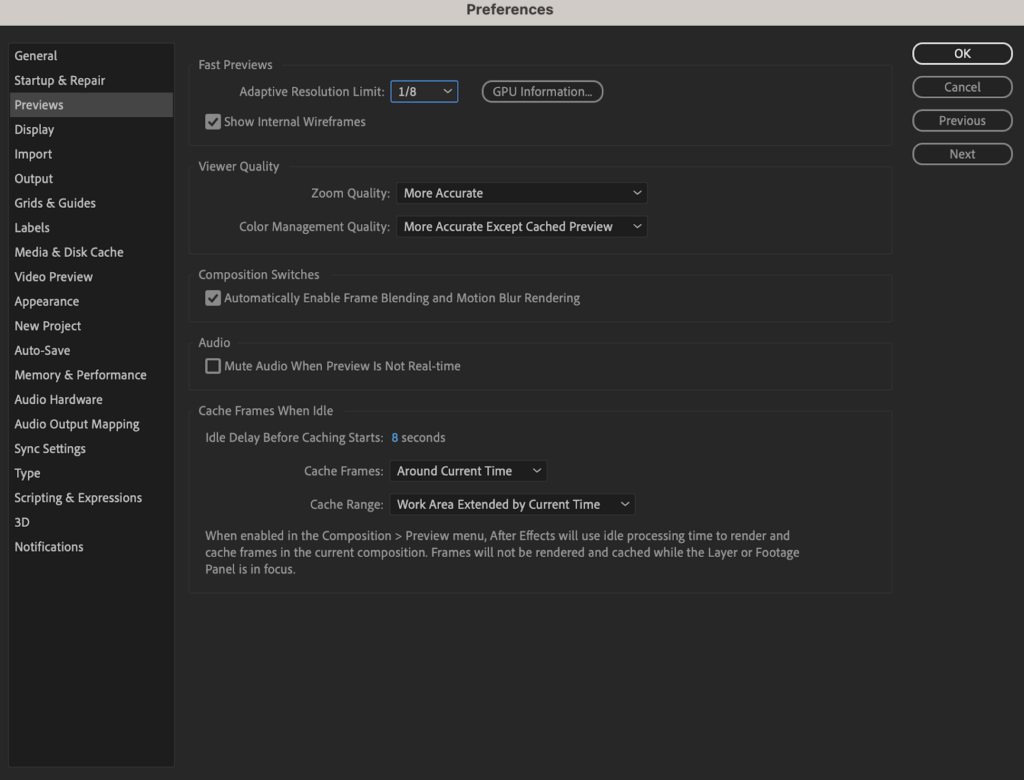
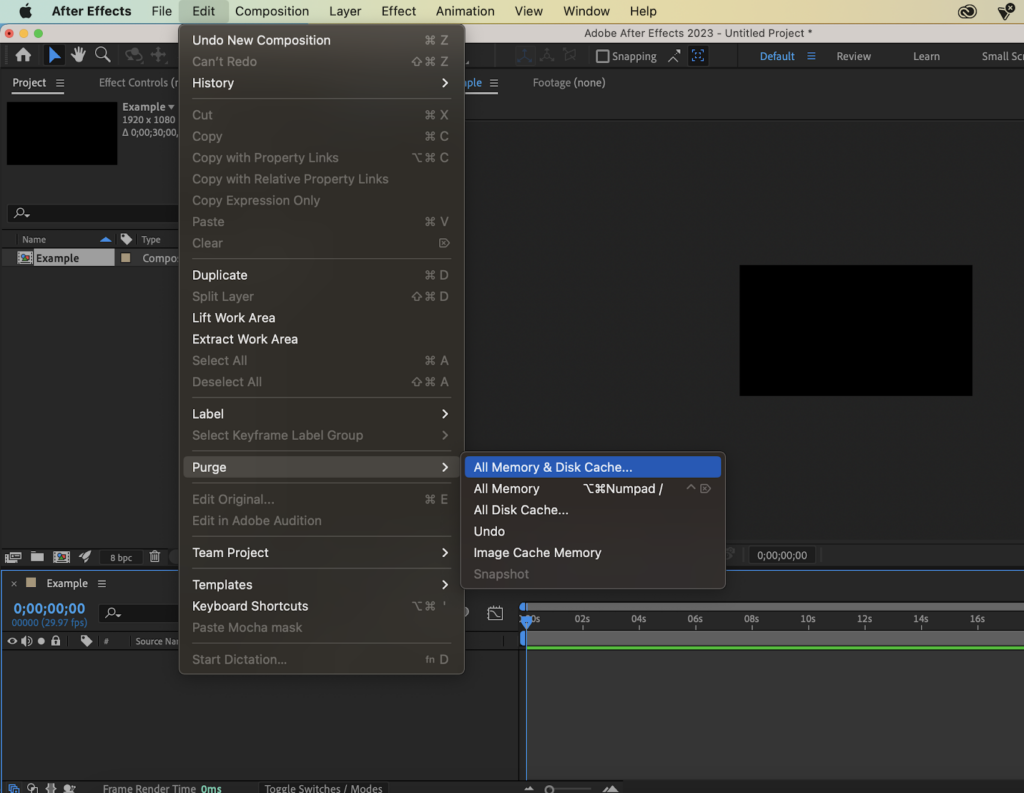
Regularly clearing the disk caches in After Effects helps to free up storage space and maintain optimal performance. It’s also a good idea to configure the scratch disk settings to use the fastest available drive for temporary storage.
If your computer is outdated (i.e. it doesn’t meet the minimum requirements for After Effects), it might be time to consider an upgrade. You could consider upgrading RAM, CPU, or GPU components to enhance performance and stability. Take a quick squiz at the Adobe website to check the requirements for the best possible After Effects experience.
After Effects crashes are frustrating, but by understanding the common causes – and using the troubleshooting techniques and best practices discussed in this blog post – hopefully, you can ward off any crashes down the line.
Remember to keep After Effects up to date, optimize your system settings, and close any unused apps or tasks. Regularly troubleshoot problematic plugins, keep a clean project, and practice good file management. These simple tips can help minimize crashes, save time, and ensure a smooth video production experience.
And if you’re a new After Effects user—or just looking to recap the basics—check out our free beginner’s course. Alternatively, if you’re looking for more After Effects blogs to keep reading, discover our take on Premiere Pro vs. After Effects or our picks for the Top 10 After Effects Templates for 2023. Be sure to visit Envato Elements to find a huge range of powerful After Effects templates to boost your video-editing capabilities.
Explore movie typography trends shaping 2026, from bold film fonts to cinematic branding, with inspiring examples and practical tips for creating impactful, screen-ready typography.
Seedance 2.0 — ByteDance's AI video model known for its physical realism and scene complexity — is now part of the model lineup behind Envato's AI video generator. Here's what changes.

Discover bold music video fonts for 2026, with top picks and bonus styles that help creators match sound, genre, and mood with striking visual identity.

Learn how to build an AI character design workflow, from generating concepts with AI to refining and transforming them into clean, stylised 3D characters in Blender.