
Envato LUTs category: preview LUTs on your own footage before you download
Explore the Envato LUTs category and discover 66,000+ searchable LUTs with previews, frame testing, commercial licensing, and compatibility across major editing software.
Envato: Get every type of asset for any type of project, and access to AI tools. Start now
Exporting from After Effects can be confusing. Luckily, there's a simple solution! Read on to learn how to export After Effects to MP4.
Video editors love Adobe After Effects for its incredible array of features. The software gives you the tools to create any animation or visual effect imaginable. It also works together seamlessly with Adobe Premiere to add a level of polish and professionalism to your edits. It does, however, have one key weakness: exporting videos.
Exporting from After Effects is simply not very intuitive. The export tools are a little confusing, and very lightweight compared with the beefy export options in Premiere. Trying to export After Effects to MP4 can be particularly challenging. Thankfully, there’s a simple solution.
Read on to learn how to export After Effects to MP4!
The MP4 file format has many advantages. It’s commonly used and almost universally compatible with any system or device. MP4 file sizes are smaller than most other video file formats. So, they’re lightweight enough to upload online and stream without any lagging. There’s a reason why MP4s are the preferred format for platforms like YouTube.
On the flip side, MP4 is a lossy format. This means the file is compressed to ensure a smaller file size. This is great for uploading videos online, but it’s not ideal if you’re exporting a video to edit in another application.
For example, MP4 is not the best option if you’re exporting a video that you will then import into Premiere. This is because you’ve already sacrificed quality before you’ve exported your final video. In these cases, using ProRes (aka Quicktime) MOV files. That’s the better option because it’s a lossless format.
The best way to get After Effects to export as MP4 actually involves working in tandem with another Adobe product. Adobe Media Encoder is a separate software that comes included with Premiere and After Effects subscriptions. It should already be installed on your computer, but if not, simply use the Creative Cloud app to install it.
Before we get into the finer details of how to export MP4 from After Effects, let’s take a second to brush up on terminology:
MP4 is referred to as H.264 in Adobe applications. Why is it called H.264 and not simply MP4? It’s a long, boring story involving compression standards and codecs, so let’s not worry about that.
All we need to remember is that Adobe MP4 is known as H.264.
Open the composition you’d like to export In After Effects.
Now click File > Export > Add to Adobe Media Encoder Queue… (or use the keyboard shortcut Alt + Ctrl + M for PC or Option + Cmd + M for Mac).
Adobe Media Encoder will automatically open. Your composition will appear in the queue panel.
In Adobe Media Encoder, you’ll see your composition in the queue panel with four columns of information:
Once you’ve chosen your export settings and output location, you’re ready for:

Hit that little green Play button in the top right corner of Media Encoder. Your video should start encoding immediately. Once your export finishes, you’re all set! Your MP4 should be good to go.
The second-best way for After Effects to export MP4 is to do it from within the software. You might be wondering: If the export tools are already available within After Effects, why is this not the preferred method?
The simple answer is that the export tools within After Effects are not as user-friendly or versatile as the tools in Adobe Media Encoder. You’ll have to fiddle with the export settings to ensure your export is high enough quality. And, you won’t have the luxury of presets at your disposal.
Nevertheless, here are the steps:

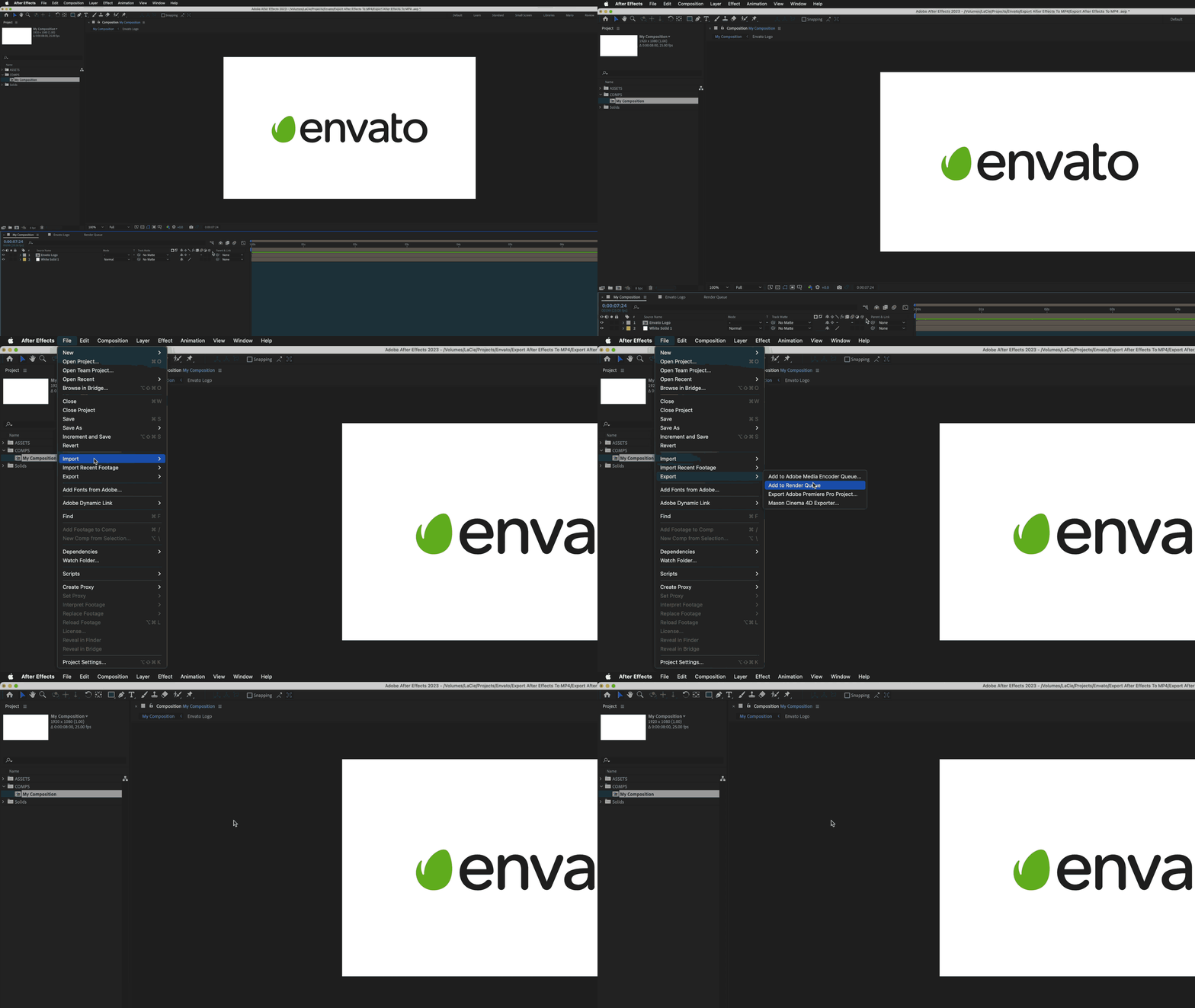
Go to File > Export > Add to Render Queue (or use the keyboard shortcut Ctrl + M for PC or Cmd + M for Mac).
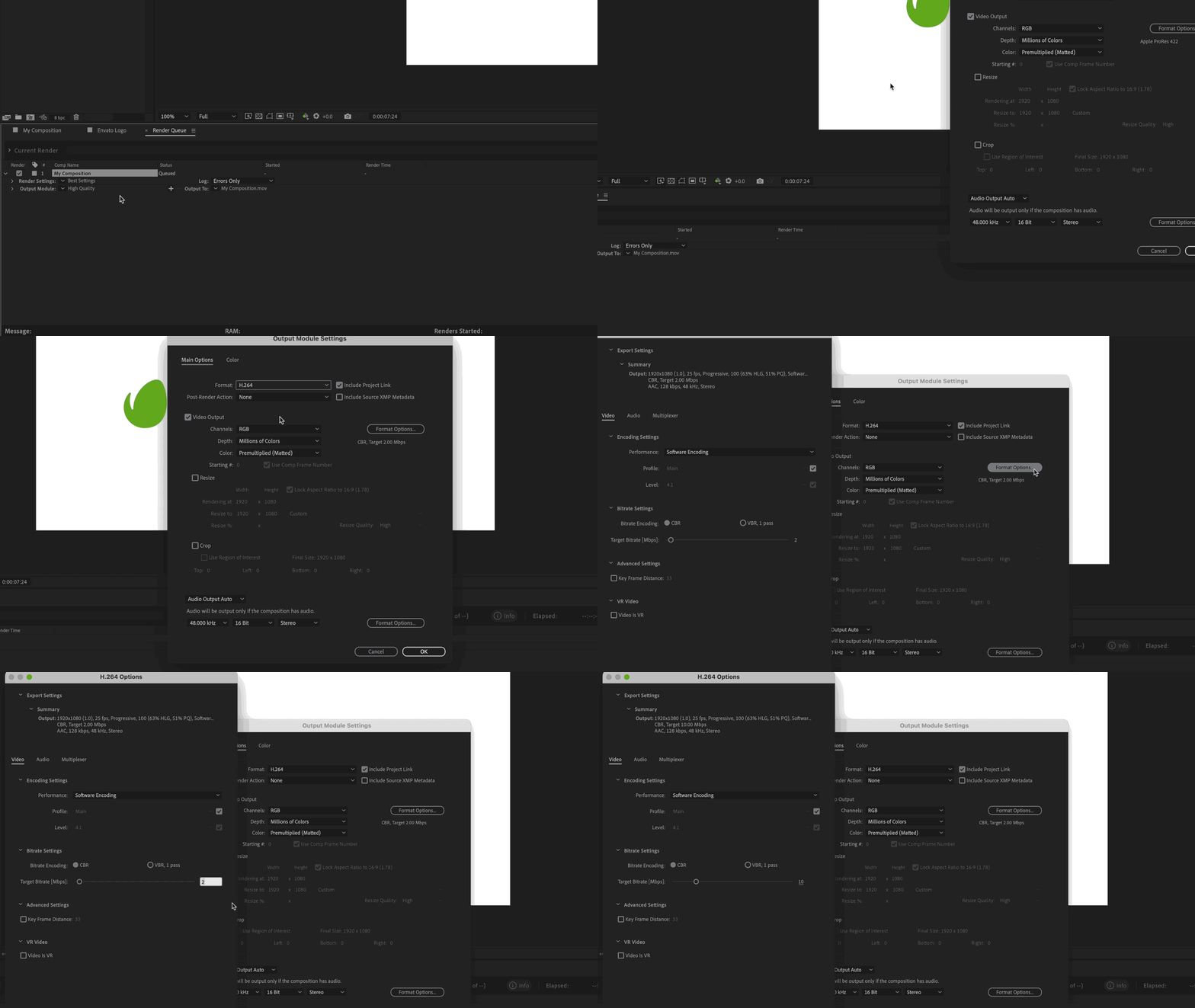
The Render Queue panel will replace your timeline panel at the bottom of your screen, and your composition will appear in the queue.

Your composition will have three properties which you can adjust:

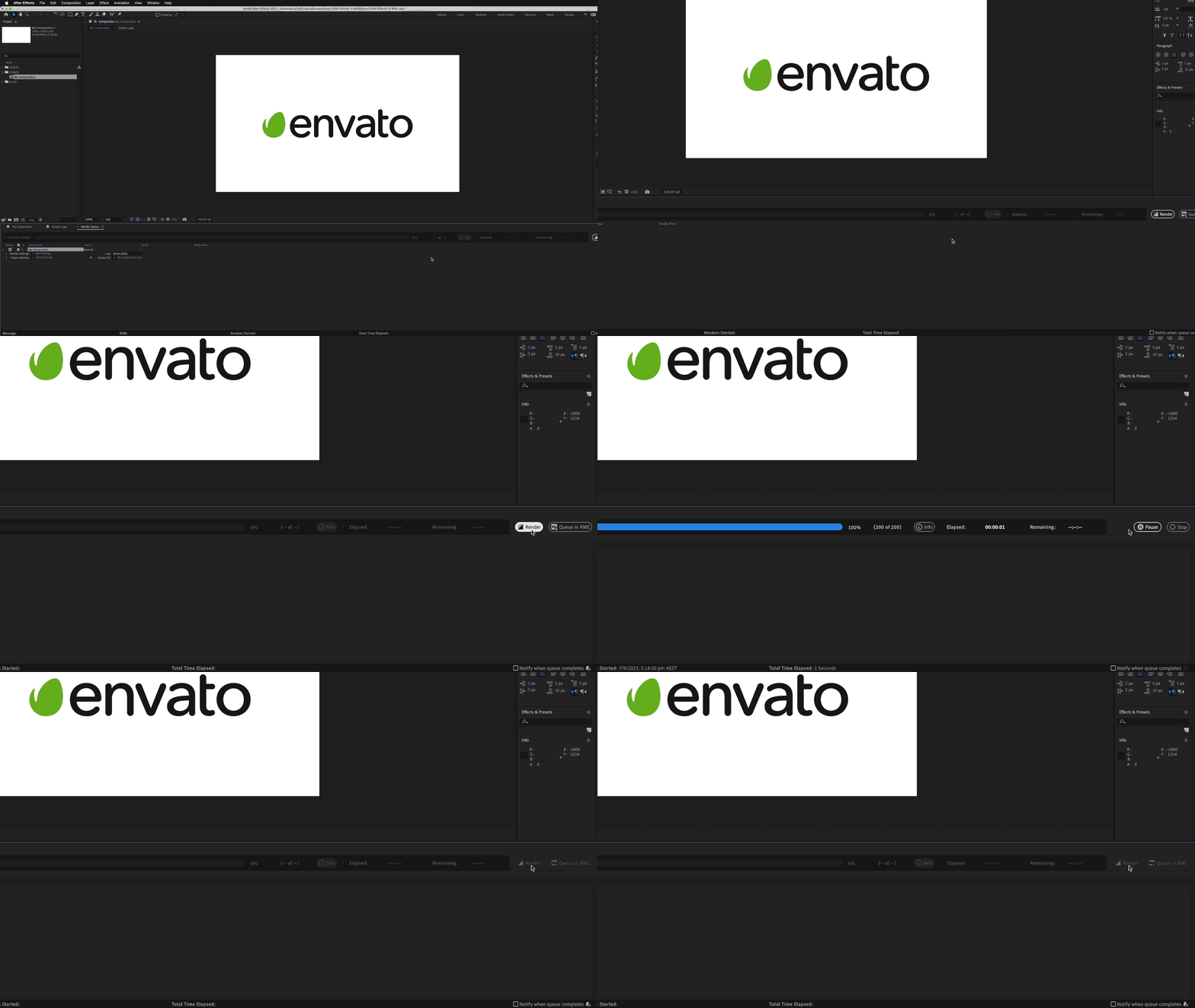
Finally, hit that render button on the right-hand side of the Render Queue panel. Your render should start immediately. Once the render finishes, you’re all done!
It’s a perfectly fine method, but you’ll notice it’s a little less intuitive. Your render settings are scattered across a few different locations, instead of being consolidated in one place like in Premiere and Media Encoder. So it takes a bit of fiddling to get it right.
Knowing how to export After Effects to MP4 is a great skill to have in your toolkit. It might not be as quick and easy as in Premiere, but with the help of Media Encoder, you can ensure your MP4 files are still the highest possible quality.
Explore the Envato LUTs category and discover 66,000+ searchable LUTs with previews, frame testing, commercial licensing, and compatibility across major editing software.
Every month, we're rounding up our favourite TikTok trends: the sounds, hooks, and concepts that are going viral right now. We'll break down the formats, show you examples, and give you practical ways to adapt them to your niche.
Found a template that's almost perfect? This guide walks you through editing Envato video templates in any software, with a repeatable process for swapping media, text, colors, and music, then exporting a finished video.
Download a video template and you get the design system, not the finished video. Here's what to expect — and what to source separately.