
How to Cut Clips in After Effects: Tutorial for Cutting Clips in After Effects

Want to learn how to cut clips in After Effects? Follow this tutorial to learn top tips for cutting clips in After Effects.

Mario Hannah 8min read 12 Sep 2023
How to cut clips in after effects

After Effects is a powerful and versatile tool for creating visual effects and animations, but it’s important to understand the basics to use the program effectively. Once you know how to cut videos in After Effects, you’ll unlock a world of possibilities to add to your editing toolkit.

This tutorial is for anyone familiar with Premiere Pro (or any other video editing software) looking to level up their post-production skills in After Effects.

How to Cut Layers in After Effects

To cut a layer in After Effects, you have three key functions at your disposal: trimming layers, splitting layers, and using the slip tool.

Trimming Layers

The simplest and most obvious way to trim a layer in After Effects is to click and drag the edges of a clip, just as with any other video editing software. 

But using keyboard shortcuts is easier, faster, and more precise.

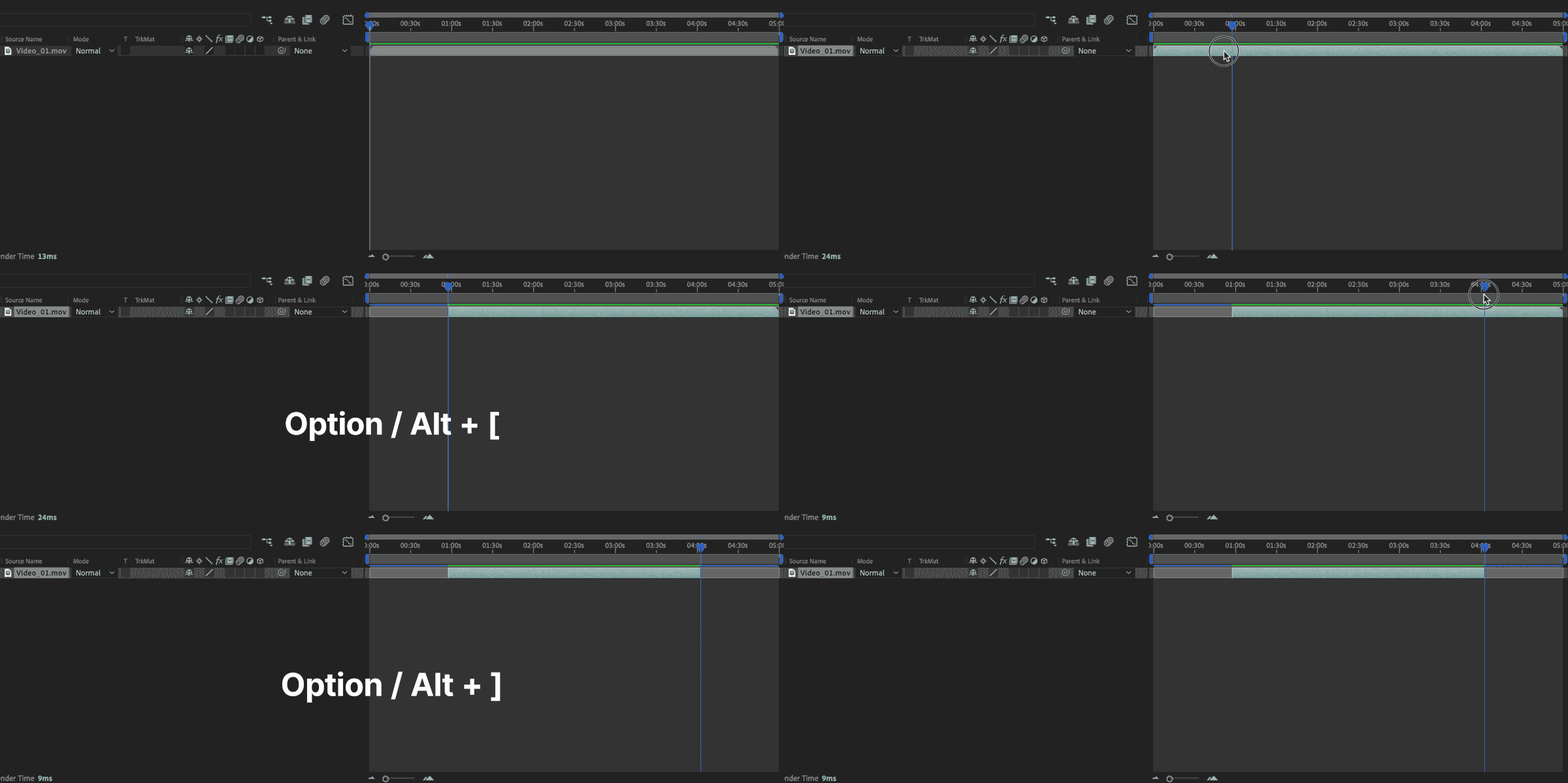
Move your playhead to the point you want to trim your layer. Then press Option + [ (Mac) or Alt + [ (PC) to trim the start of your selected layer to the playhead, or Option + ] (Mac) or Alt + ] (PC) to trim the end of your selected layer to the playhead.

Splitting Layers

Splitting a layer is the equivalent of applying a cut within Premiere Pro. While Premiere uses the razor tool to apply cuts, you’ll use the “Split Layer” function in After Effects.

Select the layer you want to split, then click Edit > Split Layer.

Here’s how to split a layer in After Effects quickly with an easy keyboard shortcut:

Select the layer you’d like to split, then press Cmd + Shift + D (Mac) or Ctrl + Shift + D (PC).

The Slip Tool

Say you’ve already trimmed your layer to the perfect duration, but you’d like to use a different section of the clip. What do you do?

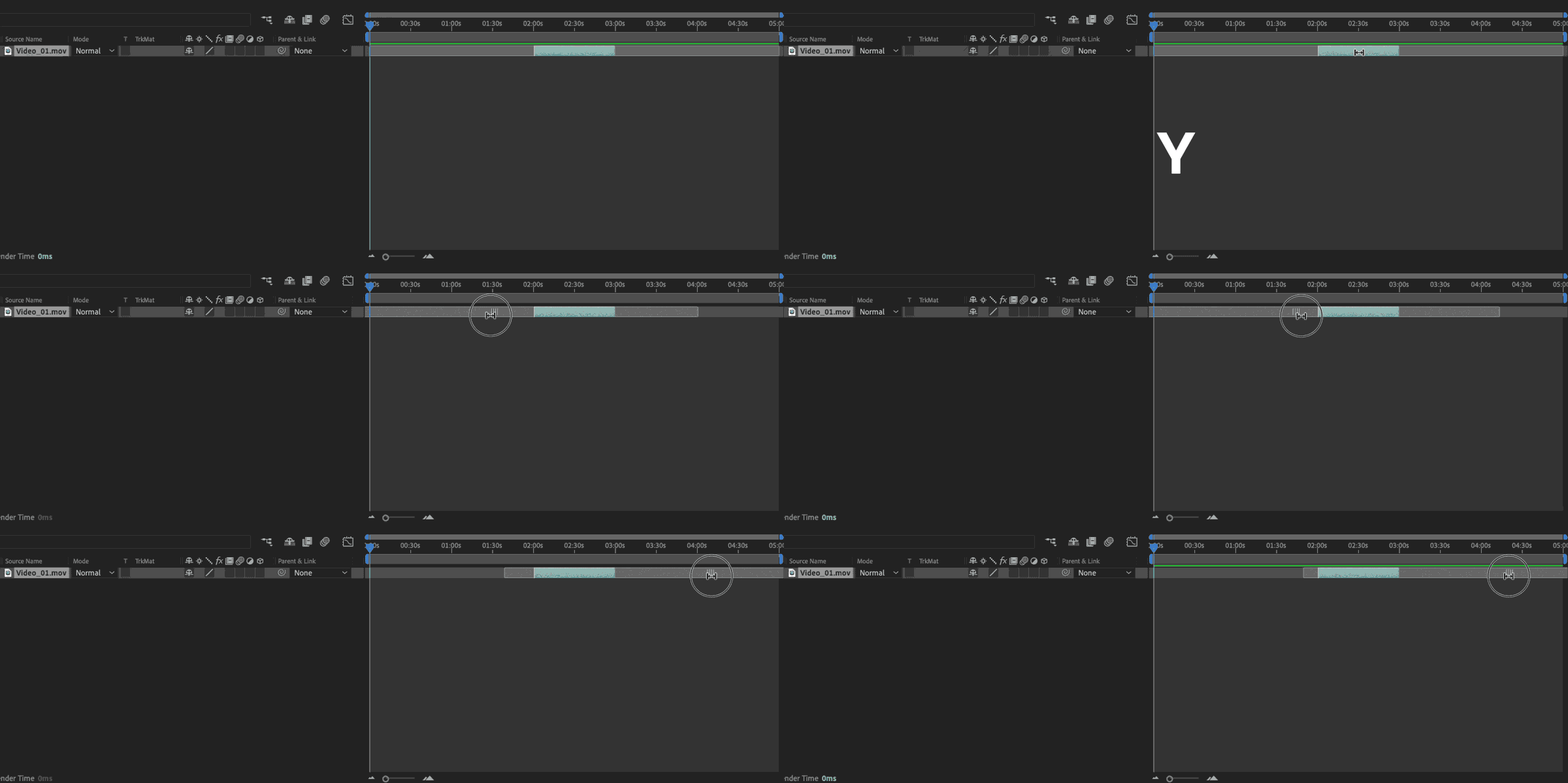
You could drag out the edges of your layer, find the perfect edit points, and then re-trim and reposition your layer on the timeline. Or you could use the Slip Tool (also known as the “Pan Behind” tool).

Simply press Y on your keyboard. When you hover your mouse over a layer in your timeline, you’ll notice that your cursor will change to a double-sided arrow icon.

Now click and drag that layer left or right, and watch your composition window as the video changes. Still, the layer’s position in the timeline remains the same.

By using the slip tool, you combine three functions: trimming the start of your layer, trimming the end of your layer, and adjusting the layer’s position on the timeline. All with one swipe of the mouse!

Press V on your keyboard to stop using the slip tool and return to your regular “Selection Tool” mouse cursor.

Tips for Editing Clips Efficiently in After Effects

Now that we know how to trim and split clips in After Effects, let’s try out some other functions to help you edit like a pro.

Moving the Play Head Along the Timeline

A tricky adjustment you’ll need to make when moving between Premiere Pro and After Effects is learning how to move the playhead along the timeline.

Clicking and dragging the playhead with your mouse still works the same way, but controlling the playhead with your keyboard is a little more complicated.

In Premiere Pro, you can move the playhead forward and back using the arrow keys, but in After Effects, the arrow keys will adjust the Position property of the selected layer. So if you’re not careful, you’ll accidentally bump your layer a few pixels to the left or right instead of moving the playhead.

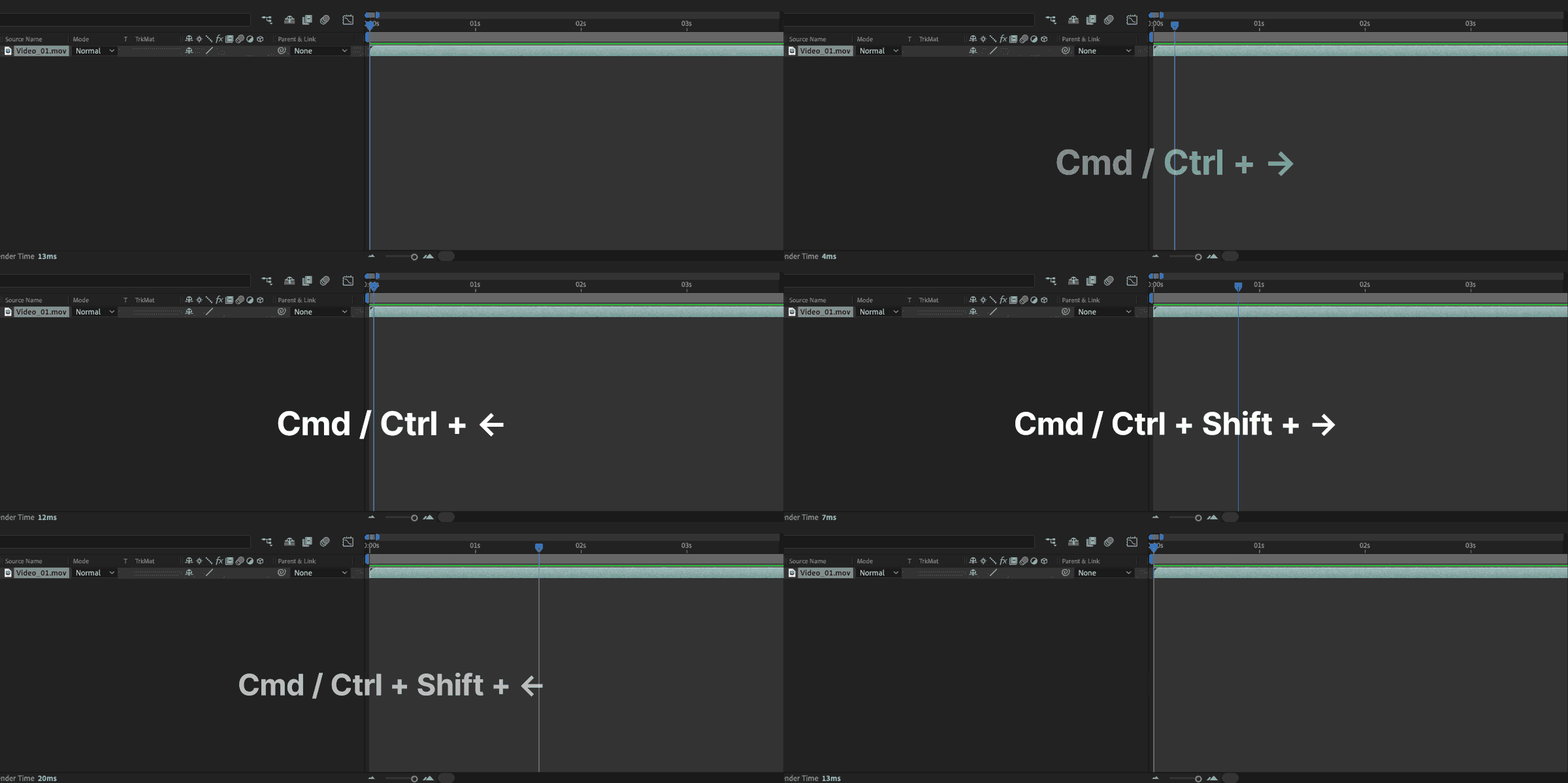
To move the playhead in After Effects, use these keyboard shortcuts instead:

  • Move the playhead back/forward by 1 frame
  • Cmd + left/right arrow keys (Mac) or Ctrl + left/right arrow keys (PC)
  • Move the playhead back/forward by 10 frames:
  • Cmd + shift + left/right arrow keys (Mac) or Ctrl + shift + left/right arrow keys (PC)

Moving Clips Within the Timeline

Shifting the position of a clip within your timeline is simple: just click and drag your clips and move them left and right, just like any other video editing software.

Hold down Shift while dragging if you want your clip to snap to the playhead position.

But After Effects is all about precision, and sometimes your mouse won’t give you the control you need.

Try using these keyboard shortcuts for extra precise editing:

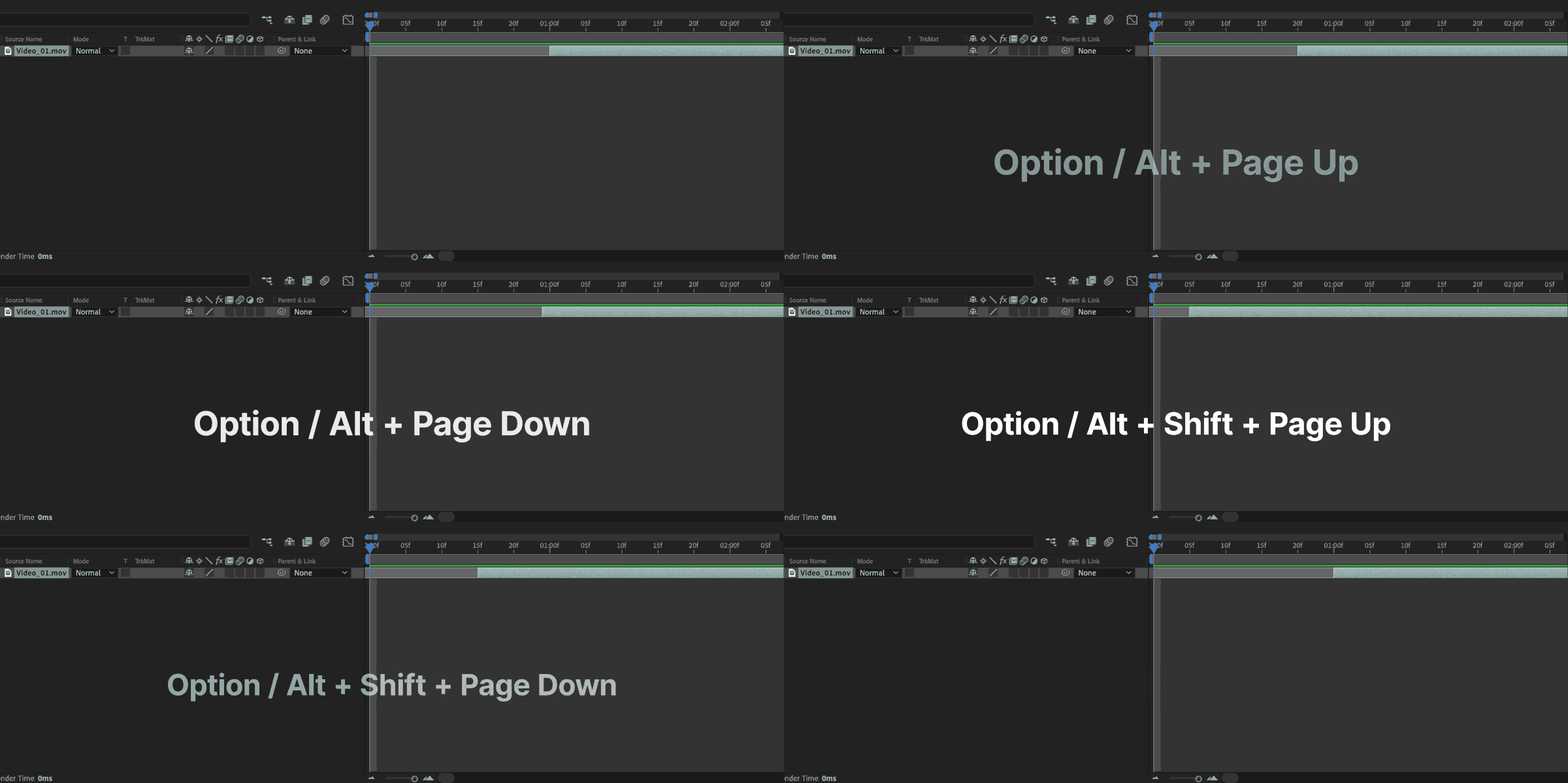
  • Move the selected layer back one frame in your timeline: Option + Page Up (Mac) or Alt + Page Up (PC)
  • Move the selected layer forward one frame in your timeline: Option + Page Down (Mac) or Alt + Page Down (PC)
  • Move the selected layer back 10 frames in your timeline: Option + Shift + Page Up (Mac) or Alt + Shift + Page Up (PC)
  • Move the selected layer forward 10 frames in your timeline: Option + Shift + Page Down (Mac) or Alt + Shift + Page Down (PC)
  • Move the start of your selected layer to the playhead:
  • Move the end of your selected layer to the playhead: ]
  • Move the start of your selected layer to the start of your timeline: Option + Home (Mac) or Alt + Home (PC)
  • Move the end of your selected layer to the end of your timeline: Option + End (Mac) or Alt + End (PC)

After Effects Best Practices

Let’s look at some easy ways to maximize your productivity in After Effects.

Combining After Effects with Premiere Pro

While cutting clips in After Effects is definitely an option, most video editors would recommend using it together with Premiere Pro.

The two programs are designed to work together, and through Dynamic Linking, you can seamlessly jump between them.

Premiere Pro will make cutting your footage easy and efficient. Features like the razor tool and ripple edits are incredibly useful and aren’t available in After Effects, and working with audio clips and syncing them to your video is also much easier in Premiere Pro.

Meanwhile, the tools in After Effects give you the power to create visual effects and animations, adding a professional finish to your videos.

How to use Premiere Pro and After Effects Together

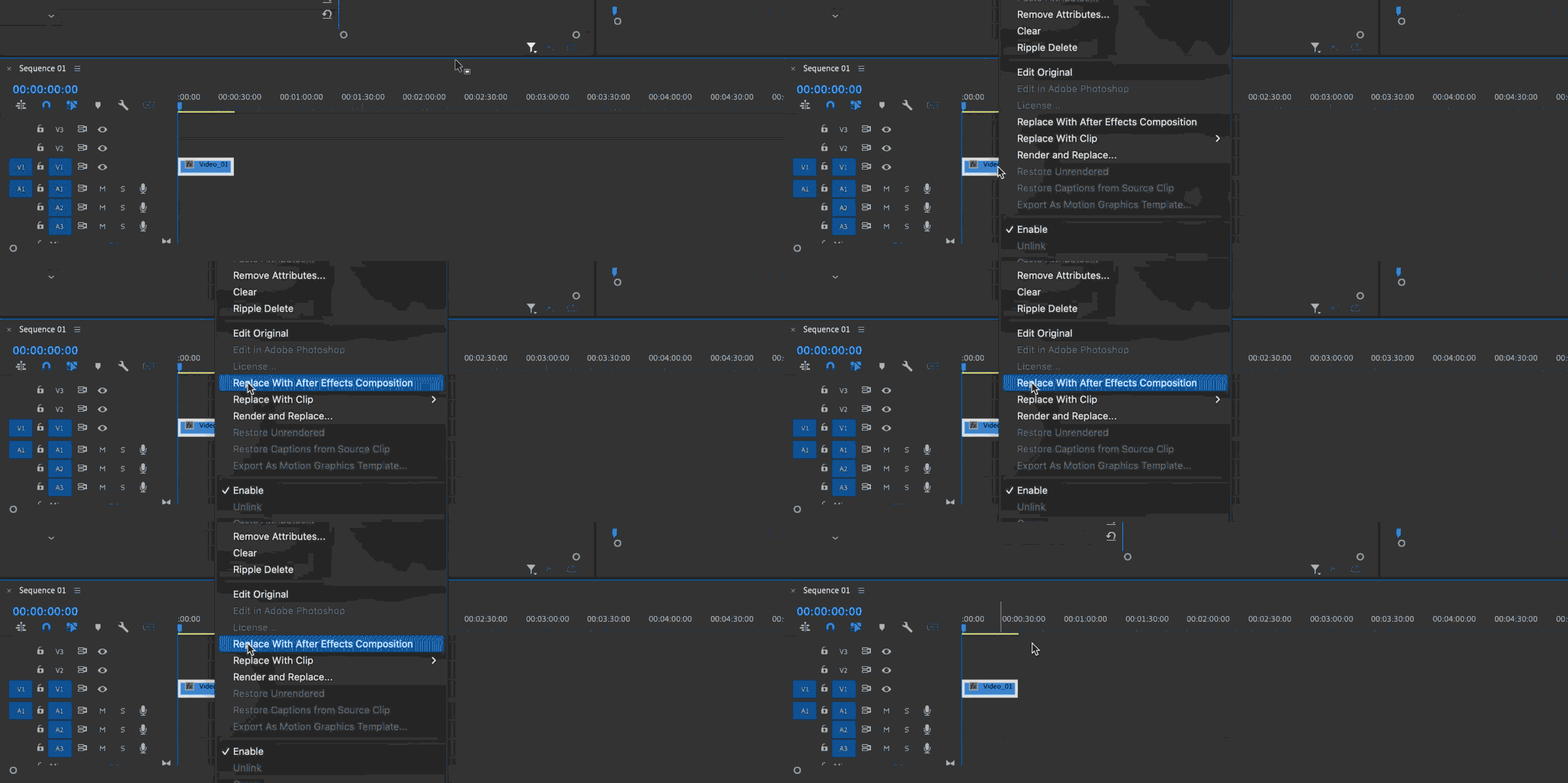
Start by editing your clip in Premiere Pro. Once you’re happy with the clip, you can take it into After Effects. In your Premiere Pro timeline, right-click your edited clip. Then select Replace with After Effects Composition.

After Effects will automatically open, create a new composition, and import the edited clip.

From there, you can still tweak the clip within After Effects using the skills you learned earlier, but with the bulk of the cutting already done in Premiere Pro, you will save a ton of time.

If you jump back into Premiere, you’ll notice that your After Effects composition has replaced your clip, so any changes you make in After Effects will automatically carry over into Premiere Pro. This is called Dynamic Linking, and it’s a fantastic way to maximize the potential of Adobe Creative Suite.

Labeling and Color-Coding Your Timeline

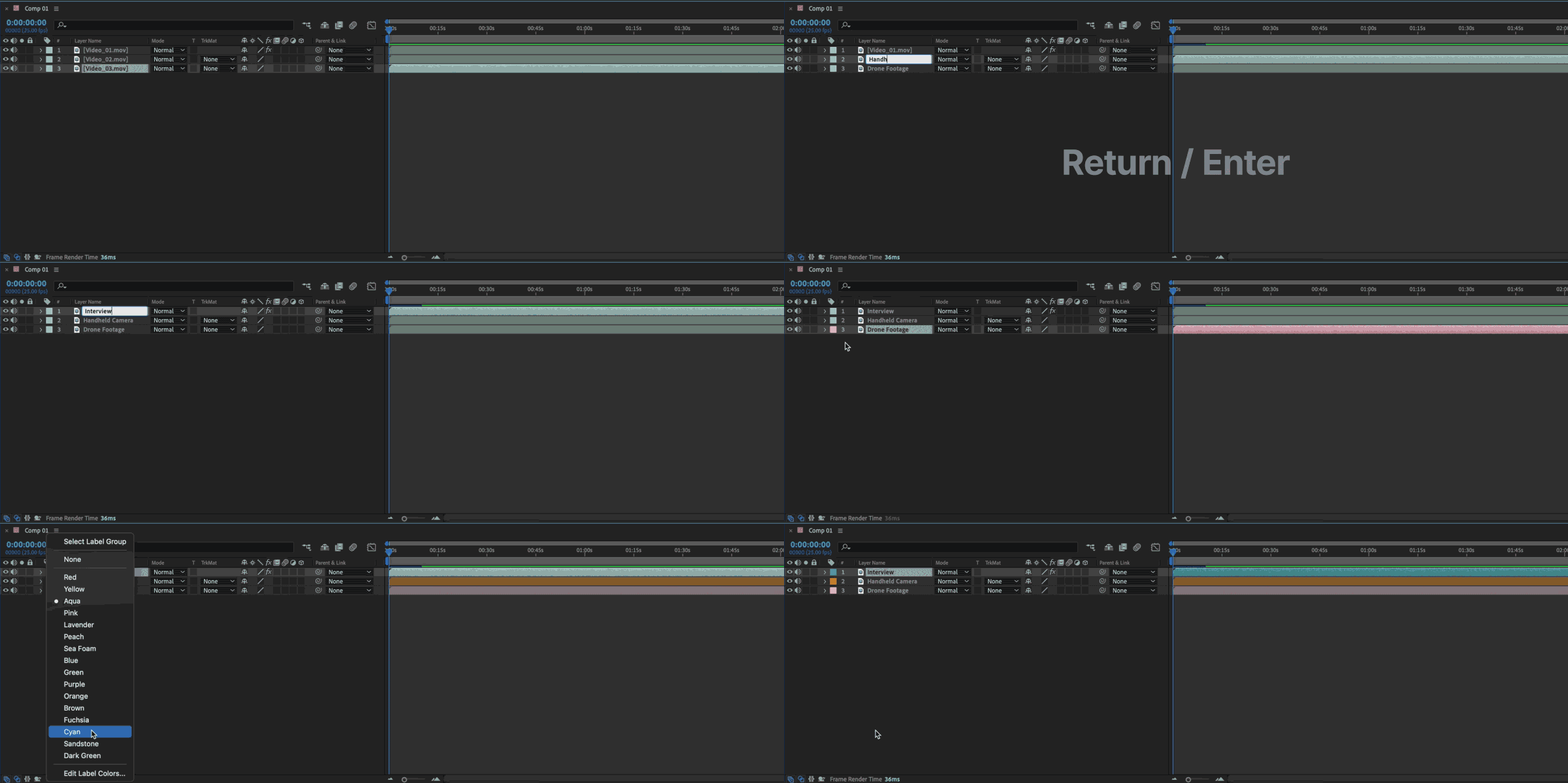
It might sound boring, but tidying up your Timeline will help you work faster and smarter, saving you a lot of time in the long run. Start by labeling your layers. Click on a layer, then press Enter. You’ll notice the Layer Name is now editable. Name it something simple and descriptive so you can easily find it at any time.

Now repeat the process for every other layer in your timeline.

Please note: Editing the Layer Name will only change it in the timeline. The Source Name of this layer will remain the same.

You can toggle between displaying Layer Names and Source Names in your timeline by clicking the header above the layer names (the header will be labeled either Layer Name or Source Name, depending on which mode you’re using).

Next, Color Code your layers to make your timeline even easier to navigate. Each layer will have a colored square to the left of the Layer Name. Click on this square to reveal a drop-down menu of colors to choose from.

By color-coding your layers, you’ll make it easy to differentiate between items on your timeline, saving time and boosting productivity. It’s all about shaving a few seconds off each task, which will add up to a huge amount of time saved in the long run.

Utilizing Keyboard Shortcuts to Save Time

When learning how to cut a clip in After Effects, you’ll quickly find that keyboard shortcuts are your best friend! They are a huge time saver and will reduce many tricky tasks to a single keystroke, enabling you to turbo-charge your productivity. It may feel a little overwhelming at first, but they will become second nature after using them for a while.

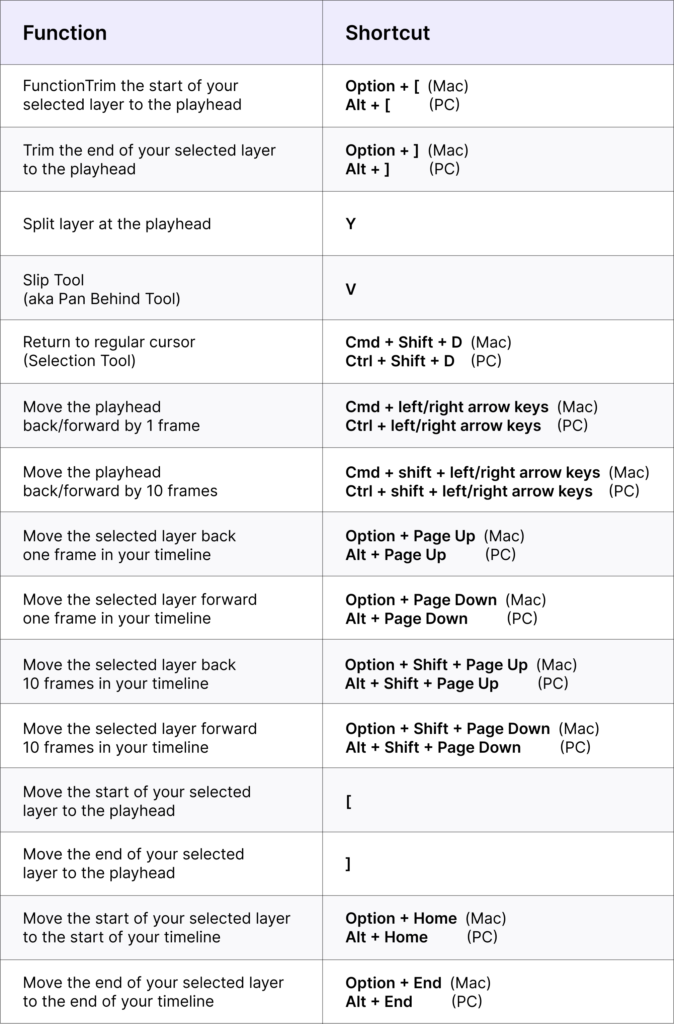
Below is a recap of all the keyboard shortcuts used in this After Effects tutorial:

After Effects keyboard shotcuts

Get Started with Cutting Clips in After Effects Today!

After Effects is a unique program unlike any other video editing tool, and as such, it will take a little getting used to. But stick with it because once you’ve mastered the basics, you’ll be able to explore a treasure trove of incredible features.

Follow the above After Effects tutorial to learn how to cut a clip in After Effects, memorize your keyboard shortcuts, and keep practicing! You’ll be a post-production superstar in no time.

Speaking of tutorials, check out the Top 10 After Effects Tutorials for Beginners. Or, head to Envato Elements to utilize our huge selection of After Effects templates and start creating today. Happy editing!

Related Posts