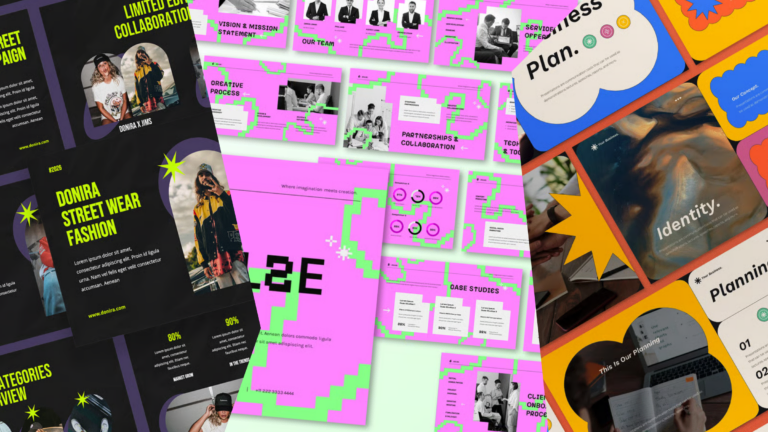
50 best PowerPoint templates for 2026: education, business & more
Explore PowerPoint templates with professionally designed layouts to create polished, modern, and visually cohesive presentations.
Envato: Get every type of asset for any type of project, and access to AI tools. Start now
Close your PowerPoint presentation with an inspiring Q&A (any questions) slide to engage your audience. Learn how to create the best questions PowerPoint slides and when to use them in this tutorial.

We tend to think of presentations as our chance to speak to an audience. But some of the best presentations end with a question-and-answer (Q&A) session, where the audience gets to ask the speaker questions.
In Microsoft PowerPoint, you can build slides that make the Q&A part of your presentation work harder. A well-designed Q&A slide can even nudge the audience toward asking a more interesting question.
This tutorial walks you through ending your presentation by interacting with your audience. You’ll design a questions slide in PowerPoint, learn how to invite questions, and pick up ways to answer them with confidence.
TL;DR: An “Any Questions” slide should be simple, on-brand, and quiet enough that attention stays on the conversation, not the screen. Use a clean pre-built layout (a “Thank you,” “Any questions?”, or “Contact us” slide works well), swap in your own prompt, and pair it with a better ask than a mumbled “any questions?” Seed a first question, prep for the ones you’re likely to hear, and it’s fine to say “I’ll get back to you” when you don’t know an answer.
Do you want to create an “Any Questions” slide right now? We’ve got you covered! Our quick start video below has exactly what you need.
To learn more about PowerPoint and how to create an “Any Questions” slide (plus find useful PowerPoint tools), read the written tutorial below.
If you’re looking for the best PowerPoint templates with cool designs, Envato is the perfect place. For a low monthly fee, you get access to unlimited PowerPoint templates, videos, photos, web templates, and other design resources for all your creative projects.
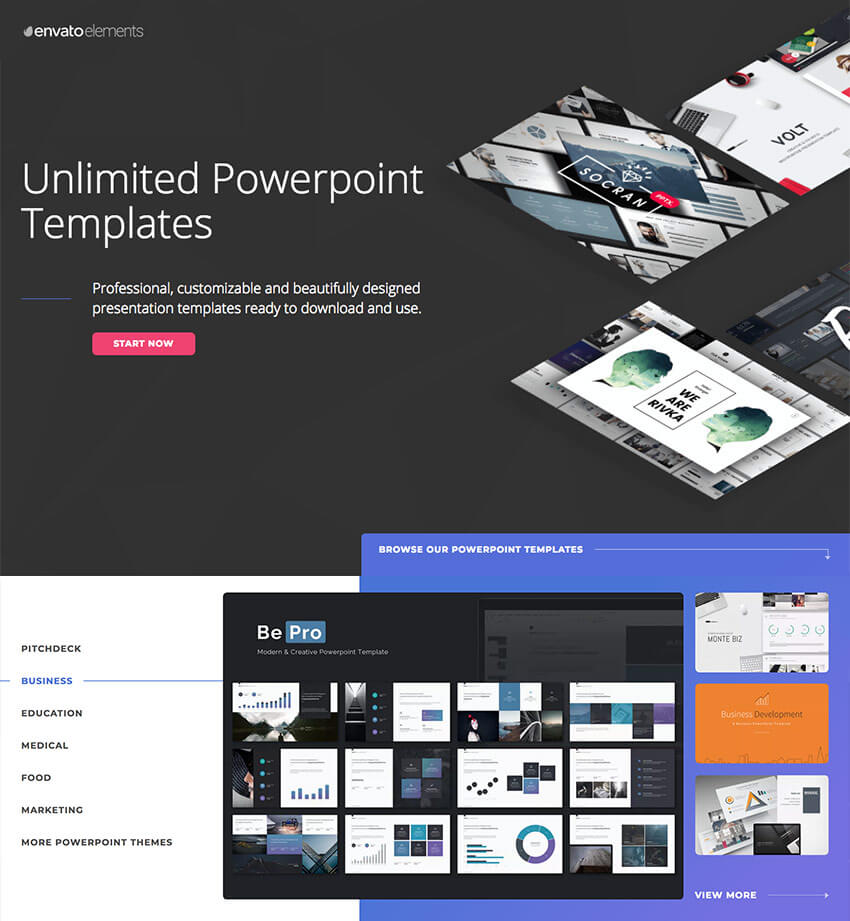
Envato gives you the best value for your money. Download as many templates as you want and customize them to suit your presentation or project needs.
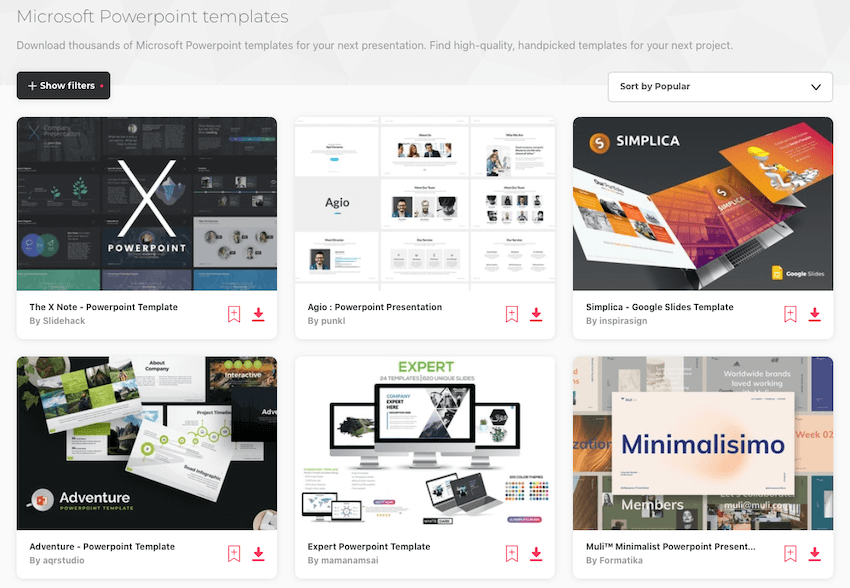
That’s right: when you sign up for Envato you’ll be able to find cool PowerPoint templates with features such as:
As you can see, premium PowerPoint templates from Envato will give you the most customization options and the best features to make your presentation stand out.
I’ve sat through many presentations that close with the presenter sheepishly asking, “Uh, any questions?”
Asking this way will virtually guarantee that the audience won’t ask a question. The audience may start clapping before anyone even works up the courage to ask a question!
There are better ways to ask for questions. Instead of using the bland “any questions?” phrase that’ll leave the audience slack-jawed. Try out something more creative to actually elicit questions.

These are four techniques that I’ve personally used to inspire questions from the audience:
Many presenters will skip including a Q&A altogether. I think there’s a simple explanation for why many presenters don’t ask for questions from the audience: fear.
Many presenters fear being caught off-guard by the audience’s questions. You never know what the audience may be wondering before you ask for questions. That uncertainty leads presenters to exclude it altogether.
While you can never be certain of the questions you’ll receive, you can take steps to prepare for the questions you’re most likely to hear from the audience.
Consider these tips when you’re preparing for the Q&A part of your presentation:
Essentially, you should spend time trying to anticipate what the audience is going to ask. Put yourself in their shoes and consider their background, and the questions they have may become obvious.
Above all: it’s okay if you don’t know the answer to all the audience’s questions. Generally, the questions will be open-ended and there’s no “correct” answer, and the audience will just want to know what your thoughts are.
If it’s a specific question that requires a numeric answer that you need to research, simply follow up with the audience member after the presentation with your findings. It’s okay to say, “I’ll get back to you with that answer.”
So far, we’ve talked about how to make the Q&A part of your presentation engaging. Let’s dive into creating the last slide in PowerPoint to show on screen to encourage questions from your audience.
In this section, we’ll also take a look at two other approaches for closing out your presentation. I’ll offer more designs and content ideas for closing out your presentation in a strong way.
For this tutorial, I’m going to make recommendations for how to create an engaging closing slide using the Clean PowerPoint theme.
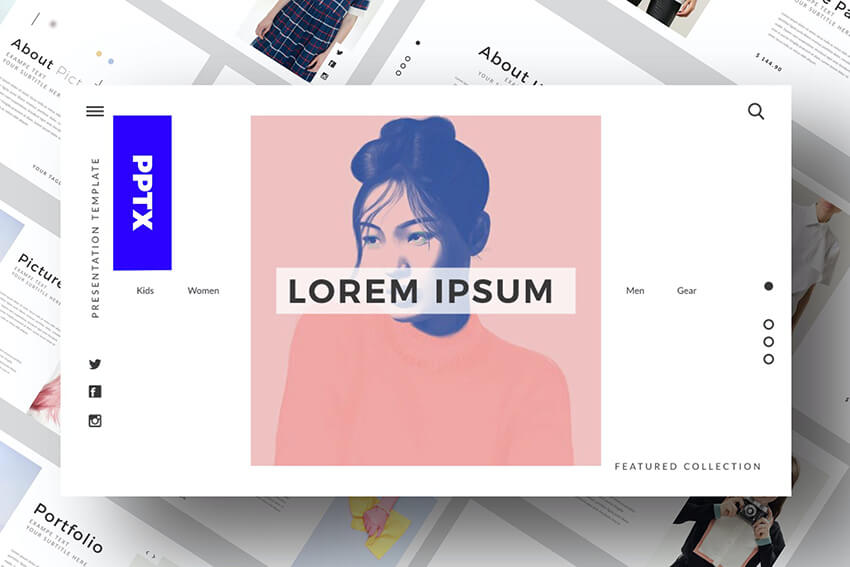
Clean is a PowerPoint theme that’s available on Envato. The template has a modern and minimal design so your audience can focus on the content of your presentation. It also comes with more than 50 unique slides, plenty of vector icons, and image placeholders.
Let’s look at how to use Eureka for customizing three different closing slides:
A Q&A slide could say “any questions?”, but you could also use that questions slide in PowerPoint to thank the audience and verbally ask for questions. This is a simple way to show gratitude that the audience took time to listen.
Clean has a pre-built slide to thank the audience for their attendance. Use thank you PowerPoint slide design #48, which has everything you need. You can also add a background image by clicking on the placeholder and choosing an image on your computer.
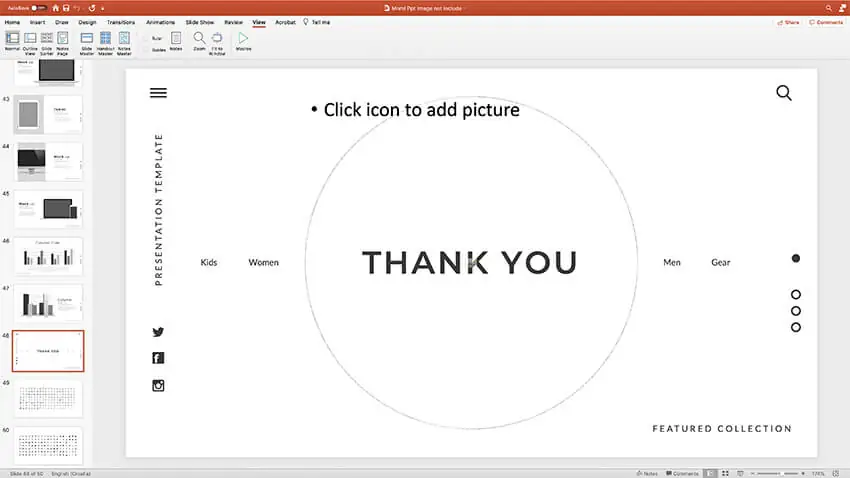
It’s a basic slide, but using Clean’s “Thank you” placeholder (slide #48) is a great example of premium themes saving time.
Now, let’s take a look at questions slide designs that work well for asking for questions from the audience.
The first of these is PowerPoint slide design #23. It’s a simple pre-built slide with few text blocks and a “What we do?” as the presentation placeholder text. Easily change the slide to create an “Any questions?” slide and use the placeholder text to add your own questions that’ll help spark the conversation.
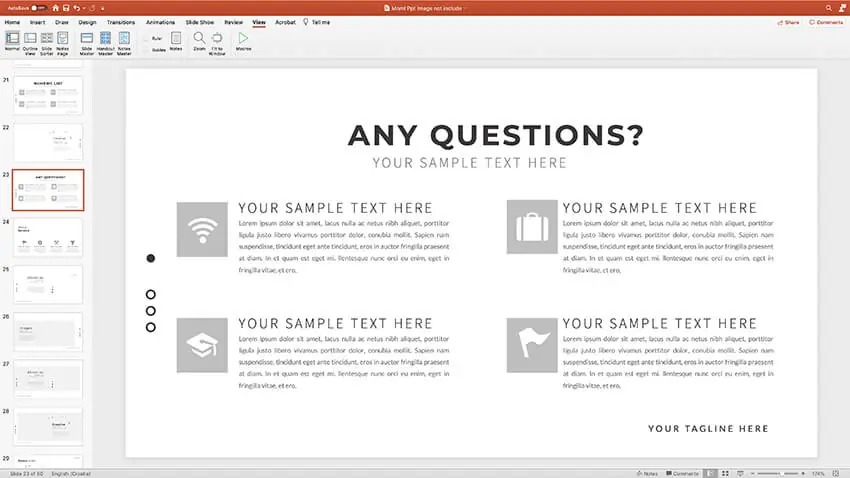
These question slides could also contain follow-up information. If you’re going to send your presentation (instead of presenting it from an audience) you can use a questions slide like this to add your follow-up contact details.

Simply substitute the placeholder text for “Any questions?”
A Q&A slide should be something simple that doesn’t distract the audience. The audience’s attention should be on the Q&A session itself, and not the visuals in the background.
The “Contact Us” slide is a great choice for the final slide in sales presentations, fundraising pitches, and any type of presentation that opens up the opportunity for follow-up communications.
In the Clean theme, check out the PowerPoint slide design 25, titled “Stay in Touch with Us.” This presentation slide template is ready for you to add your social media links. This slide design is perfect if you’re telling the story of your business and asking the audience to follow you on social media.

Make the most of your final PowerPoint slide design to help engage your audience at the close of your presentation.
With practice and preparation, a Q&A can be the most rewarding part of a presentation. A presentation can create a two-way communication that engages an audience with an opportunity to ask questions.
Keep it minimal: a short prompt like “Any questions?”, your name or contact details if you’re sharing the deck, and a clean background that doesn’t compete with the conversation. The slide’s job is to signal the Q&A, not to be looked at.
Set it up rather than defaulting to “any questions?” Seed a first question with a colleague, answer your own opening question to model the format, or ask a pointed question the audience can react to. Inviting questions at the midpoint, while the content is fresh, also helps.
Say so, and offer to follow up. Most Q&A questions are open-ended and have no single right answer, so your perspective is what people want. For specific, research-based questions, “I’ll get back to you with that” is a perfectly professional response.
Usually last, so it stays on screen during the discussion. If you’d rather take questions earlier, add a Q&A prompt near the midpoint and keep a simple closing slide — like a “Thank you” or “Contact us” slide — for the very end.
Either works, and you can combine them. A “Thank you” slide is warmer for general talks; an “Any questions?” slide is more direct when you actively want discussion; a “Contact us” slide suits sales or fundraising pitches where follow-up matters most.
Explore PowerPoint templates with professionally designed layouts to create polished, modern, and visually cohesive presentations.

AI-powered workflows, expressive typography, mobile-first layouts, and purpose-driven motion are reshaping how presentations look and land in 2026. Here's how to put these trends to work in your next deck.

The latest portfolio design trends range from moody dark mode to gamified web templates. Take your pick to make the best impression!

Use the most beautiful PowerPoint templates to show off your key concepts in your top 2025 presentations. Use these attractive PPT slides and learn how to make a pretty PowerPoint presentation.

