
How to tell your agency’s story effectively via a digital brochure
Want to win over clients with a professional digital brochure?
Envato: Get every type of asset for any type of project, and access to AI tools. Start now
What's the best presentation software for your next project? Discover the answer in our detailed comparison of PowerPoint, Keynote, and Google Slides.

Choosing the best presentation software is a big decision. Your presentation needs to look good. And to make it look good, you need the right tool. The presentation software you choose makes a difference. In this article, we’ll compare PowerPoint vs. Google Slides vs. Keynote.
As a creative, you’ll likely need to give presentations. Maybe it’s to win new business, pitch your team on a design, or build awareness with a marketing deck.
Presentation software allows you to create professional slide presentations. A slide presentation allows the presenter to share information. Initially, slide presentations were geared towards live audiences. Now, slide presentations are just as likely to be delivered to a web audience and published online.
In this article, we compare three of the most popular presentation packages: PowerPoint, Keynote, and Google Slides. We’ll dig into some of the pros and cons of each app.
Also, we’ll link to helpful resources to help you get started quickly, no matter which tool you choose. Finally, we’ll point out some strong template choices to help you make the best use of your presentation software and get started quickly. Let’s dive in.
No matter which software package you use, one way to ensure professional results is by choosing a high-quality template. A template determines the look and feel of your presentation. The right template can elevate it to a truly professional presentation.
As we dive into the top presentation apps, let’s do a bit of research on top apps. To do that, we’ll use Google Trends. As you can see, PowerPoint’s popularity has held steady as the global leader, although Google Slides continues its popularity.
The closeness of the data for PowerPoint vs. Google Slides may surprise you. Google Slides experienced a huge boom in traffic in 2020 and continues its popularity. However, it still trails PowerPoint. Keynote has a more limited share, remaining mostly flat over the last few years.
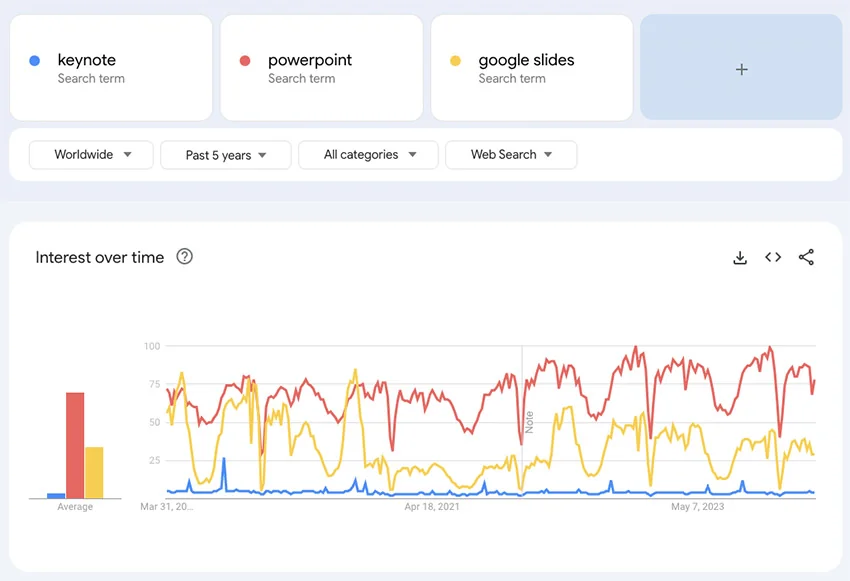
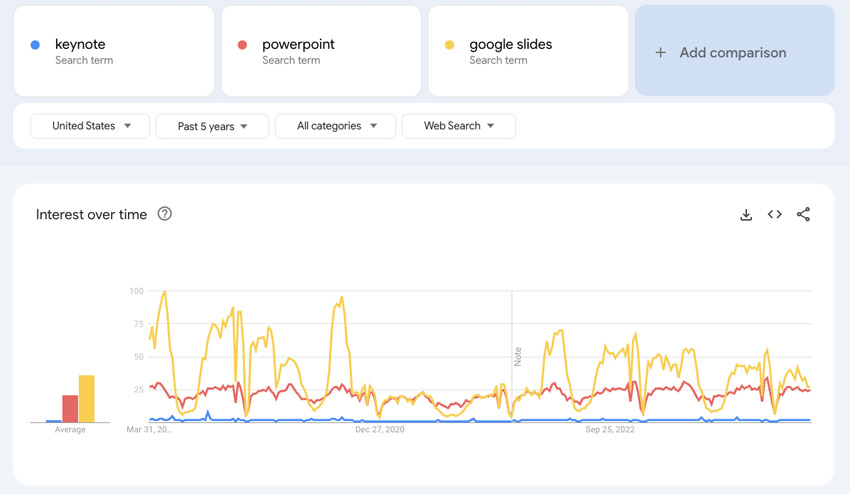
This is the worldwide trend, so let’s consider search patterns in the United States. As you can see below, Google Slides is often more popular than PowerPoint in the United States from the perspective of search traffic. At the time of writing, they are roughly equal. Keynote, like the worldwide pattern, is lower but a steady constant.
Now, in this chart, we break down the main differences between PowerPoint vs. Keynote vs. Google Slides. Then we’ll dig into each presentation software in more detail to help you choose between them.
Let’s take a closer look at each presentation software package. We’ll compare PowerPoint vs. Google Slides, as well as Keynote vs. PowerPoint.
As part of the Microsoft Office suite, PowerPoint has been one of the most popular presentation software packages for years. It’s got a large number of themes. Support is widely available through both Microsoft and through user-created resources.

Because it’s an established software package, PowerPoint has many advantages for the small business owner. Those pros include:
Despite its many advantages, there are still some weaknesses:
One of the big advantages of PowerPoint is the fact that Microsoft has already incorporated AI. As you compare PowerPoint vs. Keynote and Google Slides, note that Microsoft added AI first!
The recently launched Copilot AI assistant works inside PowerPoint. It helps you analyze data and style your presentations. Get a full walkthrough of AI in PowerPoint.
When you decide to use PowerPoint, you may be wondering how to get started. By embracing these six quick tips, you’ll get ideas and be ready to build slides fast:
Your PowerPoint presentation can be so much more than simple slides. You can add an incredible range of audio, video, and animations. These help you better engage your audience.
Learn more about the power of adding audio and video to your PowerPoint presentation below:
When you’ve opted for PowerPoint, it pays to start by using a template. And not just any template. You’ll save more time and impress more people by choosing a themed template.
Presenting on real estate? Choose a real estate template! Opt for a food-inspired design if you’re sharing slides about a new restaurant. The Envato library has thousands of PPT templates with custom themes.
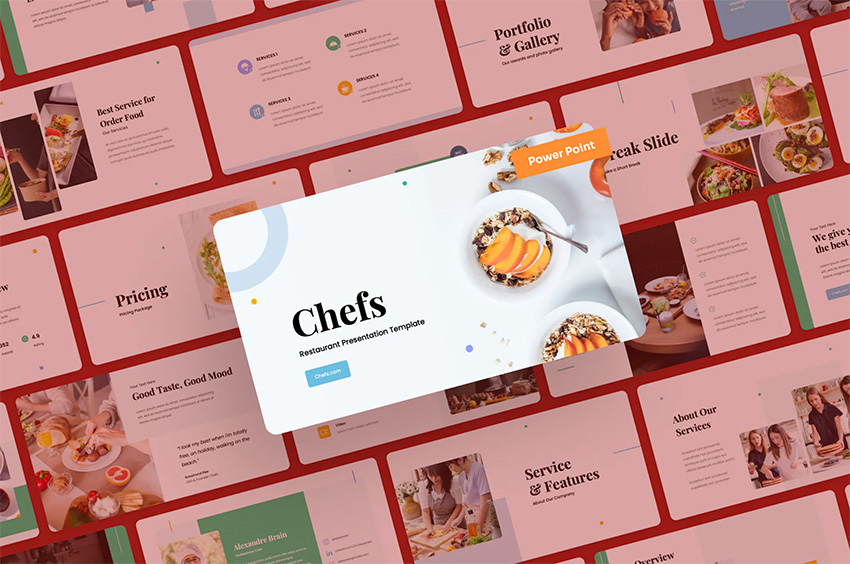
These themed templates also help give you design inspiration. Slide designs are tailored around a specific topic. As you build out your designs, you may think of things to share that otherwise you wouldn’t have considered. A themed premium template is truly a win-win.
Static, unmoving PowerPoint slides aren’t very interesting. Why not add a little spice by using animations to control how text and objects appear and disappear on a slide? They’re easy to add and use.
Animations are stylish, and they help you control the flow of your presentation. For example, you can add a simple Fly In effect to bring bullet points onto a slide, one by one.
Sound intriguing? Learn more with our full tutorial.
PowerPoint layouts should have a few things in common:
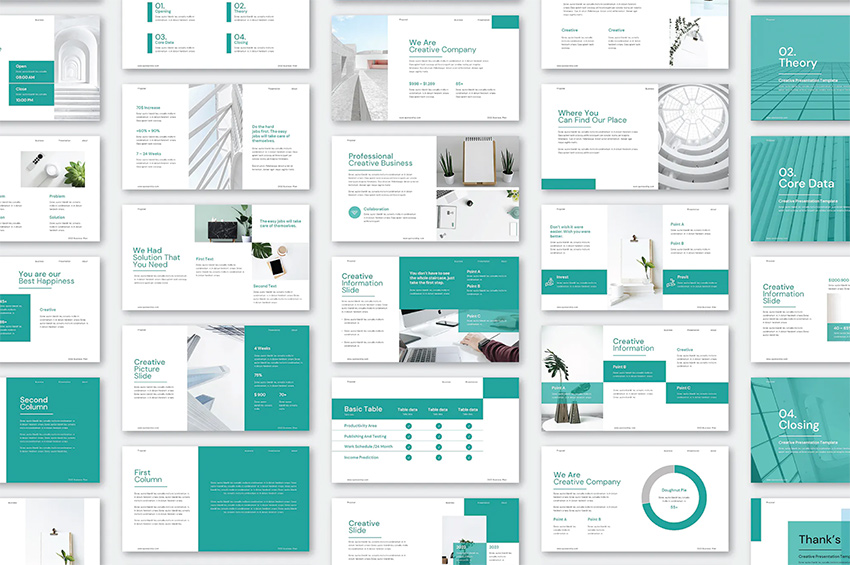
Using plenty of images is a great way to build winning layouts. Photos and graphics boost visual interest in a flash. They help you style content in new and creative ways.
When you’re working in PowerPoint, it pays to maintain a clean and consistent look. This means preserving styles and formats from one slide to the next. But you may not have a ton of time when you’re building slides.
Fortunately, PowerPoint’s Format Painter feature is there to help. Format Painter lets you seamlessly copy formats from one section of a slide deck to another. For example, you can mirror text highlights from one slide to another.
To learn how, read our MS PowerPoint Format Painter guide.
As you present in PowerPoint, try to illustrate your ideas. A compelling option is to use infographics and charts. These are especially useful if you’re talking through numerical data.
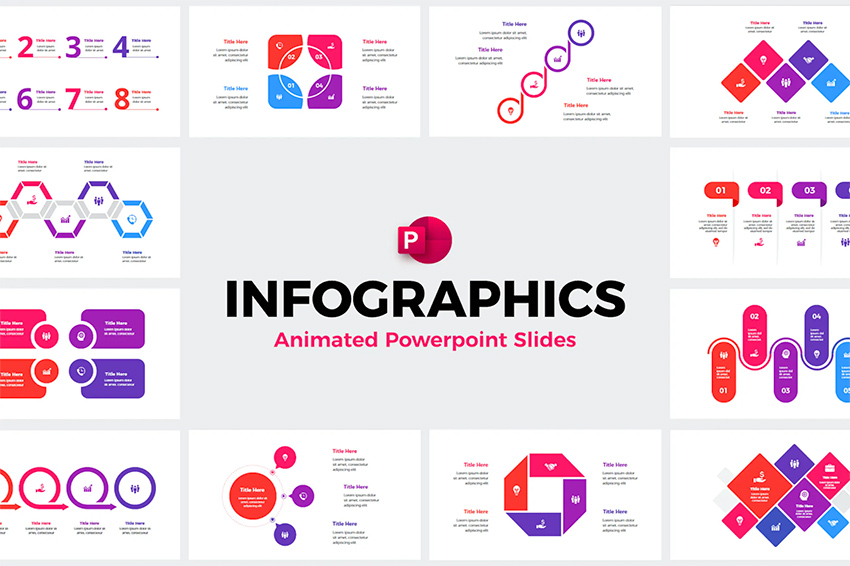
Infographics are illustrations that use graphics to convey information. They’re a hallmark of premium templates. Often, you’ll find dozens of options in a single deck. You can easily swap out the placeholder details with your own data. Infographics are a top way to bring your ideas to life.
Want to dive deeper into Microsoft PowerPoint? Our Envato Tuts+ tutorial, PowerPoint 101: Everything You Need to Make a Basic Presentation, is a great place to start.
We also have a comprehensive PowerPoint resource, How to Use PowerPoint (Ultimate Tutorial Guide).
No matter how much you know about PowerPoint, you need your presentation to look as professional as possible. You’ll want to use a professional template to do that. Envato has a simple licensing structure for PowerPoint templates. Subscribe, and you’ll have access to thousands of presentation templates.
We also have a detailed tutorial on how to customize a PowerPoint template. It shows you the art of modifying PPT slide designs and adjusting Master Slides.
Here’s a closer look at one of our most popular PowerPoint templates, Blendu. It includes many slide layout options and the features you’d expect in a professional design.
What is Keynote? Simply put, Keynote is part of Apple’s iWork productivity suite. Some call it the Apple version of PowerPoint. It was designed to work on macOS and is a streamlined presentation tool.
The app offers a stylish interface that’s easy to use. Keynote remote works on the iPad, iPhone, and iPod. While the support isn’t quite as extensive as what’s available for PowerPoint, there are still a lot of resources available.
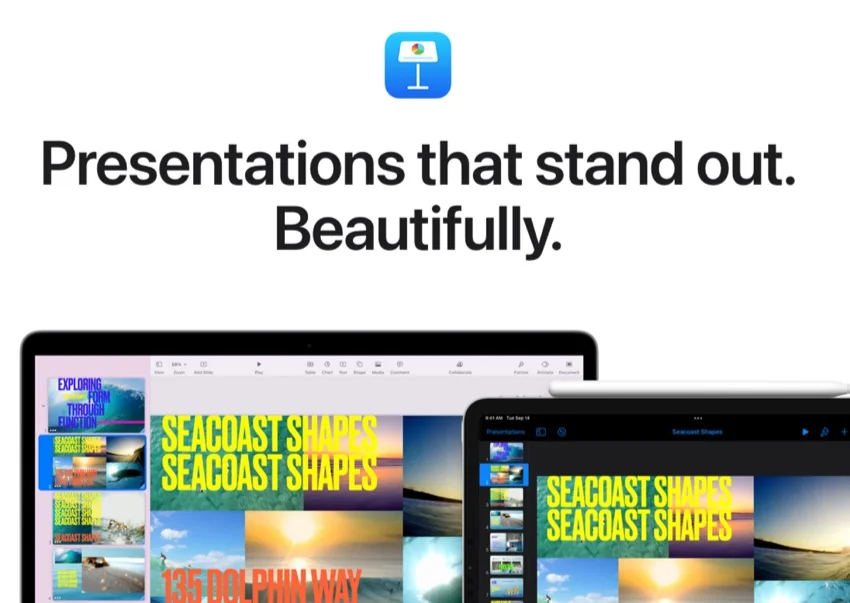
If you’re already a macOS user, Keynote just might be the best presentation software for your business needs. As you evaluate PowerPoint vs. Keynote, these comparisons can help you weigh your options. Here are some of the pros of Keynote:
Cons of Apple Keynote include:
As the Apple version of PowerPoint, design is at the forefront of this tool.
Want to learn more about Apple Keynote? We’ve got you covered with tutorials that help you master Apple’s presentation app. Many of these resources can even contrast the difference between Keynote and PowerPoint.
Don’t let the choice of PowerPoint vs. Keynote be one of familiarity. As you level up your Keynote knowledge, you can make a confident choice. Learn more about using Apple Keynote in these tutorials:
Keynote, the Apple version of PowerPoint, has a litany of advanced design features. But it’s always easier when you start with a great template. You can find a professional template that uses Keynote’s unique features at Envato.
Google Slides is part of Google’s software office suite included within Google Drive. You could explain it as the Google equivalent of PowerPoint, with one twist: it’s browser-based.
The software and your work reside completely on the web, making it an ideal choice for online sharing. As a browser-first tool, it offers some intuitive and innovative presentation features.

As long as you’re connected, you can access Google Slides from any device. If you work with a team who all use different platforms, Google Slides may be the right choice for you. Here are some Google Slides pros:
Cons of Google Slides include:
Where can you go to learn more about Google Slides? As the Google equivalent of PowerPint, you’ll feel at home if you’re familiar with PowerPoint. You can also start with our tutorial, Getting Started With Google Slides. You can also ask questions in the Google Product Forums.
Google Slides features an easy learning curve, but that doesn’t mean that it’s a basic app. In fact, it has most of the key features that every presenter needs.
It takes time to learn Google Slides, but we’ve got you covered with top tutorials! Make sure to use these other Envato Tuts+ tutorials to level up your Slides knowledge:
Envato offers many professional templates for Google Slides. How good can a Google Slide presentation look? Look at our best-selling Google Slides template, Braze. Here’s a closer look at this template and thumbnails of some of its best slides:
There’s no right or wrong presentation software solution. Each presentation app has pluses and minuses, and ultimately it comes down to what fits you best.
Consider these strengths as you make your presentation app choice:
No matter which presentation app you use, Envato is a subscription with everything you need. One subscription gives you access to a wide selection of templates for Google Slides, Keynote, and PowerPoint. It gives you the flexibility to try out every presentation app you need with great templates.
PowerPoint, Keynote, and Google Slides: you name it, Envato has a template for it. Those templates save you hours of design work. Plus, your subscription gives you plenty of extras like stock photos, graphics, video, and more.
Whether you prefer Google Slides or PowerPoint or Keynote, Envato is your ticket to great presentations. Start creating.
In this article, you’ve learned about the pros and cons of PowerPoint vs. Keynote vs. Google Slides. You also saw helpful resources to help you learn each app. Choose the best presentation software for your needs. Then, grab a quality presentation template, and get to work making your presentation today.
Choosing the best presentation software package can be challenging. The package you choose depends largely on your needs and budget. Jump in and experiment with each to find the right fit for you.
Want to win over clients with a professional digital brochure?

Here's everything you need to develop successful product branding.

A practical take on lead generation for creative agencies.

Get the most out of SXSW London with this guide to key events.