


Envato: Get every type of asset for any type of project, and access to AI tools. Start now

How to End Your PowerPoint Presentation With a Strong Close (In 2025) + Video

Most presentations are forgotten as soon as the audience leaves the room. If you're going to invest the time and energy into giving a presentation, then you want to leave the audience with something to remember.

Andrew Childress 14min read

In this tutorial, I’ll share ideas for how to end your PowerPoint presentation powerfully. Depending on the type of talk that you’re giving, there’s a tried and true technique that’ll bring it to a strong close.

This tutorial will help you nail the finish of your presentation and leave your audience with a lasting impression. I’ll also show you do’s and don’ts for finishing your presentation with attractive final concluding slides. Let’s dive in.

How to End Your PowerPoint Presentation With a Strong Close (Video)

Are you ready to jump ahead and create your strong PowerPoint presentation close? The video below tells you what you need to know to get started quickly:

To learn even more about the various types of PowerPoint closes, read the detailed guide below.

4 Types of PowerPoint Presentations That Conclude Differently

To finish a presentation strongly, it helps to start by thinking about your presentation’s goal. Your actions must align with the goal of the presentation to succeed. How you’ll approach a persuasive conclusion is different than an inspirational speech conclusion.

In this tutorial, I cover four main categories that you can divide presentations into. You could sub-divide these into more specific categories, but I think these basic groups are a useful way to think about your presentation and the approach to take:

  1. Persuasive Presentations. A persuasive presentation is designed to share your point of view and influence the views of your audience.
  2. Informative Presentations. Informative presentations share facts and ideas about a subject. They’re less prescriptive than a persuasive presentation.
  3. Decision Driven Presentations. In a decision-driven presentation, you’re in the spotlight to provide a recommendation or plan to your audience. These often take place in the work environment.
  4. Introductory Presentations. These are also very popular in the business world. Maybe this is your chance to introduce your company to potential investors, customers, or a future employee.

Let’s talk about specific approaches for each of these presentation types. Throughout this tutorial, I’m going to use premium PowerPoint templates from Envato to create closing slides. These templates give you plenty of ideas for attractive slides and are professionally designed and easy to work with.

Grab some popular PowerPoint themes from Envato. Envato has a special offer that gives you unlimited access to creative resources, such as presentation templates, web themes, photos, and more.

envato elements
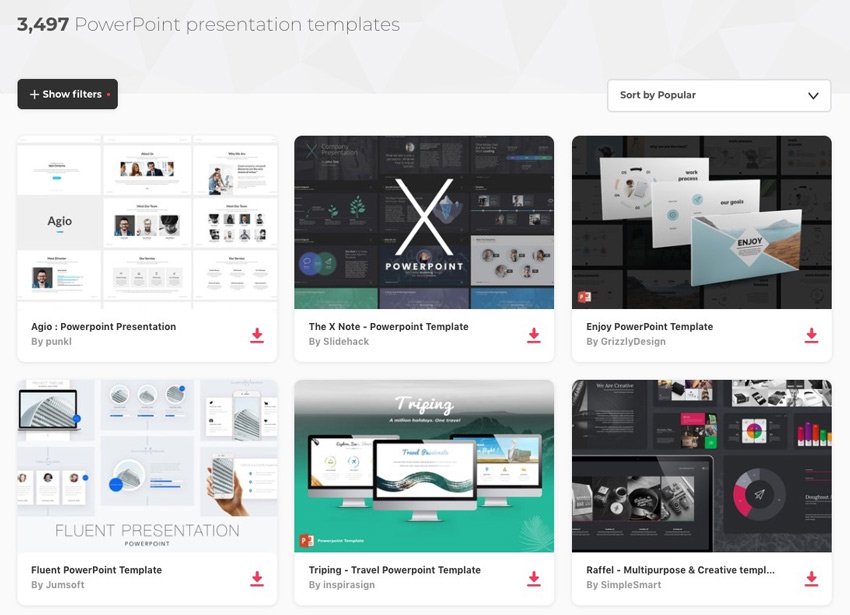
Thousands of templates are included on PowerPoint in the Envato library.

Let’s look into more detail on concluding each presentation type strongly, from closing strategies to ideas on mastering your final PowerPoint slide. That way, you’ll know the best way to end your PowerPoint presentation—regardless of its type and your goals.

1. Persuasive Presentations

Persuasive presentations are designed to change your audience’s mind or to impart your viewpoint on them. Maybe you’ve had to give one of these presentations as part of a school presentation designed to influence your classmates on a hot-button issue.

There are many techniques to persuade an audience, ranging from connecting emotionally with the audience to presenting pure facts. Great presentations will contain a combination of all these to appeal to a broad audience.

Here’s one idea for a persuasive conclusion: give the audience a key chart or graph that reinforces your idea.

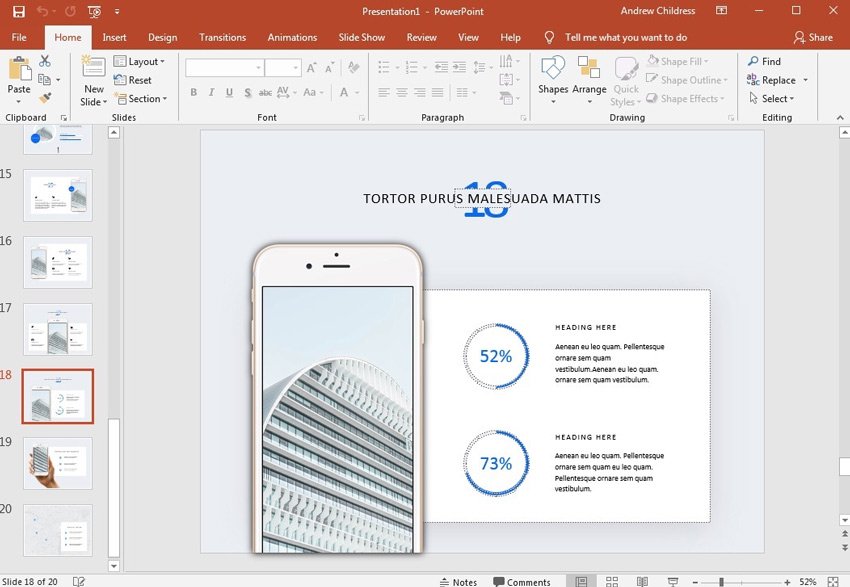
In the example below, let’s pretend that the presentation would persuade an audience member to invest in our company. The key data statistics in a slide like below are ideal for this:

key figures
Add key figures like the ones on this slide to illustrate a growth opportunity.

A closing slide for a persuasive speech is the ace up your sleeve. Save one last key point and present it with a chart or graph to win over the data-driven members of your audience.

2. Informative Presentations

Informative presentations are designed to share fact-driven information. Your goal is to present a new idea in a memorable way that the audience will remember.

For an informative presentation, the closing slide should recap the information that you’ve shared. It’s a good chance to illustrate a concept with a graphic or key bullet points.

simple recap slide
Use a simple, bulleted slide like this one to make a key final point and recap your presentation.

It’s also a great idea to share the slides from an informative presentation with your audience via email or post them online. If you’ve taught an important skill, the audience can use this as reference material.

3. Decision-Driven Presentations

For a decision-driven presentation, your audience is waiting to hear your big recommendation. You should use the final slide in your PowerPoint presentation to make a recommendation so that your project or idea can proceed.

key recommendation
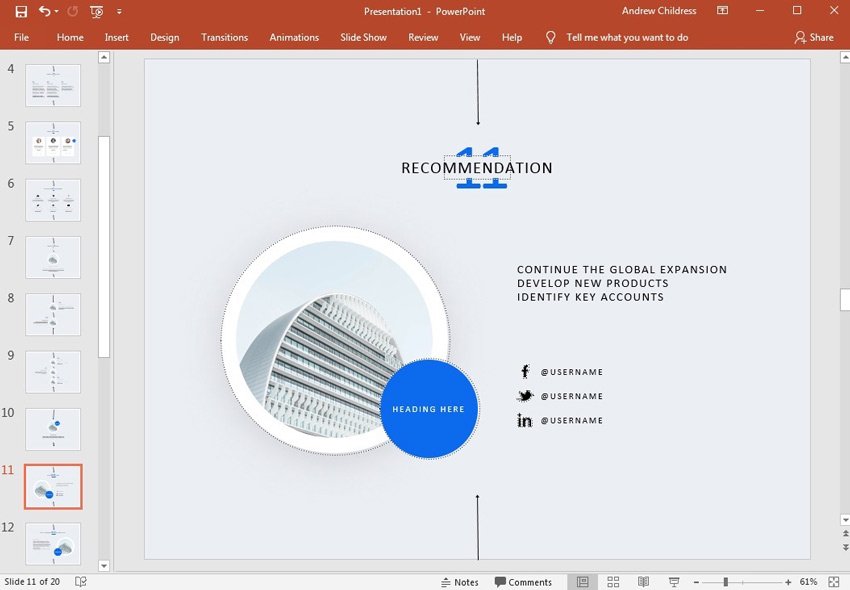
Don’t mince any words: at the end of your presentation, make a key recommendation to give your audience an answer on what to do next.

Use the closing slide to make your recommendation clear. It’s fine to use the supporting points to mention why you arrived at that conclusion. But focus on having a single recommendation and be prepared to defend it.

4. Introductory Presentations

An introductory presentation is often used in business to help build trust and establish a relationship with an audience. Remember, the introductory presentation is your best chance to make a first impression. Whether you’re pitching your business or asking people to join your company, the last slide can be the first step in the business relationship.

Maybe you aren’t quite ready to give a full sales pitch. Instead, this is your first point of contact to start explaining your business.

contact slide
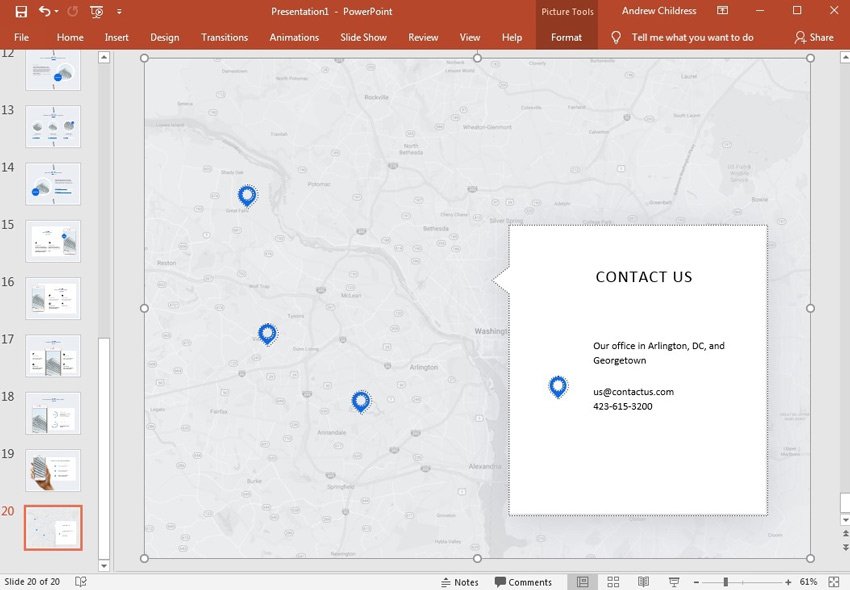
Use a Contact slide as a jumping-off point to continue the conversation with your audience.

To end your introductory presentation, I think it’s a great idea to give the audience a means to follow up with a Contact slide. If you think of an introductory presentation as the start of a conversation, you should give the audience the chance to continue that conversation.

Final PowerPoint Slide Styles to Avoid

When you’re preparing to close out your PowerPoint presentation, there are certain strategic steps that you’ll want to avoid. There are also final PowerPoint presentation slide styles that aren’t on target for closing strongly. You need both the right closing technique and final slide design to work together. Let’s look at what not to do for each of the key presentation types:

1. Persuasive Discussions

For persuasive presentations, the strategy should change. For these presentations, don’t simply restate the points that you’ve already made.

You need to give a new angle or a new perspective that could win the audience over. Your last slide should support the presentation’s overall perspective but shouldn’t simply rehash the original points.

In a persuasive presentation, make sure that your final slide isn’t a simple recap of your original points. The audience may resent having heard the same ideas repeatedly and find them less believable.

2. Informative Presentations

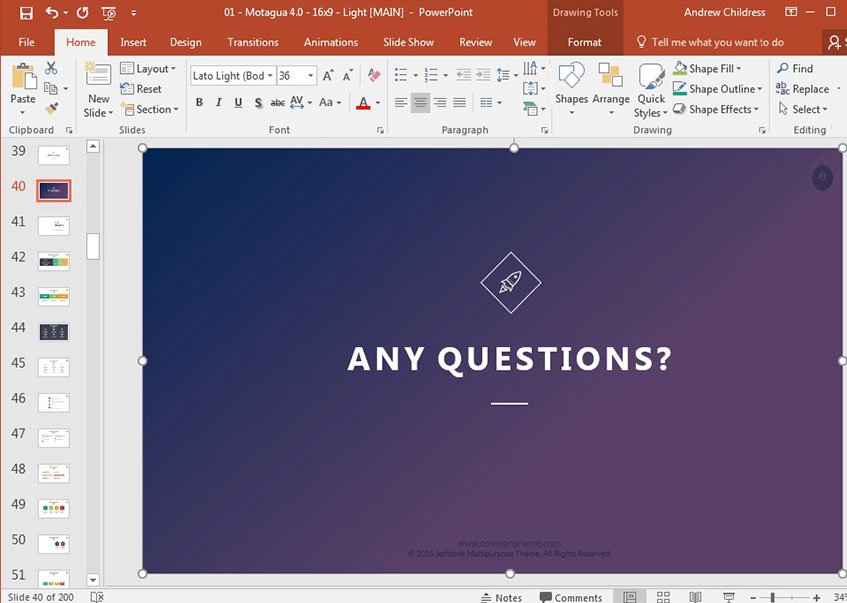
Information presentations often lead to a discussion with the audience, often called a “Q&A session.” If your presentation is meant to be an open discussion, it can be tempting to throw up an “Any questions?” slide for the last part of your deck.

But if this is the only step you take to spark a conversation, your audience is unlikely to engage. I’ve seen many presentations breeze past this stage so quickly that no one works up the courage to ask a question.

boring closing slide
This is a good-looking slide. But it’s not enough to elicit questions from the audience. Instead, provide an inspiring slide with important information that teaches your audience.

Read a complete tutorial on soliciting questions at the end of your presentation.

3. Decision-Driven Presentations

You’ve been asked to share your findings and make a recommendation in the form of a decision-driven presentation. The information that you share will help guide a decision-maker or give you the feedback you need to proceed.

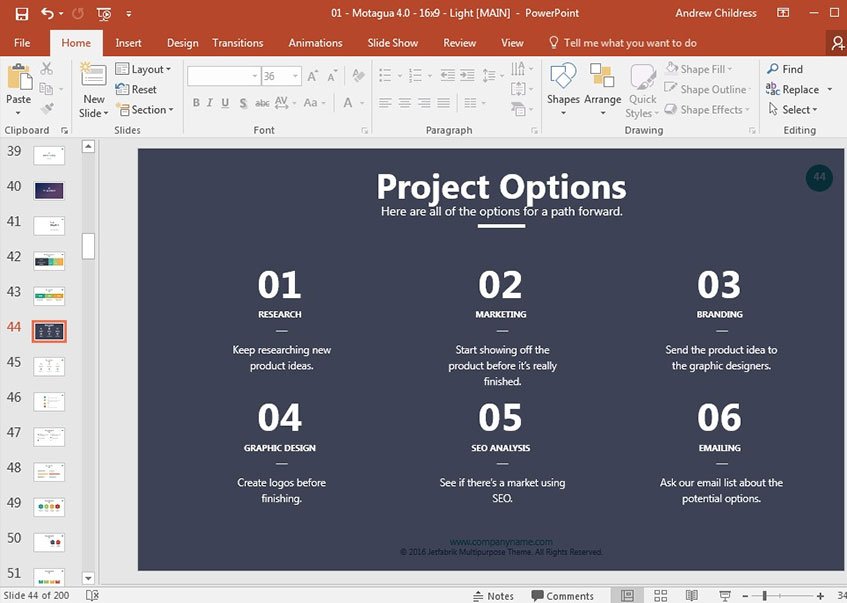
In these situations, I think it’s important to not overwhelm the audience with too many options. Sometimes, presenters tend to give every possible option for a team to take. Make sure you avoid this in your final presentation slide.

too many options
In decision-driven presentations, presenting too many options to the decision-making team is overwhelming.

That shouldn’t be the goal of a persuasive presentation. It’s fine to present many ideas. But the presentation should ultimately culminate in a single, decisive recommendation in the final slide of a PowerPoint presentation.

4. Introductory Presentations

An introductory presentation seeks to build familiarity with the audience. For this type of presentation, there’s one key step to avoid: don’t try to close a deal too quickly.

bad closing slide
If this is your first interaction with an audience, don’t even think about using a closing slide like this! You need time to build trust with the audience before making the sale.

Marketing and teaching potential customers about your business is a process, and it’s one that takes time. The final slide shouldn’t contain graphics or requests that the audience buy from you or engage you right away.

Asking for a sale or commitment at the end of an introductory presentation could be off-putting and ultimately harm your chances of gaining customers.

How to Quickly Make Great End PowerPoint Slides With PPT Templates

If you’re looking for the best PowerPoint templates with amazing end slides, look no further than Envato. The subscription gives you access to thousands of unlimited download PowerPoint templates with attention-grabbing designs. You also get access to thousands of other creative assets such as stock photos, fonts, icons, and more.

Envato is the best choice for all your creative needs. Thanks to unlimited downloads, you can experiment with different creative styles and templates to find the perfect PowerPoint template for your presentation.

powerpoint templates on envato elements
PowerPoint templates on Envato

Tempting as free PowerPoint templates might be, they usually come with a limited number of slides and fewer customization options. Professionally designed templates such as those found on Envato are the better choice.

PowerPoint templates from Envato have key features such as:

  • a variety of slide styles and types to create a compelling and memorable presentation
  • easy to use image placeholders so you can quickly customize the images
  • charts, graphs, icons, and other visual elements to present your ideas in style
  • bold text and noticeable calls to action so you can make an impact with your closing

5 Quick Tips to End Your PowerPoint Presentation Strong

You’ve learned that the final PowerPoint slide design can be a powerful way to end your presentation. Also, we’ve dived into some problematic ways to end your presentation, which you should avoid.

Now let’s jump into a few important tips on how to end a PowerPoint presentation so that it’s memorable and makes an impact:

1. Be Clear, Concise, and On Message

A strong presentation closing brings your key message to the forefront and aligns with your objective. You want to distill your final message down to a single memorable point or small set of points. That way the audience can easily walk away with your most important ideas on their mind.

2. Use the Best Final PowerPoint Slide

Depending on the type of presentation you’re delivering your final slide will differ.

Make sure you’re using a powerful final PowerPoint graphic slide to showcase your concluding information. Or transition into an easy-to-read Contact Us or Any Questions slide.

If you’re unsure which slide fits your presentation type best, re-read the sections above. Don’t miss out on those graphic examples of the best last slides for various PowerPoint presentation types.

3. Include a Call to Action With Appeal

Depending on your goal, you may want to motivate the audience to ask a question or take immediate action on the information you’re presenting. Make sure your final slide helps motivate the audience to do that.

Your final points need to align with your argument and give them a good reason to act. Be clear on what you’re trying to do with your presentation and bring it forward in your final slide.

Also, make sure you practice delivering your conclusion. You want to put your notes aside, make eye contact with the audience, and engage with emotion as you wrap up.

Learn more presentation strategies, so you not only open with interest, but end the presentation memorably.

4. Use Animation For a Big Reveal

Much like Apple’s famous “one more thing” segue, you can save a punchline for the end of your presentation.

One of the best ways to do this is to add a bit of animation that’ll bring a key element onto your slide at the perfect time. While PowerPoint features some built-in animations, there are custom templates that can really take animations to the next level. For example, use the Business Animate template to animate a key point at the end of your presentation.

animated ppt template
One example of an animated template that brings content to life is the Business Animate PowerPoint template you can grab on Envato.

5. Add a Video Clip

Video clips add a completely different perspective to a presentation. In sticking with the idea of closing with a strong idea, sometimes it helps to add a video to bring a sense of variety or change of pace in your presentation.

It’s a great idea to have the video auto-play when you switch to the PowerPoint last slide for a smooth finish. Try out the tip below to do just that:

How to Quickly Customize The End Slide With a Premium PowerPoint Template

Now that you know how to end your PowerPoint presentation with a strong close, let’s look at how you can use one of our premium PowerPoint templates and customize the end slide.

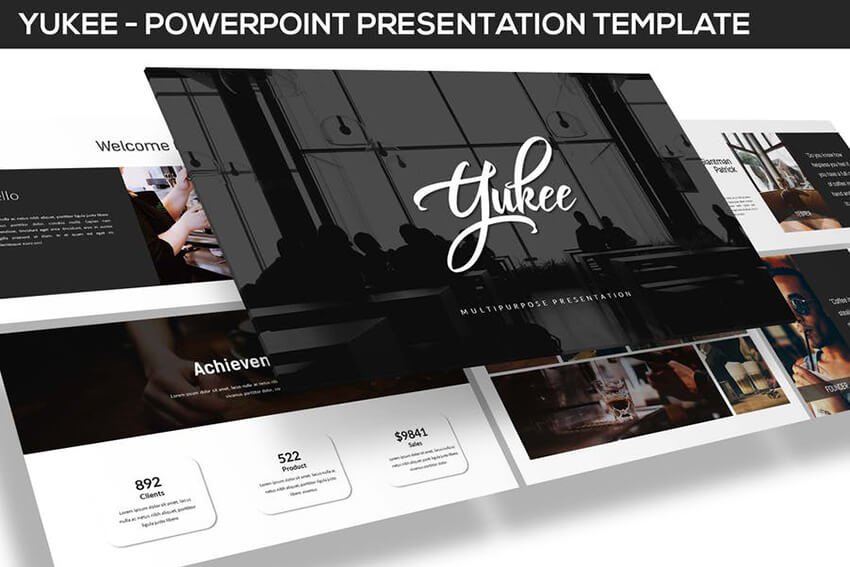
For the purposes of this tutorial, I’ll use the Yukee template. This PowerPoint template from Envato has a modern design and can be used for all kinds of presentations.

Yukee PowerPoint Presentation Template

Let’s get started:

1. Decide on Your Close

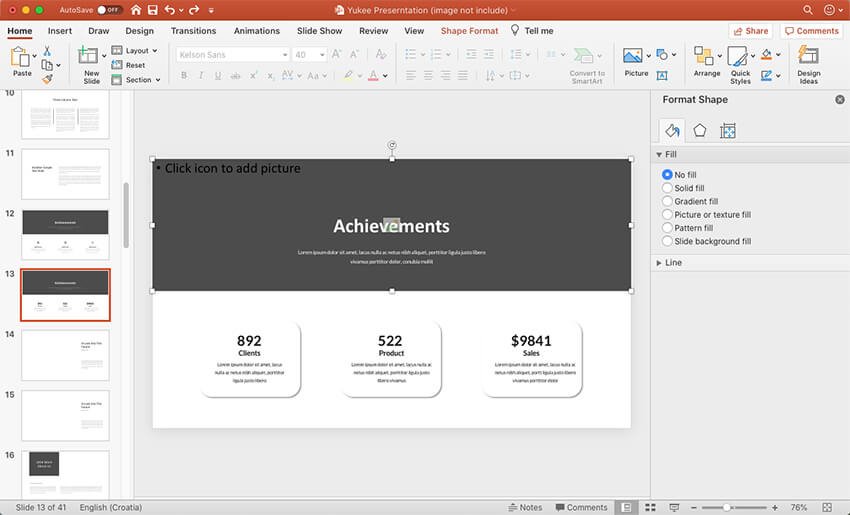
The first step is to decide what type of close and call to action you’ll use for your presentation. For the purposes of this tutorial, I’ll use a persuasive close with numbers that back up the ideas presented in the presentation. Slide #13 from the Yukee template fits perfectly for this occasion.

Selecting your closing slide

2. Add an Image

The top part of the slide has an image placeholder so we can easily add an image. Just click the picture icon and locate the image on your computer. Then, press Insert.

Once the image has been added, right-click on it. Then choose the Send to back option.

Adding an image to your slide

3. Replace the Content

Once the image is in place, it’s time to customize the content of your slide. Double-click the text and press Control-A to select everything. Then type in your own information.

Replacing content
Replacing content

4. Customize Fonts

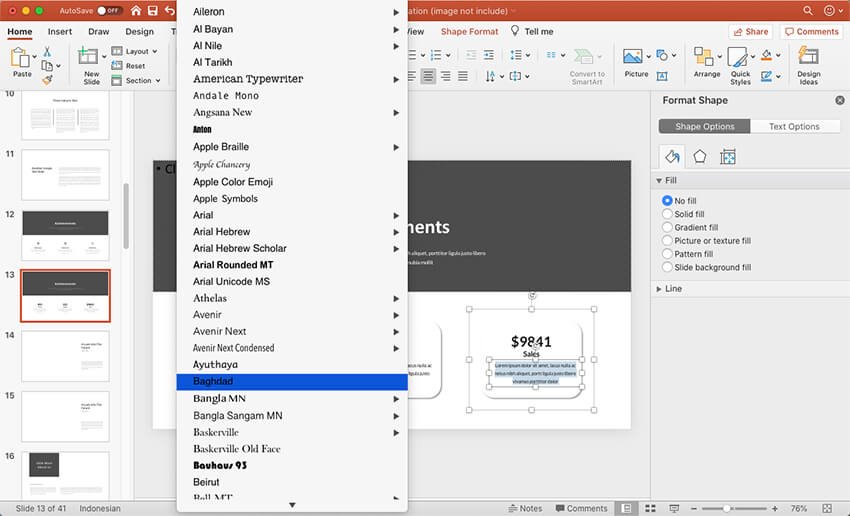
As you’re customizing the content, you can customize the fonts used in the presentation. Select the text and then choose a different font from the drop-down menu on the Home tab.

Customizing fonts
Customizing fonts

5. Customize Colors

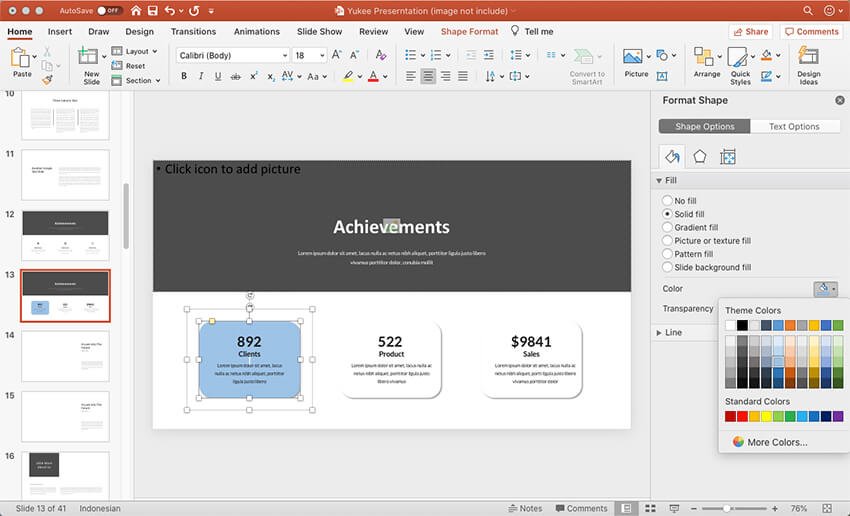
Finally, to make your points stand out more, customize the colors. Double-click on the rectangle and choose a different color under the Fill > Solid Color option.

customize the colors

Need Help? Grab Our Making Great Presentations eBook (Free)

You can find more information in our new eBook on making great presentations. Download this PDF eBook now for FREE with your subscription to the Tuts+ Business Newsletter.

ppt ebook

It’ll help you master the presentation process, from initial creative ideas, through to writing, design, and delivering with impact.

End Your Presentation With Impact

This tutorial can serve as your guide for ending a presentation with a compelling finish. The last 30 seconds of your presentation may be the difference between changing your audience’s mind and your presentation being forgotten. Learning how to end a presentation can keep your audience talking about your presentation long after.

Remember: Presentation templates are the key to helping you develop a presentation as rapidly as possible. If you use Envato’s deep library, you can choose something that saves time.

Related Posts