Movie typography in 2026: why does it suddenly look so good?
Explore movie typography trends shaping 2026, from bold film fonts to cinematic branding, with inspiring examples and practical tips for creating impactful, screen-ready typography.
Envato: Get every type of asset for any type of project, and access to AI tools. Start now
You really don't have to be a Photoshop expert to use Photoshop Actions. Find out how to install and use Photoshop Actions.
You really don’t have to be a Photoshop expert to use Photoshop Actions. You really don’t.
Put simply, Photoshop allows you to record the events you action, and can replay those steps for you. This is called an action. You are also not limited to just using the Photoshop actions you have created yourself, you can download actions others have created, and apply them to your own files as well.
They are a great time saver, especially if you have to redo the same set of steps over and over again. Check out our before and after Photoshop Actions feature to get a better idea of the kind of impact Actions have.
Before you start working with Photoshop Actions, lets take a quick look at how to download, install and use a Photoshop Action:
Photoshop Actions are a series of predefined steps that can be applied to the files you work with. It can usually be applied with just a few simple clicks without needing to manually apply each event.
This allows you to easily apply stunning effects to your photos without wasting a lot of time. So, it’s basically a shortcut for adding effects to your images. They are available for download in the form of .ATN files.
First of all, you have to find some good Photoshop Actions to install. I used the Realistic Hand Draw Generator Action Set from GraphicRiver for this tutorial.
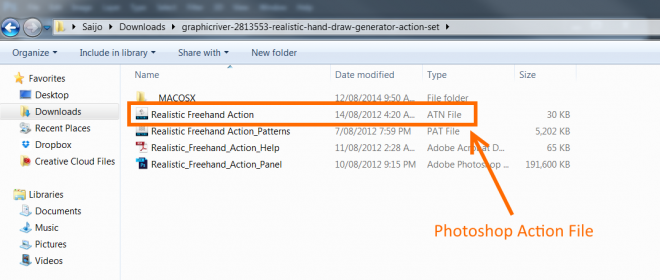
Download the ZIP file and extract the contents. You will find the Photoshop Action .ATN file(s) there.

There are multiple ways to go about installing Photoshop Actions:
Method 1:
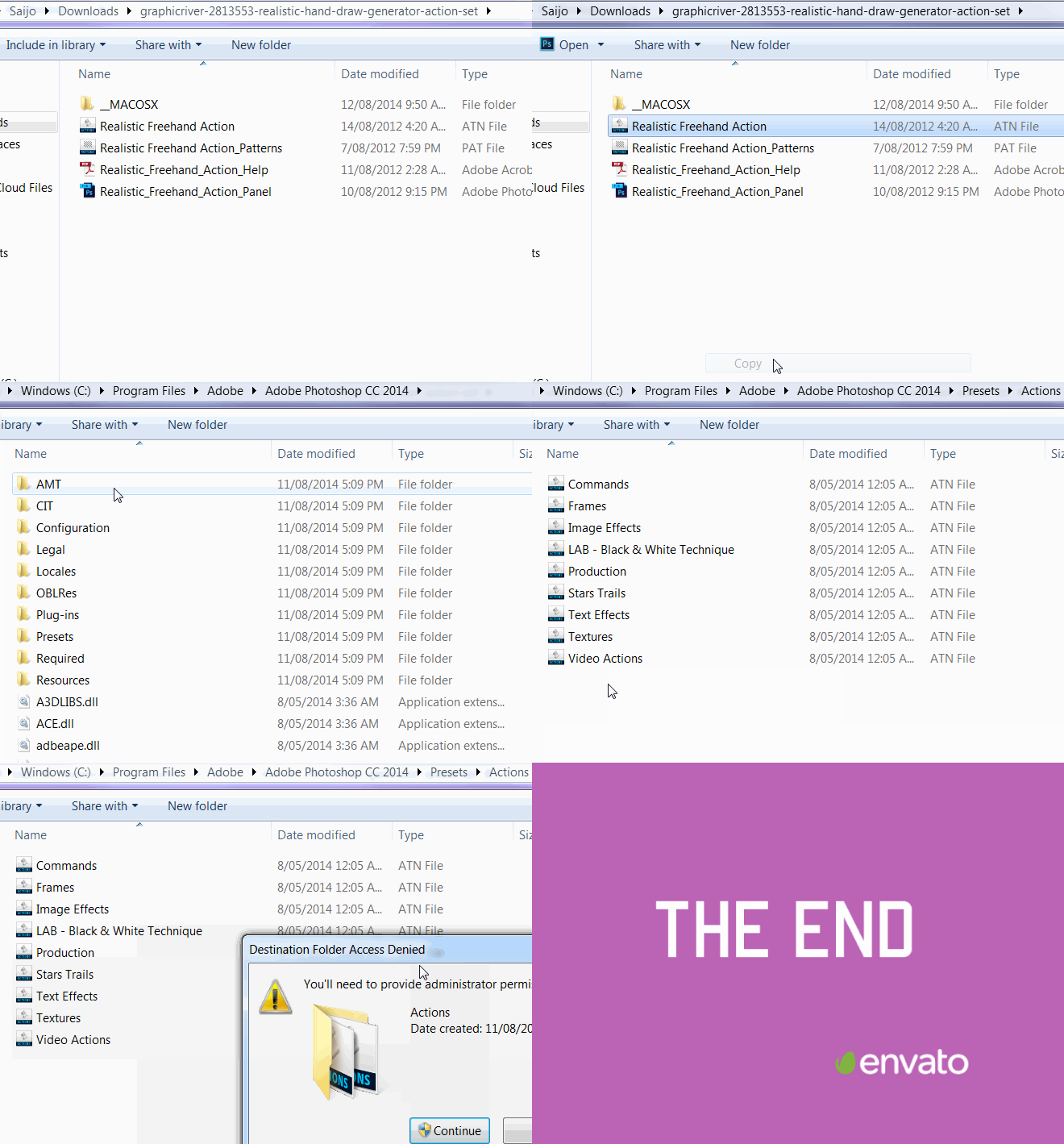
Browse to your Photoshop folder, enter the Presets folder and then the Actions folder. Once you are in the Actions folder, copy paste the .ATN file there (or you can drag and drop the .ATN file).

Method 2:
In Photoshop, go to the Window menu and open the Actions panel. Click the flyout menu on the upper right corner of the Actions panel and select Load Actions … Now navigate to the Action(s) file you want to load, select it and click Load.

Now that we have downloaded and installed them, we can now move on to actually using them…
Once installed, you can open any image in Photoshop and run the selected action. All you have to do is select the action you want to use, and click the play selection icon to get the desired result.
In the below example I am not actually going to perform any customization, I am just going to keep hitting enter for the action to run its course.
Here are some samples from this particular action:

And that is it. And yes, it really is that easy!
Where do you go from here? Well, now that you have learned how to install and apply a Photoshop Action your next step could be to grab one of the many Photoshop Actions we have available on Envato Elements.
Here are other blogs to check out:
Explore movie typography trends shaping 2026, from bold film fonts to cinematic branding, with inspiring examples and practical tips for creating impactful, screen-ready typography.
Explore the bold botanical design trend shaping 2026, from lush patterns and floral design to branding, interiors, and nature-inspired creative projects rooted in biophilic aesthetics.
Learn what font Disney uses, why it’s not downloadable, and discover Disney-style font alternatives to recreate that iconic, playful branding style in your own designs.
Explore PowerPoint templates with professionally designed layouts to create polished, modern, and visually cohesive presentations.